# Google Sheets Add-on
The Bkper Add-on for Google Sheets connects your Bkper Books to Google Sheets in both directions — fetch live data from Bkper for reports, and record data from Sheets into your Books.
Bkper Functions stay connected to your Books. Every posted transaction updates the report. Press **Update** from the Bkper menu to refresh all formulas at once.
## Install
Install from the [Google Workspace Marketplace](https://workspace.google.com/marketplace/app/bkper/360398463400), then open a Google Sheet and go to **Extensions >> Bkper >> Open**.
[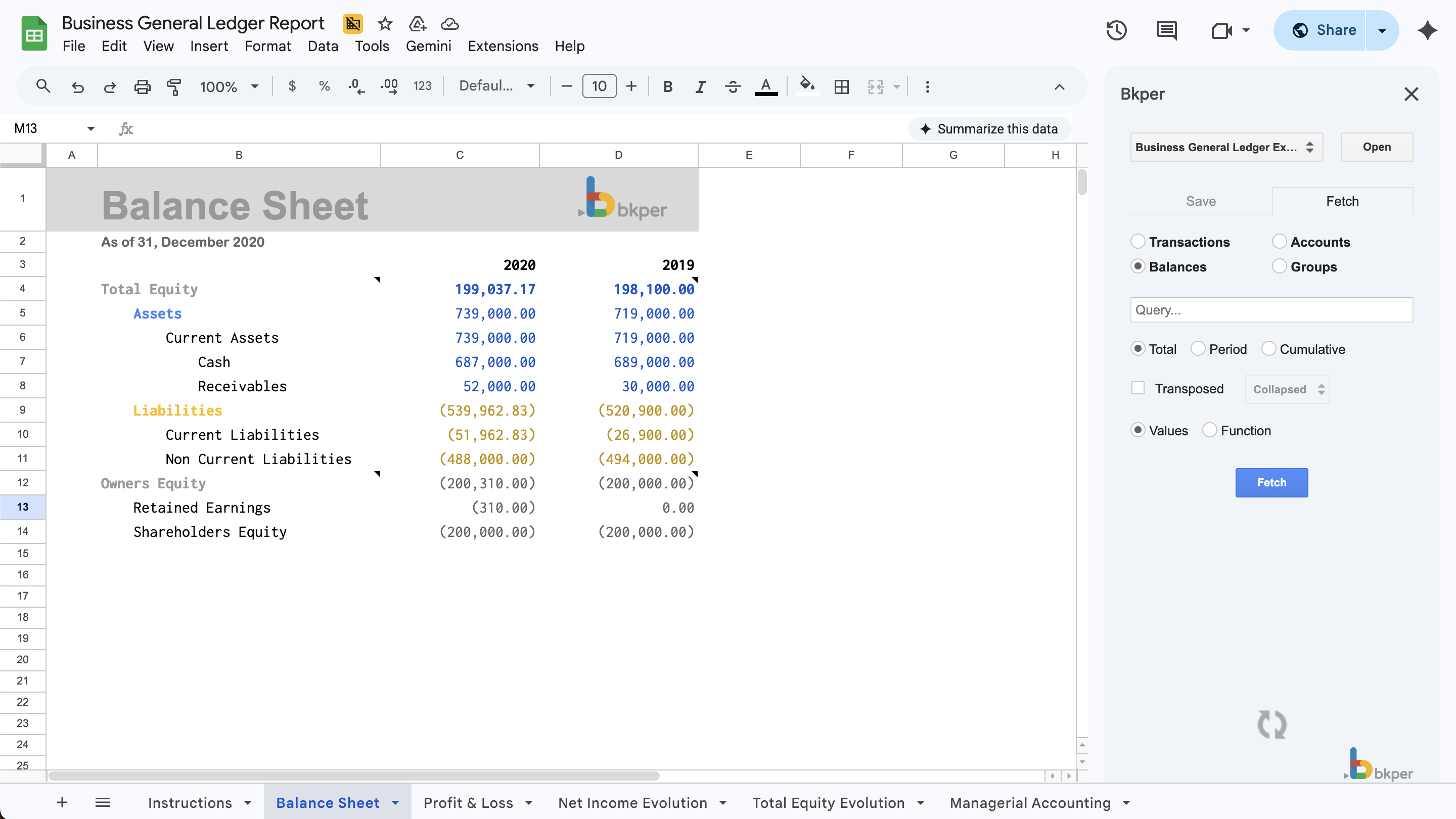](https://docs.google.com/spreadsheets/d/1icR8z8F3RSBeedfMbNE4-Q2FZvxyDhZeSrHuSXvPXr8/edit?gid=7113480#gid=7113480)
For the detailed installation walkthrough, see [Install the Add-on](https://bkper.com/docs/guides/google-sheets/install).
## Functions reference
All Bkper Functions share two common parameters:
| Parameter | Type | Description |
|---|---|---|
| **bookId** | string | The unique identifier for your Bkper Book. Find it in the Book URL or copy from the sidebar |
| **cache** | number | Controls caching. The **Update** menu increments this on all functions to force a fresh fetch |
Type `=BKPER_` in any cell and Google Sheets autocomplete suggests available functions.
### Update reports
Press **Extensions >> Bkper >> Update** to refresh all Bkper Functions on your Sheet. This increments the `cache` parameter on every formula, forcing a fresh data fetch from Bkper.
### Balance functions
Balance functions return aggregated values for financial statements. In addition to `bookId` and `cache`, they share these parameters:
| Parameter | Type | Description |
|---|---|---|
| **query** | string | [Query](https://bkper.com/docs/guides/using-bkper/search-and-queries) to filter results |
| **expanded** | boolean or number | Expand Group tree. `TRUE` expands the Group itself, `-1` expands all subgroups, `-2` expands all Accounts, any other number expands up to that level |
| **transposed** | boolean | `TRUE` to transpose the result (rows ↔ columns) |
The sixth parameter varies by function — `hideNames` or `hideDates` — documented below.
BKPER_BALANCES_TOTAL — Total balance for a period
```
=BKPER_BALANCES_TOTAL(bookId, cache, query, expanded, transposed, hideNames)
```
| Parameter | Type | Description |
|---|---|---|
| **hideNames** | boolean | `TRUE` to hide Account/Group names |
Results are ordered from largest to smallest amount.
**Example — total revenue for 2024:**
```
=BKPER_BALANCES_TOTAL("bookId", 1, "group:'Revenue' after:01/2024 before:01/2025", TRUE, FALSE, FALSE)
```
BKPER_BALANCES_PERIOD — Balance per period (monthly, yearly)
```
=BKPER_BALANCES_PERIOD(bookId, cache, query, expanded, transposed, hideDates)
```
| Parameter | Type | Description |
|---|---|---|
| **hideDates** | boolean | `TRUE` to hide the dates row/column |
Results are ordered by Account name. The default period is monthly unless specified in the query. Balance values are the debits/credits in the specified time range — useful for Profit & Loss statements.
**Example — monthly revenue breakdown:**
```
=BKPER_BALANCES_PERIOD("bookId", 1, "group:'Revenue' after:01/2024 before:01/2025", TRUE, TRUE, FALSE)
```
BKPER_BALANCES_CUMULATIVE — Running balance over time
```
=BKPER_BALANCES_CUMULATIVE(bookId, cache, query, expanded, transposed, hideDates)
```
| Parameter | Type | Description |
|---|---|---|
| **hideDates** | boolean | `TRUE` to hide the dates row/column |
Results are ordered by Account name. For Asset and Liability Accounts, the balance from before the period is carried forward. For Incoming and Outgoing Accounts, the balance starts at 0 and accumulates over the fetched period — useful for Balance Sheets.
**Example — cumulative asset balances:**
```
=BKPER_BALANCES_CUMULATIVE("bookId", 1, "group:'Assets' after:01/2024 before:01/2025", TRUE, TRUE, FALSE)
```
BKPER_BALANCES_TRIAL — Debit and credit columns
```
=BKPER_BALANCES_TRIAL(bookId, cache, query, expanded, transposed, hideNames)
```
| Parameter | Type | Description |
|---|---|---|
| **hideNames** | boolean | `TRUE` to hide Account/Group names |
**Example:**
```
=BKPER_BALANCES_TRIAL("bookId", 1, "group:'Revenue' after:01/2024 before:01/2025", TRUE, FALSE, FALSE)
```
#### Hashtag filtering
Balance queries that combine a Group or Account with a hashtag return the balance for that specific combination. This enables managerial accounting — track costs per project, revenue per department, or expenses per client.
```
=BKPER_BALANCES_TOTAL("bookId", 1, "group:'COGS' #projectB on:2025", FALSE, FALSE, TRUE)
```
> Balance filtered by hashtag is calculated for up to **3,000** transactions.
> **Note:** `BKPER_BALANCES_TOTAL` and `BKPER_BALANCES_TRIAL` return a single empty cell when no results match the query.
### Data functions
Data functions return complete record listings with IDs, Groups, and Custom Properties included automatically.
BKPER_TRANSACTIONS — Fetch transactions
```
=BKPER_TRANSACTIONS(bookId, cache, query)
```
| Parameter | Type | Description |
|---|---|---|
| **query** | string | [Query](https://bkper.com/docs/guides/using-bkper/search-and-queries) to filter transactions |
**Output columns:**
| Column | Description |
|---|---|
| Transaction Id | Unique identifier |
| Status | DRAFT, UNCHECKED, CHECKED, or TRASHED |
| Date | Transaction date |
| Origin | From Account |
| Destination | To Account |
| Description | Transaction description |
| Amount | Transaction amount |
| Balance | Running balance (only when filtering by a single permanent Account) |
| Recorded at | Date and time recorded |
| *Custom Properties* | Any Custom Properties on the transaction |
| *Remote Ids* | External system identifiers |
| *Attachments* | URLs or file attachments |
The **Balance** column only appears when your query filters by a single permanent Account (Asset or Liability).
**Example:**
```
=BKPER_TRANSACTIONS("bookId", 1, "acc:'Bank Account' after:01/2024")
```
BKPER_ACCOUNTS — Fetch chart of accounts
```
=BKPER_ACCOUNTS(bookId, cache, group)
```
| Parameter | Type | Description |
|---|---|---|
| **group** | string (optional) | Filter by Group name or Group ID. Includes child Group Accounts |
**Output columns:**
| Column | Description |
|---|---|
| Account Id | Unique identifier |
| Name | Account name |
| Type | ASSET, LIABILITY, INCOMING, or OUTGOING |
| *Group columns* | One column per Group, showing membership |
| *Custom Properties* | Any Custom Properties on the Account |
Accounts are sorted by type (Asset, Liability, Incoming, Outgoing) then alphabetically by name. Archived Accounts are excluded.
**Examples:**
```
=BKPER_ACCOUNTS("bookId", 1)
=BKPER_ACCOUNTS("bookId", 1, "Expenses")
```
BKPER_GROUPS — Fetch group structure
```
=BKPER_GROUPS(bookId, cache)
```
**Output columns:**
| Column | Description |
|---|---|
| Group Id | Unique identifier |
| Name | Group name |
| Type | ASSET, LIABILITY, INCOMING, OUTGOING, ASSET_LIABILITY, or INCOMING_OUTGOING |
| Parent | Parent Group name |
| Children | Number of child Groups |
| Accounts | Number of Accounts in the Group |
| *Custom Properties* | Any Custom Properties on the Group |
Groups are sorted hierarchically — parent Groups first, then children. Hidden Groups are excluded.
**Example:**
```
=BKPER_GROUPS("bookId", 1)
```
### Reorder results
Wrap any Bkper Function with Google Sheets `QUERY` to reorder results:
```
=QUERY(A2:B5, "Select A, B order by A desc")
```
## Fetch data via sidebar
You can also fetch data through the sidebar without writing formulas. Open the sidebar (**Extensions >> Bkper >> Open**), select a Book, go to the **Fetch** tab, choose a data type (Transactions, Balances, Accounts, or Groups), optionally enter a query, and choose whether to insert a **live formula** or static **values**.
> **Tip:** In the sidebar, hold **Shift** while clicking the Open/Create button to insert the Book ID into the active cell. Hold **Alt** to load the Book ID from the active cell.
## Recording data
Open the sidebar (**Extensions >> Bkper >> Open**), select a Book, go to the **Save** tab, choose a data type, select the cells, and press **Save**. Each row creates or updates one record in Bkper. Enable the **Highlight** checkbox to turn saved rows green.
> If you only have **Viewer** access to the selected Book, the Save tab is hidden and you can only fetch data.
### Column headers
The Add-on uses the first row as a header to map columns. Headers are recognized in two ways:
- **Frozen first row** — When you freeze the first row (View >> Freeze >> 1 row), the Add-on always treats it as a header
- **Recognized column names** — Even without freezing, the Add-on recognizes specific column names for **Transactions**
When no frozen row and no recognized names are found, the Add-on falls back to positional parsing. **Accounts** and **Groups** always require a frozen first row for header recognition.
> Freeze the first row for maximum flexibility and Custom Property support.
#### Blank headers
Columns with blank headers are ignored. Use this for internal columns (like checkboxes) that shouldn't be recorded.
### Transaction columns
| Column | Aliases | Description |
|---|---|---|
| **Date** | — | Transaction date |
| **Amount** | — | Transaction amount |
| **From** | Origin, From Account, Credit Account | From Account |
| **To** | Destination, To Account, Debit Account | To Account |
| **Description** | — | Transaction description |
| **ID** | — | Remote ID for deduplication |
| **Attachment** | — | File attachment URL |
| **BookId** | — | Target Book ID (overrides sidebar selection) |
| **Transaction Id** | — | Existing ID for updates (read-only) |
| **Status** | — | Transaction state (read-only) |
| **Recorded at** | Created at | Creation timestamp (read-only) |
| **Balance** | — | Account balance (read-only) |
When both From and To Accounts are provided along with an Amount, the transaction is **posted** directly. Otherwise it is saved as a **draft**.
If no **Description** is provided, the Add-on joins all remaining cell values with spaces to create an automatic description.
Any column with a header that is not a recognized system column normally becomes a [Custom Property](https://bkper.com/docs/guides/using-bkper/properties). **Exception:** if the header matches a **Group name** in your Book, the Add-on creates an Account with that cell value under that Group instead of adding a property.
#### New vs update
| Transaction Id column | Action |
|---|---|
| Empty or missing | Records a new transaction |
| Contains an existing ID | Updates the existing transaction |
This enables a bulk edit workflow: **fetch** transactions → **edit** in your Sheet → **save** back to Bkper. When updating, read-only columns (Transaction Id, Status, Recorded at, Balance, Attachment) are ignored.
#### Remote IDs
The **ID** column maps to a Remote ID in Bkper — a reference to an external identifier (bank transaction number, invoice ID, etc.). Bkper uses Remote IDs to prevent duplicates: if a transaction with the same Remote ID already exists, it won't be recorded again. Duplicate IDs in your selection are flagged in red before saving.
### Account columns
| Column | Description |
|---|---|
| **Name** | Account name (required) |
| **Type** | ASSET, LIABILITY, INCOMING, or OUTGOING. Defaults to ASSET if not specified |
| **Group** | Group to assign the Account to. Use multiple Group columns for multiple groups |
| **BookId** | Target Book ID (overrides sidebar selection) |
| *Other columns* | Custom Properties (when first row is frozen) |
When an Account with the same name already exists, it is updated — new Groups and properties are added, but existing ones are not removed. Accounts are sorted by type then highlighted with the corresponding type color after saving.
> **Positional fallback** (no valid header): `Name | Type | Group1 | Group2 | ...`
### Group columns
| Column | Description |
|---|---|
| **Name** | Group name (required) |
| **Parent** | Parent Group name (for hierarchies). The parent must exist or appear in an earlier row |
| **BookId** | Target Book ID (overrides sidebar selection) |
| *Other columns* | Custom Properties (when first row is frozen) |
When a Group with the same name already exists, it is updated — a new parent and properties are added if missing, but existing ones are not removed. Type, Children, and Accounts columns from fetched data are read-only and ignored when saving.
> **Positional fallback** (no valid header): `Name | Parent | ...`
### Unique IDs
Assigning a unique ID to each row makes transactions **idempotent** — a transaction with a unique ID cannot be recorded twice in the same Book.
To generate IDs: freeze the first row with an **ID** column, then go to **Extensions >> Bkper >> Generate Transaction IDs**. A unique ID is inserted for each row with data. Blank rows are skipped.
From Bkper's perspective, a unique ID from a Sheet is a Remote ID.
### Auto Record
Activate Auto Record on a tab and each new row added is automatically recorded in your Bkper Book. Useful when data flows into the Sheet from Google Forms, `QUERY` formulas, or other integrations.
To set up: open the sidebar, select a Book, then go to **Extensions >> Bkper >> Auto-Record** and toggle to **YES**. The tab turns green to indicate it's active.
**How it works:**
- Each row gets an auto-generated Remote ID so duplicates are prevented
- If a row contains **more than one date**, the first column is cleared to avoid Google Forms date duplication
- Recorded rows receive a **log note** in the first column with the timestamp, Book name, and user email
- Triggers run hourly, on sheet changes, and on form submissions
- After **50 failed retries**, the binding is automatically removed
> Deleting a row already recorded may make the internal pointer stale, preventing new rows from being recorded until it catches up. Avoid deleting recorded rows. If needed, toggle Auto Record off and back on to reset the pointer.
## Limitations
Bkper Functions use Google Apps Script, which has a **30-second runtime limit** per function call. If you hit this limit:
- Use balance functions instead of fetching all transactions
- Narrow your time range (e.g., `after:$m-12 before:$m-6`)
> Make sure your Book and Google Sheet use the same timezone. Different timezones can cause date discrepancies (d-1 or d+1).
## Learn more
- [Install the Add-on](https://bkper.com/docs/guides/google-sheets/install) — step-by-step installation and sidebar walkthrough
- [Build Your First Report](https://bkper.com/docs/guides/google-sheets/first-report) — hands-on tutorial from zero to a working balance report
- [Financial Statements template](https://bkper.com/docs/guides/templates/financial-statements) — Balance Sheet, Income Statement, and Retained Earnings on Google Sheets
- [Profit and Loss template](https://bkper.com/docs/guides/templates/profit-and-loss) — dynamic P&L report using balance period functions
- [Search and Queries](https://bkper.com/docs/guides/using-bkper/search-and-queries) — query syntax for filtering data
- [Known Issues](https://bkper.com/docs/guides/troubleshooting/known-issues-google-sheets) — troubleshooting common problems
- [Google Workspace Marketplace](https://workspace.google.com/marketplace/app/bkper/360398463400) — install the Add-on