# Bkper Documentation (Full)

---
source: /docs/ai.md

# AI

AI can help draft transactions, answer questions, build scripts, and prepare review work. Bkper keeps the source of truth in zero-sum Books: every transaction moves resources from one Account to another, balances are calculated from records, and events preserve review history.

## Where to start

Choose the task that best matches what you want to accomplish:

    - [Process documents](https://bkper.com/docs/ai/bkper-agent.md): Turn receipts, invoices, statements, emails, and attachments into draft transactions.
    - [Work with an AI assistant](https://bkper.com/docs/ai/cli-vs-mcp.md): Choose conversational Bkper access or a local workflow with files, scripts, and tests.
    - [Build with AI](https://bkper.com/docs/ai/coding-agents.md): Create Bkper reports, scripts, apps, and integrations with a coding agent.
    - [Understand AI safely](https://bkper.com/docs/ai/fundamentals.md): Learn how AI behaves and why financial outputs need deterministic checks and human review.

### More AI topics

- [Bkper CLI Agent](https://bkper.com/docs/ai/bkper-cli-agent.md) — work with local files, commands, scripts, and Bkper context.
- [Bkper MCP](https://bkper.com/docs/ai/bkper-mcp-server.md) — connect a hosted assistant through conversational tool calls.
- [Models and Usage](https://bkper.com/docs/ai/models.md) — compare models, capabilities, rates, and allowances.
- [Bkper AI Provider](https://bkper.com/docs/ai/bkper-ai-provider.md) — connect a compatible inference client using Bkper authentication.
- [Docs for AI](https://bkper.com/docs/ai/docs-for-ai.md) — give Bkper documentation and API references to an assistant.
- [CLI Agent Security](https://bkper.com/docs/ai/cli-agent-security.md) — protect credentials and scope local agent permissions.
- [OpenAccountants](https://bkper.com/docs/ai/openaccountants.md) — prepare tax or accounting work for professional review.

## Safety rule

Raw AI output is not final for balances, statements, reconciliations, taxes, or filing decisions. Use AI to draft, organize, explain, and build tools. Let Bkper records, deterministic checks, and human review carry the final financial answer.

---
source: /docs/ai/bkper-agent.md

# Bkper Agent

Bkper Agent turns documents and short descriptions into draft transactions inside Bkper. Use it to reduce data entry while keeping each result as a draft until you post it.

This page is a usage guide. The canonical app overview and current configuration reference live at [Bkper Agent](https://bkper.com/apps/bookbot.md).

> **Note: Source of truth**
> AI extraction creates drafts, not final records. In Bkper, drafts do not affect balances. Posted transactions move resources from one Account to another and update the Book.
## When it runs

Bkper Agent is installed automatically on every Book. You do not start a session or connect a separate assistant. It runs from Book events such as:

- **file uploaded** — extracts transactions from receipts, invoices, bills, statements, and CSVs;
- **transaction created** — updates transactions from attached files and uses descriptions to suggest dates, amounts, Accounts, hashtags, and properties;
- **transaction posted or updated** — learns from corrected drafts and improves future extraction patterns.

This is different from [Bkper CLI Agent](https://bkper.com/docs/ai/bkper-cli-agent.md), which is an interactive terminal assistant you start yourself for local files, scripts, tests, and Bkper CLI commands. It is also different from [Bkper MCP](https://bkper.com/docs/ai/bkper-mcp-server.md), which connects conversational assistants to Bkper through MCP tool calls.

For calculations, reports, reconciliations, or tax worksheets, use deterministic tools and reviewable scripts instead. See [AI Fundamentals for Accounting](https://bkper.com/docs/ai/fundamentals.md).

## How documents become drafts

| Input                                    | What Bkper Agent does                                                    |
| ---------------------------------------- | ------------------------------------------------------------------------ |
| Receipt, invoice, or bill                | One transaction with extracted date, amount, description, and properties |
| Bank or credit card statement            | One transaction per recognized statement row                             |
| CSV statement                            | Multiple transactions from rows                                          |
| File attached to an existing transaction | The existing transaction is updated and keeps the file                   |
| Email forwarded to a Book                | Attachments are parsed and kept with the resulting drafts                |

## Guide the Agent

Good results come from clear context and consistent corrections.

1. **Start from the right Account.** The Agent uses the selected context and historical transactions to infer the missing side of the movement.
2. **Use consistent descriptions and hashtags.** Reusing tags such as `#rent`, `#software`, or `#client_acme` gives the Agent stronger signals for future account matching.
3. **Correct drafts before posting.** Fix the date, amount, Accounts, description, hashtags, and properties. Posted corrections help the Agent improve future extraction.
4. **Prefer repeated corrections over one-off prompts.** If a vendor, bank, or statement format repeats, your corrected posted transactions become useful training examples.
5. **Add explicit instructions only for stable patterns.** If the same document type is repeatedly parsed wrong, add Account or Group instructions such as which column to use, which total to extract, or which property name to fill. Keep instructions factual and narrow.

For hashtag hygiene and account-matching signals, see [Hashtags](https://bkper.com/docs/guides/using-bkper/hashtags.md). For advanced prompt and parser properties, use the [Bkper Agent app reference](https://bkper.com/apps/bookbot.md#configuration).

## Before posting

Before posting an AI-created draft, check:

- **Date** — matches the transaction, purchase, service, posting, or payment date you intend to record.
- **Amount** — matches the source document or statement row.
- **From and To Accounts** — represent the actual resource movement in Bkper's from-to model.
- **Description and hashtags** — are searchable and consistent with your Book.
- **Properties** — include useful metadata, but not noisy values you do not report on.
- **Attachment** — belongs to the transaction and remains available as evidence.
- **Duplicates** — especially after importing statements or forwarding the same document twice.

If the draft is incomplete, keep it as a draft until the missing Account, date, amount, or evidence is resolved.

## Related guides

- [Bkper Agent app reference](https://bkper.com/apps/bookbot.md) — current capabilities, configuration properties, and supported file types.
- [Record Transactions by Email](https://bkper.com/docs/guides/using-bkper/record-by-email.md) — forward invoices, receipts, and statements to a Book.
- [Attachments](https://bkper.com/docs/guides/using-bkper/attachments.md) — keep documents with the transactions they support.
- [Hashtags](https://bkper.com/docs/guides/using-bkper/hashtags.md) — use tags consistently so the Agent can match patterns.
- [AI Fundamentals for Accounting](https://bkper.com/docs/ai/fundamentals.md) — keep AI-assisted financial work reviewable and deterministic.

---
source: /docs/ai/bkper-ai-provider.md

# Bkper AI Provider

Bkper AI provides selected AI models through one endpoint using Bkper authentication and the AI allowance included with eligible plans. The Bkper CLI Agent is ready to use without a separate provider account or API keys. Other clients can connect through the [Open Responses `2026-04-24` contract](https://www.openresponses.org/specification/2026-04-24).

Bkper AI keeps provider credentials server-side. It routes requests, attributes usage, meters provider-reported tokens, and enforces the recorded monthly allowance. Compatible clients retain control of model and generation settings within provider-native capabilities.

Bkper AI returns model responses. It does not give a model access to Books, files, tools, or local commands. The consuming client controls those capabilities and their permissions.

## Requirements

You need:

- a Bkper account with an eligible subscription or trial allowance;
- a valid Bkper OAuth access token;
- a client that supports Open Responses with a custom base URL.

Requests are attributed to the authenticated Bkper user. Business subscriptions use a shared domain allowance. See [Models and Usage](https://bkper.com/docs/ai/models.md) for allowance scope, current rates, and model capabilities.

## Provider configuration

| Setting         | Value                                        |
| --------------- | -------------------------------------------- |
| Provider type   | Open Responses `2026-04-24` profile          |
| Base URL        | `https://ai.bkper.app/v1`                    |
| Authentication  | `Authorization: Bearer ` |
| Model discovery | `GET /v1/models`                             |
| Inference       | `POST /v1/responses`                         |

The live `GET /v1/models` response is authoritative for the current default model, available IDs, capabilities, limits, and effective usage rates. Generic integrations can start with `default_model`. Capability-sensitive integrations should inspect the selected entry in `data` instead of relying on model IDs or capabilities shown in examples.

When a client asks for an API key, provide the Bkper access token. The client should send it as a bearer token. Do not use an OpenAI, Anthropic, or xAI API key with the Bkper AI base URL.

Bkper AI implements a documented subset of Open Responses. It does not claim full specification compliance.

## Model IDs

Bkper AI publishes stable, versionless, slash-free family IDs such as `gpt-luna`, `grok`, and `gemini-flash`.

A family ID remains stable when Bkper upgrades its concrete provider revision. Provider revisions are an internal serving detail rather than a public version-pinning contract.

Older versioned and publisher-prefixed IDs still work as compatibility aliases, but they resolve to the current model family rather than pinning an older revision. Catalogs, responses, and usage reports return the canonical family ID.

## Get a token for local testing

Any supported Bkper OAuth flow can supply the access token. The Bkper CLI is a convenient way to obtain a short-lived token for local testing:

```bash
bkper auth login
export BKPER_TOKEN="$(bkper auth token)"
```

Treat the token as a secret. Do not commit it, print it in shared logs, or put it in a client-side application bundle.

## Send a complete request

This request uses one current model ID as an example. Use `GET /v1/models` or [Models and Usage](https://bkper.com/docs/ai/models.md) for the current portfolio.

```bash
curl --fail-with-body https://ai.bkper.app/v1/responses \
  -H "Authorization: Bearer ${BKPER_TOKEN}" \
  -H "Content-Type: application/json" \
  -H "bkper-ai-source: my-harness" \
  --data '{
    "model": "gpt-luna",
    "input": "Reply with exactly: connected",
    "store": false
  }'
```

The response is an Open Responses resource. Its `model` contains the canonical public Bkper model ID, and `store` is always `false`.

The `bkper-ai-source` header is optional. Set it to a stable lowercase identifier such as `my-harness` when you want the usage dashboard to attribute requests to that client or application. The legacy `bkper-agent-id` header remains a fallback. Requests without a valid identifier appear with an unknown source.

## Stream a response

Set `stream` to `true` to receive semantic server-sent events:

```bash
curl --no-buffer --fail-with-body https://ai.bkper.app/v1/responses \
  -H "Authorization: Bearer ${BKPER_TOKEN}" \
  -H "Content-Type: application/json" \
  --data '{
    "model": "grok",
    "input": "Explain the from-to movement model in one sentence.",
    "stream": true,
    "store": false
  }'
```

Each SSE `event:` name matches the event body's `type`. Sequence numbers increase monotonically. A stream ends with one terminal response event followed by `data: [DONE]`.

## Supported profile

The Phase 1 profile supports:

- all model IDs listed by `GET /v1/models`;
- string input and explicit conversation item arrays;
- system, developer, user, and assistant messages;
- text and image input;
- inline PDF input through Base64 `input_file.file_data` for models that advertise native file support;
- JSON Schema structured output through `text.format` for models that advertise native schema support;
- function tools, function calls, function outputs, and multiple tool calls where the model supports them;
- model-supported reasoning effort pass-through and reasoning summaries;
- encrypted reasoning continuity where the provider supplies it;
- `prompt_cache_key` for short cache and session affinity;
- complete JSON responses and semantic SSE streaming;
- explicit conversation history across supported models and providers.

The server validates model-specific file, structured-output, output, and reasoning settings before provider dispatch. Valid client values pass through unchanged. Omitted values remain omitted when the native provider protocol allows omission. Context overflow errors are normalized after the provider performs native tokenization. Provider-reported usage drives deterministic allowance settlement.

### Structured JSON output

Set `text.format.type` to `json_schema` and provide a standard JSON Schema. Bkper AI maps the schema to each model provider's native structured-output mechanism.

- `strict: true` is preserved only when the selected model can enforce the submitted schema subset.
- `strict: false` supports schemas that require provider-supported flexibility, such as typed dynamic maps.
- Malformed supported keywords and incompatible schemas fail before provider dispatch. Bkper AI never silently changes a strict schema to non-strict behavior.

The returned structured JSON is contained in the assistant `output_text` and should still be parsed and validated by the client before use.

### Inline PDF input

Use one inline PDF source with a filename:

```json
{
    "type": "input_file",
    "filename": "document.pdf",
    "file_data": "<base64>"
}
```

Bkper AI validates the Base64 content and selected model capability before dispatch. It sends inline content through the provider's native document input and does not upload it to a hidden provider Files API.

Inline files are available only on models that advertise native support. The current xAI model does not support inline `file_data`. Use `GET /v1/models` to inspect current capabilities.

## Privacy, retention, and caching

**Zero data retention where available. Minimum retention everywhere.** Bkper disables provider application storage on every request and keeps prompt and response content out of usage logs.

Bkper applies these boundaries across the inference path:

- omitted `store` becomes `false`, and `store: true` is rejected before provider dispatch;
- Bkper usage records contain attribution, status, token, cache, and cost metadata—not prompt or response content;
- detailed Bkper usage events are retained for 180 days, while daily aggregate usage remains available for allowance enforcement and reporting;
- Cloudflare AI Gateway payload logging is disabled, while content-free request metadata remains available for observability;
- exact, non-streaming structured JSON requests and responses may be cached by Cloudflare for up to 24 hours; other response requests bypass this cache;
- provider-native prompt caches may hold content temporarily under the selected provider's caching policy.

Provider retention controls differ:

| Provider                   | Bkper configuration                                                                                                | Provider retention boundary                                                                                                                                                                                                                                        |
| -------------------------- | ------------------------------------------------------------------------------------------------------------------ | ------------------------------------------------------------------------------------------------------------------------------------------------------------------------------------------------------------------------------------------------------------------ |
| **xAI**                    | `store: false`; Zero Data Retention is active for Bkper's xAI team                                                 | Prompt and response retention is disabled under the enabled Zero Data Retention control.                                                                                                                                                                           |
| **OpenAI**                 | `store: false`; Bkper organization API-call logging is disabled                                                    | API data is not used for training by default. Customer content may remain in abuse-monitoring logs for up to 30 days because Bkper does not currently have OpenAI Zero Data Retention.                                                                             |
| **Google Gemini paid API** | `store: false`; Bkper avoids Search and Maps grounding, the File API, and explicit context caching                 | Paid API content is not used for training. Content may be retained for limited abuse monitoring because Bkper's AI Studio project does not currently have approved Zero Data Retention. Gemini may also use project-isolated in-memory caching for up to 24 hours. |
| **Fireworks AI**           | `store: false`; Zero Data Retention is active by default; used as the current serving route for open-weight models | Fireworks does not log or persist prompt or generation data for open models without explicit opt-in. Prompt caching may retain data in volatile memory for several minutes. `store: false` prevents Response API conversation storage.                             |

Public model identity is independent of serving infrastructure. The catalog's `owned_by` field identifies the model creator. Bkper may change a serving route or upgrade the concrete provider revision without changing the canonical model family ID.

Caching is separate from response state and logging. A cache can temporarily retain an exact request and response without creating a retrievable conversation or including that content in usage logs. `prompt_cache_key` may be retained as usage metadata and displayed in the usage dashboard, so use an opaque identifier rather than customer or financial information.

Provider policies and Bkper configurations can change. Review these primary references for the current boundaries:

- [Google Gemini API zero data retention](https://ai.google.dev/gemini-api/docs/zdr)
- [OpenAI platform data controls](https://developers.openai.com/api/docs/guides/your-data)
- [Fireworks AI zero data retention](https://docs.fireworks.ai/guides/security_compliance/data_handling)
- [Cloudflare AI Gateway caching](https://developers.cloudflare.com/ai-gateway/features/caching/)
- [Cloudflare AI Gateway logging](https://developers.cloudflare.com/ai-gateway/observability/logging/)

## Stateless behavior

Bkper AI does not persist response state:

- omitted `store` behaves as `false`;
- `store: false` is accepted;
- `store: true` is rejected;
- continue conversations by sending explicit prior items in `input`.

`prompt_cache_key` is a bounded cache hint. It is not a persisted response identifier.

## Unsupported features

The current profile rejects:

- `previous_response_id`;
- background responses;
- response retrieval or deletion;
- client `metadata`;
- `input_file.file_id` and `input_file.file_url`;
- inline file types or models without advertised native support, including xAI inline files;
- remote HTTP/HTTPS image URLs for Gemini; send Gemini images as inline data URLs;
- hosted provider tools;
- compaction endpoints;
- WebSocket transport;
- image generation, audio, speech, batches, and fine-tuning.

Unsupported fields fail explicitly rather than being ignored or passed to only one provider.

## Errors

Errors use an Open Responses-shaped envelope with stable Bkper error codes.

| Status | Meaning                                                                           |
| ------ | --------------------------------------------------------------------------------- |
| `400`  | Invalid request, unavailable model, unsupported capability, or context overflow   |
| `401`  | Missing or invalid Bkper bearer token                                             |
| `402`  | The authenticated subscription payment is overdue                                 |
| `403`  | The account is not entitled to use Bkper AI                                       |
| `429`  | The monthly Bkper AI allowance is exhausted or the upstream provider is throttled |
| `499`  | The client aborted the request                                                    |
| `502`  | The selected upstream model provider or transport failed                          |

Bkper AI blocks new requests once the recorded monthly allowance is exhausted. There are no automatic paid Bkper AI overages and no automatic fallback to another protocol. Review the authenticated [Bkper AI usage dashboard](https://ai.bkper.app) for the current allowance and request attribution.

## Bkper CLI Agent

The Bkper CLI Agent uses Pi's standard `openai-responses` transport with Bkper authentication, source attribution, short prompt caching, and the public Bkper model IDs preconfigured.

```bash
bkper auth login
bkper agent
```

## Next steps

- [Browse the generated AI API reference](https://bkper.com/docs/api/ai.md).
- [Download the canonical OpenAPI specification](https://ai.bkper.app/openapi.json).
- [Compare models, capabilities, rates, and allowance rules](https://bkper.com/docs/ai/models.md).
- [Use the preconfigured Bkper CLI Agent](https://bkper.com/docs/ai/bkper-cli-agent.md).
- [Review Bkper CLI Agent security](https://bkper.com/docs/ai/cli-agent-security.md).

---
source: /docs/ai/bkper-cli-agent.md

# Bkper CLI Agent

The Bkper CLI includes a built-in terminal AI agent. Use it when you want an agent to work with local files, shell commands, scripts, tests, and Bkper CLI context in the same local environment.

This is Bkper's recommended starting point for local AI-assisted development. For installation, authentication, and the command reference, see [Bkper CLI](https://bkper.com/apps/bkper-cli.md).

## Use it when

- You want an agent to inspect local project files or `AGENTS.md`.
- You need shell commands, pipes, scripts, tests, or exported CSVs.
- You are building a repeatable report, import, cleanup, or integration.
- You want deterministic checks instead of raw AI answers for financial outputs.

For conversational connector access without terminal commands, use [Bkper MCP](https://bkper.com/docs/ai/bkper-mcp-server.md). For the full decision guide, see [CLI vs MCP](https://bkper.com/docs/ai/cli-vs-mcp.md).

## Quick start

1. **Authenticate with Bkper**

    ```bash
    bkper auth login
    ```

    This authenticates the CLI Agent with the preconfigured Bkper AI provider. You can instead start the agent first and use `/login`; both flows share the same local credentials and identify the authenticated account by email. See [Bkper AI Provider](https://bkper.com/docs/ai/bkper-ai-provider.md) for the client-agnostic inference interface and [Models and Usage](https://bkper.com/docs/ai/models.md) for the current portfolio, model capabilities, rates, and allowance policy.

2. **Start the terminal agent**

    ```bash
    bkper
    ```

    or:

    ```bash
    bkper agent
    ```

3. **Optionally connect another model provider**

    Type `/connect` to choose an external subscription or API-key provider. Use `/connect <provider>` to target one directly, such as `/connect openai` or `/connect anthropic`.

## Install on Windows with WSL

Run Bkper inside WSL rather than PowerShell. If WSL is not set up yet:

1. **Install WSL**

    Open **PowerShell as Administrator** and run:

    ```powershell
    wsl --install
    ```

    Restart Windows if prompted, then open **Ubuntu** from the Start menu and create your Linux username and password.

    Reference: [Install WSL](https://learn.microsoft.com/en-us/windows/wsl/install).

2. **Install Node.js**

    In the **Ubuntu terminal**, run:

    ```bash
    sudo apt update
    sudo apt install -y curl
    curl -o- https://raw.githubusercontent.com/nvm-sh/nvm/master/install.sh | bash
    source ~/.bashrc
    nvm install --lts
    ```

    Reference: [Set up Node.js on WSL](https://learn.microsoft.com/en-us/windows/dev-environment/javascript/nodejs-on-wsl).

3. **Install and open Bkper**

    Still in the **Ubuntu terminal**, run:

    ```bash
    npm i -g bkper
    bkper
    ```

    If the Bkper Agent opens, the installation is working.

    Reference: [Bkper CLI](https://bkper.com/apps/bkper-cli.md).

[Image: Bkper CLI Agent terminal interface showing the Bkper ASCII art header, command shortcuts, context, and an active input prompt]

## Why we recommend it

The Bkper CLI Agent is powered by [Pi Agent](https://pi.dev) with Bkper context built in: core concepts, SDK references, CLI commands, and the from-to accounting model.

We chose Pi because it is:

- **Token efficient** — lean context and tool loading for longer, cheaper sessions.
- **Well implemented** — a small, reliable core instead of a heavy black box.
- **Open source** — inspectable, extensible, and easier to improve.
- **Provider agnostic** — 15+ model providers, local models, and no vendor bias.
- **Bundled with Bkper** — one install gives you the agent plus Bkper domain context.

## Model providers

Bkper AI is already configured, so no separate model-provider setup is required. The CLI loads the current catalog and default from `GET /v1/models`; an explicitly saved model remains selected while it is available. See [Models and Usage](https://bkper.com/docs/ai/models.md) for the current portfolio, capabilities, rates, and allowance rules.

To use an external subscription or API key instead, type `/connect` and choose a provider. External costs, limits, and privacy terms are governed by that provider.

- `/login` and `/logout` manage Bkper authentication.
- `/connect [provider]` and `/disconnect [provider]` manage external model providers.

## Built-in safety

The Bkper CLI Agent is configured to work in reviewable steps: inspect context, explain plans, show commands for Bkper writes, and wait for confirmation before mutating data. You still approve changes and review financial outputs.

## Starter prompts

```text
Explain the account types in this Bkper book and list anything that looks unusual.
```

```text
Find possible duplicate transactions from last month. Do not modify anything; show me the query and reasoning first.
```

```text
Write a script that exports a monthly profit and loss report from Bkper balances. Keep the calculation deterministic and add a simple test fixture.
```

```text
Review unchecked transactions from this month and suggest what needs attention. Do not post, check, or edit transactions.
```

```text
Prepare an exploratory tax worksheet for 2025 from my Bkper data. Use Bkper as the source of truth and mark assumptions explicitly.
```

## Watch walkthroughs

Optional walkthroughs:

- [Bkper CLI Agent walkthrough](https://www.youtube.com/watch?v=gFkOZjfEOf8)
- [Bkper CLI Agent workflow example](https://www.youtube.com/watch?v=0fSyYdwwR_I)
- [Lucas Meijer on Pi's minimal, hackable design philosophy](https://www.youtube.com/watch?v=fdbXNWkpPMY)
- [Pi Agent overview and capabilities](https://www.youtube.com/watch?v=Dli5slNaJu0)
- [Pi architecture explained: agent loop, tools, TUI, and more](https://www.youtube.com/watch?v=gTeujlv8qK0)

## Security

The agent runs with your local workspace access and the Bkper permissions of the account used by `bkper auth login`. Before using it with real data, read [Bkper CLI Agent Security](https://bkper.com/docs/ai/cli-agent-security.md).

## Reference

Use [Bkper CLI](https://bkper.com/apps/bkper-cli.md) for canonical installation, authentication, CLI command reference, and current agent behavior.

---
source: /docs/ai/bkper-mcp-server.md

# Bkper MCP

Bkper MCP is the hosted Model Context Protocol server for Bkper. It lets AI assistants call Bkper tools through your existing Bkper account permissions.

This page is a high-level orientation. The canonical setup, endpoint, and current capability reference lives at [Bkper MCP](https://bkper.com/apps/bkper-mcp.md).

## Use it when

- You want conversational assistant access to your Bkper books.
- You are doing quick, read-heavy exploration.
- You need connector-based access without terminal commands.
- Local files, shell commands, tests, and scripts are not required.

The hosted endpoint is:

```text
https://mcp.bkper.app/mcp
```

Follow [Bkper MCP](https://bkper.com/apps/bkper-mcp.md) for setup instructions because connector screens and capabilities can change.

## Public discovery metadata

Agents and connector catalogs can discover the hosted server through these public resources:

- [MCP Registry manifest](https://bkper.com/server.json)
- [Standard MCP server card](https://bkper.com/.well-known/mcp/server-card.json)
- [Bkper MCP server card](https://bkper.com/mcp/server-card.md)
- [MCP catalog](https://bkper.com/.well-known/mcp/catalog.json)
- [Bkper AI catalog](https://bkper.com/.well-known/ai-catalog.json)

These resources describe the existing hosted endpoint. They do not provide a separate sandbox or additional permissions.

## Try asking

Good first questions are narrow and reviewable:

- “List my books and show which one looks like the operating company.”
- “Show the main accounts and groups in this book.”
- “Summarize unchecked transactions from last month.”
- “Find transactions that may need review before reconciliation.”

For any write, give the assistant a standing instruction:

```text
Before making any change in Bkper, explain the exact plan and ask for my confirmation.
```

## Safety model

When you connect Bkper MCP:

- you authorize access with Bkper OAuth;
- your existing Bkper permissions still apply;
- Bkper remains the source of truth for books, transactions, groups, accounts, balances, permissions, lock dates, and audit history;
- write operations should require an explicit plan and your confirmation before they happen.

## Use CLI instead when

If your assistant can run terminal commands, prefer CLI local tools for Bkper work. MCP is usually not the strongest path for work that needs local artifacts:

- scripts and repeatable reports;
- shell pipes, `jq`, CSV transformations, or local files;
- app development;
- tests and deterministic build artifacts;
- long multi-turn work that benefits from project context.

For those workflows, use CLI local tools whenever possible. See [CLI vs MCP](https://bkper.com/docs/ai/cli-vs-mcp.md).

## Related pages

- [Bkper MCP](https://bkper.com/apps/bkper-mcp.md) — canonical setup and reference.
- [CLI vs MCP](https://bkper.com/docs/ai/cli-vs-mcp.md) — choose how an AI assistant should use Bkper.

---
source: /docs/ai/cli-agent-security.md

# Bkper CLI Agent Security

The Bkper CLI Agent runs in your terminal with local workspace access and the Bkper permissions of the account used by `bkper auth login`. A misconfigured local agent can read credentials, overwrite files, or modify live financial data.

This page covers the Bkper CLI Agent. Other AI tools and hosted connectors should be secured with their own vendor-specific controls.

> **Tip: Recommended safe setup**
> Run the Bkper CLI Agent in a sandbox. Authenticate with a secondary low-permission Bkper account. Log out when finished.
Three layers of protection keep Bkper CLI Agent work safe:

[Image: Three layers of agent security: sandbox isolation restricts what the agent can reach, credential protection controls how the agent authenticates, and permission scoping limits what the agent can do in Bkper]

## Sandbox isolation

The most effective way to limit the Bkper CLI Agent is to run it inside a sandbox — a container, micro-VM, or OS-level boundary that restricts what it can reach.

[Image: Sandbox isolation: the agent can only access project files, CLI, and SDK inside the sandbox boundary, while credentials, SSH keys, and other sensitive files on the host machine remain unreachable]

The Bkper CLI Agent may run local shell commands without per-command approval. Per-command approval sounds safe, but it creates friction that kills productivity when the agent needs to run builds, tests, and CLI commands.

That local autonomy should stay inside a restricted boundary. For Bkper writes, the agent should still show the plan or exact command and wait for your confirmation before modifying live financial data.

### Container or micro-VM sandboxing

Use a container or micro-VM boundary when the Bkper CLI Agent works with real data. We use Docker with [DevContainers](https://containers.dev) and [DevPod](https://devpod.sh) to get reproducible, isolated environments that work the same way locally and in the cloud.

Other sandbox tools worth knowing about:

- [Docker Sandboxes](https://docs.docker.com/ai/sandboxes/) — microVM-based sandboxes built for coding agents, with host-side credential injection
- [Gondolin](https://earendil-works.github.io/gondolin/) — lightweight micro-VMs with programmable network egress and secret injection
- [Podman](https://podman.io) — rootless, daemonless Docker alternative

## Credential protection

Even inside a sandbox, the Bkper CLI Agent can access any credentials present in that environment. The Bkper CLI stores OAuth credentials (including a refresh token) at `~/.config/bkper/.bkper-credentials.json`. If the agent can read that file, it can make API calls as you.

### Host-side credential injection

The most secure option. Your credentials never enter the sandbox — an HTTP proxy on the host intercepts outbound API requests and injects authentication headers before forwarding them. [Docker Sandboxes](https://docs.docker.com/ai/sandboxes/security/credentials/) and [Gondolin](https://earendil-works.github.io/gondolin/) implement this pattern.

This works well with the Bkper CLI because only an explicit Bkper login—`bkper auth login` or `/login` inside the agent—starts the interactive device authorization flow. Regular CLI commands can proceed without local credentials and let the proxy add authentication.

### Login inside the sandbox, then logout cleanly

This is the simplest practical workflow for many teams. Authenticate inside the sandbox with a secondary low-permission account:

```bash
bkper auth login
```

When you are done, revoke the refresh token and remove the local credentials:

```bash
bkper auth logout
```

`bkper auth logout` does both:

- revokes the stored refresh token remotely when possible
- clears local credentials from disk

If remote revocation fails, the CLI still clears local credentials and warns that remote cleanup may need manual follow-up.

## Permission scoping

The Bkper CLI authenticates as the user who ran `bkper auth login`. If that user is the book owner, the Bkper CLI Agent has owner-level access — it can delete accounts, change sharing settings, and modify lock dates.

**Use a secondary account with limited permissions instead.** Log into the CLI with a different Google account (for example, a personal Gmail), then share the target book with that account at the appropriate level:

| Permission        | What the agent can do                                 | Good for                                 |
| ----------------- | ----------------------------------------------------- | ---------------------------------------- |
| **View Only**     | Read accounts, transactions, and balances             | Read-only scripts, reporting, analysis   |
| **Record Only**   | Create and delete drafts                              | Automated data entry with human review   |
| **Record & View** | Record drafts, post transactions, view data           | Most development and testing workflows   |
| **Editor**        | Full data management (accounts, groups, transactions) | Building apps that manage book structure |

Avoid granting **Owner** permission to the Bkper CLI Agent account. Owner access allows sharing changes, closing-date modifications, and other irreversible operations that should remain under direct human control.

For the full permissions matrix, see [Book Sharing — Permissions](https://bkper.com/docs/guides/using-bkper/book-sharing.md#permissions).

### Combining layers

A typical secure setup:

1. **Sandbox** — Bkper CLI Agent runs inside a DevContainer, Docker Sandbox, or micro-VM with only the project directory mounted
2. **Credentials** — either injected from the host, or authenticated inside the sandbox and explicitly revoked with `bkper auth logout` when work is done
3. **Permissions** — CLI authenticated as a secondary account with Record & View access

No single layer is bulletproof, but together they limit exposure to a narrow, time-bound, permission-scoped window.

---
source: /docs/ai/cli-vs-mcp.md

# CLI vs MCP

Bkper offers two paths for AI assistants: **MCP** for conversational connector access and **CLI local tools** for work involving a terminal, files, scripts, or tests.

If your assistant can run terminal commands, prefer CLI local tools. Use MCP when terminal access is unavailable or when conversational access is the goal.

## Quick choice

| Choose...           | When you need...                                                                                                                             |
| ------------------- | -------------------------------------------------------------------------------------------------------------------------------------------- |
| **MCP tool calls**  | conversational exploration, suspicious-transaction review, book-structure questions, guided analysis, or assistant access without a terminal |
| **CLI local tools** | setup scripting, app creation and management, build/deploy workflows, CSVs, local files, tests, repeatable reports, or auditable artifacts   |

### MCP tool calls

With MCP, the assistant calls Bkper tools directly. Each tool result returns to the LLM context before the next call, so context can grow across the session. This is useful for conversational analysis, but less efficient for long, repeatable workflows.

### CLI local tools

With CLI local tools, the assistant works through a local environment. It can create or run scripts, call command-line tools, and receive selected output. Scripts and pipes can also run without sending every intermediate result back to the LLM context.

## When CLI local tools fit best

CLI local tools give the agent more than Bkper access. They give it a working environment:

- **App lifecycle work** — setup, app creation, build, sync, deploy, and management workflows belong in the CLI local-tool path. MCP can help discuss app design, but it is not the app build/deploy environment.
- **Durable context** — files, exports, fixtures, scripts, and reports stay in the workspace.
- **Tool chaining** — commands can be piped together without adding every intermediate result to the LLM context.
- **Deterministic runs** — scripts and build engines can be run again with the same inputs and reviewed outputs.
- **Reusable work** — a report, app, migration, or reconciliation helper can be rerun, tested, improved, and committed.
- **Better review** — proposed changes can be shown as commands, diffs, CSVs, or generated artifacts before anything is applied.

Example:

```bash
bkper transaction list -b <bookId> -q 'on:2026-06' --format json \
  | jq '.items[] | {date, description, amount}'
```

That matters for finance: raw LLM output should not be the final answer for accounting numbers. When a workflow produces balances, statements, reconciliations, taxes, or batch changes, prefer a deterministic route that can be rerun and reviewed.

## Where MCP fits well

Use MCP when conversational access matters more than local files, scripts, or command-line workflows:

- asking an AI assistant to summarize book structure;
- listing books, accounts, groups, transactions, or balances;
- exploring data before deciding what to do next;
- reviewing or spotting suspicious transactions interactively;
- working from a device or environment where a terminal is not practical;
- giving an assistant controlled access through the Bkper connector.

MCP can also be useful inside local coding tools as an extra connector. But if the agent can already run shell commands, use the Bkper CLI for Bkper operations and app lifecycle work, and use MCP as a supplement when it fits the interaction.

## Related pages

- [AI Fundamentals for Accounting](https://bkper.com/docs/ai/fundamentals.md)
- [Docs for AI](https://bkper.com/docs/ai/docs-for-ai.md)
- [Bkper CLI Agent Security](https://bkper.com/docs/ai/cli-agent-security.md)

---
source: /docs/ai/coding-agents.md

# Coding Agents

AI coding agents are the fastest way to go from idea to working Bkper integration. They can scaffold projects, write SDK code, debug issues, and iterate with you in real time — as long as they have the right context about the platform.

Use this page when you already have a preferred coding agent, or when you want to compare agent harnesses. If you want Bkper's recommended first-party terminal workflow, start with [Bkper CLI Agent](https://bkper.com/docs/ai/bkper-cli-agent.md).

> **Tip: New to AI?**
> If you're new to how LLMs, context, and agents work, read [AI Fundamentals](https://bkper.com/docs/ai/fundamentals.md) first. It covers the mental model you need before building with AI.
> **Caution: Security**
> Coding agents run with your permissions. Follow each tool's own sandboxing, credential, and permission guidance. For Bkper's first-party terminal workflow, see [Bkper CLI Agent Security](https://bkper.com/docs/ai/cli-agent-security.md).
## Recommended default

If you don't already have a preferred coding agent, start with [Bkper CLI Agent](https://bkper.com/docs/ai/bkper-cli-agent.md). It ships with the Bkper CLI, has Bkper's from-to accounting model and CLI context built in, and can work with local files, shell commands, scripts, and tests in the same local environment.

Use the rest of this page when you want to bring Bkper context into another agent such as Claude Code, Cursor, Codex, OpenCode, Pi, or AMP.

## Other agents

Any coding agent can build effectively with Bkper when given the right context. Here are the ones we've used and recommend. The same approach also applies to general-purpose personal agents such as OpenClaw and Hermes Agent when they can run local tools.

| Agent                                                 | Type                   | Models                                                                             | What it is                                                         |
| ----------------------------------------------------- | ---------------------- | ---------------------------------------------------------------------------------- | ------------------------------------------------------------------ |
| [Pi Agent](https://pi.dev)                            | Terminal               | 15+ providers — Anthropic, OpenAI, Google, and more                                | Minimal, extensible harness — the engine behind Bkper CLI Agent    |
| [Claude Code](https://claude.com/product/claude-code) | Terminal, Desktop, IDE | Claude models                                                                      | Anthropic's full-featured agent across all surfaces                |
| [OpenCode](https://opencode.ai)                       | Terminal, Desktop, IDE | 75+ providers — free models included, works with Copilot and ChatGPT subscriptions | Open-source agent with the largest provider ecosystem              |
| [Codex](https://openai.com/codex/)                    | Terminal, Desktop, IDE | OpenAI — works with your ChatGPT plan                                              | OpenAI's open-source coding agent                                  |
| **[AMP](https://ampcode.com)**                        | Terminal               | Multiple providers — works with Claude, OpenAI, and more                           | Open-source coding agent built for AI-native development workflows |
| [Cursor](https://cursor.com)                          | Terminal, Desktop, IDE | Multiple providers built in                                                        | AI-native code editor with a terminal agent                        |

Each tool has its own way of loading project context. The next section explains how to provide Bkper knowledge to any of them.

## Use Bkper AI as a model provider

Model-provider configuration and Bkper project context are separate concerns. If an external coding agent supports Open Responses with a custom base URL, it can use Bkper AI for inference with Bkper authentication and the included AI allowance. The agent still needs the Bkper context described below to understand Books, resource movements, SDKs, and safe operations.

See [Bkper AI Provider](https://bkper.com/docs/ai/bkper-ai-provider.md) for the endpoint, authentication, live model discovery, supported profile, and privacy boundaries.

## Add Bkper context

Bkper CLI Agent has context built in. For other agents, you need to provide it.

### Install the Bkper CLI plugin or skill

Install and authenticate the CLI first when the agent needs live Bkper access:

```bash
npm i -g bkper
bkper auth login
```

Then add Bkper context to your agent.

For Codex, add this repository as a plugin marketplace, then install the `bkper-cli` plugin from Codex's plugin directory:

```bash
codex plugin marketplace add bkper/bkper-cli
```

For Claude Code, install the Bkper CLI plugin from this repository's Claude marketplace:

```text
/plugin marketplace add bkper/bkper-cli
/plugin install bkper-cli@bkper
```

For other external agents that support the [Agent Skills standard](https://agentskills.io) and can run local shell commands, install the Bkper CLI skill:

```bash
npx skills add bkper/bkper-cli --skill bkper-cli
```

The Codex and Claude Code plugins package the same portable Bkper CLI skill for their native plugin flows. The skill gives other harnesses Bkper's from-to accounting model, CLI references, SDK pointers, and safety guardrails for operating the local `bkper` CLI. [Source on GitHub](https://github.com/bkper/bkper-cli/tree/main/skill).

### Direct Markdown access

If your agent doesn't support skills, or if you only need general Bkper knowledge without local CLI operations, load context manually. Every page on bkper.com is available as clean Markdown — append `.md` to any URL:

```text
https://bkper.com/docs/core-concepts.md
https://bkper.com/docs/api/bkper-js.md
https://bkper.com/docs/platform.md
```

This strips navigation chrome and reduces token usage. See [Docs for AI](https://bkper.com/docs/ai/docs-for-ai.md) for all access methods.

Three URLs cover most Bkper development needs:

| URL                                                                 | What it covers                                                  |
| ------------------------------------------------------------------- | --------------------------------------------------------------- |
| [`/platform/agents.md`](https://bkper.com/platform/agents.md)       | Technical instincts, quality standards, domain sensibilities    |
| [`/docs/core-concepts.md`](https://bkper.com/docs/core-concepts.md) | The from-to model, account types, transactions, groups, queries |
| [`/docs/api/bkper-js.md`](https://bkper.com/docs/api/bkper-js.md)   | Full bkper-js SDK reference with TypeScript types               |

Use whichever combination your project needs.

### Project-level context files

For project-specific knowledge — which book you're working with, what accounts matter, what tags to use — add it to your agent's context file (`AGENTS.md`, `CLAUDE.md`, or equivalent):

```markdown
## Project context

- Book ID: abc123-def456
- Key accounts: Checking, Sales, Accounts Receivable
- Common tags: #invoice, #payment, #reconciled

## Rules

- All automated transactions must be created as drafts
- Use the #sync tag on all imported transactions
```

This gives the agent project-specific knowledge that no published doc can provide.

## Next steps

- [App Quality Guidelines](https://bkper.com/docs/platform/apps/quality.md) — guide app implementation and code review
- [Shared App Source](https://bkper.com/docs/platform/apps/shared-app-source.md) — let teammates and coding agents continue from one private app codebase
- [Your First App](https://bkper.com/docs/platform/apps/first-app.md) — build and deploy a full Bkper app (a great task to pair with an AI agent)
- [CLI Scripting & Piping](https://bkper.com/docs/platform/scripts/cli-pipelines.md) — automate data workflows with CLI pipes
- [Apps Overview](https://bkper.com/docs/platform/apps/overview.md) — understand the Bkper Platform architecture

---
source: /docs/ai/docs-for-ai.md

# Docs for AI

Use this page when you want to give Bkper documentation to an AI assistant without copying entire web pages. It works for hosted chat tools and coding agents.

Every page on bkper.com is available as clean Markdown. Navigation chrome — sidebar, header, footer — is stripped, reducing token usage for AI tools.

## Formats

Three ways to get docs into your AI. Pick the one that matches your workflow.

### `llms.txt` — explore

A structured index of every article with descriptions. Start here when you want your AI to browse and pick what to read.

- [`/llms.txt`](https://bkper.com/llms.txt) — all site content
- [`/docs/llms.txt`](https://bkper.com/docs/llms.txt) — all docs
- [`/docs/ai/llms.txt`](https://bkper.com/docs/ai/llms.txt) — AI docs
- [`/docs/guides/llms.txt`](https://bkper.com/docs/guides/llms.txt) — user-facing guides
- [`/docs/platform/llms.txt`](https://bkper.com/docs/platform/llms.txt) — developer docs
- [`/docs/api/llms.txt`](https://bkper.com/docs/api/llms.txt) — API libraries at a glance

### `llms-full.txt` — deep dive

The complete text of every article in a scope. No links to chase, no extra requests. Use this when you need comprehensive context on a specific topic.

- [`/llms-full.txt`](https://bkper.com/llms-full.txt) — all site content
- [`/docs/llms-full.txt`](https://bkper.com/docs/llms-full.txt) — all docs
- [`/docs/ai/llms-full.txt`](https://bkper.com/docs/ai/llms-full.txt) — all AI docs
- [`/docs/platform/apps/llms-full.txt`](https://bkper.com/docs/platform/apps/llms-full.txt) — all app docs
- [`/docs/platform/scripts/llms-full.txt`](https://bkper.com/docs/platform/scripts/llms-full.txt) — all script docs

### `.md` — single page

Any individual page as Markdown. Use this when you already know the exact page you need.

Append `.md` to the URL:

```text
https://bkper.com/about.md
https://bkper.com/docs/core-concepts.md
https://bkper.com/docs/ai/cli-vs-mcp.md
```

```sh
curl https://bkper.com/docs/core-concepts.md
```

Or request it via the `Accept` header — no URL modification needed:

```sh
curl https://bkper.com/docs/core-concepts \
  -H "Accept: text/markdown"
```

The response includes an `x-markdown-tokens` header with the estimated token count, which agents can use to plan context window usage:

```text
HTTP/2 200
content-type: text/markdown; charset=utf-8
vary: Accept
x-markdown-tokens: 1850
```

Every documentation page also has a **View as Markdown** link in the right sidebar. It opens the current page's `.md` version in the same tab.

## API references

API reference endpoints compile the library overview and full spec into a single compact document optimized for agent workflows:

- [`/docs/api/rest.md`](https://bkper.com/docs/api/rest.md) — accounting endpoints, parameters, and data models
- [`/docs/api/ai.md`](https://bkper.com/docs/api/ai.md) — model discovery, response operations, streaming events, and schemas
- [`/docs/api/bkper-js.md`](https://bkper.com/docs/api/bkper-js.md) — bkper-js README + TypeScript definitions
- [`/docs/api/bkper-gs.md`](https://bkper.com/docs/api/bkper-gs.md) — bkper-gs README + TypeScript definitions
- [`/docs/api/bkper-api-types.md`](https://bkper.com/docs/api/bkper-api-types.md) — shared TypeScript type definitions
- [`/docs/api/bkper-web-auth.md`](https://bkper.com/docs/api/bkper-web-auth.md) — OAuth browser SDK

The canonical machine-readable AI contract is available at [`https://ai.bkper.app/openapi.json`](https://ai.bkper.app/openapi.json).

Compiled Markdown vs raw source:

| Library         | Raw tokens | `.md` tokens | Reduction |
| --------------- | ---------: | -----------: | --------: |
| REST API        |       ~38K |          ~9K |        4× |
| AI API          |       ~19K |         ~28K |         — |
| bkper-js        |       ~32K |         ~18K |      1.8× |
| bkper-gs        |       ~22K |         ~12K |      1.9× |
| bkper-api-types |       ~12K |          ~5K |      2.4× |
| bkper-web-auth  |        ~2K |          ~2K |       ~1× |

The AI API Markdown is larger than its minified JSON source because it preserves every OpenAPI 3.1 contract object while adding navigable headings.

## Agent skills and plugins

For coding agents that support plugins or Agent Skills, use the Bkper CLI skill instead of manually pasting docs.

- [Coding Agents](https://bkper.com/docs/ai/coding-agents.md#install-the-bkper-cli-plugin-or-skill) — install the Codex plugin, Claude Code plugin, or portable Agent Skill.
- [Bkper CLI Agent](https://bkper.com/docs/ai/bkper-cli-agent.md) — use Bkper's first-party terminal agent with context built in.
- [Source on GitHub](https://github.com/bkper/bkper-cli/tree/main/skill) — inspect the generated skill package.

---
source: /docs/ai/fundamentals.md

# AI Fundamentals for Accounting

Most people meet AI through a chat box. You type a question, you get an answer, and it feels like a calculator that talks. It is not. Working with AI in accounting — where numbers must be correct, not approximately correct — requires a different mental model.

This page covers the minimum you need: how Large Language Models behave, what to feed them, how to ask, how agents work, and the one rule that keeps AI usable for finance.

## LLM Nature

A Large Language Model does not look up answers. It predicts the most likely next word, piece by piece, with randomness baked in. Different models trade off speed for depth, but all share this nature.

The consequence is unintuitive: **the same prompt can produce different answers**. Ask an LLM to compute a tax three times and you may get three slightly different numbers. The fourth try might be wrong by a wider margin.

LLMs are **probabilistic**, not deterministic. Treat their direct output as a draft, never as a verdict.

## Hallucinations

When an LLM does not know something, it does not stop. It guesses — fluently, confidently, and often wrongly. It will invent account names that don't exist, cite tax rules that were never written, and reference invoices it has never seen. This is called **hallucination**, and it is not a bug to be patched away. It is a direct consequence of how the model works.

The lesson is simple: **never trust raw LLM output for facts**. Verify, ground, or — better — route the work through something deterministic.

## Context

Hallucinations get worse when the model has nothing to ground itself on. That is where context comes in.

An LLM only knows what is in its **context window** right now: your current prompt, the files you attached, the recent conversation. It does not know your books. It does not remember last week. Each session starts blank.

You build context by handing it relevant pieces — a chart of accounts, a transaction list, a policy document, a project's `AGENTS.md`, an installed skill. Persistent context, such as skills or project files, saves you from pasting the same information every time.

But context has a sweet spot. Too little, and the model invents. Too much, and it loses focus, mixes unrelated pieces, and slows down. **The key is curation** — give the model exactly what it needs to answer the question in front of it, nothing more.

The curve never touches zero because better context reduces hallucination risk; it does not make the model deterministic.

## Intent

Intent means telling AI what done looks like, not listing every step.

A useful prompt names four things: **outcome**, **reason**, **source of truth**, and **success criteria**.

#### Old habit: step-by-step

> “Open my book, filter transactions tagged `#sales` for Jan–Mar, sum the VAT column, convert to EUR, give me the total.”

You are scripting the work. The model can still misread a step, skip one, or invent around it.

#### Better habit: intent

> “I need the VAT I owe for Q1 2025, in EUR, ready to file. Use my Bkper book as the source of truth.”

You describe the outcome. The agent can decide which transactions to pull, which tag to trust, which math to run, and whether to answer directly or write a small script.

#### Success criteria

Pair intent with a concrete check: an expected total or range, a report shape that matches last quarter's, a reconciliation that should come out to zero, or a specific account whose closing balance you know. Without that, the model has no way to know when it is done — and neither do you.

## Agents

An **agent** is an LLM running in a loop with tools. At each step the model proposes an action, runs a tool — a CLI command, a script, an API call — and observes the result. That observation feeds the next step, which may be progress, a correction, a retry, or a different approach. The loop keeps turning until the success criteria are met.

This is the shape behind the [Bkper CLI Agent](https://bkper.com/docs/ai/bkper-cli-agent.md) and other tool-using AI assistants. The success criteria is what closes the loop — without it, a probabilistic engine running freely produces drift, not progress. And a loop is only as trustworthy as the tools inside it.

## AI in Accounting

AI fundamentals apply across finance. The accounting layer is where they get strict — because accounting numbers don't have a tolerance band.

Accounting cannot be 99% right. A balance sheet that is mostly correct is wrong. A tax filing that is approximately accurate is a problem. And no technique — better prompts, richer context, smarter agents — makes an LLM's output guaranteed correct. Errors will happen, and inside an agent loop they compound silently between checks.

So the rule is not _make the AI correct_. Nothing makes the AI correct. The rule is:

> **Never let unverified LLM output be the final word on a number.**

The practical question is how to keep verification cheap. That is what code is for.

When an LLM writes a script that computes the answer, you stop verifying outputs and start verifying the script. You read it once, test it, and trust it as long as it doesn't change. From then on the same inputs give the same outputs, auditable line by line. Verification becomes a one-time cost instead of a per-result cost.

That shifts the rule into a practical split:

- **Deterministic work** — tax calculations, reports, reconciliations, financial statements, balance computations — has a single correct answer that must be reproducible. Have the LLM write code or call a deterministic tool, then verify the code, not each output. The work becomes repeatable, auditable, and reusable.
- **Non-deterministic work** — spotting suspicious transactions, surfacing business insights, bootstrapping a chart of accounts, summarizing a period — has no single correct answer. Direct LLM output is acceptable here, but only as a draft for a human to review and decide on.

In both cases the human stays in the loop. AI doesn't remove the reviewer; it changes what arrives for review. With code carrying the deterministic load, the human is checking artifacts a human can actually check — a script, a report engine, an app — instead of re-checking every number the model emits.

## Further watching

- [“Never Trust An LLM”](https://www.youtube.com/watch?v=9VNG0h4pLh0) by Matt Pocock — a developer-oriented explanation of why LLM output must be verified instead of trusted directly.

## What's next

- [Docs for AI](https://bkper.com/docs/ai/docs-for-ai.md) — get Bkper docs and context into AI tools.
- [CLI vs MCP](https://bkper.com/docs/ai/cli-vs-mcp.md) — choose how an AI assistant should use Bkper.
- [Coding Agents](https://bkper.com/docs/ai/coding-agents.md) — build Bkper integrations with grounded coding agents.

---
source: /docs/ai/models.md

# Models and Usage

Bkper AI includes access to selected AI models with eligible Bkper plans. Sign in with Bkper instead of setting up separate provider accounts or API keys. Use the models through the Bkper CLI Agent or another compatible client, with usage tracked against one monthly allowance.

To configure authentication, endpoints, and compatible clients, see [Bkper AI Provider](https://bkper.com/docs/ai/bkper-ai-provider.md).

## Choose a model

Choose a model based on its workload, cost, and capabilities. Clients can request lower output budgets and any reasoning effort listed for the selected model.

Public IDs identify stable Bkper model families. Bkper can upgrade the concrete provider revision behind a family without changing its public ID, saved client configuration, or usage-report identity.

| Model | Best for | Capabilities |
| --- | --- | --- |
| **DeepSeek Flash** `deepseek-flash` | Fast, economical multimodal reasoning, coding, and long-context work. | Reasoning efforts: `high`, `max`<br />Maximum context: 300k tokens<br />Maximum output: 64k tokens |
| **Gemini Flash** `gemini-flash` | Fast multimodal reasoning and tool use with balanced usage rates. | Reasoning efforts: `low`, `medium`<br />Maximum context: 1,048,576 tokens<br />Maximum output: 65,536 tokens |
| **GPT Luna** `gpt-luna` | Cost-efficient GPT model for fast, high-volume workloads. | Reasoning efforts: `high`, `xhigh`, `max`<br />Maximum context: 272k tokens<br />Maximum output: 64k tokens |
| **GPT Sol** `gpt-sol` | High-capability GPT model for complex reasoning, coding, and demanding agent workflows. | Reasoning efforts: `low`, `medium`, `high`<br />Maximum context: 272k tokens<br />Maximum output: 64k tokens |
| **Grok** `grok` | General-purpose model for chat, coding, and agentic tool use. | Reasoning efforts: `low`, `medium`<br />Maximum context: 200k tokens<br />Maximum output: 32k tokens |
| **GLM Flash** `glm-flash` | Fast, economical multimodal reasoning, coding, and long-context work. | Reasoning efforts: `low`, `high`, `max`<br />Maximum context: 1,048,576 tokens<br />Maximum output: 64k tokens |

The table shows each model's maximum supported capabilities through Bkper AI. Bkper CLI loads the current context window, output limit, and reasoning profile for every model from the live catalog. Compatible clients can request lower output budgets and any listed reasoning effort.

## How usage works

Bkper AI is included with eligible plans and controlled through one monthly allowance:

- The Bkper CLI Agent connects with your Bkper login; no separate provider setup is required.
- Model usage reduces the included allowance and is not billed separately.
- New requests stop when the recorded allowance is exhausted; there are no automatic paid overages.
- External providers remain available where supported and do not consume the Bkper AI allowance.

Requests already in flight may settle after the allowance check, so recorded usage can slightly exceed the limit under concurrency. Bkper does not bill that difference as an AI overage.

## Usage rates

Usage rates reduce the included monthly allowance. They are not billed separately by Bkper.

**USD of included usage per one million tokens**

| Model | Input | Cache read | Cache write | Output |
| --- | ---: | ---: | ---: | ---: |
| DeepSeek Flash | $0.28 | $0.009 | $0.00 | $0.83 |
| Gemini Flash | $0.94 | $0.094 | $0.00 | $4.70 |
| GPT Luna | $0.25 | $0.025 | $0.31 | $1.50 |
| GPT Sol | $2.60 | $0.33 | $4.10 | $13.00 |
| Grok | $2.50 | $0.63 | $0.00 | $7.50 |
| GLM Flash | $0.19 | $0.036 | $0.00 | $0.63 |

Input means tokens sent without a cache match. Cache read means reused input already stored by the provider. Cache write means input added to a provider cache. Output includes generated response and reasoning tokens reported by the provider.

## Monthly allowance

For paid plans, the monthly AI allowance equals the normalized monthly software subscription value:

- Monthly plans use the recurring monthly software subscription value.
- Annual plans divide the recurring annual software subscription value by 12.

Only recurring software subscription value counts. Professional services, implementation, consulting, taxes, one-time charges, credits, refunds, and prorations do not increase the allowance. Free users receive a separately configured trial allowance.

The allowance resets monthly and unused value does not roll over. It is an inference entitlement—not cash, refund value, or transferable credit. The authenticated [Bkper AI usage dashboard](https://ai.bkper.app) shows your exact current allowance.

## Individual and pooled usage

Allowance scope follows the subscription:

- Free and Standard usage is assigned to the individual user.
- Business usage is pooled across the subscribed domain.
- Everyone sharing a pooled allowance reduces the same monthly total.

A pooled allowance does not make every user's request history visible to everyone. Visibility depends on the viewer's billing role.

## Usage visibility and privacy

The [Bkper AI usage dashboard](https://ai.bkper.app) separates allowance visibility from request attribution:

- Regular users see the shared allowance remaining and their own requests and usage.
- The billing or subscription administrator sees domain-wide usage attributed by user, AI model, and app or source.
- The dashboard does not expose prompts or responses.

Usage value is an estimate based on the published rates above. It shows how much of the included allowance a request consumed; it is not a separate Bkper charge.

## When the limit is reached

Bkper AI blocks new allowance-backed requests once the recorded monthly allowance is exhausted. There are **no automatic paid Bkper AI overages at launch**.

Bkper AI is not a lock-in: where supported, you can connect an external model provider at any time. External subscriptions, API keys, charges, privacy terms, and limits are governed by that provider and do not use the included Bkper AI allowance.

## How Bkper selects models

We build Bkper with the Bkper CLI Agent and use it every day. We test many models through real work and include only those that consistently work well for us within our cost and control constraints. The catalog is a practical, opinionated shortlist—not a directory of every available model.

Bkper prioritizes strong results at controlled cost — the efficient frontier of capability per dollar — rather than pursuing the highest benchmark score at any price. Selection also considers:

- results and reliability in daily agent workflows;
- effective model capabilities and tool use;
- observed usage cost;
- model capabilities and controls;
- public benchmarks.

[Explore the live DeepSWE leaderboard](https://deepswe.datacurve.ai/).

DeepSWE measures long-horizon software-engineering work. It is one input into model selection, not a measure of accounting accuracy or a guarantee of performance in Bkper workflows.

## Model creators

| Model | Creator |
| --- | --- |
| DeepSeek Flash | [DeepSeek](https://www.deepseek.com/) |
| Gemini Flash | [Google](https://ai.google.dev/gemini-api/docs/models) |
| GPT Luna | [OpenAI](https://openai.com/api/) |
| GPT Sol | [OpenAI](https://openai.com/api/) |
| Grok | [xAI](https://x.ai/api) |
| GLM Flash | [Z.ai](https://z.ai/) |

## Sources

Last synchronized: **2026-08-31**

- [Bkper AI capability catalog](https://ai.bkper.app/v1/models)
- [Models.dev provider assets](https://models.dev/)
- [DeepSWE live leaderboard](https://deepswe.datacurve.ai/)

Models.dev provider assets are provided under the MIT License. Model creator names and logos remain trademarks of their respective owners.

## Next steps

- [Browse the generated AI API reference](https://bkper.com/docs/api/ai.md).
- [Connect a client to Bkper AI](https://bkper.com/docs/ai/bkper-ai-provider.md).
- [Open the Bkper AI usage dashboard](https://ai.bkper.app).
- [Use the preconfigured Bkper CLI Agent](https://bkper.com/docs/ai/bkper-cli-agent.md).

---
source: /docs/ai/openaccountants.md

# OpenAccountants

Use this path when a tax or accounting question needs grounded review. Bkper keeps the financial facts in your Book. [OpenAccountants](https://www.openaccountants.com) publishes source-cited tax rules and offers an accountant network. AI can organize the work, but filing, payment, and compliance decisions still need qualified review.

OpenAccountants describes its model as [open rules, cited sources, human accountability](https://www.openaccountants.com/how-it-works). In Bkper terms: **financial facts → cited rules → professional review**.

## Use it through Bkper

You can use OpenAccountants from Bkper through either AI path:

- **Bkper MCP** — connect [Bkper MCP](https://bkper.com/docs/ai/bkper-mcp-server.md), then ask your assistant to prepare a tax worksheet or find an accountant. The MCP server exposes `get_tax_rules` for public jurisdiction rules and `find_accountants` for referral candidates.
- **Bkper CLI Agent** — run [Bkper CLI Agent](https://bkper.com/docs/ai/bkper-cli-agent.md) when you want local files, scripts, or repeatable worksheets. The built-in Bkper context tells the agent how to combine Bkper balance reports with live OpenAccountants rule and referral endpoints.

In both paths, Bkper supplies the Book facts from balances, reports, and supporting records. OpenAccountants supplies public jurisdiction context or referral metadata. The OpenAccountants lookup should send only the jurisdiction, such as `BR`, `GB`, `US`, `US-CA`, or `CA-ON`, unless you explicitly approve sharing more context.

Ask for the business outcome, not the implementation. You do not need to name OpenAccountants, MCP tools, endpoints, balances, or reports.

The assistant should clarify the jurisdiction, period, scope, and review goal. It should use Bkper balances and reports as the primary Book facts, drill into transactions only when support or reconciliation is needed, and use OpenAccountants only for public rules or referral metadata unless you approve sharing more.

## How it works

1. **Ask the question.** Name the jurisdiction, period, and outcome.
2. **Prepare facts from Bkper.** Use balances and reports from the relevant Book as the primary tax facts. Use transaction-level detail only for support, exceptions, review, or reconciliation.
3. **Ground the rule research.** Use OpenAccountants tax-rule resources for the jurisdiction and keep citations with the worksheet.
4. **Review before action.** If it affects filing, payment, compliance, or a material decision, send the worksheet to a qualified accountant.

## Example

For a sales-tax question:

1. Start from Bkper balances and reports for the tax-relevant Accounts or Groups in the period.
2. Drill into transactions only to explain unusual balances, review exceptions, or provide supporting detail.
3. List assumptions and exceptions.
4. Use OpenAccountants for cited jurisdiction rules.
5. Send the worksheet and source references to a qualified accountant before filing or payment.

## Roles

- **Bkper** keeps the source-of-truth records: transactions, balances, Accounts, Groups, properties, files, review states, and Events.
- **OpenAccountants** provides maintained, source-cited tax-rule material, a [Tax Library](https://www.openaccountants.com/skills), and an [accountant network](https://www.openaccountants.com/network).
- **AI assistants** can draft worksheets and issue lists, but should share only the jurisdiction with OpenAccountants unless you approve more context.

Bkper does not automatically send private book data, transaction details, files, tax IDs, or personal details to OpenAccountants.

## What to prepare

Before handoff, prepare the smallest useful package:

- jurisdiction, Book or entity, and period;
- relevant balances and reports;
- transaction-level detail only when needed for support, exceptions, review, or reconciliation;
- assumptions, open questions, and disputed items;
- draft, unchecked, unusual, or missing-support items;
- supporting files only when you intentionally choose to share them.

## Limits and attribution

OpenAccountants provides general tax and accounting reference material and AI-assisted working-paper tools. Bkper provides source-of-truth financial records. Neither replaces qualified professional judgment. Treat outputs as drafts until reviewed.

Tax-rule resources and accountant-network referrals are provided by [OpenAccountants](https://www.openaccountants.com). Bkper does not endorse, employ, or independently vet specific accountants.

## Related pages

- [AI Fundamentals for Accounting](https://bkper.com/docs/ai/fundamentals.md) — why raw LLM output is not final for numbers.
- [CLI vs MCP](https://bkper.com/docs/ai/cli-vs-mcp.md) — choose how an AI assistant should use Bkper.

---
source: /docs/api.md

# Bkper API Reference

Technical reference documentation for Bkper APIs and SDKs. Use the public self-service path below, then choose the interface that fits your workflow.

## Start building

1. **Start with a free Bkper account**

    Open [Bkper Pricing](https://bkper.com/pricing.md), choose **Start free**, and sign in. The Free plan requires no credit card.

2. **Install the official CLI**

    ```bash
    npm install -g bkper
    ```

3. **Authenticate**

    ```bash
    bkper auth login
    ```

    The CLI starts Bkper's self-service Google OAuth authorization flow and stores the resulting credentials locally.

4. **Verify access with a read-only command**

    ```bash
    bkper book list
    ```

This path uses your real Bkper account and its existing Book permissions. Bkper does not provide a separate API sandbox.

## Choose an interface

    - [Bkper REST API](https://bkper.com/docs/api/rest.md): Full OpenAPI reference for the Bkper REST API — endpoints, parameters, and response schemas.
    - [Bkper AI API](https://bkper.com/docs/api/ai.md): OpenAPI reference for Bkper AI — discover models and create complete or streaming responses.
    - [bkper-js](https://bkper.com/docs/api/bkper-js.md): JavaScript/TypeScript client library for Bkper — classes, interfaces, and type definitions.
    - [bkper-gs](https://bkper.com/docs/api/bkper-gs.md): Google Apps Script library for Bkper — use Bkper directly in Google Sheets and Apps Script projects.
    - [bkper-web-auth](https://bkper.com/docs/api/bkper-web-auth.md): Web authentication SDK for Bkper — OAuth flows, token management, and session handling.
    - [bkper-api-types](https://bkper.com/docs/api/bkper-api-types.md): TypeScript type definitions for the Bkper API — shared interfaces and enumerations.
    - [Bkper Web Design Tokens](https://bkper.com/docs/api/bkper-web-design.md): CSS design tokens — typography, spacing, colors, and theming for Bkper web applications.

## Public contracts and discovery

- [Bkper REST OpenAPI specification](https://bkper.com/docs/api/rest/openapi.json) — machine-readable OpenAPI 2.0 contract.
- [Bkper REST API authentication and direct usage](https://bkper.com/docs/platform/scripts/rest-api.md) — base URL, bearer authentication, and request examples.
- [Bkper developer setup](https://bkper.com/docs/platform/getting-started/setup.md) — CLI installation, authentication, and local scripting setup.
- [Bkper CLI reference](https://bkper.com/docs/platform/tools/cli.md) — commands, output formats, scripts, and app workflows.
- [Bkper REST OAuth protected-resource metadata](https://api.bkper.app/.well-known/oauth-protected-resource) — authorization server, bearer method, supported scope, and documentation discovery.
- [Bkper webhooks and event handlers](https://bkper.com/docs/platform/apps/event-handlers.md) — event payloads, delivery, authentication, responses, retries, and loop prevention.
- [Bkper MCP setup](https://bkper.com/apps/bkper-mcp.md) — canonical setup for conversational connector access.

---
source: /docs/api/bkper-api-types.md

# bkper-api-types

This package contains Typescript definitions for the [Bkper REST API](https://bkper.com/docs/#rest-api).

The types are generated based on the Bkper [Open API spec](https://bkper.com/docs/api/rest/openapi.json) using the [dtsgenerator](https://github.com/horiuchi/dtsgenerator) tool.

More information at the [Bkper Developer Documentation](https://bkper.com/docs/#rest-api)

[![npm (scoped)](https://img.shields.io/npm/v/@bkper/bkper-api-types?color=%235889e4)](https://www.npmjs.com/package/@bkper/bkper-api-types) [![GitHub](https://img.shields.io/badge/bkper%2Fbkper--api--types-blue?logo=github)](https://github.com/bkper/bkper-api-types)

### 1) Add the package:

```bash
npm i -S @bkper/bkper-api-types
```
### 2) Configure tsconfig.json:

```
{
    "compilerOptions": {
        "typeRoots" : ["node_modules/@bkper", "node_modules/@types" ]
    }
}
```

[Learn more](https://www.typescriptlang.org/docs/handbook/tsconfig-json.html#types-typeroots-and-types) about **@types**, **typeRoots** and **types**

---
source: /docs/api/bkper-gs.md

# bkper-gs

[![GitHub](https://img.shields.io/badge/bkper%2Fbkper--gs-blue?logo=github)](https://github.com/bkper/bkper-gs)

# Summary

This package contains Typescript definitions for [BkperApp](https://bkper.com/docs/bkper-gs/)

### 1) Add the package:

```
npm i -S @bkper/bkper-gs-types
```
or
```
yarn add --dev @bkper/bkper-gs-types
```

### 2) Configure tsconfig.json:

```
{
    "compilerOptions": {
        "typeRoots" : ["node_modules/@bkper", "node_modules/@types" ]
    }
}
```

[Learn more](https://www.typescriptlang.org/docs/handbook/tsconfig-json.html#types-typeroots-and-types) about **@types**, **typeRoots** and **types**

# Details

Generated using [clasp-types](https://github.com/maelcaldas/clasp-types)

---
source: /docs/api/bkper-js.md

# bkper-js

bkper-js library is a simple and secure way to access the [Bkper REST API](https://bkper.com/docs/api/rest) on Node.js and modern browsers.

It provides a set of classes and functions to interact with the Bkper API, including authentication, authorization, and data manipulation.

[![npm](https://img.shields.io/npm/v/bkper-js?color=%235889e4)](https://www.npmjs.com/package/bkper-js) [![GitHub](https://img.shields.io/badge/bkper%2Fbkper--js-blue?logo=github)](https://github.com/bkper/bkper-js)

### Add the package:

```bash
npm i -S bkper-js
```

### CDN / Browser

The simplest way to use bkper-js in a browser — no build tools, no npm, just a `<script>` tag and a valid access token. Works on **any domain**.

```html
<script src="https://cdn.jsdelivr.net/npm/bkper-js@2/dist/bkper.min.js"></script>
<script>
    const { Bkper } = bkperjs;

    async function listBooks(token) {
        Bkper.setConfig({
            oauthTokenProvider: async () => token,
        });
        const bkper = new Bkper();
        return await bkper.getBooks();
    }

    // Example: prompt for a token and list books
    document.addEventListener('DOMContentLoaded', () => {
        document.getElementById('go').addEventListener('click', async () => {
            const token = document.getElementById('token').value;
            const books = await listBooks(token);
            document.getElementById('output').textContent = books.map(b => b.getName()).join('\n');
        });
    });
</script>

<input id="token" placeholder="Paste your access token" />
<button id="go">List Books</button>
<pre id="output"></pre>
```

Get an access token with the [Bkper CLI](https://www.npmjs.com/package/bkper):

```bash
bkper auth login   # one-time setup
bkper auth token   # prints a token (valid for 1 hour)
```

Pin to a specific version by replacing `@2` with e.g. `@2.31.0`.

### Node.js / CLI Scripts

For local scripts and CLI tools, use the [bkper](https://www.npmjs.com/package/bkper) CLI package for authentication:

```typescript
import { Bkper } from 'bkper-js';
import { getOAuthToken } from 'bkper';

// Configure with CLI authentication
Bkper.setConfig({
    oauthTokenProvider: async () => getOAuthToken(),
});

// Create Bkper instance
const bkper = new Bkper();

// Get a book and work with it
const book = await bkper.getBook('your-book-id');
console.log(`Book: ${book.getName()}`);

// List all books
const books = await bkper.getBooks();
console.log(`You have ${books.length} books`);
```

First, login via CLI: `bkper auth login`

### npm + Bundler

If you are using a bundler (Vite, webpack, esbuild, etc.), install from npm and provide an access token the same way as the CDN example:

```typescript
import { Bkper } from 'bkper-js';

Bkper.setConfig({
    oauthTokenProvider: async () => 'your-access-token',
});

const bkper = new Bkper();
const books = await bkper.getBooks();
```

### Web Applications on \*.bkper.app

> **Note:** `@bkper/web-auth` **only works on `*.bkper.app` subdomains**. Its session cookies are scoped to the `.bkper.app` domain and will not work on any other domain. For apps on other domains, use the [CDN / Browser](#cdn--browser) approach with an access token instead.

For apps hosted on `*.bkper.app` subdomains, use the [@bkper/web-auth](https://www.npmjs.com/package/@bkper/web-auth) SDK for built-in OAuth login flow:

```typescript
import { Bkper } from 'bkper-js';
import { BkperAuth } from '@bkper/web-auth';

// Initialize authentication
const auth = new BkperAuth({
    onLoginSuccess: () => initializeApp(),
    onLoginRequired: () => showLoginButton(),
});

// Restore session on app load
await auth.init();

// Configure Bkper with web auth
Bkper.setConfig({
    oauthTokenProvider: async () => auth.getAccessToken(),
});

// Create Bkper instance and use it
const bkper = new Bkper();
const books = await bkper.getBooks();
```

See the [@bkper/web-auth documentation](https://bkper.com/docs/api/bkper-web-auth) for more details.

For Bkper Platform app server routes under `/api/*`, send `Authorization: Bearer ${auth.getAccessToken()}` from the client. The server route can use `new Bkper()` without a token provider because platform outbound auth injects the validated user's token on Bkper API calls.

### API Key (Optional)

API keys are optional and only needed for dedicated quota limits. If not provided, requests use a shared managed quota via the Bkper API proxy.

```typescript
Bkper.setConfig({
    oauthTokenProvider: async () => getOAuthToken(),
    apiKeyProvider: async () => process.env.BKPER_API_KEY, // Optional - for dedicated quota
});
```

---
source: /docs/api/bkper-web-auth.md

# @bkper/web-auth

[![npm](https://img.shields.io/npm/v/@bkper/web-auth?color=%235889e4)](https://www.npmjs.com/package/@bkper/web-auth) [![GitHub](https://img.shields.io/badge/bkper%2Fbkper--web--sdks-blue?logo=github)](https://github.com/bkper/bkper-web-sdks)

# @bkper/web-auth

OAuth authentication SDK for apps on the [Bkper Platform](https://bkper.com/docs/build/apps/overview) (`*.bkper.app` subdomains).

## Installation

```bash
bun add @bkper/web-auth
```
## Quick Start

```typescript
import { BkperAuth } from '@bkper/web-auth';

// Initialize client with callbacks
const auth = new BkperAuth({
    onLoginSuccess: () => {
        console.log('User authenticated!');
        loadUserData();
    },
    onLoginRequired: () => {
        console.log('Please sign in');
        showLoginButton();
    },
});

// Initialize authentication flow on app load
await auth.init();

// Make an authenticated request with automatic token refresh and one retry
const response = await auth.authenticatedFetch('/data');
```

## Authenticated Requests

`authenticatedFetch()` implements the standard Fetch API contract. It adds the current bearer token to a request. If the response is `401`, it refreshes the token and retries exactly once. Other response statuses are returned unchanged.

```typescript
const response = await auth.authenticatedFetch('/data', {
    method: 'POST',
    headers: { 'Content-Type': 'application/json' },
    body: JSON.stringify({ value: 42 }),
});
```

The method can also be supplied to any HTTP client that accepts a Fetch-compatible function:

```typescript
const fetchWithAuth = auth.authenticatedFetch.bind(auth);
```

Call `init()` before the first authenticated request. If no token is available, or the session cannot be refreshed, `onLoginRequired` is called and the request rejects with an authentication-required error. If the retried request also returns `401`, that response is returned without another retry. Concurrent refresh calls share one refresh request.

To prevent accidental token disclosure, authenticated requests are restricted to:

- HTTPS origins on `bkper.app` or its subdomains
- The current `localhost` or `127.0.0.1` origin during local development

Request paths are not restricted.

### Using with bkper-js

`@bkper/web-auth` does not depend on `bkper-js`, but they can be connected through the client configuration. Provide the current token for each request and refresh it when the Bkper API reports an expired login:

```typescript
import { Bkper } from 'bkper-js';

const bkper = new Bkper({
    oauthTokenProvider: async () => auth.getAccessToken(),
    requestRetryHandler: async (status, _error, attempt) => {
        if (status === 403 && attempt === 1) {
            await auth.refresh();
        }
    },
});
```

`bkper-js` owns its request and retry lifecycle. `@bkper/web-auth` remains responsible only for the current access token and session refresh.

## What's Included

-   OAuth authentication SDK for apps on `*.bkper.app` subdomains
-   Callback-based API for authentication events
-   OAuth flow with in-memory token management
-   Single-flight token refresh mechanism
-   Authenticated Fetch API with one-time refresh and retry
-   TypeScript support with full type definitions

## How It Works

**Session Persistence:**

-   Access tokens are stored in-memory (cleared on page refresh)
-   Sessions persist via HTTP-only cookies scoped to the `.bkper.app` domain
-   Call `init()` on app load to restore an access token from the session
-   Protected resources still require `Authorization: Bearer <token>`; session cookies only restore client auth state

> **Note:** This SDK only works for apps hosted on `*.bkper.app` subdomains. Applications on other domains must provide a valid access token through their own authentication mechanism.

**Security:**

-   HTTP-only cookies protect refresh tokens from XSS
-   In-memory access tokens minimize exposure

## TypeScript Support

This package is written in TypeScript and provides full type definitions out of the box. All public APIs are fully typed, including callbacks and configuration options.

```typescript
import { BkperAuth, BkperAuthConfig } from '@bkper/web-auth';

const config: BkperAuthConfig = {
    onLoginSuccess: () => console.log('Authenticated'),
    onError: error => console.error('Auth error:', error),
};

const auth = new BkperAuth(config);
```

## Browser Compatibility

This package requires a modern browser with support for:

-   [Fetch API](https://developer.mozilla.org/en-US/docs/Web/API/Fetch_API#browser_compatibility) for HTTP requests
-   [Location API](https://developer.mozilla.org/en-US/docs/Web/API/Location) for login/logout redirects

The app must be deployed to a `*.bkper.app` subdomain for session-cookie token restoration to work.

---
source: /docs/api/bkper-web-design.md

# Design Tokens

[![npm](https://img.shields.io/npm/v/@bkper/web-design?color=%235889e4)](https://www.npmjs.com/package/@bkper/web-design) [![GitHub](https://img.shields.io/badge/bkper%2Fbkper--web--sdks-blue?logo=github)](https://github.com/bkper/bkper-web-sdks)

# @bkper/web-design

Bkper's design system - CSS variables, tokens, and themes.

## Installation

```bash
npm install @bkper/web-design
```

## Usage

Import in your build system:

```css
@import '@bkper/web-design';
```

Or link directly in HTML:

```html
<link rel="stylesheet" href="node_modules/@bkper/web-design/src/bkper.css">
```

Alternatively, skip installation and link directly to a hosted version (CDN):

```html
<link rel="stylesheet" href="https://bkper.app/design/v2/style.css">
```

Note: The CDN serves the most recent npm release.

## What's Included

- CSS custom properties (variables)
- Account type colors: blue (Assets), yellow (Liabilities), green (Incoming), red (Outgoing)
- Light/dark theme support
- Typography scale
- Spacing scale
- Border and color tokens

## Web Awesome Integration

This package works standalone with sensible default values. If [Web Awesome](https://www.webawesome.com/) is loaded, Bkper tokens will automatically inherit from Web Awesome's design system for seamless integration.

---
source: /docs/core-concepts.md

# Bkper Core Concepts

Bkper tracks resources — money, inventory, or anything countable — as movements between places. Every financial event is recorded as an amount moving **from** one Account **to** another. This from-to model replaces the traditional language of debits and credits with something intuitive: resources leave one place and arrive at another.

The system enforces a **zero-sum invariant** — the total of all records always equals zero. Nothing is created or destroyed, only transferred. This makes Bkper a double-entry bookkeeping system where every transaction automatically produces balanced entries.

For those familiar with traditional accounting, "from" corresponds to credit and "to" corresponds to debit — but the explicit flow eliminates the need to memorize these rules.

## Accounts

**Accounts** are the places where resources reside or flow through. An Account can represent a bank, a category, a customer, a project, or anything else that holds or transfers value. You define what each Account represents and structure them at whatever level of detail suits your needs.

An Account registers all incoming and outgoing amounts through transactions. The sum of these movements produces the account's **balance** — the net result of everything that has flowed in and out.

## Account Types

Bkper organizes Accounts into four types that determine how an Account behaves and where it appears in your financial structure:

- **Asset** (blue) — **permanent**. Real resources you own: bank accounts, cash, receivables. Balances carry forward continuously, showing your position at any point in time.
- **Liability** (yellow) — **permanent**. Obligations you owe: credit cards, loans, supplier debts. Balances also carry forward continuously.
- **Incoming** (green) — **non-permanent**. Revenue sources: salary, sales, interest. Balances track activity within a selected period rather than as a cumulative position.
- **Outgoing** (red) — **non-permanent**. Expenses and costs: rent, supplies, payroll. Balances also track activity within a selected period.

## Transactions

A **Transaction** is the atomic unit of financial activity. It captures:

- **Date** — when it happened
- **Amount** — how much moved
- **From Account** — where the resource came from
- **To Account** — where it went
- **Description** — what happened

The from-to model makes every event explicit and traceable.

A transaction is nothing more than moving a resource from one place to another. When you pay a taxi for a ride, the amount that goes from your wallet to the driver represents a transaction.

If any essential element is missing, the transaction is saved as an incomplete draft.

## Transaction States

Transactions move through a lifecycle with four states:

- **Draft** — incomplete or unposted. Does not affect balances.
- **Unchecked** — posted and updates balances, but remains editable.
- **Checked** — reviewed and locked for integrity.
- **Trashed** — removed from balances, but recoverable.

This structure puts a **human in the loop** — you review and confirm before records become permanent.

## Groups

**Groups** organize Accounts into hierarchies for reporting and analysis. They don't change the underlying data — they provide structure for understanding it. Groups consolidate account balances, so you can see totals for categories like "Expenses" or "Assets" at a glance.

Groups support hierarchies (groups of groups) and multiple perspectives — an Account can belong to different groups in different hierarchies.

Groups inherit the nature of the accounts they contain:

- **Asset-only group** — behaves as Asset (blue)
- **Liability-only group** — behaves as Liability (yellow)
- **Mixed Asset + Liability** — shows Equity (gray, net balance)
- **Incoming-only group** — behaves as Income (green)
- **Outgoing-only group** — behaves as Expense (red)
- **Mixed Incoming + Outgoing** — shows Net Result (gray)

## Books

A **Book** is a self-contained ledger — the complete scope of an entity, whether an individual, a project, or a business. Every Account, Transaction, and Group lives within a Book, and every Book balances to zero. Books can track any countable resource using the same from-to model.

The sum of all credits and debits recorded in a Book always tallies to zero — nothing is created or destroyed, only transferred. For more complex entities, multiple Books can be organized into a Collection.

## Example Flows

These examples show the same movement model in concrete situations. Some match the diagrams on this page. Others add common accrual flows that are easy to confuse.

These examples use Bkper's transaction shorthand `From >> To`, meaning the amount leaves the Account on the left and arrives at the Account on the right.

| Situation | Transaction |
| --- | --- |
| Salary received | `Salary >> Bank Account` |
| Investment funded | `Bank Account >> Investments` |
| Dividends received | `Dividends >> Bank Account` |
| Loan received | `Loan >> Bank Account` |
| Rent paid | `Bank Account >> Rent` |
| Transportation bought on credit card | `Credit Card >> Transportation` |

**Buy on a credit card now, pay it later**

| Step | Transaction |
| --- | --- |
| Purchase | `Credit Card >> Outgoing` |
| Payment | `Bank Account >> Credit Card` |

**Sell now and receive cash later**

| Step | Transaction |
| --- | --- |
| Sale on credit | `Incoming >> Accounts Receivable` |
| Interest added while unpaid | `Incoming >> Accounts Receivable` |
| Collection | `Accounts Receivable >> Bank Account` |

**Receive a supplier bill now and pay it later**

| Step | Transaction |
| --- | --- |
| Bill received | `Accounts Payable >> Outgoing` |
| Interest added while unpaid | `Accounts Payable >> Outgoing` |
| Payment | `Bank Account >> Accounts Payable` |

**Receive a loan now and repay principal later**

| Step | Transaction |
| --- | --- |
| Loan proceeds | `Loan >> Bank Account` |
| Principal repayment | `Bank Account >> Loan` |

In each case, the first movement records the position that was created — a receivable or a liability. The later movement settles that position. This keeps Incoming and Outgoing focused on activity, while Asset and Liability Accounts hold positions until they are cleared.

If a receivable or payable grows before settlement, record another movement to that same Account, then settle the total later.

## Balances

**Balances** are always calculated from Transactions, never stored independently. The total balance across all Accounts in a Book is always zero. Account type determines how balances behave over time:

- **Permanent Accounts** (Asset & Liability) — balance **to a date**, showing cumulative position at a point in time.
- **Non-permanent Accounts** (Incoming & Outgoing) — balance **within a period**, showing activity during a timeframe.

Bkper maintains a continuous ledger with no concept of closing periods — the same ledger serves all time-based queries automatically.

## Custom Properties

**Custom Properties** are key-value pairs attachable to any entity — Books, Accounts, Groups, Transactions, Collections, and Files. They add context, metadata, and meaning beyond core financial data.

By attaching properties like `invoice: inv123456` or `exc_code: BRL`, entities become rich with information that can drive automation and reporting — without changing the core model.

## Hashtags

**Hashtags** are lightweight labels on Transactions that enable multi-dimensional tracking. They complement the Account structure by adding dynamic categorization — a single transaction might carry `#team_marketing #project_alpha #q1_campaign`, enabling filtering and analysis from any perspective.

Unlike Account structures, Hashtags can be added or removed as needs evolve, making them ideal for cost allocation, project tracking, and ad-hoc analysis.

## Collections

**Collections** group related Books for organization and consolidated views. Each Book remains self-contained and balanced — Collections simply provide navigation and structure across multiple Books. You might track resources in multiple currencies, or organize branch offices in one collection.

Collections can also serve as references for automations (Bots or Apps) that work on all Books in the collection.

## Events

Every action in a Book — such as posting a transaction, editing an account, or attaching a file — generates an **Event**. Events record _who_ (a user) or _what_ (a bot, an automation) performed the action and _when_, forming a complete audit trail essential for collaboration and trust.

Events are also the foundation of Bkper's automation model. Bots and Agents listen for specific event types and react automatically — for example, calculating taxes when a transaction is posted or converting currencies when one is checked.

---
source: /docs/guides.md

# Guides

Practical guides covering everything from your first sign-in to advanced financial workflows. Whether you're new to Bkper or looking to master specific features, start with the section that matches your needs.

  - [Getting Started](https://bkper.com/docs/guides/getting-started.md): A roadmap from your first Book and transaction to reporting, collaboration, and automation.
  - [Using Bkper](https://bkper.com/docs/guides/using-bkper/signing-in.md): Day-to-day workflows for Transactions, Accounts, Groups, Books, and features like properties and hashtags.
  - [Google Sheets](https://bkper.com/docs/guides/google-sheets.md): Use Bkper functions and features directly in Google Sheets for reporting and analysis.
  - [Automations](https://bkper.com/docs/guides/automations/bank-connections.md): Bank Connections, automatic transaction posting, and workflow automations.
  - [Accounting Principles](https://bkper.com/docs/guides/accounting-principles/fundamentals/permanent-accounts.md): Double-entry bookkeeping, account types, receivables, payables, and financial modeling in Bkper.
  - [Account & Billing](https://bkper.com/docs/guides/account-and-billing/subscriptions.md): Plans, pricing, billing management, and account settings.
  - [Templates](https://bkper.com/docs/guides/templates/profit-and-loss.md): Pre-built Book templates for personal finances, business accounting, and more.
  - [Troubleshooting](https://bkper.com/docs/guides/troubleshooting/known-issues-google-sheets.md): Solutions to common issues and answers to frequently asked questions.

---
source: /docs/guides/account-and-billing/delete-account.md

# Delete Bkper Data and Close Account

You have full control over your data in Bkper. If you no longer need your data, you can delete it at any time without prior notice.

## Delete data

To delete recorded data from Bkper, **delete your books**. Before deleting a book, make a backup by using the Bkper Add-on for Google Sheets to fetch all transactions to a spreadsheet, or download a CSV file to your computer.

> **Caution**
> Once you delete a book, there is no way to recover the data.
## Remove Google account access

To revoke Bkper's access to your Google Account, go to [apps connected to your Google Account](https://security.google.com/settings/security/permissions).

Select **Bkper** on the list and click **Remove**.

![Google Account permissions page showing the option to remove Bkper access](https://bkper.com/docs/_astro/known-issues-web-app-2.2egYFMrX.png)

After revoking access, Bkper will no longer have access to any data from your Google Account. Note that this only removes the authorization — any recorded data is preserved in Bkper. To delete the data itself, delete your books as described above.

## Mobile app

To stop using Bkper on your phone, uninstall the Bkper app following the instructions for your device.

## Unsubscribe from emails

Stop receiving emails from Bkper by clicking any **unsubscribe** link at the bottom of Bkper emails.

![Bkper email footer showing the unsubscribe link](https://bkper.com/docs/_astro/delete-data-close-account-2.CJ0jAMdb.png)

## Deceased account holders

If you need to cancel the subscription or delete the data of someone who has passed away, send an email to [support@bkper.com](mailto:support@bkper.com). The Bkper team will help with the cancellation and any data removal.

---
source: /docs/guides/account-and-billing/google-cloud.md

# Bkper on Google Cloud

You can subscribe to Bkper through the Google Cloud Marketplace when your organization wants Bkper charges to be billed by Google Cloud instead of by Bkper directly.

Use this guide only for subscriptions purchased through Google Cloud Marketplace. If your subscription is billed directly by Bkper through Stripe, see [Manage Bkper Subscription](https://bkper.com/docs/guides/account-and-billing/manage-subscription.md) instead.

Existing Google Cloud Marketplace subscriptions retain their current commercial terms. Changes to Bkper's direct Stripe Prices do not automatically change an existing Google subscription.

> **Caution**
> Google controls the Marketplace checkout, billing, and order-management screens. The exact labels and order of steps can vary by country, billing account, permissions, and Google interface updates.
> 
> When a Google Cloud step differs from this guide, follow the current controls shown by Google Cloud. Do not create a second subscription to work around an unclear or missing control.
## Before you start

Make sure you know which account should own the subscription.

- **Bkper account** — the subscription applies to the Bkper account you associate during the Marketplace signup flow. Use the Bkper login that owns the Books you want covered by the plan.
- **Google Cloud billing account** — the charges are billed by Google Cloud. You need permission to purchase Marketplace products on the billing account your organization wants to use.
- **Billing terms** — payment methods, invoices, taxes, refunds, and billing disputes are handled under Google Cloud Marketplace terms, not Bkper's direct Stripe billing flow.

If you cannot select a billing account or complete the purchase, contact the administrator of your Google Cloud organization or billing account.

## Subscribe through Google Cloud Marketplace

1. Open the [Bkper listing on Google Cloud Marketplace](https://console.cloud.google.com/marketplace/details/bkper-public/bkper).
2. Sign in to Google Cloud with an account that can purchase products for the intended billing account.
3. Choose the Bkper plan you want from the Marketplace listing.
4. Select the correct Google Cloud billing account.
5. Review the price, billing terms, and Google Cloud Marketplace terms shown by Google.
6. Confirm the purchase in Google Cloud Marketplace.
7. When Google Cloud offers the provider signup or account-association step, continue to Bkper.
8. Sign in to Bkper with the account that should receive the subscription.
9. Open a Book owned by that Bkper account and verify that the plan is reflected there.

> **Note**
> The Google Cloud purchase and the Bkper account association are both important. If the purchase completes but the Bkper account is not associated, Bkper may not know which account should receive the plan.
## Change your plan

Use Google Cloud Marketplace order management to upgrade or downgrade a Bkper subscription purchased through Google Cloud.

1. Open Google Cloud Console and go to your Marketplace orders or subscriptions.
2. Find the existing Bkper order.
3. Open the order details.
4. Use the plan-management action provided by Google Cloud.
5. Choose the target Bkper plan, if it is available for your order.
6. Review the price, effective date, proration, and terms shown by Google.
7. Confirm the change.
8. Open a Book owned by the associated Bkper account and verify the updated plan.

> **Tip**
> If the plan you need is not available in the Marketplace controls, contact [Bkper support](mailto:support@bkper.com) before creating a new subscription.
## Cancel or return to the free plan

Cancel the paid subscription from Google Cloud Marketplace order management.

Depending on the controls available for your order, Google Cloud may offer cancellation directly or a change to a free Bkper plan. Use the option shown for your current Marketplace order.

Before confirming, review the cancellation terms shown by Google, including:

- when the paid plan stops applying,
- whether any remaining paid period continues,
- whether charges, credits, or refunds are affected.

After confirming the change in Google Cloud, open a Book owned by the associated Bkper account and verify the plan status.

> **Caution**
> Do not delete Books or revoke account access as a substitute for cancelling a Google Cloud Marketplace subscription. Billing changes must be made through Google Cloud Marketplace.
## Invoices, receipts, and refunds

For Google Cloud Marketplace subscriptions:

- Google Cloud bills the subscription.
- Google Cloud provides invoices and receipts through Cloud Billing.
- Google Cloud Marketplace terms apply to payment, cancellation, tax, refund, and billing-dispute handling.
- Bkper's direct [Refund Policy](https://bkper.com/docs/guides/account-and-billing/subscriptions.md#refund-policy) does **not** apply to Google Cloud purchases.

For Google Cloud billing documentation, see [Cloud Billing documentation](https://cloud.google.com/billing/docs) and [Google Cloud terms](https://cloud.google.com/terms/).

### I cannot select a billing account

You may not have permission to purchase Marketplace products for that billing account, or the billing account may not be active. Contact your Google Cloud billing administrator.

### The purchase completed, but Bkper does not show the plan

First, confirm that the Bkper account association step was completed with the correct Bkper login.

If the plan still does not appear, contact [Bkper support](mailto:support@bkper.com) and include:

- the Bkper login email that should receive the subscription,
- the Google Cloud Marketplace order or subscription identifier,
- the plan purchased,
- the approximate purchase time.

Do not include card numbers, bank details, or other sensitive payment information.

### I associated the wrong Bkper account

Contact [Bkper support](mailto:support@bkper.com) before purchasing again. Include the Google Cloud Marketplace order identifier and both the incorrect and intended Bkper login emails.

### I cannot find the plan-change or cancellation control

Check that you are signed in to the Google account with access to the Marketplace order and the relevant billing account. If the control still is not available, contact your Google Cloud billing administrator or Google Cloud support.

### I need more Business capacity

Business capacity is expressed in blocks of 3,000 average posted transactions per month.

If the capacity you need is not available through the Marketplace flow, contact [Bkper support](mailto:support@bkper.com) for guidance. Do not create another subscription or change the existing Google order until the available options have been reviewed.

---
source: /docs/guides/account-and-billing/manage-subscription.md

# Manage Bkper Subscription

Use this guide for subscriptions billed directly by Bkper through Stripe. For a subscription purchased through Google Cloud Marketplace, see [Bkper on Google Cloud](https://bkper.com/docs/guides/account-and-billing/google-cloud.md).

Subscription management opens in Stripe's secure hosted billing and checkout pages. Bkper does not provide separate custom billing controls. Stripe may update the interface, so review the price, effective date, and payment details shown before confirming any change.

## Current direct-billing prices

| Plan     |             Monthly |              Yearly | Capacity                                              |
| -------- | ------------------: | ------------------: | ----------------------------------------------------- |
| Standard |           $20/month |           $192/year | 1,000 posted transactions per calendar month          |
| Business | $40/month per block | $384/year per block | 3,000 average posted transactions per month per block |

Both yearly prices save exactly **20%** compared with twelve monthly payments.

Standard always uses subscription quantity 1 and has no quantity control. Current Business monthly and yearly subscriptions can change the number of blocks in Stripe's billing portal, with a minimum of one block. Business quantity does not change automatically.

> **Note**
> Prices above apply to new subscriptions. If Stripe shows a different price for an existing subscription, those terms continue until you approve a plan or billing-cycle change.
## Subscribe to a paid plan

1. Sign in to [Bkper](https://app.bkper.com/) with the account that owns the Books the subscription should cover.
2. Open **Pricing** from the account menu.
3. Choose Standard or Business and select monthly or yearly billing.
4. Review the subscription, price, billing cycle, and account shown in checkout.
5. Enter the payment details and confirm the subscription.
6. Return to Bkper and open **Billing** to verify the active plan.

Each successful charge produces an invoice and receipt. Stripe also sends payment reminders when a payment is overdue or a card is nearing expiration.

After repeated failed payment attempts, a subscription may be cancelled. You can correct the payment method and resubscribe if needed.

## Understand when a change takes effect

Do not assume every subscription change is immediate. The confirmation screen shows the effective date and any amount due or credited.

- A paid plan increase may take effect immediately after successful payment. Any proration is shown before confirmation.
- A current Business quantity increase is prorated and invoiced immediately. The increased entitlement becomes available only after Stripe confirms payment.
- A current Business quantity decrease takes effect at renewal with no immediate credit. The current entitlement remains until Stripe changes the effective subscription quantity at renewal.
- A plan decrease takes effect at the end of the current billing period.
- A change from yearly to monthly billing takes effect at the end of the current yearly period.
- Other billing-cycle changes use the timing shown before confirmation.
- Cancellation takes effect at the end of the current billing period.

You keep the entitlement already paid for until a scheduled decrease or cancellation takes effect.

## Change your plan

1. Sign in to [Bkper](https://app.bkper.com/).
2. Open **Billing** from the account menu.
3. Select **Update plan**.
4. Choose an available plan and billing cycle.
5. Review the price, effective date, and any proration.
6. Confirm only when those details match the intended change.
7. Return to Billing and verify whether the change is active or scheduled.

### Increase Business capacity

1. Open **Billing** and select **Update plan**.
2. Increase the Business quantity by the required number of 3,000-average-transactions-per-month blocks.
3. Review the prorated amount Stripe will invoice immediately.
4. Confirm the change and complete any required payment step.
5. Return to Billing and verify the increased capacity after payment succeeds.

Capacity does not increase automatically from usage. Bkper waits for Stripe to confirm payment before applying the higher entitlement.

### Reduce Business capacity

1. Open **Billing** and select **Update plan**.
2. Choose a lower Business block quantity, with a minimum of one.
3. Review the renewal date shown by Stripe.
4. Confirm the scheduled change.

The current quantity and entitlement remain through the paid period. The lower quantity takes effect at renewal, with no immediate credit.

### Change or cancel while a decrease is pending

Stripe creates a subscription schedule for a pending Business decrease. While that schedule is active, the hosted portal blocks further subscription edits and cancellation.

Contact [Bkper support](mailto:support@bkper.com) if you need to remove the pending decrease. Support releases the schedule rather than cancelling it. This preserves:

- the current subscription,
- the current Business quantity,
- any access already paid for.

After support releases the schedule, reopen the billing portal. If you still want a lower quantity, schedule the decrease again.

## Change billing period

Standard and Business both support monthly and yearly billing.

1. Open **Billing** and select **Update plan**.
2. Choose the intended billing cycle.
3. Review the amount and effective date.
4. Confirm the change.
5. Return to Billing and verify whether the new cycle is active or scheduled.

Changing from yearly to monthly billing is scheduled for the end of the current yearly period. Do not expect an immediate switch or a mid-period refund.

## Cancel your subscription

If a Business quantity decrease is pending, first follow the [support path above](#change-or-cancel-while-a-decrease-is-pending). Stripe blocks cancellation while the decrease schedule is active.

1. Open **Billing** from the Bkper account menu.
2. Select **Cancel plan**.
3. Review the effective date.
4. Confirm the cancellation.
5. Return to Billing and verify that cancellation is scheduled.

Bkper stops renewing the subscription. Paid features remain available until the end of the current billing period, then the account returns to Free.

## Update payment method

1. Open **Billing**.
2. Select **Add payment method**.
3. Enter the new card details.
4. Mark it as the default payment method when appropriate.
5. Save the payment method and verify the default shown in Billing.

### Declined and failed payments

Card issuers do not share detailed decline reasons with Bkper. If a payment remains declined:

1. Verify the payment details and billing address.
2. Contact the card issuer for the specific reason.
3. Add another payment method if necessary.
4. Return to Billing and verify the subscription status.

Do not send card numbers or other sensitive payment details to Bkper support.

## Download invoices and receipts

1. Open **Billing**.
2. Find **Invoice history**.
3. Open the required invoice date.
4. Choose **Download invoice** or **Download receipt**.

## Next steps

- [Compare Bkper plans](https://bkper.com/pricing/)
- [Review subscription capacity and usage rules](https://bkper.com/docs/guides/account-and-billing/subscriptions.md)
- [Contact Bkper support](mailto:support@bkper.com)

---
source: /docs/guides/account-and-billing/subscriptions.md

# Bkper Subscriptions

Bkper offers three plans for new subscriptions: **Free**, **Standard**, and **Business**. Standard capacity applies to an individual subscriber. Business capacity applies to the subscribed domain.

The prices below apply to new subscriptions billed directly by Bkper. Google Cloud Marketplace purchases follow the prices and terms shown by Google.

## Bkper Free

You can start with no credit card. Free includes:

- **100 posted transactions per calendar month per owner**
- Unlimited Books and Accounts
- Unlimited Collaborators
- Activity history
- Google Sheets add-on
- Bots and automations
- Chart reports

You can also test Bank Connections for 45 days.

Free remains available if you cancel a paid subscription. Your data stays accessible after the paid period ends.

## Bkper Standard

Standard costs:

- **$20 per month**, or
- **$192 per year**

The yearly price saves exactly **20%** compared with twelve monthly payments.

Standard includes everything in Free, plus:

- **1,000 posted transactions per calendar month per owner**
- Saved Queries
- Bkper Bank Connections

## Bkper Business

Business costs:

- **$40 per month per capacity block**, or
- **$384 per year per capacity block**

The yearly price saves exactly **20%** compared with twelve monthly payments.

Each Business block provides capacity for **3,000 average posted transactions per month** across the subscribed domain. Business includes everything in Standard, plus:

- Book closing and lock dates
- White-label Books
- Domain-wide activation

All users with an email under the subscribed domain, such as `mydomain.com`, receive Business access. Transactions posted in Books owned by those users contribute to the domain's usage.

Business block quantity does not change automatically. Current direct-billed Business monthly and yearly subscriptions can change quantity in Stripe's hosted billing portal, with a minimum of one block. Standard remains at quantity 1 and has no quantity control.

If your organization uses Google Workspace, Bkper uses its Workspace logo. Otherwise, contact the Bkper team to configure the domain logo.

## How usage is counted

A successfully posted transaction counts toward usage for the applicable billing scope. The source does not matter: manual entry, import, bank connection, bot, app, or API.

- Draft transactions do not count until posted.
- Trashing a posted transaction does not subtract it from usage.
- Free and Standard use the current calendar month's posted transactions.
- Business capacity is expressed as average posted transactions per month per block.

For Free and Standard, transactions count for the **Book owner**, not the collaborator who posts them. For Business, usage is pooled across the subscribed domain.

> **Note**
> Posting a transaction with an older transaction date still counts when it is posted. For example, posting a January-dated transaction in February contributes to February's posting activity.
## How the Business rolling average works

Business capacity smooths activity across busy and quiet months. It is not a limit of 3,000 transactions in every individual month.

For an established Business subscription, Bkper adds the posted transactions from the **current calendar month and previous 11 calendar months**, then divides that total by 12. The current month is included as it happens, and the displayed average is rounded up to a whole transaction. When a month leaves this rolling window, its transactions no longer contribute to the average.

Each purchased block raises the allowed average:

| Business blocks | Allowed monthly average | Capacity across 12 months |
| --------------: | ----------------------: | ------------------------: |
|               1 |                   3,000 |                    36,000 |
|               2 |                   6,000 |                    72,000 |
|               3 |                   9,000 |                   108,000 |

For example, suppose a domain with one block posted 24,000 transactions during the previous 11 months. It can post up to 12,000 transactions in the current month before reaching a rolling total of 36,000 and an average of 3,000 per month.

### How capacity starts

A monthly Business subscription builds its rolling capacity one calendar month at a time, starting with the month when the account first switched from Free to a paid plan:

| Paid calendar months               | One-block rolling capacity |
| ---------------------------------- | -------------------------: |
| 1                                  |                      3,000 |
| 2                                  |                      6,000 |
| 3                                  |                      9,000 |
| 12 or more (latest 12 months used) |                     36,000 |

An annual Business subscription receives the full 12-month capacity immediately: 36,000 posted transactions per purchased block across its rolling window.

### When you reach capacity

Before posting, Bkper checks whether the new transaction—or the entire batch being posted—would take the rolling average above the purchased capacity. Outside an active trial, posting pauses when there is not enough capacity. You can continue creating drafts.

Posting becomes available again when earlier activity leaves the rolling window or when another Business block is added. Blocks and paid overages are not added automatically. Add capacity through Stripe's hosted billing portal before you need it.

## Billing and capacity changes

Payment renewal dates do not reset Free or Standard transaction usage. Their counters reset on the first day of each calendar month.

If Free or Standard reaches its current-month capacity, you can continue recording drafts and post them after the next reset. You can also choose a higher current plan.

Business capacity is not increased automatically, and there is no automatic paid overage.

- Increasing the current Business quantity is prorated and invoiced immediately. Bkper applies the higher entitlement only after Stripe confirms payment.
- Decreasing the current Business quantity takes effect at renewal with no immediate credit. Until then, Bkper continues using Stripe's current effective quantity.
- A pending decrease blocks further subscription edits and cancellation in the portal. Bkper support can release the pending schedule while preserving the current subscription and quantity.

Learn how to change quantity and handle a pending decrease in [Manage Bkper Subscription](https://bkper.com/docs/guides/account-and-billing/manage-subscription.md).

## Storage and other limits

You can create as many Books and add as many collaborators as needed, regardless of plan.

There is no limit on the total number of transactions stored. Transactions can include attachments of up to 20 MB each, with no limit on total attachment storage. Activities remain available for four years.

## Refund policy

You can [cancel your Bkper subscription](https://bkper.com/docs/guides/account-and-billing/manage-subscription.md#cancel-your-subscription) at any time. Paid access continues through the end of the current billing period.

For subscriptions billed directly by Bkper, the money-back guarantee covers the **current subscription period**, whether monthly or yearly. Send a request to [support@bkper.com](mailto:support@bkper.com).

> **Caution**
> Refunds are not issued for previous billing periods. Google Cloud Marketplace purchases follow Google's payment, cancellation, and refund terms instead.
Depending on your bank, a refund may take 5–10 business days to appear.

## Next steps

- [View current Bkper pricing](https://bkper.com/pricing/)
- [Manage a direct Bkper subscription](https://bkper.com/docs/guides/account-and-billing/manage-subscription.md)
- [Manage Bkper through Google Cloud Marketplace](https://bkper.com/docs/guides/account-and-billing/google-cloud.md)

---
source: /docs/guides/accounting-principles/accounting-methods/accrual-basis.md

# Accrual Basis

The **accrual basis** records revenues and expenses at the moment they occur, regardless of when cash actually changes hands. This generates [payable](https://bkper.com/docs/guides/accounting-principles/payables/accounts-payable.md) or [receivable](https://bkper.com/docs/guides/accounting-principles/receivables/accounts-receivable.md) balances that represent outstanding obligations until the money moves.

When the cash does move — whether as a full settlement or a partial installment — a separate transaction records that payment.

## Example — a printing company

A printing company buys paper from a supplier and sells folders to a client, both on credit.

### The accounts

The book needs accounts that track the cash position, the counterparties, and the goods involved.

### Recording the purchase

The company buys printing paper on credit, then pays the supplier later. Two [transactions](https://bkper.com/docs/core-concepts.md#transactions) capture this:

| Date | Amount | From Account | | To Account | Description |
| --- | --- | --- | --- | --- | --- |
| 05/07 | 3,000.00 | Supplier | >> | Paper | Printing Paper A4 300 |
| 31/07 | 3,000.00 | Bank Account | >> | Supplier | Payment |

### Recording the sale

The company sells folders on credit, then receives the payment from the client:

| Date | Amount | From Account | | To Account | Description |
| --- | --- | --- | --- | --- | --- |
| 12/07 | 300.00 | Folders | >> | Client | 100 Color foldable Folders |
| 31/07 | 300.00 | Client | >> | Bank Account | Payment of the 100 Folders |

> **Note**
> With the accrual method you can track receivables and payables — obligations that remain visible in your balances until settled. This is not possible with the [cash basis](https://bkper.com/docs/guides/accounting-principles/accounting-methods/cash-basis.md) method, which only records transactions when money moves.

---
source: /docs/guides/accounting-principles/accounting-methods/cash-basis.md

# Cash Basis

The **cash basis** records revenue when a payment is received and expenses when a payment is made. Unlike the [accrual basis](https://bkper.com/docs/guides/accounting-principles/accounting-methods/accrual-basis.md), you do not track receivables or payables — every transaction reflects actual cash movement.

## Example — a printing company

A printing company buys paper and sells folders, recording each event only when money changes hands.

### The accounts

Because this cash-basis example does not track outstanding receivables or payables, the book only requires accounts for the cash position, income, and expenses.

> **Note**
> In this simplified cash-basis example, there are no supplier or payable timing accounts — expenses are recorded directly when paid. Other liability accounts, such as loans, credit cards, or taxes payable, can still exist in a cash-basis book when they reflect real obligations.
### Recording the transactions

Each transaction corresponds to an actual cash movement:

| Date | Amount | From Account | | To Account | Description |
| --- | --- | --- | --- | --- | --- |
| 22/07 | 300.00 | Bank Account | >> | Papers | Expenses with papers |
| 26/07 | 30.00 | Client | >> | Bank Account | Client's payment |

The purchase is recorded on the date the bank pays, and the sale is recorded on the date the client's payment arrives — not when the order is placed or the invoice issued.

---
source: /docs/guides/accounting-principles/billing-invoicing.md

# Billing and Invoicing

Invoicing is handled by your preferred invoicing solution, and the generated invoices are recorded as receivables in Bkper through automations. This way, your receivable balances always reflect the actual amount to collect.

There are many online invoicing solutions available — such as [ZipBooks](https://zipbooks.com/), [Invoice Ninja](https://www.invoiceninja.com/), [Zoho](https://www.zoho.com/invoice/), and [Yamm](https://yet-another-mail-merge.com/) — that connect to Bkper without programming through automations like the [Google Sheets Add-on for Bkper](https://bkper.com/blog/turn-google-sheets-into-a-powerful-accounting-tool/).

The [Bkper API](https://bkper.com/api) also lets you customize and extend Bkper into Google Workspace, so you can build your own solutions and automate workflows — including invoicing — with simple Google Apps Scripts that fully integrate with Google Workspace.

---
source: /docs/guides/accounting-principles/bkper-for-accountants.md

# Bkper for Accountants

Bkper's core implements the same fundamentals as any double-entry bookkeeping or accounting system, with a key differentiating factor.

## A paradigm shift in transaction representation

Instead of working with traditional journal entries:

Bkper is driven by a **transaction flow** — resources move from one Account to another:

Both representations are fundamentally the same, but the shift in paradigm introduces a higher level of abstraction that changes how teams work with financial data:

- The flow representation is closer to reality.
- It is easier to understand for non-accountants.
- It sets a common language among clients, accountants, and developers.
- It enables much more effective financial modeling.
- It enhances control and audit.
- It presents accounting as a **strategic tool**, rather than a tax and compliance burden.

## An event-driven architecture

Instead of relying on databases and batch processes:

Bkper is built as an **event-driven API**, converting a complex, rigid, compliance-driven environment into a consistent and organized ledger.

### What this architecture enables

- Effective [robot process automation](https://bkper.com/docs/guides/automations/apps-and-bots.md)
- Flexible and simple customizations
- Reusable components and services — Bots, Apps, and Templates
- Streamlined and safe [collaboration](https://bkper.com/docs/guides/using-bkper/book-sharing.md)

## Built on Google Cloud Platform

Bkper applies the highest security standards:

- **User management** outsourced to Google Workspace
- **API access** through OAuth2 and SSL
- **Distributed datastore**, [encrypted at rest](https://cloud.google.com/docs/security/encryption/default-encryption)
- **[Point-in-time disaster recovery](https://cloud.google.com/datastore/docs/pitr)** up to 7 days
- **Security infrastructure** outsourced to Google Cloud Platform

---
source: /docs/guides/accounting-principles/fundamentals/account-reconciliation.md

# Account Reconciliation

Reconciling your Bkper accounts against real-world bank statements ensures that your records match reality. Bkper's daily balance values — sometimes called a running or rolling balance — make it straightforward to spot and correct discrepancies.

## Selecting the account and period

Open your Book and select the Account that corresponds to the bank statement you want to reconcile. When you select an Account, the **daily balance value** appears on the **last Transaction of each day**.

This is the corresponding bank statement for the same Account and period.

## Detecting differences

From the **final balance value** on the Book you can quickly detect the difference between the Book and the statement. In this example, the Book shows −72.47 while the statement shows −92.22.

## Comparing daily balances

Compare the daily balance values on the Transactions from the beginning of the period until you detect what causes the difference.

**The Book:**

**The statement:**

Walk through the daily balances chronologically. When a day's balance in Bkper diverges from the statement, the Transaction causing the difference is on that day — it may be a wrong amount, a missing Transaction, or a duplicate.

## Correcting discrepancies

Correct any difference you find by editing the Transaction. After correcting all errors during the period, the daily balance values on all Transactions match the daily balance values on the statement.

## Marking reconciled Transactions

The **check mark** on Transactions serves as a powerful reconciliation aid. Beyond confirming the balance value, it can also signal that attachments, properties, and other details have been reviewed. Check each Transaction as you reconcile it to maintain a clear reference of what has been verified.

> **Tip**
> Use the [check and uncheck](https://bkper.com/docs/guides/using-bkper/transactions.md#checking-and-unchecking) feature systematically during reconciliation. Unchecked Transactions give you a clear view of what still needs review — making it easy to pick up where you left off.

---
source: /docs/guides/accounting-principles/fundamentals/amortization.md

# Amortization

Amortization gradually writes down the balance of an intangible asset over its useful life, spreading the cost across the periods that benefit from it.

## The accounts

Two accounts handle the process: an **accumulated amortization** account (liability type) that tracks the total amount written down, and an **amortization expense** account (outgoing type) that records the periodic cost.

## Recording amortization transactions

Each period, record a transaction that moves an amount from the accumulated amortization account to the expense account. In this example, an intangible asset worth 5,000.00 is amortized over five months at 1,000.00 per month:

| Date | Amount | From Account | | To Account | Description |
| --- | --- | --- | --- | --- | --- |
| 05/05 | 1,000.00 | Accumulated amortization | >> | Amortization expense | 5 x 1000 corresponding to Intangible asset XYZ |
| 04/06 | 1,000.00 | Accumulated amortization | >> | Amortization expense | - |
| 05/07 | 1,000.00 | Accumulated amortization | >> | Amortization expense | - |
| 05/08 | 1,000.00 | Accumulated amortization | >> | Amortization expense | - |
| 06/09 | 1,000.00 | Accumulated amortization | >> | Amortization expense | - |

> **Tip: Recording in bulk**
> For linear amortization with equal amounts, use the [record multiplier](https://bkper.com/docs/guides/using-bkper/record-guide.md) on the single-entry input to record all transactions at once. Alternatively, prepare entries in a Google Sheet and record them with the [Add-on for Google Sheets](https://bkper.com/docs/guides/google-sheets.md).
## Sample book

Explore a working example: [Amortization](https://app.bkper.com/b/#transactions:bookId=agtzfmJrcGVyLWhyZHITCxIGTGVkZ2VyGICAoPCv0b0LDA).

---
source: /docs/guides/accounting-principles/fundamentals/balance-sheet-equity.md

# Balance Sheet and Equity

Equity is what remains when you subtract liabilities from assets on the balance sheet. Bkper can show this value in real-time, updating automatically after every posted transaction.

## Setting up an equity group

To view your equity, group all your asset and liability accounts into a single **Equity** group.

The Equity group in the balance sidebar combines all the movements from these accounts, providing an up-to-date equity balance after each posted transaction.

## Viewing the balance sheet

Find your balance sheet on the left side of the dashboard. It shows all asset and liability accounts with their current balances, and the Equity group displays the net result.

---
source: /docs/guides/accounting-principles/fundamentals/bank-accounts.md

# Bank Accounts

When you operate with several bank accounts, consolidating the total balance across all of them can become difficult. In Bkper, you can group your bank accounts into a single [Group](https://bkper.com/docs/core-concepts.md#groups) and get the consolidated balance value effortlessly.

## Viewing individual balances

On the Balance Sheet in the left menu of your Book, you can find the balance values of each bank Account.

## Grouping for a consolidated balance

To get the **consolidated balance value of all bank accounts**, group them into a single Group. The Group total updates automatically as Transactions are recorded.

## Recording Transactions

Record incoming and outgoing Transactions to and from your bank accounts. Each Transaction moves an amount from one Account to another.

## Tracking each account separately

Each bank Account maintains its own running balance based on all recorded Transactions. When you filter a single permanent Account, Bkper shows that running balance on each transaction row. See the [Accounts guide](https://bkper.com/docs/guides/using-bkper/accounts.md#running-balance) for where it appears in the interface.

**Brex Cash** 7,000 = +20,000 − 8,000 − 5,000

**Citi Bank** 500 = +8,000 − 5,000 − 2,000 − 500

The **Bank Accounts** Group updates together with the Transactions, always showing the consolidated balance value of all the bank accounts.

**Bank Accounts 7,500 = Brex Cash 7,000 + Citi Bank 500**

---
source: /docs/guides/accounting-principles/fundamentals/closing-a-period.md

# Closing a Period

**Closing a book** is a concept rooted in the early days of bookkeeping and accounting. Physical books were used to write down each transaction, and at some point those books reached their last page. To solve this, closing entries were recorded in that book and opening entries in a new one, so balances could carry forward correctly.

From closing books came the concept of **closing a period**. If a book was closed after a fixed period, performance could be measured on a time basis. This became a standard practice — an important moment to assess how an entity performed, understand its new position, and share the results through standard reports.

These concepts became so deeply rooted in bookkeeping that many systems inherited them. But what if a book has no physical limitations, and entries can be endless?

## Continuous balance values

The most significant difference with a traditional book or system is Bkper's concept of **continuous balance values**. Balance values in Bkper are updated and [audited](https://bkper.com/docs/guides/using-bkper/balances-audit.md) on every posted transaction. Each posted transaction updates both the position and the performance up to that moment.

For the conceptual overview of how balances work in Bkper, see [Core Concepts — Balances](https://bkper.com/docs/core-concepts.md#balances).

Permanent accounts carry their balances forward continuously, while non-permanent accounts are read within the selected period. Period boundaries follow the timezone set on the book.

This means permanent account balances carry over to a new financial year, while Incoming and Outgoing accounts are reported by period — without closing entries or stored midnight resets.

A bank account's running balance illustrates this concept — the closing value of one day becomes the starting value for the next. To see where the running balance appears in the current interface, see the [Accounts guide](https://bkper.com/docs/guides/using-bkper/accounts.md#running-balance).

Since there is no limitation on the number of transactions in a Bkper book, **there is no need to close a book**. You simply continue recording transactions on the same book for as long as needed.

## Closing a period

Different from closing a book is the concept of **closing a period**. Since balances in Bkper are updated and [audited](https://bkper.com/docs/guides/using-bkper/balances-audit.md) on each posted transaction, there is no specific action required to close one period and open another. You can simply continue recording transactions.

## Reporting a period

With an endless book of transactions, continuous balance values, and no closing date — how do you report a period in Bkper?

Since balances are updated on each posted transaction and date boundaries naturally separate one reporting window from the next, a dynamically selected **[date range](https://bkper.com/docs/guides/using-bkper/date-range-slider.md)** reports both the performance and the closing position of that period.

Learn how to use dates and periods for reports in the [Query Guide](https://bkper.com/docs/guides/using-bkper/search-and-queries.md).

To illustrate, consider a book that holds transactions from **January 2018** through **February 2020**. To report the **position** (balance sheet) for 2018, query:

```
on:12/31/2018
```

And for 2019:

```
on:12/31/2019
```

To report the **performance** (profit & loss) for 2018, query:

```
after:01/01/2018 before:01/01/2019
```

And for 2019:

```
after:01/01/2019 before:01/01/2020
```

## Locking a period

To prevent spontaneous, malicious, or erroneous modifications to a reported or audited period, a [lock date](https://bkper.com/docs/guides/using-bkper/books.md#closing--lock-dates) can be set on each book. Once a lock date is set, no modifications or transactions can be recorded before that date. Only book owners and editors can change the lock date to an earlier date.

This is the option that most closely resembles closing a period in Bkper.

---
source: /docs/guides/accounting-principles/fundamentals/credit-cards.md

# Credit Cards

A credit card represents money you owe — making it a **liability type** account (yellow in Bkper). Setting it up this way lets you track the outstanding balance, payments, and interest charges accurately.

## Setting up the account

Create a **Credit Card** account as a liability alongside your other accounts.

## Recording expenses

When you charge expenses to the credit card, the **amount owed on the card increases**. Record each expense as a movement from the credit card account to the appropriate expense account.

## Recording a partial payment

When you make a partial payment, the **amount owed on the credit card decreases** by the amount paid.

| Date | Amount | From Account | | To Account | Description |
| --- | --- | --- | --- | --- | --- |
| 04/03/2017 | 255.00 | Bank Account | >> | Credit Card | Partial credit card payment |

For simplicity, the examples shown here use the same date in the screenshot, but they represent a sequence: expenses increase the amount owed, payments reduce it, interest adds to the unpaid balance, and the final payment clears the liability.

## Recording interest charges

The credit card company charges interest on the remaining unpaid balance. Record this as a movement from the credit card account to an interest expense account, which increases the amount owed.

| Date | Amount | From Account | | To Account | Description |
| --- | --- | --- | --- | --- | --- |
| 04/03/2017 | 30.00 | Credit Card | >> | Credit Card Interests | Interest on outstanding balance |

## Paying off the full balance

When you pay the remaining outstanding balance, the outstanding balance returns to zero.

| Date | Amount | From Account | | To Account | Description |
| --- | --- | --- | --- | --- | --- |
| 04/03/2017 | 280.00 | Bank Account | >> | Credit Card | Full credit card payoff |

---
source: /docs/guides/accounting-principles/fundamentals/double-entry-bookkeeping.md

# Double-Entry Bookkeeping

Bkper is a double-entry bookkeeping system. This guide takes you from the basics of double-entry — and how Bkper interprets it — through choosing accounts and [account types](https://bkper.com/docs/core-concepts.md#account-types), to [grouping accounts](https://bkper.com/docs/core-concepts.md#groups) so you can centralize control of your finances in one snapshot on the balance sidebar.

This is the level of control you can work toward:

> **Note**
> This level of detail is not mandatory — you can start with just a few accounts. The colors in the image correspond to the account type colors in Bkper.
## Double-entry bookkeeping

**How does double-entry bookkeeping work?** Each time you make a transaction — like paying someone — you make at least two entries in two different accounts, as the resource goes from one account to another.

**What is an account?** In Bkper, an account is a place where resources reside or flow through. For those familiar with traditional accounting, this can also be translated into a T-account with debit (left) and credit (right) sides.

Key principles of double-entry bookkeeping:

- A transaction always consists of a Debit and Credit entry in a book
- Debit and Credit entries are always in two different accounts
- Debit and Credit are always in balance in a book
- To start a book you make balance adjustments to your accounts
- On Debit-balance accounts, debit entries increase the balance
- On Debit-balance accounts, credit entries decrease the balance
- On Credit-balance accounts, debit entries decrease the balance
- On Credit-balance accounts, credit entries increase the balance

## A single transaction

The payment by bank transfer of a bus ticket becomes a **credit** entry on your Bank account and a **debit** entry on your Expenses account. The bank account decreased and the expenses account increased.

## Combining transactions

On a work trip, some expenses are made and at the end of the month the company reimburses them.

First, a pizza for lunch costs $50.00. The **credit** entry records the amount to be reimbursed (increasing) at $50.00, and the **debit** entry records the expense increasing by $50.00.

Next, a hotel stay costs $250.00. The **credit** entry records the reimbursable amount increasing by $250.00, and the **debit** entry records the expense increasing by $250.00.

The reimbursement of all expenses at the end of the month is done by bank transfer. The **credit** entry records the Bank account decreasing by $300.00, and the **debit** entry records the reimbursement on the Collaborator account decreasing by $300.00.

## How Bkper represents this

Bkper transactions follow the same bookkeeping principles. When you take the combination of transactions described above and put the account balances together, the Bkper representation matches exactly.

The simplified view of these transactions:

In the current Bkper app, the same model appears in two complementary views: the **Transactions** tab shows the movements, while the **Accounts** tab shows the places those movements affect.

![The current Bkper Transactions page showing movements between accounts](https://bkper.com/docs/_astro/transactions-ledger.nKOk5xXx.png)

![The current Bkper Accounts page showing accounts organized by groups and hierarchies](https://bkper.com/docs/_astro/accounts-chart.kIhMA_a1.png)

## Starting with accounts

Transactions represent the exchange of resources between two accounts. If you are not familiar with bookkeeping or accounting concepts, start with just a few accounts that represent all your activities. With a few accounts, transaction identification can be done with searchable [#hashtags](https://bkper.com/docs/guides/using-bkper/hashtags.md) in the description.

As the need for more granularity grows naturally, you can add accounts that make sense for your activities. Add an online payment receivable alongside your bank account, or detail expenses into separate accounts to track their balances during a running period.

## Account types

Account types determine if an account appears on the balance sheet or the income statement in the balance sidebar.

**Asset** (blue) and **Liability** (yellow) accounts are permanent accounts shown on the upper part of the sidebar — together they represent your balance sheet. **Incoming** (green) and **Outgoing** (red) accounts are non-permanent accounts shown on the lower part — together they represent your income statement for a given period.

See also: [Permanent accounts, debit and credit balances](https://bkper.com/docs/guides/accounting-principles/fundamentals/permanent-accounts.md)

With account types assigned, Bkper uses the same color language across the transaction list, account list, and balance sidebar.

## Grouping by account type

With accounts that represent financial movements, you can **group accounts** of the same kind and see their total balance on the sidebar. Group all customer accounts into one group to show the combined customer balance. The same applies for revenue, assets, liabilities, or expenses.

Bkper does not allow grouping Permanent Accounts with Non-Permanent accounts, but you can group Assets with Liabilities to see your **Equity**, and group Incoming with Outgoing to see your **Net Profit** for a given period.

> **Note**
> The group totals on the balance sidebar show the combined balance of all accounts in the group in one place.
## Grouping permanent accounts

Grouping permanent accounts shows the result of your balance sheet on the sidebar.

## Grouping non-permanent accounts

Grouping non-permanent accounts shows the result (net profit) of the selected running period on the sidebar.

> **Note**
> - The asset and liability accounts are omitted from the image above for visualization purposes
> - Groups that hold accounts from two different types are colored gray in Bkper
With all groupings in place:

> **Note**
> - The **Equity** and **Net Profit** balance totals appear on the balance sidebar
> - **Permanent accounts** are organized on top; **non-permanent** accounts are shown for the current month below
> **Note**
> - Permanent account groups and Non-Permanent account groups are colored gray
> - An account can be grouped into multiple groups across different hierarchies
Explore this concept hands-on by making your own copy of the [advanced concept book](https://app.bkper.com/b/#transactions:bookId=agtzfmJrcGVyLWhyZHITCxIGTGVkZ2VyGICAwPnMyPIIDA).

---
source: /docs/guides/accounting-principles/fundamentals/inventory-depreciation.md

# Inventory Depreciation

This guide shows a periodic asset write-down flow in Bkper. Whether you apply it to inventory obsolescence or another depreciating asset, you record periodic transactions that move value from the asset into a depreciation expense account, with an accumulated depreciation account reflecting the total reduction.

## The accounts

Set up your chart of accounts with the relevant asset, liability, and expense accounts to capture the full depreciation cycle.

### Receive inventory

When inventory arrives, record the transaction that increases your asset account.

### Pay for the inventory

Record the payment to reflect the cash outflow.

### Depreciate inventory over time

Periodically record depreciation to reflect the loss of value. Each transaction moves a portion of the asset value into the depreciation expense.

> **Tip**
> To record all depreciation transactions at once, prepare your entries in a Google Sheet and use the [Bkper Add-on for Google Sheets](https://bkper.com/docs/guides/google-sheets.md) to post them to your book in bulk.
## Sample book

Explore a working example of inventory depreciation in the [Inventory Depreciation sample book](https://app.bkper.com/#transactions:bookId=agtzfmJrcGVyLWhyZHITCxIGTGVkZ2VyGICAgN6_kKUKDA).

---
source: /docs/guides/accounting-principles/fundamentals/permanent-accounts.md

# Permanent Accounts and Balance Types

Bkper account types define two things at once:

- whether the balance carries forward continuously or is read within a period
- whether the account increases on the **From** side or the **To** side of a transaction

This guide explains those two dimensions together so you can read balances correctly.

If you need the broader model first, see [Core Concepts — Account Types](https://bkper.com/docs/core-concepts.md#account-types) and [Balances](https://bkper.com/docs/core-concepts.md#balances).

## The Two Dimensions That Matter

Every account in Bkper has:

1. a **time behavior**
2. a **balance direction**

### Time behavior

Accounts are either:

- **Permanent** — balances carry forward continuously
- **Non-permanent** — balances are interpreted within a selected period

### Balance direction

Accounts either increase when they appear on:

- the **From** side of a transaction
- the **To** side of a transaction

These two dimensions combine into the four account types used in Bkper.

## The Four Account Types

| Account type | Time behavior | Increases on | Typical examples | Main question it answers |
| --- | --- | --- | --- | --- |
| **Asset** | Permanent | **To** | Bank, cash, inventory, receivables | What do I have right now? |
| **Liability** | Permanent | **From** | Loans, credit card debt, suppliers | What do I owe right now? |
| **Incoming** | Non-permanent | **From** | Sales, salary, interest | How much did I earn in this period? |
| **Outgoing** | Non-permanent | **To** | Rent, payroll, supplies, fuel | How much did I spend in this period? |

## Permanent Accounts

**Permanent accounts** are the balance-sheet accounts in Bkper:

- **Asset** accounts
- **Liability** accounts

Their balances do not reset when the month or year changes. They accumulate continuously and show your financial position at a point in time.

A **Bank** account is a typical permanent Asset account. Each incoming transfer increases its balance, and each outgoing payment decreases it. A **Loan** account is a typical permanent Liability account. Each new borrowing increases the liability balance, and each repayment reduces it.

Permanent accounts answer position questions such as:

- How much cash do I have now?
- How much inventory do I hold now?
- How much do I still owe?

## From Balances: Liability and Incoming Accounts

Accounts with a **From** balance increase when they appear on the **From** side of a transaction.

This includes:

- **Liability** accounts
- **Incoming** accounts

Use this pattern when the source side of the movement is what should grow.

Typical examples:

- a **Loan Payable** account increases when borrowed money comes from that liability account into the bank
- a **Sales** or **Salary** account increases when income flows from that account into a bank or cash account

These accounts often answer period or obligation questions such as:

- How much revenue did I generate this month?
- How much salary income did I receive this year?
- How much do I still owe on this liability?

## To Balances: Asset and Outgoing Accounts

Accounts with a **To** balance increase when they appear on the **To** side of a transaction.

This includes:

- **Asset** accounts
- **Outgoing** accounts

Use this pattern when the destination side of the movement is what should grow.

Typical examples:

- a **Bank** account increases when money arrives in it
- an **Expense** account increases when money is assigned to that spending category

These accounts often answer questions such as:

- How much cash is in this bank account now?
- How much is still receivable from customers?
- How much did I spend on fuel this month?

## How This Appears in Bkper

In Bkper, account type determines both the color and how the balance should be interpreted.

**The Accounts**

**The Transactions**

When reading a balance, ask two questions:

1. Is this account **permanent** or **non-permanent**?
2. Does it increase on the **From** side or the **To** side?

Those two answers tell you whether you are looking at:

- a position that carries forward
- or activity within a period

## Why This Matters

Understanding this model helps you:

- choose the right account type when creating accounts
- interpret balances without relying on debit/credit memorization
- understand why Assets and Outgoing accounts grow on the **To** side
- understand why Liabilities and Incoming accounts grow on the **From** side
- read reports and grouped balances correctly

## Next Steps

- Learn the underlying movement model in [Double-Entry Bookkeeping](https://bkper.com/docs/guides/accounting-principles/fundamentals/double-entry-bookkeeping.md)
- Review the big picture in [Core Concepts](https://bkper.com/docs/core-concepts.md)
- See how time-based balances work in [Closing a Period](https://bkper.com/docs/guides/accounting-principles/fundamentals/closing-a-period.md)

---
source: /docs/guides/accounting-principles/fundamentals/profit-loss-net-income.md

# Profit & Loss and Net Income

**Net income** is the result of all revenues and gains minus the cost of goods sold, expenses, and losses over a given period. In Bkper, you can track this figure in real time by grouping your incoming and outgoing accounts under a single cross group.

## Setting up the Net Income group

Place all incoming and outgoing accounts into a cross group called **Net Income**. This group spans both account types, so its balance always reflects the difference — your profit or loss for the selected period.

## Reading the result

Once the group is in place, the sidebar shows the **Net Income** balance alongside the individual incoming and outgoing totals. The value updates automatically every time a transaction is posted against any account in the group.

Use the date slider above the balances to navigate between periods and compare results month by month.

> **Tip**
> The [Profit and Loss Report on Google Sheets](https://bkper.com/docs/guides/templates/profit-and-loss.md) guide shows how to pull these balances into a spreadsheet and build a shareable P&L statement.

---
source: /docs/guides/accounting-principles/fundamentals/recording-refunds.md

# Recording Refunds

Refunds are a common part of bookkeeping, whether you are receiving a refund on a purchase or issuing a refund on a sale. In Bkper, refunds are recorded by **inverting the original transaction**, effectively reversing its financial impact.

> **Caution**
> Deleting the original transaction is not recommended — it removes valuable financial history and disrupts account balances. Always record refunds as reversal transactions instead.
## The principle

A refund is simply the opposite of the original transaction. Instead of recording new income or expense, you reverse the original entry to reflect the return of funds. This ensures that the original transaction remains in your records, the refund is accurately accounted for, and account balances stay consistent and reconcilable.

## Refunding a sale

When you sell something, you typically record:

| Date | Amount | From Account | | To Account | Description |
| --- | --- | --- | --- | --- | --- |
| 01/01/2026 | 100.00 | Service | >> | Receivable | Original sale |

If you later issue a refund, reverse the transaction by swapping the accounts:

| Date | Amount | From Account | | To Account | Description |
| --- | --- | --- | --- | --- | --- |
| 01/02/2026 | 100.00 | Receivable | >> | Service | Refund on sale |

This removes the revenue from your books, clears the receivable (if it was unpaid) or adjusts the balance accordingly, and keeps the transaction history intact for accurate reporting.

## Refunding a purchase

When you make a purchase, you record:

| Date | Amount | From Account | | To Account | Description |
| --- | --- | --- | --- | --- | --- |
| 02/01/2026 | 200.00 | Payable | >> | Expense | Original purchase |

If you later receive a refund, invert the transaction:

| Date | Amount | From Account | | To Account | Description |
| --- | --- | --- | --- | --- | --- |
| 02/02/2026 | 200.00 | Expense | >> | Payable | Refund on purchase |

This removes the expense from your books and restores the payable amount, ensuring the correct balance. For a partial refund, simply adjust the amount accordingly.

## Why reverse instead of delete

- **Keeps records accurate** by maintaining a clear transaction history
- **Ensures proper reconciliation** with bank statements and financial reports
- **Maintains the integrity of account balances**, making it easier to track incoming and outstanding amounts
- **Allows for adjustments**, such as deducting any fees charged on the refund, ensuring the net amount is correctly reflected

> **Note**
> Refund transactions may not always happen on the same day as the original sale or purchase. This method ensures that both the initial transaction and its refund are properly accounted for, even when they occur in different accounting periods.

---
source: /docs/guides/accounting-principles/fundamentals/sales-taxes-vat.md

# Sales Taxes / VAT

Recording sales taxes in Bkper lets you see your tax receivable or payable balance at any moment. The approach depends on whether tax is included in the sales price or added separately.

In all cases, tax accounts track what you owe the government (**Output Tax** — a liability) and what the government owes you (**Input Tax** — an asset).

> **Tip**
> These examples use simplified cash basis for easy understanding. You can also set up more complex tax flows involving [accounts payable](https://bkper.com/docs/guides/accounting-principles/payables/accounts-payable.md) and [accounts receivable](https://bkper.com/docs/guides/accounting-principles/receivables/accounts-receivable.md) instead of a direct bank account.
## Taxes included in the price

When the tax is already embedded in the price, each purchase or sale is recorded at the **full amount** first. A second transaction then extracts the tax portion into a dedicated tax account.

### Purchase (tax included)

You buy supplies for **220** (includes 20 tax at 10%). You pay 220, but your real expense is 200 — the other 20 is a tax credit you reclaim.

```mermaid
flowchart LR
    B["Bank"]:::asset -- "220" --> E["Expense"]:::outgoing
    E -- "20" --> IT["Input Tax"]:::asset
```

| # | Amount | From | | To | Description |
|---|---|---|---|---|---|
| 1 | **220.00** | Bank `Asset` | >> | Expense `Outgoing` | Service or product purchased |
| 2 | **20.00** | Expense `Outgoing` | >> | Input Tax `Asset` | #vatin |

**Result:** Expense = 200, Input Tax = 20 (reclaimable), Bank = −220

The second transaction corrects the expense — 20 of the 220 was never your cost, it's a tax credit.

### Sale (tax included)

You sell a product for **440** (includes 40 tax at 10%). The customer pays 440, but your real revenue is 400 — the other 40 is the government's money passing through you.

```mermaid
flowchart LR
    P["Product"]:::incoming -- "440" --> B["Bank"]:::asset
    OT["Output Tax"]:::liability -- "40" --> P
```

| # | Amount | From | | To | Description |
|---|---|---|---|---|---|
| 1 | **440.00** | Product `Incoming` | >> | Bank `Asset` | Service or product sold |
| 2 | **40.00** | Output Tax `Liability` | >> | Product `Incoming` | #vatout |

**Result:** Revenue = 400, Output Tax = 40 (owed to government), Bank = +440

The second transaction corrects the revenue — 40 of the 440 was never yours, it belongs to the government.

## Taxes not included in the price

When the tax is added separately from the price, the purchase or sale is recorded at the **net amount**. A separate transaction records the tax portion, increasing what the customer owes (or what you owe the supplier).

### Purchase (tax not included)

You buy a product for **500** net, plus 50 tax (10%). You owe the supplier a total of 550.

```mermaid
flowchart LR
    S["Supplier"]:::liability -- "500" --> E["Expense"]:::outgoing
    S -- "50" --> IT["Input Tax"]:::asset
```

| # | Amount | From | | To | Description |
|---|---|---|---|---|---|
| 1 | **500.00** | Supplier `Liability` | >> | Expense `Outgoing` | Product purchased |
| 2 | **50.00** | Supplier `Liability` | >> | Input Tax `Asset` | #vatin |

**Result:** Expense = 500, Input Tax = 50 (reclaimable), Supplier liability = 550

The tax transaction increases what you owe the supplier (liability goes up by 50) and creates a tax credit (Input Tax asset goes up by 50). When you pay, you settle the full 550.

### Sale (tax not included)

You sell a service for **600** net, plus 60 tax (10%). The client owes you a total of 660.

```mermaid
flowchart LR
    P["Product"]:::incoming -- "600" --> C["Client"]:::asset
    OT["Output Tax"]:::liability -- "60" --> C
```

| # | Amount | From | | To | Description |
|---|---|---|---|---|---|
| 1 | **600.00** | Product `Incoming` | >> | Client `Asset` | Service sold |
| 2 | **60.00** | Output Tax `Liability` | >> | Client `Asset` | #vatout |

**Result:** Revenue = 600, Output Tax = 60 (owed to government), Client receivable = 660

The tax transaction increases what the client owes you (receivable goes up by 60) and creates a tax liability (Output Tax goes up by 60). Revenue stays at 600 — the tax is the government's money, not yours.

## Settlement

At the end of a tax period, close the outstanding Input Tax and Output Tax balances. Offset the credits against the liability, then pay (or reclaim) the difference.

**Example:** Input Tax = 50 (credits), Output Tax = 60 (liability). You owe 10.

```mermaid
flowchart LR
    IT["Input Tax"]:::asset -- "50" --> OT["Output Tax"]:::liability
    B["Bank"]:::asset -- "10" --> OT
```

| # | Amount | From | | To | Description |
|---|---|---|---|---|---|
| 1 | **50.00** | Input Tax `Asset` | >> | Output Tax `Liability` | #settlement — offset credits |
| 2 | **10.00** | Bank `Asset` | >> | Output Tax `Liability` | #settlement — pay remaining |

After settlement, both Input Tax and Output Tax have zero balance.

---

You can automate tax-included transactions with the [Tax Bot](https://bkper.com/apps/sales-tax-bot.md). The bot listens for posted transactions and automatically records the tax entry based on rates configured on your accounts or groups.

> **Caution**
> These are general and simplified examples of recording sales taxes. Always consult your local tax specialist on how to record sales taxes correctly in your bookkeeping.

---
source: /docs/guides/accounting-principles/modeling/multiple-currencies.md

# Multiple Currencies

When you work with multiple currencies, **keep a separate book for each currency**. How you structure the flow between books depends on your business processes, regulations, and local requirements. Some operations use intermediary accounts to track fees, taxes, and spread; others simply record mirror transactions in both books and reconcile exchange gains or losses periodically.

Regardless of your process, the principle is the same: one book per currency, linked through intercompany or operation accounts.

## Simple transfer example

Here is a straightforward remittance from Brazil to the United States.

### Book 1 — BRL

In the Brazilian book, the transfer moves funds from the local bank to an asset account representing the US operation:

| Date | Amount | From Account | | To Account | Description |
| --- | --- | --- | --- | --- | --- |
| 14/11 | 240.00 | Banco | >> | US Operation | Transfer to USA |

The **US Operation** account is an asset — it represents money held abroad from the Brazilian perspective.

### Book 2 — USD

In the US book, the same transfer is recorded as funds arriving from the Brazilian operation:

| Date | Amount | From Account | | To Account | Description |
| --- | --- | --- | --- | --- | --- |
| 14/11 | 60.00 | Brazilian Operation | >> | Bank account | Transfer from Brazil |

The **Brazilian Operation** account is a liability — it represents an obligation to the Brazilian entity from the US perspective.

You can later settle the intercompany balance by paying the Brazilian operation back, or clear the remaining balance as an outgoing expense or incoming revenue depending on exchange rate variations.

> **Note**
> This is a simplified example that reflects one possible process. Your actual setup may differ depending on regulations, intermediary banks, and how you handle exchange fees.
## Aggregating reports across currencies

You can consolidate the Balance Sheet and Profit & Loss statements from multiple currency books into a single report using the [Google Sheets Add-on](https://bkper.com/docs/guides/google-sheets.md).

## Tracking gains and losses from exchange variation

When you hold balances in multiple currencies, exchange rate fluctuations cause gains or losses over time. To track these periodically:

1. Fetch the relevant account balances from each book using the Google Sheets Add-on
2. Calculate the balance in the other currency using a formula like `=GoogleFinance("CURRENCY:USDEUR")`
3. Record the difference back to the book as incoming revenue (gain) or outgoing expense (loss)

> **Tip**
> If you deal with many transfers and accounts across currencies, this process can become laborious. Consider automating it with the [Exchange Bot](https://bkper.com/apps/exchange-bot.md).

---
source: /docs/guides/accounting-principles/modeling/structuring-books-collections.md

# Structuring Books and Collections

## One Book per entity

The simplest way to use Bkper is with **one Book per entity**. An entity can be a company, department, individual, or any unit that operates within its own financial scope.

If you do not have a clear need for multiple units or operational segmentation, keeping one Book per entity is always preferable — it simplifies reconciliation and reduces overhead.

Still, the question often arises: when should you use more than one Book, or a Collection of Books?

## When to use more than one Book

Multiple Books are needed when your entity operates with more than one unit of measurement, or when your internal structure requires segmentation.

### Multiple units

Use a separate Book when the same entity tracks different units — for example:

- **Currencies** (USD, EUR, JPY)
- **Quantities and values** (inventory quantities alongside their monetary value)

A company operating in USD, EUR, and JPY would use three Books — one per currency. An entity tracking both inventory quantities and their financial value would use one Book for quantities and another for monetary value.

This separation ensures transaction consistency within each unit and enables accurate calculations such as gains, losses, or value changes.

### Internal segmentation

You may also split Books for organizational or managerial purposes:

- **Functional separation** — payables, receivables, HR
- **Access control** — giving different teams access only to relevant data (e.g., Department A and Department B)

Each part can be represented as a separate Book with its own permissions and scope. As operations scale, separating Books by department with tailored access becomes essential to maintain control and clarity.

## When to use a Collection

A [Collection](https://bkper.com/docs/core-concepts.md#collections) is a container for multiple Books that are logically related, typically belonging to the same entity or operational structure.

Collections help:

- **Simplify navigation** across related Books
- **Enable orchestrated automations** using Bkper Agents (Bots)

Collections are used in a wide range of real-world scenarios — from small startups operating in just two currencies, to large investment funds managing portfolios across 27 currencies — all under the same entity, organized through Books and Collections.

## Orchestrating automations with Bkper Agents

Bkper Agents operate within a Collection of Books to automate and synchronize operations.

### Exchange Bot

The [Exchange Bot](https://bkper.com/apps/exchange-bot.md) synchronizes balances and transactions between Books in different currencies. It tracks unrealized forex gains and losses and computes realized results on currency conversions. It is ideal for entities managing finances in multiple currencies under a unified structure.

### Inventory Bot

The [Inventory Bot](https://bkper.com/apps/inventory-bot.md) coordinates Books that track inventory quantities and inventory values (e.g., COGS, adjustments). It supports real-time inventory valuation and accurate COGS tracking.

### Subledger Bot

The [Subledger Bot](https://bkper.com/apps/subledger-bot.md) consolidates separate Books (e.g., payables, receivables, departments) into a central general ledger Book. Each subledger operates independently while the general ledger provides a consolidated view — keeping operations modular while unifying reporting.

---
source: /docs/guides/accounting-principles/modeling/tracking-departments-projects.md

# Tracking Departments, Projects, and Cost Centers

Managing multiple segments within your entity — whether departments, properties, projects, or cost centers — is a common need. You want to track how each segment performs financially while maintaining an organized view of your overall finances.

In Bkper, each Transaction moves an amount from one Account to another. You cannot record a single Transaction that splits across multiple departments the way traditional systems might handle multi-line entries. Instead, Bkper offers a flexible approach to track segments, adaptable to different scales and needs.

This guide presents several approaches — from very simple to more complex — helping you choose the right method for your situation.

## Hashtags — the simplest starting point

Record Transactions with [hashtags](https://bkper.com/docs/guides/using-bkper/hashtags.md) to segment your income and expenses while maintaining a single, clean Chart of Accounts organized by traditional financial categories.

Imagine you manage two rental properties: Lider and Prime. Instead of duplicating your Chart of Accounts for each property, you record Transactions like this:

```
01/15  2,500  Rent >> Tenant A #Lider
01/20  1,800  Rent >> Tenant B #Prime
01/22    300  Bank >> Maintenance #Lider
01/24    150  Bank >> Maintenance #Prime
```

Your Rent Account shows total rental income across all properties (4,300), while clicking `#Lider` instantly filters all Transactions for that property — showing rent recognized to Tenant A and 300 in maintenance expense. You can generate balance reports filtered by hashtag to see the financial performance of each segment.

### When to use hashtags

This approach works best when you have small to medium transaction volumes per segment and want simple, fast implementation. It is ideal when you want to avoid Chart of Accounts complexity and when reporting by segment is occasional rather than continuous.

### Advantages

Hashtags are very simple to implement and maintain. The approach scales easily as you add new departments or projects without changing your Chart of Accounts. Your Chart of Accounts remains clean and unified, making it fast to record Transactions. You can view balance totals filtered by hashtag, providing clear segment reporting.

### Limitations

Balance reporting for hashtags is limited to queries with up to 30,000 Transactions. Balance values are not automatically tied to hashtags — you need to generate reports to see segment balances. You cannot create sub-hierarchies or nested structures within hashtags.

> **Tip**
> See the [General Ledger Template](https://bkper.com/docs/guides/templates/general-ledger-template.md) for a working example of hashtag-based segment reporting. Also explore the [Search Assistant](https://bkper.com/docs/guides/using-bkper/search-and-queries.md#search-assistant) and [Query Guide](https://bkper.com/docs/guides/using-bkper/search-and-queries.md) for powerful filtering options.
## Accounts and Groups per segment

Create separate Accounts for each segment and use [Groups](https://bkper.com/docs/core-concepts.md#groups) to organize them for both segment-level and category-level views. This approach provides instant balance values for each segment through the Account structure.

For two properties, you create Accounts for each segment:

**From Accounts (green):**
- Rent_Lider
- Rent_Prime

**To Accounts (red):**
- Maintenance_Lider
- Maintenance_Prime

You can also create Groups organized by category. Since an Account can belong to different Groups in different hierarchies, the same Accounts can be grouped differently:

- **Income** (gray Group)
  - **Rent** (green Group) — Rent_Lider, Rent_Prime
- **Maintenance** (red Group) — Maintenance_Lider, Maintenance_Prime

> **Caution**
> In Bkper, Account and Group names are unique within a Book. You cannot create multiple "Rent" Accounts that exist independently under different parent Groups. Each Account name must be unique across the entire Book — this is why the example uses names like **Rent_Lider** and **Rent_Prime** rather than simply "Rent" in each property context.
A Group can only have one parent Group, meaning it exists in one hierarchy. However, Accounts can belong to multiple Groups in different hierarchies, giving you flexibility in how you view your data.

### When to use Accounts and Groups

This approach works well with moderate transaction volumes when you have a few segments that are relatively stable and do not change frequently. It is ideal when you need instant balance values per category (Expenses, Income) without generating separate reports, and when segment reporting is less critical to your operations.

### Advantages

Balance values are instantly available for each segment through Accounts, and consolidated balance values are instantly available through Groups. There is no transaction limit for balance reporting. The structure works well for stable organizational structures where segments remain consistent over time.

### Limitations

This approach creates a more complex [Chart of Accounts](https://bkper.com/docs/guides/using-bkper/chart-of-accounts.md) that requires careful maintenance. Adding new expense or income categories requires creating Accounts for all segments. The [Bkper Agent](https://bkper.com/apps/bookbot.md) autocomplete may struggle when you have similar Account names like Rent_Lider and Rent_Prime — it may need more context in your Transaction description to correctly allocate to the right Account.

## Separate hierarchies with dual organization

Build several Group hierarchies: ones organized by segment and another organized by traditional financial categories. This hybrid approach balances granular segment tracking with consolidated financial reporting.

Using the property example, you create the same segment-specific Accounts as above, but organize them into separate hierarchies:

**Hierarchy 1 — Property Lider:**
- **Lider Income** (gray Group) — Rent_Lider, Maintenance_Lider

**Hierarchy 2 — Property Prime:**
- **Prime Income** (gray Group) — Rent_Prime, Maintenance_Prime

**Hierarchy 3 — Financial Categories:**
- **Income** (gray Group)
  - **Revenue** (green Group)
    - **Rent** (green Group) — Rent_Lider, Rent_Prime
  - **Expenses** (red Group)
    - **Maintenance** (red Group) — Maintenance_Lider, Maintenance_Prime

This structure enables you to view financial performance both by individual property (Lider Income shows all income and expenses for that property) and by category (Rent Group shows total rental income across all properties).

While Accounts can belong to multiple Groups in different hierarchies, each Group can only have one parent. The Lider Income Group and the Income Group are separate hierarchies, both containing the Rent_Lider Account.

### When to use separate hierarchies

This approach works when you need both segment-level and category-level reporting perspectives. It suits operations with a moderate number of segments (typically 3–10) that have a stable structure. Use it when higher transaction volumes make the 30,000 Transaction hashtag limit restrictive.

### Advantages

You gain dual reporting perspectives, viewing your finances both by segment and by category. All balance values are instantly available without generating reports. There are no transaction limits. The structure provides flexible reporting across different dimensions of your operation.

### Limitations

This approach creates a complex Chart of Accounts. Creating new categories requires updates across all segments. You need careful planning of your hierarchy structure. The Group hierarchy limitations still apply — one parent per Group. The [Bkper Agent](https://bkper.com/apps/bookbot.md) autocomplete may also struggle with similar Account names.

## Separate Books with the Subledger Bot — most complex

Create a separate Book for each segment with its own complete Chart of Accounts, then use the [Subledger Bot](https://bkper.com/apps/subledger-bot.md) to consolidate all segment Books into one General Ledger Book. Each segment Book can have its own permissions, access controls, bank connections, language, and automations.

For the property example, create three Books:

- **Lider Book** — complete Chart of Accounts for this property
- **Prime Book** — complete Chart of Accounts for this property
- **General Ledger Book** — consolidated view of all properties

Record Transactions in each property Book using simple Account names:

**Lider Book:**
```
01/15  2,500  Rent >> Tenant A
01/17  2,500  Tenant A >> Bank
01/22    300  Bank >> Maintenance
```

**Prime Book:**
```
01/20  1,800  Rent >> Tenant B
01/23  1,800  Tenant B >> Bank
01/24    150  Bank >> Maintenance
```

The Subledger Bot automatically records these Transactions in the General Ledger Book. It consolidates segment-level Accounts into aggregated Accounts, so your General Ledger shows Rent as the consolidated total of the Rent_Lider and Rent_Prime Accounts — giving you individual property performance per property Book and total consolidated results in the General Ledger.

Each segment Book operates independently with its own Transaction history and Chart of Accounts. You can [share](https://bkper.com/docs/guides/using-bkper/book-sharing.md) the Lider Book with the property manager for Lider without giving them access to Prime data or the entire operation data. The General Ledger provides the consolidated financial view across all operations.

### When to use separate Books

This approach is designed for operations with a large number of segments and high transaction volumes. Use it when you need data separation between segments for different teams, confidentiality requirements, different bank connections, and slightly different operations per segment. It works well when different people manage different segments and should not see each other's data. The approach also shines when you want to use a template Book to quickly spin up new segments, and when you require advanced access control.

### Advantages

Separate Books provide clean data separation between segments. Each segment operates independently with its own scope. You gain granular access control, sharing each Book with different teams. Adding new segments is easy — copy your template Book and configure it. Balance values are available instantly in all Books with no transaction limits. The approach scales well for larger organizations where segments are more complex.

### Limitations

This approach has the **highest maintenance overhead**. Changes to your Chart of Accounts structure must be replicated to the General Ledger and other Books. The initial setup is more complex, requiring understanding of custom properties for the Subledger Bot. Reporting requires accessing multiple Books. You face additional overhead in consolidation management. The approach requires [Subledger Bot](https://bkper.com/apps/subledger-bot.md) installation and configuration.

## Which approach should you choose?

Start by asking yourself these questions:

**What is your transaction volume per segment?** If you have under 30,000 total Transactions to report per hashtag at once, hashtags work perfectly. Beyond that limit, use Accounts with Groups, Separate Hierarchies, or Separate Books.

**How often do your segments change?** For frequently changing segments, hashtags offer the most flexibility. With stable segments that rarely change, any approach works. For segments that never change, Separate Books provide the best scalability.

**Do you need instant balance values per segment?** If occasional reports are sufficient, hashtags work fine. If you need continuous monitoring with instant balance values, use Accounts with Groups, Separate Hierarchies, or Separate Books.

**Do different teams need different access?** If everyone sees everything, use hashtags, Accounts with Groups, or Separate Hierarchies. If you need confidential separation with different access levels, use Separate Books.

**How do segments differ operationally?** If segments operate differently, Separate Hierarchies or Separate Books best reflect those differences.

**How important is ease of recording?** If speed matters greatly, hashtags are fastest. If you are willing to be more careful with Account selection, Accounts with Groups work well. If accuracy matters more than speed, Separate Books provide the clearest structure.

> **Tip**
> Start as simple as you can — most likely with hashtags. As your operation grows and you reach the 30,000 Transaction limit or need more sophisticated reporting, migrate to Accounts with Groups or Separate Hierarchies. As you scale further or need access control, move to Separate Books. Bkper's flexibility allows you to evolve your approach as your needs change.
## Summary

Tracking multiple segments within your entity requires choosing the right organizational approach. **Hashtags** offer simplicity and speed. **Accounts and Groups** provide instant balance values with moderate complexity. **Separate Hierarchies** add dual reporting perspectives for growing reporting needs. **Separate Books** with the Subledger Bot deliver full separation and access control for operations with different teams and workflows.

Start simple, measure your needs, and evolve your approach as your understanding and operation grows. Bkper's flexibility ensures you can restructure your organization without losing historical data or disrupting ongoing operations.

---
source: /docs/guides/accounting-principles/owners-equity/capital-contributions.md

# Capital Contributions

A capital contribution is an act of giving money or assets to a company or organization.

There are two main types of contribution agreements. The first requires the business to take on a debt — essentially a [loan payable](https://bkper.com/docs/guides/accounting-principles/payables/loan-payable.md). The second lacks the characteristics of debt: there is no execution date, no interest, and the capital does not necessarily have to be paid back.

Capital contribution agreements are usually made with investors, but they can also come from someone interested in partnering with your company.

Both types of contributions are represented by the **Liability** Account type, which holds a permanent "From Account" balance.

The key difference in how you record them in Bkper is that **non-debt agreements** are included in the [Equity](https://bkper.com/docs/guides/accounting-principles/fundamentals/balance-sheet-equity.md) Group, while **debt agreements** are not. Non-debt contributions increase the Equity of the business and should not appear as an account payable on the balance sheet. Debt-like contributions remain liabilities and are better grouped with other obligations, such as loans payable.

---
source: /docs/guides/accounting-principles/owners-equity/owners-withdrawal.md

# Owner's Withdrawal

The owner's withdrawal (or draw) account is essential for managing finances as a sole proprietor. Setting it up correctly in Bkper lets you track money taken out of the business for personal use while maintaining accurate financial records.

## Setting up the account

The owner's withdrawal account is a **liability type** account (yellow in Bkper) grouped under **Owner's Equity**.

> **Note**
> An owner's withdrawal account can alternatively be created as an asset type account (blue) representing a "receivable" to the company. However, since withdrawals directly reduce owner's equity on the Balance Sheet, it is more logical to include it in the Owner's Equity group as a liability type account.
## How it works

Owner's withdrawal accounts are **contra equity accounts** — they reduce the owner's equity, which from the company's perspective is a liability.

When you make a **capital contribution**, the movement flows from the owner's equity account to the bank account, increasing the owner's stake in the business.

When you make a **withdrawal**, the movement is reversed — from the bank account to the owner's withdrawal account, decreasing the owner's equity.

## Recording transactions

**Capital contribution** — adding funds to the business:

| Date | Amount | From Account | | To Account | Description |
| --- | --- | --- | --- | --- | --- |
| 01/09/2023 | 5,000.00 | Owner's Equity | >> | Bank Account | Capital contribution |

**Owner's draw** — withdrawing money for personal use:

| Date | Amount | From Account | | To Account | Description |
| --- | --- | --- | --- | --- | --- |
| 01/09/2023 | 2,000.00 | Bank Account | >> | Owner's Draw | Personal withdrawal |

---
source: /docs/guides/accounting-principles/owners-equity/retained-earnings.md

# Retained Earnings

Retained earnings is a component of owner's equity that represents net income reinvested in the business. By recording periodic results correctly, you can track how profits and losses accumulate on the balance sheet over time.

## Setting up the account

The retained earnings account is a **liability type** account (yellow in Bkper), grouped within **Owner's Equity**.

## Understanding the accounting

After an operating period, the financial result is either positive (profit) or negative (loss). That result can then be presented on the balance sheet through retained earnings as part of owner's equity.

### Transitioning the result to the balance sheet

Moving the periodic result from the income statement to the balance sheet via the retained earnings account presents accumulated results within owner's equity. The book itself remains balanced throughout.

**Profits increase owner's equity** — A profit is recorded to the retained earnings account, growing the owner's stake in the business.

**Losses decrease owner's equity** — A loss is recorded from the retained earnings account, reducing the owner's stake.

## Sample transactions

An operating period that ends with a **profit** increases owner's equity:

| Date | Amount | From Account | | To Account | Description |
| --- | --- | --- | --- | --- | --- |
| 31/12/2023 | 10,000.00 | Income Summary | >> | Retained Earnings | Net income for the period |

An operating period that ends with a **loss** decreases owner's equity:

| Date | Amount | From Account | | To Account | Description |
| --- | --- | --- | --- | --- | --- |
| 31/12/2023 | 5,000.00 | Retained Earnings | >> | Income Summary | Net loss for the period |

> **Tip: Practical tips**
> - **Account type for the income summary** — You can use either an incoming or outgoing type account. For clarity, consider using an incoming type account (green) for profits and an outgoing type account (red) for losses.
> - **Exclude from the income hierarchy** — The income summary account should be omitted from the income hierarchy, since it would zero out the actual result.
> - **Keep things tidy** — Place the income summary account in the lower section of incoming and outgoing type accounts. Consider grouping summary accounts into one hidden group to keep the sidebar organized.

---
source: /docs/guides/accounting-principles/payables/accounts-payable.md

# Accounts Payable

Sometimes you incur expenses — ordering goods or services from suppliers — that you will not pay immediately. The payment may come later or even in installments. Accounts payable tracking in Bkper makes it easy to see exactly how much you owe each supplier at any time.

## Setting up supplier accounts

Create an intermediate **liability type** account (yellow in Bkper) for each supplier. All expenses you incur with that supplier are recorded from this account to the appropriate expense account, which increases the amount owed to that supplier.

## Recording expenses

When you receive goods or services from a supplier, record the expense from the supplier's payable account to the relevant expense account.

| Date | Amount | From Account | | To Account | Description |
| --- | --- | --- | --- | --- | --- |
| 01/01/2024 | 180.00 | Supplier A | >> | Office Supplies | Invoice #1001 |
| 05/01/2024 | 150.00 | Supplier A | >> | Raw Materials | Invoice #1002 |

This generates a payable balance of 330.00 for the supplier — meaning you owe this amount. Attaching the invoice to each transaction is good practice for your records.

## Recording payments

When you pay the supplier, record a transaction from your asset account (bank or cash) to the supplier's payable account.

| Date | Amount | From Account | | To Account | Description |
| --- | --- | --- | --- | --- | --- |
| 15/01/2024 | 330.00 | Bank Account | >> | Supplier A | Payment invoices #1001 #1002 |

This clears the payable balance with that supplier — you no longer owe them.

> **Tip: Practical tips**
> - **One account per supplier** — Create as many supplier accounts as you need. Each one independently tracks how much you owe that supplier.
> - **Partial payments** — You can record partial payments and reference the invoice numbers to track exactly which invoices have been settled.
> - **At a glance** — The balance on each supplier account always shows the current amount owed, giving you a real-time view of your total payables.

---
source: /docs/guides/accounting-principles/payables/loan-payable.md

# Loan Payable

A loan payable is a **liability account** (yellow in Bkper) used to track the amount you owe to a lender, including the interest that accrues over time.

**Example:** Your business takes out a **$100,000** loan from a bank at 7% annual interest.

Before recording, it helps to understand two key components:

- **Principal** — The original sum borrowed. If you repay a $10,000 loan in 10 installments, $1,000 of each installment corresponds to principal.
- **Interest** — The cost of borrowing, expressed as a percentage of the principal over a period. At 5% annual interest on $10,000, the yearly interest is $500.

## Setting up accounts

You need four accounts to track a loan properly:

- **Asset account** (Bank or Cash) — Where the loan proceeds become available.
- **Liability account** (Loan Payable) — Tracks the outstanding loan balance.
- **Expense account** (Interest Expense) — Tracks the cost of borrowing.
- **Asset account** (Loan Payment) — Splits each payment into principal and interest portions, making it easier to reconcile with bank and loan statements.

## Recording the loan

Record the initial loan amount as a movement from the Loan Payable account to the Bank account:

| Date | Amount | From Account | | To Account | Description |
| --- | --- | --- | --- | --- | --- |
| 01/01/2024 | 100,000.00 | Loan Payable | >> | Bank Account | Loan received |

## Recording payments

Each periodic payment involves separating the principal repayment from the interest expense:

**Record the total monthly payment** from the Bank to the Loan Payment account. Then split the Loan Payment into its two components:

| Date | Amount | From Account | | To Account | Description |
| --- | --- | --- | --- | --- | --- |
| 01/02/2024 | 1,500.00 | Bank Account | >> | Loan Payment | Monthly payment #loan |
| 01/02/2024 | 917.00 | Loan Payment | >> | Loan Payable | Principal repayment #loan |
| 01/02/2024 | 583.00 | Loan Payment | >> | Interest Expense | Interest portion #loan |

> **Tip: Practical tips**
> - **Hashtags** — Use a hashtag like `#loan` to easily filter loan transactions from other entries.
> - **Cash flow** — Record future loan payments to identify potential cash-flow issues ahead of time.
> - **Tax implications** — In many regions, interest expenses on business loans are tax-deductible, making it important to separate principal from interest. Consult your tax advisor for specific guidance.

---
source: /docs/guides/accounting-principles/receivables/accounts-receivable.md

# Accounts Receivable

Sometimes you generate revenue — by invoicing a customer, for example — but the customer does not pay right away. Payment may come later, even in installments. Accounts receivable tracking in Bkper lets you see exactly how much each customer owes you at any time.

## Setting up customer accounts

Create an intermediate **asset type** account (blue in Bkper) for each customer. Revenue you earn from that customer is recorded from the income account to this receivable account, which increases the amount the customer owes you.

## Recording revenue

When you invoice a customer, record the revenue from the appropriate income account to the customer's receivable account.

| Date | Amount | From Account | | To Account | Description |
| --- | --- | --- | --- | --- | --- |
| 01/01/2024 | 1,000.00 | Sales Revenue | >> | Customer A | Invoice #2001 |
| 15/01/2024 | 2,000.00 | Sales Revenue | >> | Customer A | Invoice #2002 |

This generates a total receivable balance of 3,000.00 — the amount the customer owes you. Attaching the invoice to each transaction is good practice for your records.

## Recording payments received

When the customer pays you, record a transaction from the customer's receivable account to your asset account (bank or cash).

| Date | Amount | From Account | | To Account | Description |
| --- | --- | --- | --- | --- | --- |
| 01/02/2024 | 3,000.00 | Customer A | >> | Bank Account | Payment invoices #2001 #2002 |

This clears the receivable balance for that customer — they no longer owe you.

> **Tip: Practical tips**
> - **One account per customer** — Create as many customer accounts as you need. Each one independently tracks how much that customer owes.
> - **Partial payments** — Record partial payments and reference the invoice numbers to track exactly which invoices have been settled.
> - **At a glance** — The balance on each customer account always shows the current amount owed, giving you a real-time view of your total receivables.

---
source: /docs/guides/accounting-principles/receivables/aging-accounts-receivable.md

# Aging Accounts Receivable

Aging is the process of categorizing accounts receivable by time periods. It shows how long you have held an asset or how long a bill has gone unpaid — giving you a clear picture of which customers are current and which are overdue.

## Setting up receivable accounts

The first step is to create a [receivable account](https://bkper.com/docs/guides/accounting-principles/receivables/accounts-receivable.md) for each customer you want to track.

Imagine you sold a product to two customers — John will pay in two installments and Kate will pay at once.

## Recording the sales

Record the products or services you sold, which builds up the receivable balance for each customer.

## Scheduling expected payments

If you want planned collections to appear on the timeline, you can record future-dated payment transactions at the dates you anticipate receiving them. Treat these as expected settlements, not proof that cash has already been collected, and update or remove them if the customer pays a different amount or on a different date.

## Monitoring collection status

Check whether you received all payments by reviewing the receivable balance. A zero balance means the customer has paid in full, while an outstanding balance tells you exactly how much is still owed and for how long.

> **Tip**
> By keeping one receivable account per customer, you can see at a glance who has paid, who is overdue, and by how much — making follow-up straightforward.

---
source: /docs/guides/accounting-principles/receivables/loan-receivable.md

# Loan Receivable

A Loan Receivable is a type of [account receivable](https://bkper.com/docs/guides/accounting-principles/receivables/accounts-receivable.md) where you track all the money owed to you by someone you lent money to, plus the interest revenue generated periodically by the outstanding balance.

In this example, imagine you loan $100 to John at a 10% interest rate.

## Setting Up the Accounts

Start by creating an **Asset** Account to track the outstanding loan balance, and an **Incoming** Account to track the interest revenue:

## Recording the Loan

Record the initial loan amount as a transaction moving resources from your bank to the loan receivable Account:

## Recording Interest

Record interest periodically (usually monthly) as it accrues on the outstanding balance:

> **Tip**
> To calculate and record interest periodically, you can use the [Bkper Add-on for Google Sheets](https://bkper.com/docs/guides/google-sheets.md).

---
source: /docs/guides/automations/apps-and-bots.md

# Apps & Bots

Bkper apps and bots take care of repetitive bookkeeping so you can focus on decisions instead of data entry. Once installed on a book, they listen for Events — a transaction posted, checked, or edited — and react automatically, without manual intervention.

## Apps vs Bots

**Bots** are event-driven automations. They run silently in the background and react to activity in your books — recording tax entries, mirroring transactions, or updating inventory every time a relevant transaction is checked.

**Apps** provide a user interface alongside their automation. They add menu items to your book and may also handle events, but they're designed to be interacted with directly — not just to run in the background.

In practice, the distinction rarely matters when choosing what to use. Browse the available automations below, start with the one that matches your workflow, and use the [Automations Portal](https://bkper.com/docs/guides/automations/automations-portal.md) when you are ready to install it.

> **Note**
> Apps and bots run on behalf of the user who installed them. Their actions appear in your book's **Activities panel**, where you can review what happened and investigate errors.

### Bkper Agent

The [Bkper Agent](https://bkper.com/apps/bookbot.md) automates bookkeeping using AI. It handles two things: parsing documents (invoices, receipts, bank statements) into draft transactions, and intelligently categorizing transactions by learning from your bookkeeping history. The more you use it, the more accurate it becomes.

### Exchange Bot

The [Exchange Bot](https://bkper.com/apps/exchange-bot.md) handles multi-currency accounting. It automatically mirrors transactions across currency books and calculates unrealized foreign exchange gains and losses — essential if you operate in more than one currency.

### Tax Bot

The [Tax Bot](https://bkper.com/apps/sales-tax-bot.md) calculates and records tax entries automatically. When you post a purchase or sale transaction, it applies the configured tax rates and creates the corresponding tax account entries — no manual calculation required.

### Subledger Bot

The [Subledger Bot](https://bkper.com/apps/subledger-bot.md) keeps subsidiary books and a general ledger in sync. Transactions recorded in subledger books are automatically consolidated into the parent book, giving you both detailed records and a consolidated view.

### Inventory Bot

The [Inventory Bot](https://bkper.com/apps/inventory-bot.md) tracks physical inventory quantities and calculates cost of goods sold using FIFO. It bridges your Financial Books (which track money) with a dedicated Inventory Book (which tracks units), keeping both in sync automatically.

---

**[Browse all apps and agents →](https://bkper.com/apps.md)**

## How automations appear in your book

Each automation has its own configuration requirements. Most bots are configured through [properties](https://bkper.com/docs/guides/using-bkper/properties.md) on your accounts, groups, or book, while apps may also provide menus or screens of their own.

After installation, automations appear in your book through the actions they perform. Their responses are recorded in the **Activities panel**, where you can identify the acting bot or app by its logo and name.

## Monitoring and troubleshooting bots

Once installed, bots run automatically, but you can monitor their status and handle any issues directly from your book.

### Finding active bots
- Open your book, click the Settings menu (gear icon), and select **Automations**.
- Go to the **Book Integrations** tab — this lists all bots/apps configured on the current book.
- Active bots appear here with an icon indicating their status.

### Bot status indicators
Status icons show at a glance whether a bot is working:
- **Blue/Gray icon** — Bot is installed and functioning properly.
- **Red background/icon** — Error occurred (check the error message for details).
- **No icon** — Bot is not installed on this book.

These icons are visible in the **Book Integrations** tab of the Automations Portal.

### Finding error messages and responses
Bots log their actions and errors in your book's **activity history**:
- Click the **Activities button** (top-right corner of the book) to open the Activities panel.
- Look for events triggered by the bot — responses (including errors) appear at the bottom of the event.
- Click the response to view details, such as what the bot did or the error message.

### Checking and replaying bot actions
- In the Activities panel, click a bot response to expand it.
- If an error occurred, review the message and fix any configuration issues (e.g., account properties).
- To **replay** a response (e.g., retry a failed action), click the **Replay** button within the response details. This re-runs the bot's logic without duplicating transactions.

> **Tip**
> If a bot repeatedly fails, check its configuration properties on accounts/groups/books. For persistent issues, disconnect/reconnect in the Automations Portal → User Connections tab.
## Where to go next

- **Install, authorize, reconnect, or remove an automation** — use the [Automations Portal](https://bkper.com/docs/guides/automations/automations-portal.md)
- **Inspect app or bot responses, review errors, or replay failed runs** — use [Events](https://bkper.com/docs/guides/using-bkper/events.md)
- **Configure a specific automation** — open the app page from the list above for full documentation

> **Tip: Need something custom?**
> The available bots cover the most common automation needs. If your workflow requires something that doesn't exist yet, you can build your own event-driven app on the Bkper Platform. See the [Platform](https://bkper.com/docs/platform.md) section to get started.

---
source: /docs/guides/automations/automations-portal.md

# Automations Portal

The Automations Portal is where you find, install, and manage all available apps, bots, and bank connections for your Bkper books.

The portal is organized into sections for discovering automations and managing them:

- **Apps** — tools with a user interface, such as the Google Sheets add-on and CSV import/export tools
- **Bots** — background automations such as the Exchange Bot, Tax Bot, and Subledger Bot
- **Bank Connections** — links to your banking institutions
- **User Connections** — your personal authorization status across automations
- **Book Integrations** — the automations configured on the current book

If you first need help choosing the right automation, start with [Apps & Bots](https://bkper.com/docs/guides/automations/apps-and-bots.md).

For monitoring and troubleshooting installed bots, see [Monitoring and Troubleshooting Bots](https://bkper.com/docs/guides/automations/apps-and-bots.md#monitoring-and-troubleshooting-bots).

## Accessing the Automations Portal

The portal is accessed from within any book. Open your book, click the Settings menu (gear icon), and select **Automations**.

## Installing an automation

Open the **Apps** or **Bots** tab, select the automation you want, and click **Install** to add it to your book.

After installation, follow any configuration instructions documented in the guide for that specific automation.

## Authenticate and authorize

The first time you install an automation, you may need to complete two steps:

- **Authenticate** with your Google account to confirm your identity
- **Authorize** the requested permission scopes so the automation can access the resources it needs

Some bots only use your existing Bkper authorization, while others — especially apps and bank connections — may require additional consent.

## User connections vs. book integrations

A **User Connection** represents the authorization link between your user account and an App, Bot, or Bank Connection. A single connection can be used across many books.

A **Book Integration** represents the configuration of an automation on a specific book. You can have different configurations per book while sharing the same user connection.

This distinction matters when troubleshooting setup issues:

- **User Connections** control whether the automation is authorized for your user
- **Book Integrations** control whether the automation is configured on the current book

## User connections

The **User Connections** tab shows all automations connected to your user account, regardless of which book is open.

Use **Disconnect** to revoke authorization for an automation. This can stop it on every book that depends on your user connection. Use **Reconnect** to restore authorization when you want to use that automation again.

> **Note**
> If you collaborate on a shared book that has a Bank Connection, you will not see that connection on your User Connections — it was authorized by the book owner. Bots that only access Bkper, without additional authorization scopes, may also be absent here because they rely on your Bkper authorization itself.
## Book integrations

The **Book Integrations** tab shows all automations configured on the current book. Click any automation to view its configuration details.

- **Bank configurations** define the Bkper Account where the Bank Connection posts transactions
- **Bot and App configurations** show the configuration reference for the current book

## Removing an automation from a book

Use **Remove** in **Book Integrations** when you want to detach an automation from the current book.

Removing an automation from a book does **not** revoke your user connection. It only removes the configuration from that specific book. The same user connection can still be used on other books.

## After installation

The Automations Portal is for setup and management. It is not the main place to inspect what an automation did after it ran.

- To **review app or bot activity in the Activities panel, inspect errors, or replay a failed response when available**, use [Events](https://bkper.com/docs/guides/using-bkper/events.md)
- To **understand what a specific automation is for before installing it**, use [Apps & Bots](https://bkper.com/docs/guides/automations/apps-and-bots.md)

---
source: /docs/guides/automations/bank-connections.md

# Bank Connections

Bkper Bank Connections let you connect directly to your financial institution — banks, credit card operators, credit unions, and more — and post transactions in your Book as they are made available by the institution.

Bkper integrates with institutions in **North America and Europe** via [Plaid](https://plaid.com/) and in **Brazil** via [Pluggy](https://pluggy.ai/en).

## How Bank Connections work

A Bank Connection consists of three parts:

**User Connection** — the authentication and authorization step handled by the connection provider. For European connections, Plaid handles this process, and Bkper does not receive or store your bank credentials. You can disconnect at any time.

**Book Integration** — the configuration that defines the Book and Account where the bank connection posts transactions.

**Post Transactions** — once the integration is active, transactions from the institution are posted in your Book.

This separation is important for professional workflows. For example, a client can create the User Connection — keeping credentials private — while their bookkeeper or CPA integrates that connection with a specific Account in a shared Book.

## Create a Bank Connection

To create a new Bank Connection, open your Book and navigate to the **Settings menu** (⚙️). Select **Automations**, then click **Banks** in the left panel. Choose your country (highlighted in green) and select your bank from the list. Complete the authentication and authorization flow — this process varies by country and institution.

> **Note**
> A video tutorial is available: <a href="https://youtu.be/wIVIZ_R9kj8?si=sTS52syFD_DvPhSQ&t=66" data-analytics-event="cta_click" data-analytics-id="docs_bank_connections_create_video" data-analytics-label="Create a Bank Connection">Create a Bank Connection</a>.
Once authenticated, your User Connection is established. The next step is to integrate the connection with a Book and choose the Account where transactions should be posted.

## Integrate with a Book

After creating a User Connection, integrate it with a Book so that transactions from your financial institution are posted to the right Account.

Open your Book and go to **Settings** (⚙️) → **Automations**. Click **User Connections** in the left panel, then select the connection you want to integrate.

Click **Link Account** next to the specific account at your financial institution.

Select or create the **Account** in your Book where transactions should be posted, choose how much historical data to post, and press **Save**.

> **Note**
> A video tutorial is available: <a href="https://youtu.be/wIVIZ_R9kj8?si=kngwSYXq1RJrU2Xo&t=159" data-analytics-event="cta_click" data-analytics-id="docs_bank_connections_integrate_video" data-analytics-label="Integrate a Bank Connection with your Book">Integrate a Bank Connection with your Book</a>.
> **Caution**
> It can take up to 48 hours for transactions to be posted in your Book after creating an integration. The larger the historical period you select, the longer posting may take. Some financial institutions do not support historical data — in that case, use the <a href="/docs/guides/using-bkper/data-import-export/import-data" data-analytics-event="cta_click" data-analytics-id="docs_bank_connections_manual_import" data-analytics-label="Manual data import">manual data import workflow</a>.
## Reconnect

If a Bank Connection has been disconnected — whether intentionally or due to a session expiration — you can reconnect it from the <a href="/docs/guides/automations/automations-portal" data-analytics-event="cta_click" data-analytics-id="docs_bank_connections_automations_portal" data-analytics-label="Automations portal">Automations portal</a>.

Open your Book and go to **Settings** (⚙️) → **Automations**. Click **User Connections**, select the disconnected bank, and click the **Reconnect** button.

> **Tip**
> To prevent duplicate transactions, always use the **Reconnect** button on the original connection rather than creating a new one.
## Remove an integration

Removing an integration stops transactions from a specific financial institution account from being posted in your Book. The User Connection itself remains active, so you can re-integrate it later or use it with a different Book.

Open your Book and go to **Settings** (⚙️) → **Automations**. Click **Book Integrations**, select the bank or credit card you want to remove, and click **Remove**.

> **Note**
> Removing an integration does not delete any transactions that have already been posted in your Book. It only stops new transactions from being posted.
## Disconnect

When you no longer need a connection to a financial institution, you can disconnect it entirely from the [Automations portal](https://bkper.com/docs/guides/automations/automations-portal.md).

Open your Book and go to **Settings** (⚙️) → **Automations**. Click **User Connections** in the left panel and select the Bank Connection you want to remove.

Click **Disconnect**.

Confirm by clicking **Yes**.

> **Caution**
> All Book Integrations linked to this User Connection will be removed as well. If you only want to stop posting transactions in a specific Book, [remove the integration](#remove-an-integration) instead.
## Troubleshooting

If you are experiencing issues connecting or reconnecting your bank to Bkper, try the suggestions below.

### Transactions are not being posted

**Wait a little.** After creating your first Book integration, it typically takes some time for transactions to be posted.

**Resave the historical period.** Go to **Settings** (⚙️) → **Automations** → **Book Integrations**, select the integration, choose a new historical period, and click **Save Configuration**.

### Could not connect to your institution

**Invalid credentials** — double-check the username and password you entered. Extra spaces, incorrect capitalization, and punctuation errors are the most common causes.

**Temporary technical problems** — the financial institution may be experiencing downtime. Try again later.

### Transactions stopped posting

After a period of working smoothly, your Bank Connection may stop posting transactions. This can happen due to technical issues, periodic disconnections, or security measures enforced by your bank.

To re-establish the connection:

1. **Remove the integration** — go to **Settings** (⚙️) → **Automations** → **Book Integrations**, select the bank account that stopped posting transactions, and click **Remove**.
2. **Disconnect the User Connection** — still in Automations, go to **User Connections**, select the connection, and click **Disconnect**.
3. **Create a new connection** — follow the steps in [Create a Bank Connection](#create-a-bank-connection).
4. **Integrate with your Book** — follow the steps in [Integrate with a Book](#integrate-with-a-book).

This process refreshes the integration and ensures that the connection is correctly established.

> **Tip**
> If the issue persists after trying these steps, contact Bkper support with the name of your financial institution so the team can investigate. You can also check directly with your bank whether they have any known issues with third-party connections.

---
source: /docs/guides/getting-started.md

# Your First Steps

Bkper tracks the movement of resources — money, inventory, instruments — between accounts using double-entry bookkeeping. To see it in action, you need three things: a **Book**, some **Accounts**, and a **Transaction**.

## See Bkper in action

Start here. These three guides take you from zero to a working Book with real balance values:

1. **[Books](https://bkper.com/docs/guides/using-bkper/books.md)** — Create a Book for the entity you want to track (a business, a project, a portfolio).
2. **[Accounts](https://bkper.com/docs/guides/using-bkper/accounts.md)** — Add Accounts that represent where resources sit or flow (bank accounts, revenue, expenses).
3. **[Transactions](https://bkper.com/docs/guides/using-bkper/transactions.md)** — Record a transaction between two accounts and post it. Balance values update instantly.

That's the aha moment — every transaction moves a precise amount from one account to another, and the books always balance. Everything else in Bkper builds on this foundation.

## Organize and grow

Once you have transactions flowing, structure your Book for clarity and reporting:

- **[Groups](https://bkper.com/docs/guides/using-bkper/groups.md)** — Group related accounts (all expense accounts under "Operating Expenses") for subtotals and cleaner reports.
- **[Chart of Accounts](https://bkper.com/docs/guides/using-bkper/chart-of-accounts.md)** — Design your account structure to match your business or use case.
- **[Collections](https://bkper.com/docs/guides/using-bkper/collections.md)** — Link multiple Books together when you track separate entities that need consolidated views.

## Report and analyze

Find answers in your data without leaving Bkper:

- **[Search & Queries](https://bkper.com/docs/guides/using-bkper/search-and-queries.md)** — Filter transactions by account, date, status, amount, or any combination. Save queries for periodic reports.
- **[Google Sheets](https://bkper.com/docs/guides/google-sheets.md)** — Pull live Bkper data into spreadsheets for custom dashboards, financial statements, and analysis.
- **[Chart Reports](https://bkper.com/docs/guides/using-bkper/chart-reports.md)** — Visualize balances and trends directly in the Bkper web app.

## Work with your team

Bkper is collaborative by design — everyone sees the same real-time data:

- **[Book Sharing](https://bkper.com/docs/guides/using-bkper/book-sharing.md)** — Invite collaborators with the right permission level (Owner, Editor, View Only, and more).
- **[Events](https://bkper.com/docs/guides/using-bkper/events.md)** — Every action generates an event — a complete audit trail of who did what and when.

## Automate

Let Bkper handle repetitive work so you can focus on decisions:

- **[Bkper Agent](https://bkper.com/apps/bookbot.md)** — An AI assistant that drafts transactions from natural language, learns your patterns, and processes document attachments.
- **[Automations](https://bkper.com/docs/guides/automations/apps-and-bots.md)** — Bots react to events automatically — calculating taxes, converting currencies, syncing sub-ledgers.
- **[Bank Connections](https://bkper.com/docs/guides/automations/bank-connections.md)** — Post bank transactions automatically in your Book and keep it up to date.

---
source: /docs/guides/getting-started/best-practices.md

# Best Practices

## Less is better

This principle applies to Collections, Books, Groups, and Accounts, and is grounded in three key benefits:

**Fewer choices to make** for agents and users, which speeds up operations.

**Less maintenance**, especially for reports and integrations.

**Leverage Bkper's flexibility** when more detail, granularity, or units are needed.

For example, you can start tracking your results with just two accounts: **Revenues** (Incoming type) and **Expenses** (Outgoing type). As your business grows, add more detail to your [Chart of Accounts](https://bkper.com/docs/guides/using-bkper/chart-of-accounts.md) — a **Revenue** group with accounts like Services and Subscriptions, and an **Expenses** group with accounts like Rent, Salary, and Insurance.

Create Bkper components (Collections, Books, Groups, Accounts) referring to one unique entity — a business, an asset, a project.

## Avoid periods or dates in names

Don't create Bkper elements that refer to periods or dates (e.g., "Books for My Business 2024" or "My Business 2025"). This might seem practical at first, but over time your list of books will grow, and if applied to accounts will turn your Chart of Accounts into a mess, making reporting complicated.

Instead, create one Book for a specific entity — such as **My Business** — or one Account for a specific expense — such as **Transport**.

To retrieve balance values for a specific date or period, use the search conditions outlined in the [Query Guide](https://bkper.com/docs/guides/using-bkper/search-and-queries.md).

For example, instead of creating a separate receivable account for each customer per month (e.g., "Customer_A_0125", "Customer_A_0225"), create one receivable account **Customer_A**. To search for its outstanding balance for a specific date or period:

- `Customer_A on:01/31/2025`
- `Customer_A after:12/31/2024`

## Avoid units in names

If you track different units — such as currencies, or quantities and values — do not create separate accounts for quantity and value of the same asset in one Book (e.g., "Material_A_qt", "Material_A_value"). Instead, keep one Book for the asset's value and another Book for its quantities.

For a stock portfolio, for example, track the quantity of instruments in one Book and the value of each instrument in another.

> **Tip**
> You might think that having many years of transaction history in one Book could affect performance. This is not the case with Bkper — no matter how many transactions are in your Book, search speed remains unaffected.
## Unusual transactions

Some direct flows between account types can be misleading because they skip the Asset or Liability account that represents the real position being created or settled. Prefer the flow that best reflects business reality.

For example, instead of recording:

`Sales >> Transport`

it is often clearer to record:
- `Sales >> Bank Account`
- `Bank Account >> Transport`

Likewise, instead of:

`Sales >> Supplier`

it is often clearer to record:
- `Sales >> Bank Account`
- `Bank Account >> Supplier`

Direct flows can still be valid when they reflect the real event — such as settlements, refunds, taxes, or accrual positions.

---
source: /docs/guides/getting-started/get-help.md

# Get Help

Bkper offers several channels for learning the platform, getting assistance, and connecting with other users. Here are the best ways to find help and make the most of your experience.

## Bkper Learning Center

The **[Bkper Learning Center](https://bkper.com/learn/)** is your essential starting point for mastering the platform. It covers key concepts like accounting principles, how Bkper works, and how to properly set up your system. These foundational lessons lay the groundwork for unlocking the full potential of Bkper's features.

## Documentation

Beyond the Learning Center, this help center provides detailed [guides](https://bkper.com/docs/guides.md) for everyday use, [developer resources](https://bkper.com/docs/platform.md) for building custom solutions, and complete API references. The content is structured for both humans and AI agents.

## Email Support

For detailed inquiries, send your questions to [support@bkper.com](mailto:support@bkper.com). The Bkper team reviews all messages and replies as available.

## YouTube Channel

The [Bkper YouTube channel](https://www.youtube.com/channel/UCN5aeBRFWOG70X8eYk8qZFQ) offers videos ranging from getting-started tutorials to conceptual explanations of bookkeeping and accounting principles on Bkper. These visual demonstrations complement the Learning Center and documentation.

## Community

Join the [Bkper Community on Discord](https://discord.com/invite/kJMNcV8hE5) to get updates about new features, participate in discussions, ask questions, and connect with other users.

---
source: /docs/guides/google-sheets.md

# Google Sheets Add-on

The Bkper Add-on for Google Sheets connects your Bkper Books to Google Sheets in both directions — fetch live data from Bkper for reports, and record data from Sheets into your Books.

For the complete reference — all Bkper Functions, column headers, recording behavior, and Auto Record — see the <a href="https://github.com/bkper/bkper-sheets#readme" data-analytics-event="cta_click" data-analytics-id="docs_google_sheets_readme" data-analytics-label="Google Sheets Add-on README">Google Sheets Add-on README</a>.

## Tutorials

- <a href="/docs/guides/google-sheets/install" data-analytics-event="cta_click" data-analytics-id="docs_google_sheets_install" data-analytics-label="Install the Add-on">Install the Add-on</a> — step-by-step installation and sidebar walkthrough
- <a href="/docs/guides/google-sheets/first-report" data-analytics-event="cta_click" data-analytics-id="docs_google_sheets_first_report" data-analytics-label="Build Your First Report">Build Your First Report</a> — hands-on tutorial from zero to a working balance report
- <a href="/docs/guides/google-sheets/identifiers" data-analytics-event="cta_click" data-analytics-id="docs_google_sheets_identifiers" data-analytics-label="Unique, Transaction, and Remote IDs">Unique, Transaction, and Remote IDs</a> — understand how identifiers work together to prevent duplicates and enable updates

## Report Templates

Working examples of complete reports built with Bkper Functions:

- <a href="/docs/guides/templates/financial-statements" data-analytics-event="cta_click" data-analytics-id="docs_google_sheets_financial_statements" data-analytics-label="Financial Statements">Financial Statements</a> — Balance Sheet, Income Statement, and Retained Earnings on Google Sheets
- <a href="/docs/guides/templates/profit-and-loss" data-analytics-event="cta_click" data-analytics-id="docs_google_sheets_profit_loss" data-analytics-label="Profit and Loss">Profit and Loss</a> — Dynamic P&L report using balance period functions

## Troubleshooting

For common issues with Bkper Functions, see <a href="/docs/guides/troubleshooting/known-issues-google-sheets" data-analytics-event="cta_click" data-analytics-id="docs_google_sheets_known_issues" data-analytics-label="Known Issues - Google Sheets">Known Issues - Google Sheets</a>.

## Source

The Add-on is free and <a href="https://github.com/bkper/bkper-sheets" data-analytics-event="cta_click" data-analytics-id="docs_google_sheets_github" data-analytics-label="open-source on GitHub">open-source on GitHub</a>. Install it from the <a href="https://workspace.google.com/marketplace/app/bkper/360398463400" data-analytics-event="cta_click" data-analytics-id="docs_google_sheets_marketplace" data-analytics-label="Google Workspace Marketplace">Google Workspace Marketplace</a>.

---
source: /docs/guides/google-sheets/first-report.md

# Build Your First Report

This tutorial walks you through creating a live financial report on Google Sheets using data from your Bkper Book. By the end, you'll have a working balance report that updates automatically as Transactions are recorded in Bkper.

**Prerequisites**: [Install the Bkper Add-on](https://bkper.com/docs/guides/google-sheets/install.md) and have at least one Book with recorded Transactions.

## Step 1 — Open the Sidebar

Open a Google Sheet and go to **Extensions >> Bkper >> Open**. The Bkper sidebar appears on the right side of your Sheet.

![Bkper Add-on sidebar open in Google Sheets showing Book selection](https://bkper.com/docs/_astro/sidebar-overview.DFYK11zt.png)

The sidebar is your main interface for working with Bkper in Google Sheets. It lets you browse your Books and fetch or save data without writing formulas manually.

Select the **Book** you want to report on from the dropdown. This tells the Add-on which Book to pull data from.

## Step 2 — Fetch Balance Data

Click the **Fetch** tab in the sidebar. This tab lets you pull different types of data from your Book into your Sheet.

![Bkper Add-on sidebar showing the Fetch tab with data type options](https://bkper.com/docs/_astro/sidebar-fetch-tab.CKScWuyK.png)

Select **Balances** as the data type. The sidebar expands to show balance-specific options.

![Bkper Add-on sidebar showing the Fetch Balances options with query input](https://bkper.com/docs/_astro/fetch-balances-sidebar.i-rQLN_U.png)

Configure your fetch:

- **Query** — Enter a query to filter the data. For example, `group:'Revenue' after:01/2024 before:01/2025` fetches revenue balances for the year 2024.
- **Total** — Select this to get total balance values.
- **Function** — Select this so the formula stays connected to your Book (the data updates when you refresh).

Click in a cell where you want the report to start, then press **Fetch**.

## Step 3 — See the Live Connection

The sidebar inserts a formula into your selected cell and the balance data appears in your Sheet.

![Fetching balance data from Bkper into Google Sheets for reporting](https://bkper.com/docs/_astro/intro-fetch-from-bkper.DQ7virNP.png)

What just happened:

- The Add-on created a `BKPER_BALANCES_TOTAL` formula in your cell
- The formula contains your **Book ID** — a unique identifier that connects this Sheet to your specific Book
- The formula fetched live data from Bkper and displayed it in your Sheet

This is the key concept: **Bkper formulas are live connections to your Books**. Unlike static data, these values update whenever you refresh. Post a new Transaction in Bkper, click **Extensions >> Bkper >> Update**, and the report reflects the change.

## Step 4 — Understand the Formula

Click the cell with the formula to see it in the formula bar. It looks something like this:

```
=BKPER_BALANCES_TOTAL("agtzfmJrcGVyLWhyZH...", 1, "group:'Revenue' after:01/2024 before:01/2025", TRUE, FALSE, FALSE)
```

Breaking it down:

| Parameter | Value | Purpose |
|:---|:---|:---|
| **bookId** | `"agtzfmJrcGVyLWhyZH..."` | Identifies which Book to fetch from |
| **cache** | `1` | Controls caching — the Update menu increments this to force a refresh |
| **query** | `"group:'Revenue' after:..."` | Filters which balances to return |
| **expanded** | `TRUE` | Shows individual Accounts within the Group |
| **transposed** | `FALSE` | Results appear in rows (set `TRUE` for columns) |
| **hideNames** | `FALSE` | Shows Account/Group names alongside values |

You can edit any of these parameters directly in the formula bar. For example:

- Change the date range to see a different period
- Change `expanded` to `FALSE` to see only the Group total
- Change the query to `group:'Assets'` to report on a different Group

## Step 5 — Add More Data to Your Report

Now that you understand how the formulas work, build out your report by adding more balance fetches. You can either:

**Use the sidebar again** — Click a new cell, adjust the query in the sidebar, and press Fetch. Each fetch creates a new formula in the selected cell.

**Type formulas directly** — Type `=BKPER_` in any cell and Google Sheets suggests available Bkper functions.

![Google Sheets autocomplete showing available Bkper functions](https://bkper.com/docs/_astro/functions-reference-autocomplete.DeBhL98W.png)

A typical financial report might include:

- `BKPER_BALANCES_TOTAL` with `group:'Assets'` for the Balance Sheet
- `BKPER_BALANCES_TOTAL` with `group:'Revenue'` for Income
- `BKPER_BALANCES_PERIOD` with `group:'Expenses'` for monthly expense breakdown
- `BKPER_BALANCES_CUMULATIVE` with `group:'Assets'` for a running balance over time

## Step 6 — Format Your Report

Use standard Google Sheets formatting to make your report presentable:

- Add a title and date range header
- Apply number formatting to balance values
- Add borders and shading to separate sections
- Use Google Sheets' built-in **Print** to generate a PDF

The Bkper formulas are regular spreadsheet formulas — they work with all standard Google Sheets features like `SUM`, `IF`, conditional formatting, and charts.

## Next Steps

- [Google Sheets Add-on README](https://github.com/bkper/bkper-sheets#readme) — Complete reference for all functions, column headers, and recording behavior
- [Financial Statements template](https://bkper.com/docs/guides/templates/financial-statements.md) — A working example of a complete Balance Sheet and Income Statement
- [Profit and Loss template](https://bkper.com/docs/guides/templates/profit-and-loss.md) — A working example of a dynamic P&L report

---
source: /docs/guides/google-sheets/identifiers.md

# Unique, Transaction, and Remote IDs

These three unique identifiers help you track financial records when working with them in an external process (like Google Sheets) and Bkper.

## 1. Unique ID (Your Sheet's ID)

* **What it is:** A unique ID that you create and add to a row (a record or transaction) in your Google Sheet or any other financial data source.
* **The main job:** It prevents you from recording the exact same transaction twice. Once a row with a Unique ID is recorded in Bkper, it is recognized as *idempotent* (meaning it cannot be saved again with that ID in the same book), which prevents duplication.
* **Best use:** This is most helpful if you are using an external process that already assigns IDs to your records; it ensures no duplication when those records move into Bkper.
  * *To use this feature with the Bkper Add-on, label a column with **`id`** in the sheet and freeze the first row (headers).*

## 2. Transaction ID (Bkper's ID)

* **What it is:** This is the unique ID that **Bkper creates and assigns** to the transaction once it's successfully saved in your book. It is a different ID than the one you provided in your Google Sheet.
* **The main job:** This is the primary key for managing the transaction *inside Bkper*. Unlike the Unique ID (which prevents duplication on initial input), the Transaction ID is used for *maintenance*: it allows you to search for and update an existing transaction. Crucially, once this ID is present on a row in your sheet, any future save action will update the corresponding transaction in your book.
* **Where to find it:** On the transaction's edit window within Bkper.

## 3. Remote ID (The Link to the Outside)

* **What it is:** When you fetch a transaction *back* into your Google Sheet, the original **Unique ID** that you assigned is now referred to as the **Remote ID** on that row.
* **The main job:** The Remote ID is kept as a reference, linking the transaction back to the original source or external process that created the ID. If you want to update the transaction in Bkper, you must use the **Transaction ID**.

---
source: /docs/guides/google-sheets/install.md

# Install the Add-on

The Bkper Add-on for Google Sheets connects your Bkper Books to Google Sheets, enabling custom reports, data analysis, and automated Transaction recording.

For the complete reference — all Bkper Functions, column headers, and recording behavior — see the [Google Sheets Add-on README](https://github.com/bkper/bkper-sheets#readme).

## Installing the Add-on

Open a new or existing [Google Sheet](https://docs.google.com/spreadsheets/create) and navigate to **Extensions >> Add-ons >> Get Add-ons**. Search for "Bkper" and select it from the results. Click **Install**, then **Continue**, and choose your Google account. Review the permissions Bkper requires and click **Allow** to complete the installation.

## Authenticating for First Use

The first time you use the Add-on, you need to connect it to your Bkper account. Open the Add-on from **Extensions >> Bkper >> Open**.

![Opening the Bkper Add-on from the Extensions menu in Google Sheets](https://bkper.com/docs/_astro/install-extensions-menu.DjeiOldV.png)

In the sidebar, click **Sign in with Google** and select the account associated with your Bkper Books.

![Sign in with Google button in the Bkper Add-on sidebar](https://bkper.com/docs/_astro/install-sign-in.DGwtKkg3.png)

![Google account authorization dialog for the Bkper Add-on](https://bkper.com/docs/_astro/install-authorize.DML_jIMW.png)

Once authorized, close the confirmation window and you're ready to use the Add-on.

![Bkper Add-on successfully authorized and ready to use](https://bkper.com/docs/_astro/install-complete.yNbQ5Z-M.png)

## What's Included

![Bkper extension menu options in Google Sheets](https://bkper.com/docs/_astro/install-whats-included.DMbgn8x-.png)

The Add-on provides several features accessible from **Extensions >> Bkper**:

**[Sidebar](#using-the-add-on-sidebar)** — Browse and select Books directly within Sheets.

**[Auto Record](#auto-record)** — Automatically record Transactions from spreadsheet data as new rows are added.

**[Update](https://github.com/bkper/bkper-sheets#update-reports)** — Refresh all Bkper functions in your Sheet with current data.

**[Generate Transaction IDs](#generating-unique-ids)** — Create unique identifiers for Transactions to prevent duplicates.

**[Bkper Functions](https://github.com/bkper/bkper-sheets#functions-reference)** — Type `=BKPER_` in any cell to access custom functions for pulling Account balances, Transaction data, and more.

## Using the Add-on Sidebar

The **Add-on Sidebar** is a Bkper extension that turns Google Sheets into a powerful accounting tool. It helps you build financial statements, and batch **record** and batch **edit** Transactions in your Books in an easy and intuitive way.

![Bkper Add-on sidebar open in Google Sheets showing Book selection](https://bkper.com/docs/_astro/sidebar-overview.DFYK11zt.png)

### Fetch Tab

Build reports on Google Sheets by **fetching** balance values from Bkper. The sidebar is a wizard that helps you fetch relevant data for your reports intuitively.

![Bkper Add-on sidebar showing the Fetch tab with balance query options](https://bkper.com/docs/_astro/sidebar-fetch-tab.CKScWuyK.png)

Besides Balance Values, you can also fetch Transactions, Accounts, and Groups from your Book. See the [Functions Reference](https://github.com/bkper/bkper-sheets#functions-reference) for all available functions and their parameters.

When you fetch data with the sidebar wizard, it automatically generates the correct Bkper Function and inserts it in the selected cell.

> **Tip**
> Need a backup? Fetch all your Transactions with a query like `after:1900`.
### Save Tab

Save Transactions, Accounts, and Groups from the sidebar. See the [Recording Reference](https://github.com/bkper/bkper-sheets#recording-data) for all recognized column headers and recording behavior.

![Bkper Add-on sidebar showing the Save tab for recording data](https://bkper.com/docs/_astro/sidebar-save-tab.BZbgYvrb.png)

#### Updating and preventing duplicates

When sending data from Google Sheets to Bkper, the column headers you use determine what happens to each row.

**Update existing transactions with `Transaction ID`**

If you want to edit transactions that already exist in your Book, first fetch them into your sheet.

Each fetched row includes a **Transaction ID** generated by Bkper. Keep that column and its header unchanged. When you edit the row and save it back, the Add-on uses the **Transaction ID** to find the existing transaction in your Book and **update it** instead of creating a new one.

If a row has an empty **Transaction ID** cell, Bkper treats it as a **new transaction** and records it as a new entry.

**Prevent duplicates for new transactions with `ID`**

If you are importing new data into Bkper — such as bank lines, invoices, or transactions prepared in Sheets — you can use a separate column named **ID**.

In this column, enter your own unique identifier from the source data, such as a bank reference, invoice number, or row identifier. Bkper uses this value to help prevent the same transaction from being recorded more than once.

Unlike **Transaction ID**, the **ID** column does **not** update an existing transaction. It is only used to identify new rows and avoid duplicates.

**Recommended header setup**

To make sure the Add-on recognizes your columns correctly, use the first row as the header row and **freeze** it in Google Sheets (**View → Freeze → 1 row**).

#### Summary: which column should you use?

| Column header | Where the value comes from | What it does | Best used for |
| --- | --- | --- | --- |
| **Transaction ID** | Generated by Bkper when you fetch transactions | Updates an existing transaction | Editing transactions already stored in your Book |
| **ID** | Provided by you from the source data | Helps prevent duplicate posting | Importing new transactions from Sheets, bank exports, or invoices |
| **(empty Transaction ID)** | — | Creates a new transaction | Adding brand new transactions |

## Generating Unique IDs

Assigning a **unique ID** to records on Google Sheets makes Transactions **idempotent** — a Transaction with a unique ID cannot be recorded twice in the same Book.

Freeze the first row of your Sheet with the column headers, and add an **ID** column alongside the system properties.

![Google Sheet with frozen headers including an ID column for unique identifiers](https://bkper.com/docs/_astro/unique-ids-headers.sGALPzTL.png)

After freezing the first row, go to the Bkper extension and select **Generate Transaction IDs**.

![Bkper extension menu showing the Generate Transaction IDs option](https://bkper.com/docs/_astro/unique-ids-menu.D-rIygIO.png)

The unique IDs are inserted in each row that has data.

![Google Sheet showing generated unique IDs in the ID column for each Transaction row](https://bkper.com/docs/_astro/unique-ids-generated.C4vFmP9K.png)

## Auto Record

Activate **Auto Record** on a tab, and each new row added to a Google Sheet is automatically recorded as a new entry in your Bkper Book. This is especially handy when data flows into your Sheet automatically — from a Google Form, a `QUERY` formula, or another integration.

### Setting Up Auto Record

Open the sidebar from the Add-on menu and select the Book where you want to record the Transactions. Prepare the data you want to record automatically.

![Google Sheet with transaction data prepared for automatic recording](https://bkper.com/docs/_astro/auto-record-prepare.Bo8eldmx.png)

Select **Auto Record** on the Bkper Add-on menu.

![Bkper extension menu showing the Auto Record option](https://bkper.com/docs/_astro/auto-record-menu.BAZ8ZNJp.png)

Toggle the Auto Record switch to **YES**.

![Auto Record toggle switched to YES in the Bkper Add-on](https://bkper.com/docs/_astro/auto-record-toggle.bmQYSNQh.png)

New rows on the tab are now automatically recorded in your Bkper Book.

![New rows being automatically recorded as Transactions in Bkper](https://bkper.com/docs/_astro/auto-record-result.BFObX211.png)

> **Caution**
> When new rows are recorded, a pointer to the last recorded row is stored in the spreadsheet. **Deleting a row already recorded may make the pointer stale**, pointing to a blank row and preventing new lines from being recorded until the pointer is reached again. **Avoid deleting already recorded rows.** If you must delete one, reset the pointer by turning Auto Record off and back on for that tab.

---
source: /docs/guides/templates/financial-statements.md

# Financial Statements on Google Sheets

Bkper integrates with Google Sheets so you can prepare financial statements with live data from your books. This lets you simplify periodic reporting obligations and gain a clear view of your business's financial position and performance — all in a format you can safely share with your team.

![A Balance Sheet on Google Sheets populated with data from a Bkper book](https://bkper.com/docs/_astro/bkper-balance-sheet.CucHtBxE.png)

The working example in this guide models a small team launching an online subscription-based service. It includes a **Bkper sample book** covering just over two years of operations and a **Google Sheets report** that presents a **Balance Sheet**, an **Income Statement**, and **Retained Earnings** — giving insight into both the financial position and the performance of the business.

## Concepts covered in the example

**Shareholders** — The [Shareholders](https://app.bkper.com/b/#transactions:bookId=agtzfmJrcGVyLWhyZHITCxIGTGVkZ2VyGICAwMWc48ELDA&query=group%253A) group contains transactions related to the distribution of shares. Two shareholders are founders; two others buy in at par value plus a premium.

**Investment** — The [Capital Contributions](https://app.bkper.com/b/#transactions:bookId=agtzfmJrcGVyLWhyZHITCxIGTGVkZ2VyGICAwMWc48ELDA&query=group%253A) group tracks investment transactions.

**Reimbursement** — The [Reimbursements](https://app.bkper.com/b/#transactions:bookId=agtzfmJrcGVyLWhyZHITCxIGTGVkZ2VyGICAwMWc48ELDA&query=group%253A) group records expenses paid by founders before the business generated revenue.

**Payment Gateway** — The [Accounts Receivable](https://app.bkper.com/b/#transactions:bookId=agtzfmJrcGVyLWhyZHITCxIGTGVkZ2VyGICAwMWc48ELDA&query=group%253A) group represents a payment gateway that handles customer billing.

**Gross Margin / Net Income** — The [Gross Margin](https://app.bkper.com/b/#transactions:bookId=agtzfmJrcGVyLWhyZHITCxIGTGVkZ2VyGICAwMWc48ELDA&query=group%253A) group captures revenue from operations minus cost of goods sold. [Net Income](https://app.bkper.com/b/#transactions:bookId=agtzfmJrcGVyLWhyZHITCxIGTGVkZ2VyGICAwMWc48ELDA&query=group%253A) includes all income and expenses.

**Retained Earnings** — The [Retained Earnings](https://app.bkper.com/b/#transactions:bookId=agtzfmJrcGVyLWhyZHITCxIGTGVkZ2VyGICAwMWc48ELDA&query=group%253A) at the end of the covered period reflect a profit from 2023 and a loss in 2024.

> **Note**
> Payroll in this example is simplified to salary expenses only.
## The financial statement

**Balance Sheet** — The Google Sheet fetches the [Balance Sheet](https://docs.google.com/spreadsheets/d/1GTFJAk3ZXpuxSiXxoTEX012LDNoQMdbEHkKukVborew/edit#gid=488070461) as of December 31, 2024, alongside the previous year, showing Assets, Liabilities, and Equity and how they evolved over the period.

**Income Statement** — The sheet also fetches an [Income Statement](https://docs.google.com/spreadsheets/d/1GTFJAk3ZXpuxSiXxoTEX012LDNoQMdbEHkKukVborew/edit#gid=726307163) covering the performance for 2024 and 2023.

**Retained Earnings** — The [Retained Earnings](https://docs.google.com/spreadsheets/d/1GTFJAk3ZXpuxSiXxoTEX012LDNoQMdbEHkKukVborew/edit#gid=177175078) tab tracks the Profit and Loss evolution across periods.

## Prerequisites

To follow this guide you should have some experience with Google Sheets and Bkper, along with a basic understanding of bookkeeping or accounting principles.

You will need:

- A [Bkper book](https://app.bkper.com/b/#transactions:bookId=agtzfmJrcGVyLWhyZHITCxIGTGVkZ2VyGICAwMWc48ELDA) — the foundation for organizing and consistently tracking all transactions and balances.
- A [Google Sheets](https://docs.google.com/spreadsheets/d/1GTFJAk3ZXpuxSiXxoTEX012LDNoQMdbEHkKukVborew) report — where Bkper data is transformed into financial statements.
- The [Bkper Add-on for Google Sheets](https://gsuite.google.com/marketplace/app/bkper/360398463400) — the integration that connects both platforms.

## How it works

The Bkper Add-on for Google Sheets integrates both services, enabling direct retrieval of financial data from your Bkper book into your spreadsheet.

![Diagram showing data flow from a Bkper book to a Google Sheets financial statement](https://bkper.com/docs/_astro/financial-statements-flow._53cQn-y.png)

A financial statement connected to a Bkper book updates automatically as new transactions change account balances. The data is fetched using OAuth2 authentication. The Bkper Add-on and Bkper Functions are open-source projects built on the BkperApp library for Google Apps Script, which accesses the Bkper API.

You can fetch financial data through the [Bkper Add-on wizard](https://bkper.com/docs/guides/google-sheets/first-report.md) or by writing [Bkper Functions](https://github.com/bkper/bkper-sheets#functions-reference) directly in your spreadsheet.

## Statement details

**Sheet FS 2024** — The **bookid** in cell [C6](https://docs.google.com/spreadsheets/d/1GTFJAk3ZXpuxSiXxoTEX012LDNoQMdbEHkKukVborew/edit#gid=0&range=C6) identifies the source book. The **dates** in cells [C8](https://docs.google.com/spreadsheets/d/1GTFJAk3ZXpuxSiXxoTEX012LDNoQMdbEHkKukVborew/edit#gid=0&range=C8) and [C9](https://docs.google.com/spreadsheets/d/1GTFJAk3ZXpuxSiXxoTEX012LDNoQMdbEHkKukVborew/edit#gid=0&range=C9) define the reporting period.

**Sheet Balance Sheet** — Bkper Formulas in cells [B7](https://docs.google.com/spreadsheets/d/1GTFJAk3ZXpuxSiXxoTEX012LDNoQMdbEHkKukVborew/edit#gid=488070461&range=B7) (2024) and [D7](https://docs.google.com/spreadsheets/d/1GTFJAk3ZXpuxSiXxoTEX012LDNoQMdbEHkKukVborew/edit#gid=488070461&range=D7) (2023) pull in the balance data. Here is what the dynamic formula looks like:

```
=BKPER_BALANCES_TOTAL('FS 2024'!C6, 1, "group:'Net Assets' on:"& C6, 5, FALSE, FALSE)
```

These formulas are **dynamic** — changing the bookid or dates on the FS 2024 tab causes the entire statement to adjust. This makes it straightforward to template and standardize reports across multiple books and clients.

**Tab Income Statement** — The Income Statement uses Bkper Formulas in cells [B7](https://docs.google.com/spreadsheets/d/1GTFJAk3ZXpuxSiXxoTEX012LDNoQMdbEHkKukVborew/edit#gid=726307163&range=B7) and [Q7](https://docs.google.com/spreadsheets/d/1GTFJAk3ZXpuxSiXxoTEX012LDNoQMdbEHkKukVborew/edit#gid=726307163&range=Q7) for extended P&L data, and [O8](https://docs.google.com/spreadsheets/d/1GTFJAk3ZXpuxSiXxoTEX012LDNoQMdbEHkKukVborew/edit#gid=726307163&range=O8) and [AD8](https://docs.google.com/spreadsheets/d/1GTFJAk3ZXpuxSiXxoTEX012LDNoQMdbEHkKukVborew/edit#gid=726307163&range=AD8) for P&L totals. Fetching the same data in both extended and totals formats provides a natural way to audit for discrepancies.

**Tab Retained Earnings** — This tab demonstrates how a wide range of reports can be derived from balance values. Cells [G9](https://docs.google.com/spreadsheets/d/1GTFJAk3ZXpuxSiXxoTEX012LDNoQMdbEHkKukVborew/edit#gid=177175078&range=G9) and [G10](https://docs.google.com/spreadsheets/d/1GTFJAk3ZXpuxSiXxoTEX012LDNoQMdbEHkKukVborew/edit#gid=177175078&range=G10) hold the Bkper Formulas for retained earnings totals, including comparisons across different periods.

## Try it yourself

The best way to learn is to experiment with your own copy of this working example.

Copy the [Bkper book template](https://app.bkper.com/b/#transactions:bookId=agtzfmJrcGVyLWhyZHITCxIGTGVkZ2VyGICAwMWc48ELDA) and the [Google Sheets template](https://docs.google.com/spreadsheets/d/1GTFJAk3ZXpuxSiXxoTEX012LDNoQMdbEHkKukVborew), then [install the Bkper Add-on](https://gsuite.google.com/marketplace/app/bkper/360398463400). [Record some transactions](https://www.youtube.com/watch?v=h9iF8wsjI5w) in your book, then open your copy of the financial statement. On the **FS 2024** tab, update the [bookid](https://bkper.com/docs/guides/using-bkper/books.md#bookid) to match your copied book, and adjust the start and end dates to cover the period of your transactions.

![Google Sheets showing where to update the bookid and date range on the FS 2024 tab](https://bkper.com/docs/_astro/bkper-financial-statement-instructions.BmBzZsjJ.png)

> **Note**
> It can take up to 24 hours for Google Sheets to recognize the Bkper Functions on a copied spreadsheet.
## Collaboration

This guide links directly to specific data in both the Bkper book and the Google Sheet — pointing you to exact values without any searching. This same approach works when collaborating with your team. Share links to specific cells, accounts, or transaction queries with clients, bookkeepers, CPAs, and auditors to communicate financial context with precision.

> **Caution: Disclaimer**
> This article is intended as an example and should not be considered professional advice. We recommend working with a local professional — such as a tax advisor or accountant — to ensure compliance with local regulations. Using this guide does not establish a professional-client relationship.

---
source: /docs/guides/templates/general-ledger-template.md

# Business General Ledger Template

If you are new to the Bkper Add-on for Google Sheets, the Business General Ledger Template is a great starting point. It pairs a Bkper Book with a simple Chart of Accounts and a Google Sheet report that fetches data directly from the Book.

- [The Bkper Book Template](https://app.bkper.com/b/#transactions:bookId=agtzfmJrcGVyLWhyZHITCxIGTGVkZ2VyGICAgKD_4bMLDA&viewer=true)
- [The Google Sheet Template](https://docs.google.com/spreadsheets/d/1icR8z8F3RSBeedfMbNE4-Q2FZvxyDhZeSrHuSXvPXr8/edit?gid=868176831)

## Copy the Book Template

Open the Bkper Book Template and click **Copy book** to create your own copy.

![The current Bkper General Ledger template with the Copy book button and sample transactions](https://bkper.com/docs/_astro/general-ledger-template.DT1bVRDY.png)

## Copy the Sheet Template

Open the Google Sheet Template and select **File > Make a copy** to save it to your own Google Drive.

![Make a copy of the Google Sheet Template](https://bkper.com/docs/_astro/general-ledger-template-4.BxgMGWKN.png)

> **Note**
> Select **My Drive** in the copy dialog to save the copy.
![Select My Drive in the Google Sheets copy dialog](https://bkper.com/docs/_astro/general-ledger-template-5.yx1C0y0E.png)

## Connect the Sheet to Your Book

Once you have both copies, retrieve the [bookId](https://bkper.com/docs/guides/using-bkper/books.md#bookid) from **your copy** of the Book Template. Then open the **Instructions** tab in your copy of the Sheet and replace the bookId with your own.

![Replacing the bookId on the Instructions tab of the Google Sheet](https://bkper.com/docs/_astro/general-ledger-template-7.sIfowkw2.png)

## Record a Transaction and Explore

Record a [Transaction](https://bkper.com/docs/core-concepts.md#transactions) in your Book to generate some data. Then change the **year** on the Instructions tab and explore the other tabs to see your financial data flowing into the report.

![Changing the year on the Instructions tab of the Google Sheet Template](https://bkper.com/docs/_astro/general-ledger-template-8.C9bm8rTT.png)

## Important Notes

> **Caution**
> When you copy a Sheet with Bkper Functions, it may take some time (up to 24 hours) for the cache to update and recognize the formulas. You may initially see **#ERROR!** in cells with Bkper functions. Closing and reopening the Sheet can speed up the process. Eventually the errors disappear and balance values from your Book appear.
If you change the name of the **Total Equity** Group in your copy of the Book, you must also update that name in the query used by the Bkper Function in your copy of the Sheet report.

![Bkper Function referencing the Total Equity group name in the Sheet](https://bkper.com/docs/_astro/general-ledger-template-9.DL75qK2t.png)

---
source: /docs/guides/templates/profit-and-loss.md

# Profit and Loss Report

This guide walks through how to fetch data from a Bkper book and use Google Sheets to produce a Profit & Loss statement. Beyond the P&L itself, it explains how each piece connects so you can build your own reports.

![A Profit and Loss report on Google Sheets built with data from a Bkper book](https://bkper.com/docs/_astro/bkper-p-l-on-google-sheets.C6vS88cl.png)

## The key parts

A **Bkper book** is a ledger that tracks transactions between accounts. Each posted transaction updates the balance values of both accounts, keeping balances consistent over time.

The **chart of accounts** on a Bkper book organizes accounts into categories that can resemble a Balance Sheet and an Income Statement, or be structured around more managerial categories.

The **Bkper Add-on for Google Sheets** integrates Bkper with Google Sheets, enabling you to fetch financial data from a book directly into a spreadsheet.

![Diagram showing data flow from a Bkper book to a Google Sheets report via the Bkper Add-on](https://bkper.com/docs/_astro/financial-statements-flow._53cQn-y.png)

A **Bkper Function** is inserted into the Google Sheet by the Add-on to maintain a live connection to your book. From that point on, each newly posted transaction automatically updates your P&L report.

## Working example

To follow along, use these samples (you can make your own copies to experiment):

- [Bkper Sample Book](https://app.bkper.com/b/#transactions:bookId=agtzfmJrcGVyLWhyZHITCxIGTGVkZ2VyGICAwMWc48ELDA)
- [P&L Report on Google Sheets](https://docs.google.com/spreadsheets/d/1_jQHHnoHFjJ4JnuEkJ-zenMLvQSAjiFD8hLZ6TeN6ZI/edit#gid=168077234)

## Chart of accounts

A well-organized chart of accounts is essential to a P&L report — its structure should reflect the data you want to present.

Bkper's group hierarchy lets you organize accounts to mirror accounting definitions. For example, **Gross Margin** = **Revenue** - **Cost of Goods Sold**.

This hierarchy continues: **Income** = Gross Margin - Expenses, and further, **Net Income** = Income + Non-operational income.

**Learn more:** [Groups](https://bkper.com/docs/core-concepts.md#groups)

## The Bkper Add-on for Google Sheets

The Bkper Add-on sidebar opens within Google Sheets, where a form on the **Fetch** tab helps you define the scope of data to retrieve.

![Bkper Add-on sidebar in Google Sheets showing the fetch form configured for the Net Income group](https://bkper.com/docs/_astro/bkper-addon-sidebar.Ybb3EJq6.png)

In this example, the query field is set to the **Net Income** group for the year **2024**. Pressing the **Fetch** button inserts a Bkper Function into the sheet that retrieves the corresponding data:

```
=BKPER_BALANCES_TOTAL("agtzfmJrcGVyLWhyZHITCxIGTGVkZ2VyGICAwMWc48ELDA", 1, "group:'Net Income' on:2024", 2, FALSE, FALSE)
```

![Google Sheets showing the result of the Bkper Function fetching Net Income data](https://bkper.com/docs/_astro/bkper-addon-result.B4SVBlm_.png)

**Learn more:** [Bkper Add-on for Google Sheets](https://bkper.com/docs/guides/google-sheets.md) | [Build Your First Report](https://bkper.com/docs/guides/google-sheets/first-report.md) | [Bkper Query Guide](https://bkper.com/docs/guides/using-bkper/search-and-queries.md)

## The Bkper Function

The Bkper Function may look complex at first, but the Add-on sidebar can generate it for you. In cell [B5](https://docs.google.com/spreadsheets/d/1_jQHHnoHFjJ4JnuEkJ-zenMLvQSAjiFD8hLZ6TeN6ZI/edit#gid=168077234&range=B5) on the P&L sheet:

```
=BKPER_BALANCES_PERIOD("agtzfmJrcGVyLWhyZHITCxIGTGVkZ2VyGICAwMWc48ELDA", 1, "group:'Net Income' on:2024", 5, TRUE, FALSE)
```

Each parameter serves a purpose:

- **BKPER_BALANCES_PERIOD** — The function that fetches totals for a period (as opposed to a point in time).
- **First parameter** — The [bookid](https://bkper.com/docs/guides/using-bkper/books.md#bookid) identifying the source book.
- **1** — A cache number used to trigger dynamic updates. It is generated and updated automatically; change it manually to force a new fetch.
- **"group:'Net Income' on:2024"** — The [query](https://bkper.com/docs/guides/using-bkper/search-and-queries.md) defining which data to retrieve.
- **5** — The depth level in the group hierarchy to fetch.
- **TRUE** — Transposes the result in the sheet.
- **FALSE** — Controls whether the date column is hidden.

> **Caution: Disclaimer**
> This article is intended as an example and should not be considered professional advice. We recommend working with a local professional — such as a tax advisor or accountant — to ensure compliance with local regulations. Using this guide does not establish a professional-client relationship.
**See also:** [Financial Statements on Google Sheets](https://bkper.com/docs/guides/templates/financial-statements.md)

---
source: /docs/guides/templates/spend-management.md

# Spend Management Template

Managing team expenses, tracking budgets, and processing reimbursements can be complex and time-consuming. Bkper's Spend Management template demonstrates how a Book can handle the complete expense management lifecycle using the fundamental principle of tracking resources as they flow between places.

The workflow is naturally embedded in the Book structure using core Bkper features. Transactions represent expense submissions, file attachments hold receipts, the Checked field serves as approval status, and custom properties enable policy enforcement. No specialized expense module is needed — everything works through the elegant flow of resources between Accounts.

## Copy the Template

Access the [Spend Management Book Template](https://bkper.app/b/#transactions:bookId=agtzfmJrcGVyLWhyZHITCxIGTGVkZ2VyGICA4Kz_5bIJDA&range=after%253A01%252F2026%2520before%253A01%252F2027) in Bkper and select **Copy book** to create your own version. The template includes a pre-configured Account structure and sample Transactions that demonstrate the complete workflow.

Access the [Team Member Report](https://docs.google.com/spreadsheets/d/1rXFzocdZk6VOlGEAK-gLLlvcVpRIUq27aMK8QtsppiE/edit?gid=1593013320#gid=1593013320) in Google Sheets and make a copy to **your Google Drive**, then follow the instructions on the first tab to connect the report to your own Book.

> **Note**
> This template is for didactic purposes. You may want to adjust access options and remove team member selection options to match your organization's needs.
## Understanding the Structure

The Spend Management Book organizes Accounts into Groups, each serving a specific role in the workflow.

**Total Allocated Budget** is an Asset Group (blue) containing individual budget allocation Accounts for each team member, such as *Arun Allocated Budget* or *Daniella Allocated Budget*. These Asset Accounts track each person's available funds throughout the period, showing exactly how much budget remains at any point in time.

**Expenses** is an Outgoing Group (red) containing category Accounts like Food, Lodging, Transportation, and Materials. These Outgoing Accounts track where money is being spent. Separating expenses into categories gives you visibility into spending patterns across the team.

**Budget allocation** is an Incoming Group (green) that serves as the source for funding team budgets. This Incoming Account represents where the budget comes from when allocating funds to team members. You can hide this Group from regular views since it is primarily used for administrative Transactions.

**Reimbursement** is an Incoming Account (green) that serves as the source for replenishing team member budgets after approved expenses. While Budget allocation funds the initial setup, Reimbursement represents the actual payment back to team members. This separation provides clarity — you can easily distinguish between initial budget allocations and ongoing reimbursements throughout the period.

![The current Bkper Spend Management template showing budget, expense, and reimbursement flows](https://bkper.com/docs/_astro/spend-management-template.BFn1RCuN.png)

## The Workflow

The expense management cycle flows naturally through four stages, each represented by Transactions that move resources between Accounts.

### Budget Allocation

At the start of each period, budgets are allocated to team members. You record a Transaction from the Budget allocation Account to each team member's Allocated Budget Account. For example, if Arun receives a monthly budget of 5,000:

| Date | Amount | From Account | | To Account | Description |
|------|--------|------|---|-----|-------------|
| 09/01/2026 | 5,000.00 | Budget allocation | >> | Arun Allocated budget | Monthly budget allocation |

This Transaction moves 5,000 into Arun's budget, making it available for expenses.

### Expense Submission

When team members incur expenses, they record Transactions from their Allocated Budget Account to the appropriate Expense category Account. The key is attaching the receipt using Bkper's file attachment feature. For example, when Arun pays for a hotel:

| Date | Amount | From Account | | To Account | Description |
|------|--------|------|---|-----|-------------|
| 09/11/2026 | 1,060.00 | Arun Allocated budget | >> | Lodging | Contezza hotel #arun |

### Expense Approval

Managers review submitted expenses by examining Transactions and their attached receipts. When an expense meets policy requirements and has proper documentation, the manager checks the Transaction. The **Checked status** serves as the approval flag — only Checked Transactions are reimbursed at period end. Unchecked Transactions remain pending until approved.

Managers can coordinate requests through their team's communication channel and use the Transaction description or properties to preserve relevant review context in Bkper.

### Reimbursement

On the first of the following month, approved expenses are reimbursed. You record a Transaction from the Reimbursement Account to each team member's Allocated Budget Account for the total of their Checked expenses:

| Date | Amount | From Account | | To Account | Description |
|------|--------|------|---|-----|-------------|
| 10/01/2026 | 1,136.39 | Reimbursement | >> | Arun Allocated budget | Budget reset - approved expenses |

This amount represents only the approved expenses — any Unchecked Transactions are excluded until reviewed and Checked.

## Transaction Flow Example

Here is a complete cycle showing how resources flow through the system.

### Budget Allocation

| Date | Amount | From Account | | To Account | Description |
|------|--------|------|---|-----|-------------|
| 09/01/2026 | 5,000 | Budget allocation | >> | Arun Allocated budget | Monthly Budget |
| 09/01/2026 | 1,000 | Budget allocation | >> | Daniella Allocated budget | Monthly Budget |

### Expense Submissions

| State | Date | Amount | From Account | | To Account | Description |
|-------|------|--------|------|---|-----|-------------|
| ☑️ | 09/11/2026 | 1,060.00 | Arun Allocated budget | >> | Lodging #arun | 📎 |
| ☑️ | 09/11/2026 | 31.39 | Arun Allocated budget | >> | Food #arun | 📎 |
| ☑️ | 09/11/2026 | 45.00 | Arun Allocated budget | >> | Food #arun | 📎 |
| ☑️ | 09/15/2026 | 17.00 | Daniella Allocated budget | >> | Transportation #daniella | Lyft - personal card |

### Approval

| State | Date | Amount | From Account | | To Account | Description |
|-------|------|--------|------|---|-----|-------------|
| ✅ | 09/11/2026 | 1,060.00 | Arun Allocated budget | >> | Lodging #arun | 📎 |
| ✅ | 09/11/2026 | 31.39 | Arun Allocated budget | >> | Food #arun | 📎 |
| ✅ | 09/11/2026 | 45.00 | Arun Allocated budget | >> | Food #arun | 📎 |
| ☑️ | 09/15/2026 | 17.00 | Daniella Allocated budget | >> | Transportation #daniella | Lyft - personal card |

> **Note**
> The gray check mark indicates the expense was not approved — in this case because the receipt attachment is missing.
### Monthly Reimbursement

| Date | Amount | From Account | | To Account | Description |
|------|--------|------|---|-----|-------------|
| 10/01/2026 | 1,136.39 | Reimbursement | >> | Arun Allocated budget | Budget reset - approved expenses |

> **Note**
> The reimbursement amount (1,136.39) equals only the Checked Transactions (1,060.00 + 31.39 + 45.00). The Unchecked Lyft expense (17.00) is excluded until it receives approval.
## Customization Options

The template is designed to be flexible and adapt to your team's specific policies and workflows.

**Account Properties** enable policy enforcement. You can add custom properties to team member Accounts defining spending limits:

```
monthly_budget: 5000
food_limit: 200
lodging_limit: 2500
transport_limit: 300
```

These properties can guide manual approvals or enable automated policy enforcement using AI agents, bots, or scripts. For example, a Bot could automatically flag or reject Transactions that exceed category limits, or send reimbursement orders to payment gateways.

**Workflow variations** are easy to implement through properties and Transactions. To distinguish personal card expenses from company card expenses, add a property like `payment_method: personal_card` to Transactions requiring reimbursement. To implement aging policies, you might configure automation that automatically disregards Unchecked Transactions older than three months.

## Incurring Expenses on the Go

Team members often incur expenses while traveling or working remotely, making it impractical to record detailed Transactions immediately. Bkper's mobile app transforms this challenge into a seamless workflow by enabling instant receipt capture with minimal effort.

When a team member makes a purchase, they take a photo of the receipt from within the Bkper mobile app and post the image with a brief description — perhaps just the vendor name or expense type. The Transaction is recorded in the Book but remains in an unposted state, waiting for review.

**Bkper Agent** can then analyze the receipt image, extracting key information such as the amount, vendor name, date, and nature of the expense. Based on the Book's Account structure and historical patterns, the Agent suggests the appropriate categorization and auto-completes the Transaction details.

The team member can review the Agent's suggestions and post the Transaction immediately, or leave it unposted for later review. A team manager can also review all unposted Transactions, verify the categorization against the receipt image, make adjustments, and post them in batch. This flexibility accommodates different trust levels and approval workflows.

The combination of mobile receipt capture and AI-assisted completion dramatically reduces the burden on team members. Instead of manually entering amounts, dates, categories, and descriptions while juggling receipts, they simply snap a photo and let the Agent handle the details — capturing expenses in real time while maintaining the accuracy required for proper expense management.

## Team Member Dashboards

While team members can view their budget status directly in the Book, many organizations create personalized dashboards using Google Sheets. These dashboards connect to the Book through Bkper Functions, displaying real-time data filtered to each team member's activities.

![Team member expense dashboard built with Google Sheets and Bkper Functions](https://bkper.com/docs/_astro/spend-management-2.B39POkqf.png)

A typical dashboard shows the team member's allocated budget for the period, their available balance after recorded expenses, and total amount spent. The dashboard breaks down spending by expense category — Food, Transportation, Lodging, Materials — helping team members understand their spending patterns at a glance.

The most valuable feature is the pending approval section, which lists Transactions that remain Unchecked. Each pending Transaction displays its date, amount, description, and a direct link to view the details in Bkper. This visibility eliminates the need for team members to repeatedly ask whether their expenses were approved.

The dashboard requires minimal setup — connecting to the Book through its identifier and filtering data by team member name and date range. Once configured, it updates automatically as Transactions are recorded, posted, and Checked.

## Managing External Team Members

Organizations frequently work with contractors, freelancers, or consultants who need to incur expenses against project budgets but should not access the organization's broader financial information. Bkper handles this through permission controls.

External members can be added to the Book with **post only** permission. This allows them to record Transactions and capture expenses with receipts through the mobile workflow, while preventing them from viewing the Book's structure, other team members' activities, or financial details beyond their own submissions.

To provide external members with budget visibility, you can create personalized dashboards as described above, showing only their allocated budget, submitted expenses, and approval status.

When an external member's engagement ends, you remove their Book access and revoke dashboard access. Their historical Transactions remain in the Book for audit purposes, but they can no longer record expenses or view information.

## Key Concepts

The **Checked** status is central to this workflow. When a Transaction is Checked, it signals approval and eligibility for reimbursement. Unchecked Transactions remain pending. Transactions can also be Trashed to indicate rejection, excluding them from calculations.

Receipts should be attached to Transactions before considering approval. The file attachment feature creates a permanent link between the expense record and its supporting documentation, establishing a complete audit trail.

The monthly reimbursement cycle aligns naturally with payroll and accounting periods, but you can adjust the timing to match your organization's needs — some teams reimburse weekly, others quarterly.

Every Transaction maintains a complete audit trail showing who spent what amount, when it occurred, which category it belongs to, and whether it was approved. Descriptions, properties, attached files, and Events preserve the relevant review context in the Book, including for Trashed Transactions.

The template demonstrates that Bkper handles sophisticated expense management workflows using only core features — Books, Accounts, Groups, Transactions, file attachments, the Checked field, and custom properties. By understanding resources as movements between places, complex workflows become simple, intuitive, and powerful.

---
source: /docs/guides/troubleshooting/issue-tracker-status.md

# Issue Tracker and Service Status

Bkper provides dedicated channels for reporting issues, requesting new features, and monitoring service availability. These resources help you stay informed and get problems resolved quickly.

## Report Issues and Request Features

The **[Bkper Issue Tracker](https://github.com/bkper/bkper-issues/issues)** on GitHub is the central place to report bugs and file feature requests. Whether you encounter unexpected behavior or have an idea for improving the platform, opening an issue on the tracker ensures your feedback reaches the development team and can be prioritized alongside other requests.

## Service Status

The **[Bkper Status Page](https://bkper.com/status/)** provides real-time information about the availability of Bkper services. Check this page if you experience connectivity issues or unexpected errors to see whether a known incident is in progress.

Since Bkper runs on Google Cloud Platform, the **[Google Cloud Status Page](https://status.cloud.google.com/)** is also a useful reference for checking the health of the underlying infrastructure.

---
source: /docs/guides/troubleshooting/known-issues-google-sheets.md

# Known Issues - Google Sheets

If you have trouble using [Bkper Functions](https://github.com/bkper/bkper-sheets#functions-reference), the solutions below address the most common issues.

## Where Can I Find the Book ID?

The Book ID is located in the URL of your Bkper Book.

You can also copy it from the [Add-on Sidebar](https://bkper.com/docs/guides/google-sheets/install.md#using-the-add-on-sidebar) or learn more about [finding your Book ID](https://bkper.com/docs/guides/using-bkper/books.md#bookid).

## How to Identify an Error

When executing a function, you may encounter an error. Identify errors by hovering the mouse over cells showing **#ERROR!** or **#REF** results.

## 1. #NAME? Error: Unknown Function

When you copy a Google Sheet that contains Bkper Functions (such as one of Bkper's templates), Google Sheets may not immediately recognize the copied functions. The Sheet displays a **#NAME?** error in cells that call a Bkper Function.

![Google Sheet showing #NAME? error for an unknown Bkper function](https://bkper.com/docs/_astro/known-issues-name-error.CDClLvUi.png)

Often this error clears itself, but it can take up to 24 hours. Try running **Extensions >> Bkper >> Update** to trigger recognition.

If the problem persists, try these solutions (or a combination):

**1. The Add-on is not installed** — [Install the Add-on](https://bkper.com/docs/guides/google-sheets/install.md) from the [Google Workspace Marketplace](https://workspace.google.com/marketplace/app/bkper/360398463400), open it from **Extensions >> Bkper >> Open**, and reload your Google Sheet.

**2. The Add-on hasn't been opened yet** — Open the Add-on once from **Extensions >> Bkper >> Open**.

**3. The spreadsheet copy is broken** — Make another copy of the broken spreadsheet. If this works, you can track [this issue](https://issuetracker.google.com/issues/161245054) for a future fix.

**4. The Add-on installation is broken** — [Remove the Add-on](https://support.google.com/docs/answer/2942256) from Google Sheets and [install](https://workspace.google.com/marketplace/app/bkper/360398463400) it again.

## 2. Error: Invalid Query

![Google Sheet cell showing an Invalid Query error from a Bkper function](https://bkper.com/docs/_astro/known-issues-invalid-query.CSNx-zFW.png)

This means the query you are running is not valid. Copy the query and paste it in the Bkper search bar to verify it works.

Some tips:

- When building dynamic queries with `TEXT()` and `&` concatenation, construct the query in a cell first, then reference that cell in the Bkper function (as in the [Simple General Ledger Report example](https://docs.google.com/spreadsheets/d/1ynzuvDElnz5zLYaMSmANy1t9c4Vv9eKeZ4vXjteGCsY/edit#gid=1349638172))
- Check that the date format in your query matches the format in your Book Settings
- Check quotes around Account and Group names
- Check the operators in the [Query Guide](https://bkper.com/docs/guides/using-bkper/search-and-queries.md)

## 3. Error: Array Result Was Not Expanded

![Google Sheet showing an Array result was not expanded error](https://bkper.com/docs/_astro/known-issues-array-error.OO3OF_Yx.png)

This means the result returned from Bkper needs more rows in your spreadsheet. Select some rows in the middle of the dataset and add more rows until the result appears:

[Image: Adding rows to a Google Sheet to resolve the array expansion error]

**See also:** [Google Sheets Add-on](https://bkper.com/docs/guides/google-sheets.md) | [Bkper Functions Reference](https://github.com/bkper/bkper-sheets#functions-reference)

---
source: /docs/guides/troubleshooting/known-issues-web-app.md

# Known Issues - Bkper Web App

Bkper is constantly improving, but there are a few known issues you might encounter. Some are browser-related and outside of Bkper's control.

## Login issues

Some browser default configurations can block the login to Bkper with your Google Account. If you cannot log in, check the three scenarios below.

### Third-party cookies

The Google login requires third-party cookies to function. If they are blocked, the Bkper login will not work.

**Chrome**: Go to your cookie settings at `chrome://settings/content/cookies` and select **Allow all cookies**.

**Other browsers**: Check the cookie settings documentation for [Firefox](https://support.mozilla.org/en-US/kb/enable-and-disable-cookies-website-preferences#w_how-do-i-change-cookie-settings), [Internet Explorer](https://support.microsoft.com/en-us/help/17442/windows-internet-explorer-delete-manage-cookies), or [Safari](https://support.apple.com/guide/safari/manage-cookies-and-website-data-sfri11471/mac).

### Multiple Google Accounts in the same session

When you are signed in to more than one Google Account in the same browser session, the authentication on login may not work properly.

To resolve this:

- Sign out from Google by visiting [https://mail.google.com/mail/logout?hl=en](https://mail.google.com/mail/logout?hl=en)
- Sign in again at [https://app.bkper.com/](https://app.bkper.com/)

To prevent this problem, create different browser profiles — one for each Google account.

### Error 400: admin_policy_enforced

![Browser showing Error 400 admin_policy_enforced when trying to log in to Bkper](https://bkper.com/docs/_astro/known-issues-web-app-1.BiBlZCVc.png)

To resolve this error:

- Go to [https://myaccount.google.com/permissions](https://myaccount.google.com/permissions)
- Find **Bkper** and revoke access

![Google Account permissions page showing the option to revoke Bkper access](https://bkper.com/docs/_astro/known-issues-web-app-2.2egYFMrX.png)

- Go to [https://app.bkper.com/](https://app.bkper.com/) and sign in again

> **Note**
> After re-authorizing, if you use any add-on such as the Google Sheets add-on or Google integrations, you may need to reopen and re-authorize them as well.

---
source: /docs/guides/using-bkper/accounts.md

# Accounts

Accounts are the foundation of every Bkper Book. Every transaction is recorded between two Accounts, so the way you organize them determines the clarity of your financial data. For the conceptual overview, see [Core Concepts — Accounts](https://bkper.com/docs/core-concepts.md#accounts).

![The current Bkper Accounts page showing accounts organized into groups and hierarchies](https://bkper.com/docs/_astro/accounts-chart.kIhMA_a1.png)

## Create an Account

Open your Book and navigate to the **Chart of Accounts** page. Click **New Account**, enter a name, and select the appropriate [Account Type](https://bkper.com/docs/core-concepts.md#account-types) (Asset, Liability, Incoming, or Outgoing). Press **Save** and the Account is ready for use.

- If it represents something you **own**, like a bank balance or cash, select **Asset**
- If it tracks what you **owe**, like loans or credit cards, choose **Liability**
- If it's for **money coming in**, such as sales or salary, go with **Incoming**
- If it's for **expenses**, like rent or transportation, select **Outgoing**

> **Note**
> Account names must be unique within a Book.
### Creating from a Group

If your Book already has Groups, you can add an Account directly from the left menu. On the Transactions page, click the **three dots** next to the Group, select **Add New Account**, enter a name, and save. The new Account is automatically part of that Group.

### From the Accounts page

Open the **Accounts** page, hover over the Account you want to modify, and click the **pencil icon**. Update the name or type, then press **Save**.

### From the Transactions page

In the left menu, hover over the Account and click the **three dots**. Select **Edit**, make your changes, and save.

> **Note**
> - Editing an Account does not affect its balance values.
> - All transactions that reference the Account are updated with the new name automatically.
### Account properties

You can attach [custom properties](https://bkper.com/docs/guides/using-bkper/properties.md) to any Account — contact information, external identifiers, or metadata for automations. Emails, URLs, and phone numbers stored as properties are rendered as **clickable links** in the chart of accounts, so clicking a phone number opens your calling app and clicking an email opens your mail client.

Account properties are managed from the account editor's properties section. They are commonly used to store values that bots need — for example, the [Exchange Bot](https://bkper.com/apps/exchange-bot.md) reads `exc_code` from each account to know its currency. See the [Properties guide](https://bkper.com/docs/guides/using-bkper/properties.md#account-properties) for details.

## Archive and Unarchive

Archiving removes an Account from the active list while keeping it in your historical records. This prevents new transactions from being recorded under it and keeps your Balance Sheet consistent.

Open the **Accounts** page, select the Account, and click **Archive**.

> **Note**
> Archived Accounts cannot be used in [search queries](https://bkper.com/docs/guides/using-bkper/search-and-queries.md).
To restore an archived Account, open the **Accounts** page, select the **Archived** section from the left menu, find the Account, check the box next to it, and click **Unarchive**. The Account becomes available for new transactions again.

### Searching by account

Use the [query language](https://bkper.com/docs/guides/using-bkper/search-and-queries.md) to filter transactions by account. The `account:` operator matches both From and To sides, while `from:` and `to:` target a specific direction — for example, `from:Cash after:$m-3` shows all outflows from Cash in the last 3 months. Archived accounts are excluded from query results.

## Delete an Account

An Account that has **never been used in any transaction** can be permanently deleted. Open the **Accounts** page, select the Account, click the **Trash Bin icon**, and confirm.

> **Caution**
> If an Account has been used in at least one transaction, it cannot be deleted — it can only be **archived** to preserve historical records.
## Accounts Menu

The **Accounts Menu** is located on the left side of the Bkper dashboard. It displays the balances of all your Assets, Liabilities, Incoming, and Outgoing Accounts and Groups in one consolidated view.

Balance values are presented with two visual cues:

- **Colors** — each balance uses the same color as its Account Type or Group, making it easy to distinguish between Assets, Liabilities, Incoming, and Outgoing items.
- **Parentheses** — a number wrapped in parentheses indicates a negative balance.

Click any **Account or Group name** to filter the transaction list. Click a **balance value** to open both the filtered transactions and the [Chart Reports](https://bkper.com/docs/guides/using-bkper/chart-reports.md).

### Running balance

When you filter transactions by a single permanent Account, Bkper shows that Account's running balance for each transaction. This value appears toward the end of the transaction row and represents the Account balance immediately after that transaction is applied. Use it to follow how a bank, cash, or credit card balance changes over time and to confirm end-of-day or end-of-period positions.

## Opening Balances

When you start using Bkper, your Accounts need to reflect their real-world values. If your bank account has $1,000 today, your Bkper Bank Account should show $1,000. This is called setting an **opening balance**.

### Setting Your Opening Balance

To set the balance of any Account, right-click on it in the sidebar and select **Adjust balance**. Enter the actual balance value and click **Continue**. Your Account now shows the correct balance.

Bkper automatically records a Transaction to set the balance. You will see this Transaction in your ledger with the description "Balance adjustment", moving resources from an "initialize" Account to your target Account.

This works for any permanent Account — whether it is a bank balance (Asset), a credit card debt (Liability), or a loan you owe (Liability). Right-click, adjust, and you are done.

### Example: Starting Fresh

Imagine you are setting up Bkper for the first time. Your bank shows $5,000, you have $2,000 on your credit card, and you owe $10,000 on a car loan.

Right-click each Account and adjust:

- **Bank Account** → adjust to 5,000
- **Credit Card** → adjust to 2,000
- **Car Loan** → adjust to 10,000

Each adjustment creates a Transaction, and your Book now mirrors reality. You are ready to start recording your daily Transactions.

### What Happens Behind the Scenes

When you adjust a balance, Bkper records a Transaction using an "initialize" Account. This Account is created automatically and serves as the counterpart for all opening balance entries.

For an Asset like a bank account:

`11/02/2026 1,000 initialize >> Bank Account Balance adjustment`

For a Liability like a credit card:

`11/02/2026 2,000 Credit Card >> initialize Balance adjustment`

The initialize Account is an Incoming type Account. Once you have set all your opening balances, you can archive it to keep your Account list clean. Archiving only hides it from active use — the opening balance transactions and their effect on the ledger remain part of your records.

### When to Use Opening Balances

Opening balances are typically set when:

- You first start using Bkper
- You migrate from another system
- You begin tracking a new Account mid-year

Only permanent Accounts (Asset and Liability types) need opening balances. Incoming and Outgoing Accounts track activity within the selected reporting period rather than carrying a position forward like Asset and Liability accounts do.

### Making Corrections Later

If you need to correct a balance after initial setup — perhaps you discovered a discrepancy or need to account for an unexpected adjustment — you can use the same **Adjust balance** feature at any time. Bkper will record the necessary Transaction to bring the balance to your specified value.

## Batch Export and Import

You can manage Accounts in bulk using the [Bkper Add-on for Google Sheets](https://bkper.com/docs/guides/google-sheets.md). Use **[Fetch Accounts](https://github.com/bkper/bkper-sheets#bkper_accounts)** to export your Chart of Accounts to a spreadsheet, and **[Save Accounts](https://github.com/bkper/bkper-sheets#account-columns)** to create Accounts in batch — including types, Groups, and Custom Properties.

## Related

- **[Chart of Accounts](https://bkper.com/docs/guides/using-bkper/chart-of-accounts.md)** — build and organize your account structure with Groups and hierarchies
- **[Balances Audit](https://bkper.com/docs/guides/using-bkper/balances-audit.md)** — how Bkper automatically checks balance consistency

---
source: /docs/guides/using-bkper/attachments.md

# Attachments

Attachments keep all supporting documents — receipts, invoices, contracts — together with the transactions they belong to, enabling fully paperless bookkeeping. Instead of filing documents in separate folders or email threads, you attach them directly to the financial entry they support.

## File types and limits

You can add **multiple files** to any transaction, and there is no limit on the total number of attachments per Book. The maximum size per file is **20 MB**. Any file type is supported.

| File type | Behavior |
| --- | --- |
| Images (`.jpeg`, `.jpg`, `.png`, `.gif`, `.webp`) | Rendered inline in the browser |
| `.pdf` | Rendered inline in the browser |
| `.txt` or `.csv` | Each row is converted into a transaction |
| All other types | Available for download, not previewed inline |

> **Note**
> CSV and TXT files are a special case — dropping one into your Book creates individual draft transactions for each row, rather than attaching the file to a single transaction. This is useful for importing bank statements or bulk entries.
## Adding attachments

There are several ways to attach files to transactions.

### Via the paperclip icon

Click the **paperclip** on the input bar and follow the upload flow. The file is attached to the transaction you are recording.

### Drop onto the form area

Drag and drop files onto the **gray form section** above the transaction list. This automatically creates a new transaction with all dropped files attached.

### Drop into the white space

Drop files into the **white space below** the transaction list. Each file becomes a separate new **draft**.

### Drop onto an existing transaction

Drop one or more files directly **onto a transaction row** to attach them to that existing transaction.

### Email forwarding

Forward invoices, receipts, or other documents to your Book's email address and the [Bkper Agent](https://bkper.com/apps/bookbot.md) creates a draft transaction with the files attached. This is especially useful for processing documents that arrive by email — forward them directly without downloading first. See [Record by Email](https://bkper.com/docs/guides/using-bkper/record-by-email.md) for setup details.

### Mobile capture

On mobile devices, use the camera or file picker to attach photos of receipts or documents. Transactions recorded from a mobile device also include a **geo-reference link** automatically, adding location context to the entry.

## Viewing attachments

Click the **paperclip icon** on a transaction row to expand it and view the attached files inline.

## Removing attachments

Open the transaction and click the **X** on the attachment you want to remove. To add more files to the same transaction, click the **paperclip** inside the open transaction.

## Audit trail

Every attachment action — adding or removing a file — generates an [Event](https://bkper.com/docs/guides/using-bkper/events.md) recording who performed the action and when. This means you always have a complete history of document changes, even for removed attachments.

## Combining with external links

You can use both attachments and [external links](https://bkper.com/docs/guides/using-bkper/external-links.md) on the same transaction. Attach the receipt as a file and link to the invoice in your billing system — giving you both a local copy and a reference to the source.

---
source: /docs/guides/using-bkper/balances-audit.md

# Balances Audit

Accounts with recent balance changes are subject to an **Automatic Balance Audit** that runs periodically — approximately every hour on books where balances have changed. The audit takes anywhere from a few seconds to a few minutes, depending on the volume of transaction history that has not yet been audited.

For the conceptual overview of how balances work, see [Core Concepts — Balances](https://bkper.com/docs/core-concepts.md#balances).

A clock icon next to balance values in the left menu indicates the audit has not yet run. Once the audit completes, the icon disappears.

The automatic audit guarantees that balance values are consistent with the transaction history in your book. Although extremely unlikely, any inconsistency detected by the audit triggers an automatic settlement that restores the correct balance based on the transaction history.

> **Note**
> The Balance Audit is not the same as a reconciliation with real-life accounts. It is an internal consistency check that ensures balances match the recorded transactions.
## Triggering an audit manually

If you need the audit to run immediately rather than waiting for the next automatic cycle, hold the **Shift** key and click the **reload** button in your book.

The audit runs asynchronously. You can confirm it has finished when the clock icon next to the affected balances disappears.

## Background

Bkper stores accounts and transactions in a distributed, highly scalable database that replicates data across a wide geographic area for reliability and fault tolerance.

This architecture provides a robust foundation for finance and accounting in the cloud, but it introduces a potential [double-spending](https://en.wikipedia.org/wiki/Double-spending) problem — a scenario where concurrent operations could, in very rare cases, lead to balance inconsistencies.

To address this, Bkper developed an audit infrastructure based on [consensus](https://en.wikipedia.org/wiki/Consensus_(computer_science)) that has been refined over more than six years. This system runs periodically and ensures all balances remain strictly consistent.

---
source: /docs/guides/using-bkper/book-sharing.md

# Book Sharing

Bkper is a collaborative bookkeeping service that allows multiple people to access and work in the same Book, each with different levels of permissions. Everyone sees real-time balance sheets and profit & loss statements, keeping the whole team aligned.

## Sharing a Book

Share a Book by choosing the type of access each person should have. Open the Book you want to share and click the blue **Share** button.

In the **Sharing Settings** dialog, use the dropdown menu next to each email address to select the permission level. Click **Save** for the changes to take effect.

## Visibility

You can control how visible your Books are to other people, from completely private to accessible by anyone with the link.

To change the visibility of a Book, open it and click the blue **Share** button. In the **Sharing Settings** dialog, click **Change** on the first line to choose between "available to anyone" or "restricted to only the people with access." Click **Save** to apply.

> **Caution**
> Any data in a publicly visible Book can be accessed by anyone with the link. Login is still required.
## Permissions

When you share a Book with other people, you choose between **Owner**, **Editor**, **Record and View**, **View Only**, and **Record Only** access. You can change these permissions at any time.

| Capability | Owner | Editor | Record & View | View Only | Record Only |
|---|---|---|---|---|---|
| Create, modify, and delete Accounts and Groups | ✓ | ✓ | | | |
| Record Drafts | ✓ | ✓ | ✓ | | ✓ |
| Post Transactions | ✓ | ✓ | ✓ | | |
| Check / Uncheck Transactions | ✓ | ✓ | | | |
| Delete Drafts | ✓ | ✓ | ✓ | | ✓ |
| Revert Posted Transactions | ✓ | ✓ | ✓ | | |
| View Records & Balance Values | ✓ | ✓ | ✓ | ✓ | |
| Share and Visibility | ✓ | ✓ | | | |
| Lock Transactions | ✓ | ✓ | | | |
| Unlock Transactions | ✓ | | | | |

> **Note**
> The **lock date** feature is available on the Bkper Business plan.
> **Note**
> Record Only users can only use their smartphones (iOS and Android) to record and delete drafts with the Bkper App.
## Removing sharing privileges

As the owner of a Book, you can remove or change the permission settings for any collaborator at any time, giving you full control over who can access the Book.

---
source: /docs/guides/using-bkper/books.md

# Books

A **Book** is a self-contained ledger — the complete scope of an entity, whether an individual, a project, or a business. Every Account, Transaction, and Group lives within a Book, and every Book balances to zero. For a deeper look at the model, see [Core Concepts — Books](https://bkper.com/docs/core-concepts.md#books).

## Create a Book

On the [Book list](https://bkper.app/books/), click **New Book (+)** at the top. Your new empty Book is ready immediately.

To start with pre-configured accounts, choose a template from the Book list instead — such as **Business General Ledger** or **Personal Finances** — then click **View Book Template** and **Copy this Book**. Rename it and adjust the accounts and groups to fit your situation.

## Book Settings

Book settings are configured individually per Book. Open your Book and click the Configuration Menu (⚙️) on the right side. Select **Settings** to configure your preferences.

### Settings & Preferences

The following settings are available:

- **Time zone**
- **Date pattern**
- **Decimal places** — up to 8 digits, supporting cryptocurrencies
- **Number format**
- **Page size**
- **Lock date** — see [Closing & Lock Dates](#closing--lock-dates)
- **Closing date** — see [Closing & Lock Dates](#closing--lock-dates)

### Book properties

You can attach [custom properties](https://bkper.com/docs/guides/using-bkper/properties.md) to a Book to store metadata that applies to the entire ledger — a tax ID, company address, or base currency code. These key/value pairs are especially valuable in automated workflows: bots read Book properties to determine how they should behave, such as the [Exchange Bot](https://bkper.com/apps/exchange-bot.md) reading `exc_code` to know the base currency.

To manage Book properties, open **Settings** (⚙️) → **Configurations > Book Properties** and add or modify key/value pairs. See the [Properties guide](https://bkper.com/docs/guides/using-bkper/properties.md#book-properties) for details and examples.

### Renaming a Book

To rename a Book, open it and navigate to the Transactions or Accounts page. Click the Book name at the top-right and type a new name.

### Changing Book Ownership

Only the current owner can request an ownership transfer:

- Have the current owner send a request to [support@bkper.com](mailto:support@bkper.com).
- [Share the Book](https://bkper.com/docs/guides/using-bkper/book-sharing.md) with the new owner, granting them edit permissions.
- Include the new owner's email address and the Book ID (found in the Book URL) in the request.

> **Note**
> Ownership transfers are handled by the Bkper support team and cannot be done self-service at this time.
### Language

The **user language** is set by each individual user and applies system-wide across all their Books. Two users can work on the same shared Book, each with a different language.

Change your language from the Book overview, or from the Configuration Menu (⚙️) → **Settings**.

> **Tip**
> Bkper supports recording and querying in multiple languages, including a mix of left-to-right (LTR) and right-to-left (RTL) scripts.
### Closing & Lock Dates

Bkper provides two mechanisms to protect past periods from modifications: the **lock date** and the **closing date**. Both prevent changes to Transactions before a given date, but differ in who can adjust them.

#### Lock date

The lock date **prevents any modification prior to its date**. Set it after filing a tax return or completing an interim review to protect the corresponding period. Both the Book owner and editors can set or adjust the lock date.

To set a lock date, open the Configuration Menu (⚙️) → **Settings**, set the **Lock date**, and press **Save**.

> **Note**
> The lock date is available on the **Bkper Business Plan**.
#### Closing date

The closing date enforces a **permanent closed period**. It works like the lock date — blocking Transaction changes before the date — but only the Book **owner** can remove it or set it backward.

To set a closing date, open the Configuration Menu (⚙️) → **Settings**, set the **Closing date**, and press **Save**.

> **Note**
> The closing date is available on the **Bkper Business Plan**. Only the Book **owner** can remove the closing date or set it backward.
#### Lock date vs. closing date

| Feature | Who can set it | Who can remove or move it backward |
| --- | --- | --- |
| **Lock date** | Owner and editors | Owner and editors |
| **Closing date** | Owner and editors | **Owner only** |

If both are set on the same Book, Transactions are blocked up to the **most recent** of the two dates. Use the lock date for day-to-day operational locks and the closing date for definitive period closes.

## Copy a Book

To copy a Book, open it and click the Configuration Menu (⚙️), then select **Make a copy...**

Give the copied Book a name. To include transactions, check **Copy Transactions** and optionally enter a date from which transactions will be copied — leave blank to copy all. Press **Save**.

> **Note**
> Only Book owners can copy a Book with its transactions.
## Delete a Book

> **Caution**
> Deleted Books **cannot** be recovered. Make sure you no longer need the data before proceeding.
To delete a Book, open it and click the Configuration Menu (⚙️), then select **Delete this book**. In the confirmation dialog, mark the checkbox and click **Remove**.

## BookID

The **bookid** is a unique identifier for each Book in your Bkper account — a combination of letters, numbers, and symbols that appears in the URL when you open a Book. It is generated when the Book is created and **cannot be changed**.

### Where to find it

Open any Book in Bkper and look at the address bar — the bookid is the string between `/books/` and the next `/` in the URL.

### Using the bookid in integrations

Use the bookid whenever you need to reference your Book from external tools — Google Sheets, Google Apps Script, the REST API, or other integrations.

In Bkper Functions on Google Sheets, the bookid tells each function which Book to fetch data from. Placing it in a configuration cell lets you repoint an entire report to a different Book by changing one value.

### Bkper links

Use these browser links when sharing a Book location or sending someone to review Bkper data:

- Book transactions: `https://bkper.app/books/{bookid}/transactions`
- Transaction: `https://bkper.app/books/{bookid}/transactions/{transactionId}`
- Accounts: `https://bkper.app/books/{bookid}/accounts`
- Account: `https://bkper.app/books/{bookid}/accounts/{accountId}`
- Query view: `https://bkper.app/books/{bookid}/transactions?query={encodedQuery}`
- Chart/report view: `https://bkper.app/books/{bookid}/transactions?query={encodedQuery}&charts=true`

Encode query parameter values before adding them to links.

**See also:** [Google Sheets — Financial Statements](https://bkper.com/docs/guides/templates/financial-statements.md) | [Profit and Loss Report](https://bkper.com/docs/guides/templates/profit-and-loss.md)

---
source: /docs/guides/using-bkper/chart-of-accounts.md

# Chart of Accounts

A Chart of Accounts is a list of accounts used by an entity, often following a Generally Accepted Accounting Standard (GAAP) for uniformity and understanding by third parties like analysts and auditors.

Bkper's Chart of Accounts offers the same functionality with greater flexibility, aligning with GAAP standards like Balance Sheets and Income Statements, while also serving managerial purposes such as tracking results and cost management.

![The current Bkper Accounts page showing a chart of accounts with groups and account hierarchy tags](https://bkper.com/docs/_astro/accounts-chart.kIhMA_a1.png)

## Grouping accounts

A [Group](https://bkper.com/docs/core-concepts.md#groups) in Bkper's Chart of Accounts is a powerful tool for categorizing related accounts. It combines and calculates the total balance of all accounts within the group, simplifying data presentation and improving financial analysis.

Think of a Group as a container for similar accounts. For example, an **Expenses** group gathers various related accounts together.

As your financial records evolve, you might need more specific categories like **Marketing Expenses** and **Operational Expenses**. You can create these subgroups and categorize your existing accounts accordingly.

The beauty of this flexibility is that you can maintain the original group as the parent while further detailing subcategories and accounts.

## Financial insights through grouping

In your Chart of Accounts, you can represent different financial categories — Expenses, Costs, Revenues, Assets, Liabilities — but you can also represent Incomes and Equities by grouping different [Account Types](https://bkper.com/docs/core-concepts.md#account-types).

Incoming (green) and Outgoing (red) type accounts together in one group give an **Income** result.

On the Balance Sheet, grouping Asset (blue) and Liability (yellow) type accounts gives you the **Equity** position.

## Scaling your Chart of Accounts

**Start simple** — Begin with a basic Chart of Accounts that covers your essentials. You can start with just four accounts (Assets, Liabilities, Revenue, and Expenses) and two groups (Equity and Income). Minimalistic, yet it provides a solid foundation for understanding your financial position and performance.

**Add detail** — As your operations expand, questions arise. How much are we spending? Who owes us money? Who do we need to pay quickly? To answer these questions efficiently, enhance your Chart of Accounts with more specific categories:

- **Expense Categories** — Add general categories under Expenses to gain more control over spending
- **Balance Sheet** — Include receivables under Assets and payables under Liabilities for deeper insights into financial performance and position

**Meet external requirements** — As your business grows, so do external requirements like provisioning, taxes, reporting, and compliance. Your Chart of Accounts adapts to reflect these obligations. Beyond external demands, a robust Chart of Accounts empowers you to analyze your business deeply — implementing cost accounting for multiple product lines, enabling data-driven decisions with precision.

Your Chart of Accounts is not static; it's a flexible tool that evolves with your activities.

### Adding accounts to a Group

Open the **Accounts** page and use **New account** to create the account you need. Then assign the account to the relevant Group from the account or group controls. Repeat for each account you want to include.

### Adding a parent Group

Create or edit the Group you want to nest. In the Group editor, select the **Parent** from the dropdown list and save. The group hierarchy updates automatically.

## Hierarchy rules

When building hierarchies, keep these conditions in mind:

- **Unique group placement** — A group can be part of only one hierarchy. Once placed within a hierarchy, it cannot simultaneously belong to another
- **Non-grouping parent** — A parent group cannot contain accounts directly. It serves as a higher-level category for subgroups, ensuring that balance totals always sum correctly
- **Single account use per hierarchy** — Each account can only appear once within a hierarchical structure. An asset can only be counted once on the Balance Sheet, but you can use that same asset in a separate hierarchy — for example, to track your portfolio
- **Balance Sheet grouping** — Groups under the Balance Sheet can only hold Asset and Liability type accounts
- **Income Statement grouping** — Groups under the Income Statement can only include Incoming and Outgoing type accounts

---
source: /docs/guides/using-bkper/chart-reports.md

# Chart Reports

Bkper Charts visualize balance values across time. They help you inspect trends, compare Groups and Accounts, and move from a summary balance to the transactions behind it.

Charts are query-driven: they reflect the current Book search, selected date range, and Account or Group scope.

Use Charts when you need to:

- understand how a balance changed over time
- compare balances inside a Group hierarchy
- inspect period activity for Incoming and Outgoing Accounts
- drill from a Group total into child Groups or Accounts
- filter the transaction list from a chart selection

![Bkper chart report shown beside balance values and filtered transactions](https://bkper.com/docs/_astro/chart-reports-app-2026.CDBwJbz_.png)

## Opening Charts

You can open Charts from balance values or from the chart control in a Book.

A useful pattern is:

1. Start from the Book search or Balance Sheet.
2. Select the Account, Group, or query scope you want to analyze.
3. Open Charts to see the matching balance values over time.

> **Note**
> Selecting an Account or Group filters the Book to that scope. Opening Charts adds the time-based visualization for the same scope.
## Reading Charts

Charts show balance values for the current query.

The meaning of each value depends on the Account type:

- **Asset and Liability Accounts** are permanent. Their chart values show the cumulative position at each point in time.
- **Incoming and Outgoing Accounts** are non-permanent. Their chart values show activity within the selected period.
- **Groups** consolidate the Accounts or child Groups below them according to the Chart of Accounts hierarchy.

Use the hover details in the chart to inspect the value for a specific date or period.

## Changing the period

The query controls how many balance points the chart shows.

Use `by:` operators to change periodicity:

| Operator | Chart grouping |
| -------- | -------------- |
| `by:d`   | Daily values   |
| `by:m`   | Monthly values |
| `by:y`   | Yearly values  |

Example:

```txt
group:'Revenue' after:$m-12 by:m
```

This charts Revenue values by month for a rolling 12-month window.

## Drilling down through the hierarchy

Charts follow the same hierarchy as the Chart of Accounts.

For hierarchy details, see:

- [Chart of Accounts](https://bkper.com/docs/guides/using-bkper/chart-of-accounts.md)

When the chart is showing a Group, select that Group in the chart to move one level deeper. You can continue until you reach individual Accounts.

For example:

1. Start with a top-level Group such as `Net Assets`.
2. Drill into child Groups such as `Assets` and `Liabilities`.
3. Drill further into subgroups.
4. Select an individual Account to analyze only that Account.

Use the back control in the chart panel to move back up one level.

## Analyzing transactions from Charts

Charts and transactions stay connected.

When you select an Account or chart series, Bkper updates the transaction list to match that scope. This lets you move from a visual trend to the transactions that explain the movement.

Use this workflow for investigation:

1. Open Charts for a Group or query.
2. Find a period or value that looks unusual.
3. Select the related Account or series.
4. Review the filtered transactions.
5. Adjust the search query if you need a narrower view.

## Working with search queries

Charts always reflect the current search query. This means you can combine Charts with query operators.

Examples:

```txt
group:'Revenue' after:2025-01-01 before:2026-01-01 by:m
```

Charts monthly Revenue activity for the 2025 calendar year.

```txt
account:'Bank Account' after:$m-6 by:d
```

Charts the Bank Account daily position over the last six months.

```txt
group:'Expenses' NOT "one-time" after:$y-1 by:m
```

Charts monthly Expenses over the last year while excluding transactions that match `one-time`.

## Related guides

- [Search & Queries](https://bkper.com/docs/guides/using-bkper/search-and-queries.md)
- [Chart of Accounts](https://bkper.com/docs/guides/using-bkper/chart-of-accounts.md)
- [Date Range Slider](https://bkper.com/docs/guides/using-bkper/date-range-slider.md)

---
source: /docs/guides/using-bkper/collections.md

# Collections

[Collections](https://bkper.com/docs/core-concepts.md#collections) create a relationship between Books that streamlines working with multiple Books. This can be as simple as opening multiple Books in a collection at once and switching between them in one click, or as sophisticated as creating a reference for automations (Bots or Apps) that work on all the Books in the collection.

You might track the same resources in multiple currencies, or have several branch offices in one collection and switch between them with ease.

## Creating a collection

On the Book list, press **More** in the top right corner and select **Create new collection**. Enter a name for the collection and press **Save**.

## Adding a Book to a collection

Click and hold the Book you want to move, drag it over the collection, and release.

## Removing a Book from a collection

Click **More** on the right side of the Book you want to take out of the collection.

> **Note**
> The Book stays available on your Book list — it is not deleted.
## Deleting a collection

Click **More** on the right side of the collection, then select **Delete** and confirm.

> **Note**
> The Books in the removed collection remain available on your Book list — only the collection is removed.
## Switching between Books

Open a Book that is part of a collection. Click on the tabs at the bottom of the browser to move between Books in the collection.

> **Tip**
> Switching between Books in a collection maintains the current context — the current query being executed is preserved between tabs.
## Permissions

Collections are unique per user or domain. Only the owner who created the collection can edit it or add/remove Books. To share Books from your collection, grant permission for each Book separately, as access permissions are managed at the Book level. See [Book Sharing](https://bkper.com/docs/guides/using-bkper/book-sharing.md).

---
source: /docs/guides/using-bkper/comments.md

# Comments (deprecated)

> **Caution: Deprecated**
> Comments are no longer available in the Bkper PWA. Current workflows should not depend on creating, mentioning, replying to, or managing comments.
## Current alternatives

Use the supported capability that matches the information you need to preserve:

- Use Transaction descriptions for concise context.
- Use custom properties for structured references and workflow metadata.
- Attach files to Transactions for receipts, invoices, and other evidence.
- Use the Activities panel to review who changed a record and when.
- Coordinate review requests through your team's communication channel.

## Historical references

Older changelog entries and API schemas may still refer to comment events. Those references document historical behavior or compatibility and do not mean comments can be created in the current Bkper PWA.

## Next steps

- [Add structured information with properties](https://bkper.com/docs/guides/using-bkper/properties.md)
- [Attach files to Transactions](https://bkper.com/docs/guides/using-bkper/attachments.md)
- [Review Book activity and Events](https://bkper.com/docs/guides/using-bkper/events.md)

---
source: /docs/guides/using-bkper/data-import-export/export-data.md

# Export Data from Bkper

You own the data in your Bkper Books and can export it at any time. Common reasons to export:

- Make periodic **backups**
- **Merge** or copy transactions to another Book
- Use the data in **another system**

## Exporting to Google Sheets

Use the [Bkper Add-on for Google Sheets](https://bkper.com/docs/guides/google-sheets.md) to export data directly into a spreadsheet.

Open the add-on from **Extensions > Bkper > Open**:

Select your **Book**, choose **Transactions**, enter a **query** that covers the date range you need (for example, `before:$y+10` to include all transactions), and press **Fetch**.

All matching transactions are exported to the spreadsheet:

> **Tip**
> - To export all transactions, use a query that spans the entire date range of your Book, such as `before:$y+10`.
> - Attachments are exported as links.
> - Enable the **Properties** option in the add-on to include custom property keys and values.
> - Each time you open the Google Sheet, Bkper Functions automatically refresh the fetched data.
> - From Google Sheets you can download the data as **CSV**, **Microsoft Excel**, or **PDF**.
To copy or merge transactions into another Book, export them to a spreadsheet first, then [import](https://bkper.com/docs/guides/using-bkper/data-import-export/import-data.md) them into the target Book.

## BkperApp for Google Apps Script

The [BkperApp library](https://bkper.com/api) for Google Apps Script gives you programmatic access to export data to any destination you need.

## Batch exporting Accounts

The [Bkper Add-on for Google Sheets](https://bkper.com/docs/guides/google-sheets.md) lets you export all Accounts from a Book in one step. This is useful for creating backups, building templates, or reviewing your Account structure outside of Bkper.

Open a Google Sheet and go to **Extensions > Bkper > Open**. Select your Book, switch to the **Fetch** tab, and choose **Accounts**. Click the cell where you want the data to start, then press **Fetch**.

The **Name**, **Type**, and **[Groups](https://bkper.com/docs/core-concepts.md#groups)** of each Account are listed in the spreadsheet, ready for reuse as a template or further processing.

---
source: /docs/guides/using-bkper/data-import-export/import-data.md

# Import Data into Bkper

Importing data into Bkper is straightforward because it leverages the [Bkper Agent's](https://bkper.com/apps/bookbot.md) capabilities to match transactions to the right Accounts — avoiding the complexity of mapping fields between systems.

Bank Connections post transactions automatically. For manual imports, you can import data from CSV files, Google Sheets, and Google Apps Script.

Common reasons to import data:

- Start a Book with **historical data**
- **Periodically update** a Book from an external source
- **Merge** transactions from another Book
- Copy transactions from another Book

## Importing from Google Sheets

Use the [Bkper Add-on for Google Sheets](https://bkper.com/docs/guides/google-sheets.md) to import data directly from a spreadsheet.

Open the add-on from **Extensions > Bkper > Open**.

Select the cells containing the data you want to record.

Choose the Book where you want to import the data, then press **Record**. The selected rows are recorded as drafts in your Book.

> **Tip**
> For the best results with the Bkper Agent's auto-discovery, order your data as:
> **Date | Amount | From Account | To Account | Description | URLs**
> 
> For example: `01/25/2018 34.67 Bank Transportation filling gas https://receipturl`
To copy or merge transactions between Books, first [export](https://bkper.com/docs/guides/using-bkper/data-import-export/export-data.md) the transactions to a Google Sheet, then import them into the target Book using the steps above.

## Batch importing Accounts

The [Bkper Add-on for Google Sheets](https://bkper.com/docs/guides/google-sheets.md) also makes it easy to create Accounts in bulk. This is especially useful when setting up a new Book from a template or migrating an existing [Chart of Accounts](https://bkper.com/docs/guides/using-bkper/chart-of-accounts.md).

Open a Google Sheet and go to **Extensions > Bkper > Open**. Select your Book, switch to the **Record** tab, and choose **Accounts**. Highlight the cells containing the Account data you want to import, then click **Record**.

The new Accounts appear immediately in your Book, ready for use.

> **Tip**
> Enable the **Highlight** checkbox in the add-on so that Account rows in Google Sheets are color-coded to match their [Account Type](https://bkper.com/docs/core-concepts.md#account-types) in Bkper, making it easier to review what you imported.

---
source: /docs/guides/using-bkper/date-range-slider.md

# Date Range Slider

The **Date Range Slider** changes the time window used by the Book's balance views. It helps you move through months, quarters, years, and fiscal periods without rewriting search queries by hand.

Use it when you need to:

- review a Balance Sheet at the end of a period
- compare monthly, quarterly, or yearly performance
- move quickly to the previous or next period
- set a fiscal year that starts in a month other than January
- understand how permanent and non-permanent Account balances respond to time

![Date range controls shown near the balance values in a Bkper Book](https://bkper.com/docs/_astro/date-range-slider-app-2026.LQWLFyWI.png)

## What the selected range means

Bkper calculates balances from transactions. The selected range affects permanent and non-permanent Accounts differently.

| Account type  | Behavior in a selected range                          |
| ------------- | ----------------------------------------------------- |
| **Asset**     | Shows the cumulative position at the end of the range |
| **Liability** | Shows the cumulative position at the end of the range |
| **Incoming**  | Shows activity accumulated during the range           |
| **Outgoing**  | Shows activity accumulated during the range           |

This distinction is important:

- A bank Account balance answers “what was the position at this date?”
- A revenue or expense Account balance answers “what happened during this period?”

## Selecting a range

Open the Date Range Slider from the date range shown in the Book's balance view.

Choose one of the standard ranges:

- **Month**
- **Quarter**
- **Year**

Bkper updates the balance values for the selected period.

## Moving between periods

Use the slider controls to move the selected period forward or backward.

For example:

- moving from March to April changes a monthly view to the next month
- moving from Q1 to Q2 changes a quarterly view to the next quarter
- moving from 2024 to 2025 changes a yearly view to the next year

This is useful for quick review because the reporting scope changes while the Book structure stays the same.

## Fiscal years

If your fiscal year does not start in January, select the yearly range and choose the starting month.

For example, if the fiscal year starts in April:

- the yearly range runs from April through March
- Incoming and Outgoing balances accumulate activity across that fiscal year
- Asset and Liability balances show the position at the end of that fiscal year

## Daily balance values

The Date Range Slider focuses on standard periods rather than a dedicated daily range. To inspect a daily closing balance for a permanent Account:

1. Filter the Book to the permanent Account.
2. Find the last transaction for the day you want to inspect.
3. Read the running balance at the end of that transaction row.

For running balance details, see:

- [Accounts](https://bkper.com/docs/guides/using-bkper/accounts.md#running-balance)

## Date ranges and search queries

The Date Range Slider is useful for interactive review. Search queries are better when you need a reusable or precise reporting definition.

Use query date operators when you need to:

- save the period as a saved query
- fetch the same period in Google Sheets
- define rolling ranges with `$d`, `$m`, or `$y`
- control whether the end date is inclusive or exclusive

Example calendar-year query:

```txt
after:2025-01-01 before:2026-01-01
```

In Bkper queries, `after:` is inclusive and `before:` is exclusive.

## Related guides

- [Search & Queries](https://bkper.com/docs/guides/using-bkper/search-and-queries.md)
- [Chart Reports](https://bkper.com/docs/guides/using-bkper/chart-reports.md)
- [Accounts](https://bkper.com/docs/guides/using-bkper/accounts.md)

---
source: /docs/guides/using-bkper/drag-and-drop.md

# Drag and Drop Files

Drag and drop is a fast way to get files into Bkper. Instead of navigating through menus, you simply drop files directly into your Book. Supported file types include images (`.jpeg`, `.jpg`, `.png`, `.gif`, `.tiff`, `.webp`), documents (`.pdf`, `.txt`), and data files (`.csv`).

With drag and drop you can:

- Upload **attachments** to a transaction
- Record batch entries from **CSV** files
- Record new **drafts** from files
- Add **multiple attachments** per transaction

## Three ways to drag and drop

**Record a single transaction** — drop one or more files onto the **input form area** (the gray section at the top). All files become part of one new transaction.

**Record multiple drafts** — drop files onto the **white space below the transaction list**. Each file becomes its own new draft.

**Attach to an existing transaction** — drop one or more files directly onto a **transaction row** to add them as attachments.

> **Note**
> When you drop a CSV file, every row in the file is recorded as an individual draft. The Bkper Agent then helps complete each transaction by suggesting the appropriate Accounts.

---
source: /docs/guides/using-bkper/events.md

# Events

Every action in a Book generates an **Event**: posting a transaction, editing an Account, attaching a file, changing permissions, or running an automation.

Events record:

- **who** or **what** acted — a person, bot, app, bank connection, or AI agent
- **what** changed — the affected transaction, Account, Group, file, or setting
- **when** it happened — the timestamp and sequence of the action

Together, Events form the Book's audit trail. They also power Bkper automations because bots, apps, integrations, and agents react to Events in real time.

For the underlying model, see:

- [Core Concepts — Events](https://bkper.com/docs/core-concepts.md#events)

## The Activities panel

The **Activities** panel is where you review Events inside a Book. It shows a chronological feed of actions performed by collaborators and automations.

Use it to answer questions such as:

- Who created or changed this transaction?
- Was the transaction posted, checked, edited, or trashed?
- Did an automation respond to this Event?
- Did an app or bot report an error?
- What happened before or after a specific change?

![Activities panel showing the Event feed next to a Bkper Book](https://bkper.com/docs/_astro/events-app-2026.CB5-xEUH.png)

## Reading an Event

Each Event tells a small part of the Book history.

Look for these parts:

| Event part | What it tells you                                                               |
| ---------- | ------------------------------------------------------------------------------- |
| Actor      | The user, bot, app, bank connection, or AI agent that performed the action      |
| Object     | The transaction, Account, Group, file, or other record affected                 |
| Action     | What changed, such as created, updated, posted, checked, trashed, or attached   |
| Time       | When the action happened                                                        |
| Response   | What an automation did after reacting to the Event, when applicable             |

## Filtering Events

Select a transaction or relevant record to focus the Activities panel on that object's history.

For a transaction, the filtered history can show:

- when it was created
- who posted it
- whether it was edited
- when files were added
- whether a bot or app changed it
- who checked it
- whether it was trashed or restored

This is useful for audit work because you can reconstruct the lifecycle of one record without scanning the full Book history.

## Humans and agents

Bkper treats human users and automated agents as accountable actors. Both create Events, and both are identified in the Activities panel.

Examples of automated actors include:

- bank connections posting statement transactions
- bots calculating taxes, exchange rates, inventory, or subledger entries
- apps reacting to Book changes
- AI agents extracting transaction data from documents

This makes automation visible. If a bot posts a related transaction or an AI agent extracts data from a file, the action is part of the same audit trail as human work.

## Automation responses

When an app or bot reacts to an Event, Bkper records the response on the triggering Event.

A response can explain:

- what the automation calculated
- which transaction or record it created
- what data it used
- whether the action succeeded
- whether an error occurred

Use responses when you need to understand why an automation acted or why it failed.

## Troubleshooting automations

Use Events as the first place to investigate automation behavior.

| Need                                                    | Where to go                                        |
| ------------------------------------------------------- | -------------------------------------------------- |
| Inspect what an app or bot did                          | Open the related Event in the Activities panel     |
| Review an automation error                              | Open the Event response and read the error details |
| Replay a failed response when available                 | Use the action exposed on the Event response       |
| Install, reconnect, disconnect, or remove an automation | Use the Automations Portal                         |
| Understand what an app or bot is for                    | Read the Apps & Bots guide                         |

Related guides:

- [Automations Portal](https://bkper.com/docs/guides/automations/automations-portal.md)
- [Apps & Bots](https://bkper.com/docs/guides/automations/apps-and-bots.md)

## How Events power Bkper

Bkper automations are event-driven. Instead of running only on a schedule, they can react when something changes.

Examples:

- A posted transaction can trigger tax calculation.
- A checked transaction can trigger currency conversion.
- A document upload can trigger AI extraction.
- A bank import can trigger matching or categorization.
- A bot-created transaction can generate another Event that a second automation reacts to.

This model makes automation composable while preserving traceability. Each step creates an Event, so the Book remains auditable even when multiple systems act together.

For custom automation development, see:

- [Event Handlers](https://bkper.com/docs/platform/apps/event-handlers.md)

---
source: /docs/guides/using-bkper/external-links.md

# External Links

External links let you reference related information — invoices in another system, supporting documents, or any web resource — directly from a transaction. Unlike [attachments](https://bkper.com/docs/guides/using-bkper/attachments.md) (which store the file in Bkper), external links point to a URL in an external system. You can add more than one link to the same transaction.

## Inserting links

There are two ways to add an external link.

### Via the link icon

Click the **link icon** on the transaction and paste the URL.

### Directly in the input field

Include the URL in the input field when recording the transaction. Bkper detects it automatically and stores it as an external link.

## Removing links

Open the transaction and click the **trash icon** next to the link you want to remove.

## Accessing links

Click the **link icon** on the transaction row to open the attached URL in a new tab.

## Combining with attachments

You can use both external links and [file attachments](https://bkper.com/docs/guides/using-bkper/attachments.md) on the same transaction. Attach the receipt as a file and link to the invoice in your billing system — giving you both a local copy and a reference to the source. Transactions recorded from a mobile device also include a **geo-reference link** automatically.

---
source: /docs/guides/using-bkper/groups.md

# Groups

[Groups](https://bkper.com/docs/core-concepts.md#groups) in Bkper help you categorize and structure Accounts, making financial analysis and reporting easier. Unlike rigid structures in traditional accounting systems, Bkper Groups are fully flexible — you can modify and reorganize them at any time while balance values stay in sync.

![The current Bkper Accounts page showing account groups and hierarchy tags](https://bkper.com/docs/_astro/accounts-chart.kIhMA_a1.png)

Groups offer several advantages:

- **Simplified reporting** — view consolidated balances of multiple Accounts at once
- **Organized data** — structure your [Chart of Accounts](https://bkper.com/docs/guides/using-bkper/chart-of-accounts.md) logically
- **Meaningful insights** — enable better financial analysis
- **Hierarchy support** — Groups can contain both Accounts and other Groups

## Create a Group

In your Book, look for the **New Group** option in the left menu. Give your Group a name that reflects its purpose — like **Travel Expenses**, **Revenue Streams**, or **Operational Costs** — then click **Save**.

Your new Group appears alongside the others in the left menu, ready to hold Accounts. From here, you can **drag and drop Accounts into the Group** or adjust its hierarchy to better organize your finances.

### Renaming a Group

Click the **three dots** next to the Group's balance, select **Edit**, enter the new name, and press **Save**.

### Deleting a Group

Click the **three dots**, select **Delete**, and confirm. Deleting a Group does **not** delete the Accounts or their balance values inside it — those Accounts remain in your Book, just no longer grouped together.

### Hiding a Group

If a Group should remain in your Book but not appear in the left menu or reports, you can hide it. Click the **three dots** and select **Hide**. This is useful for auxiliary Groups used only for internal tracking, custom properties, or bot configurations.

### Showing a hidden Group

Hidden Groups are still visible (in light gray) in the Chart of Accounts. Click the **three dots** next to a hidden Group and select **Show** to bring it back into the left menu.

### Group properties

You can attach [custom properties](https://bkper.com/docs/guides/using-bkper/properties.md) to a Group — typically to configure bot behavior for all accounts in that group. For example, the [Tax Bot](https://bkper.com/apps/sales-tax-bot.md) reads `tax_included_rate` and `tax_excluded_rate` from a group to calculate taxes on every transaction in its accounts, and the [Exchange Bot](https://bkper.com/apps/exchange-bot.md) reads `exc_code` to know which exchange rate to use.

To manage group properties, click **More > Edit** on the group and expand the properties section. See the [Properties guide](https://bkper.com/docs/guides/using-bkper/properties.md#group-properties) for details and examples.

### Locking a Group

To prevent accidental changes to a Group's structure, you can lock it.

- Only **Book Owners** can lock or unlock a Group.
- Only **Root Groups** (the highest level in a hierarchy) can be locked.

Locking ensures that no one accidentally reorganizes critical data that could disrupt reports or automated workflows.

### Drag and drop from the Transactions page

Find the Account in the left menu and **drag and drop** it onto the target Group. The Account is immediately added and its balance included in the Group total.

### From the Chart of Accounts

Open the **Chart of Accounts**, select the Account(s) you want to categorize, click the **Groups button**, choose the target Group, and apply. This method supports bulk selection, making it efficient for organizing many Accounts at once.

## Group hierarchies

Groups can be nested within each other to create structured financial hierarchies. At the top sits the **Root Group** (for example, Assets), beneath it are **Child Groups** (for example, Current Assets), and the lowest level of Groups contains the actual Accounts.

An example hierarchy:

**Assets** (Root) → **Current Assets** (Child) → **Receivables** (Child) → Customer A, Customer B (Accounts)

> **Note**
> A parent Group cannot contain both Accounts and child Groups simultaneously. Only the last level of Groups in a hierarchy can hold Accounts.
### Adding a Group to a hierarchy

To place a Group within a hierarchy, edit the Group and assign a **Parent Group**. The parent Group must already exist.

### Removing a Group from a hierarchy

To detach a Group from its parent while keeping it as an independent Group, edit it, clear the **Parent Group** dropdown, and save.

When a Group is removed from a hierarchy:

- Child Groups inside it remain intact.
- Accounts stay in both the removed Group and the parent Group, unless the parent is also removed.
- Accounts can be manually reassigned as needed.

With a well-structured hierarchy, you can retrieve an entire **Balance Sheet** or **Income Statement** with a single query — for example, `Net Assets on:2026` or `Net Income on:2026`.

### Searching by group

The `group:` [query operator](https://bkper.com/docs/guides/using-bkper/search-and-queries.md) filters transactions and balance values by Group. Combined with date operators, this gives you instant reports — `group:'Travel Expenses' after:$y-1 before:$y` shows last year's travel spend. Since Groups roll up balances from all their child Accounts, a single `group:` query can replace dozens of individual account filters.

## Bulk export and import

You can manage Groups in bulk using the [Bkper Add-on for Google Sheets](https://bkper.com/docs/guides/google-sheets.md). Use **[Fetch Groups](https://github.com/bkper/bkper-sheets#bkper_groups)** to export your Group structure to a spreadsheet, and **[Save Groups](https://github.com/bkper/bkper-sheets#group-columns)** to create Groups in batch — including hierarchy and Custom Properties.

## Related

- **[Chart of Accounts](https://bkper.com/docs/guides/using-bkper/chart-of-accounts.md)** — build and visualize your full account and group structure

---
source: /docs/guides/using-bkper/hashtags.md

# Hashtags

Hashtags are lightweight labels you add to transaction descriptions. They serve three purposes: they help the [Bkper Agent](https://bkper.com/apps/bookbot.md) identify accounts, they make transactions instantly **searchable**, and they enable **segment reporting** — balance values cross-referenced with a hashtag across accounts. For the conceptual overview, see [Core Concepts — Hashtags](https://bkper.com/docs/core-concepts.md#hashtags).

## Adding hashtags

Include a `#hashtag` anywhere in the description when recording a transaction. Bkper registers and indexes it automatically, making it available for autocomplete and search from that point on.

For example, recording an invoice number as a hashtag — `Office supplies 150 #inv4821` — makes it easy to locate both the issuance and the payment later. Click the hashtag in any transaction and Bkper instantly filters all entries tagged with it.

You can add multiple hashtags to a single transaction. A marketing expense might carry `#team_marketing #project_alpha #q1_2026`, enabling filtering from any of those perspectives.

## Hashtag hygiene

Books sometimes accumulate undesired hashtags that pollute search and autocomplete. For example, most team members might use **#taxi** for reimbursements, but a few record it as **#taksi** — which then fails to appear in the reimbursement report.

Correcting this involves two steps: fixing the transactions and removing the stale tag from the Bkper Agent.

### Correcting misspelled hashtags

Search for the misspelled hashtag — in this case **#taksi**.

Edit every matching transaction, replacing **#taksi** with the correct **#taxi** in the description.

Once no transaction references **#taksi**, it disappears from autocomplete and search results.

### Removing a hashtag from the Bkper Agent

Even after correcting all transactions, the [Bkper Agent](https://bkper.com/apps/bookbot.md) may still remember the stale tag and use it for account matching. To stop this, type **-#taksi** (with a minus sign) in the input field and press the red **Record** button.

This tells the Agent to discard that tag for future entries.

> **Note**
> If you do not edit the misspelled hashtag in older transactions, it will continue to appear in autocomplete and remain indexed for search. Unused hashtags are automatically ignored by the Bkper Agent after 90 days.
## Hashtags and the Bkper Agent

The [Bkper Agent](https://bkper.com/apps/bookbot.md) uses hashtags as one of its signals for identifying the correct From Account and To Account. If you've used `#rent` in a previous transaction with specific accounts, entering `#rent 2000` in the input field lets the Agent apply the same accounts automatically.

This means well-chosen, consistent hashtags improve recording speed — the Agent learns faster when the same hashtag always appears with the same account pattern. Conversely, inconsistent hashtags (like `#taxi` vs. `#taksi`) confuse the Agent and produce unreliable suggestions.

The `-#tag` syntax described above removes a hashtag from the Agent's memory. Hashtags that go unused for 90 days are automatically dropped from the Agent's learned patterns.

## Segment reporting

Hashtags enable **managerial accounting** — reports that slice financial data across dimensions that don't map to your Chart of Accounts. A single Account like "Travel Expenses" might contain trips tagged `#sales`, `#engineering`, and `#executive`. Hashtags let you see the balance for each segment without creating separate accounts.

### How it works

In the web app, clicking a hashtag filters all transactions carrying that tag. Combined with account or group filters, this gives you segment-specific views — for example, all `#project_alpha` expenses within your "Marketing" group.

In [Google Sheets](https://bkper.com/docs/guides/google-sheets.md), you can fetch balance values filtered by a hashtag using Bkper Functions:

```
=BKPER_BALANCES_TOTAL(bookId, 1, "group:'COGS' #projectB on:2025", FALSE, FALSE, TRUE)
```

This returns the balance for the "COGS" group filtered to transactions tagged `#projectB`, enabling pivot-style managerial reports directly in your spreadsheet.

> **Caution**
> Balance values filtered by hashtag are calculated for up to **3,000 transactions**. For segments with higher transaction volumes, consider using [dedicated accounts with groups](https://bkper.com/docs/guides/accounting-principles/modeling/tracking-departments-projects.md#approach-2-accounts-with-groups) instead.
### When to use hashtags vs. accounts

Hashtags are ideal when segments are fluid, numerous, or cross-cutting — projects that come and go, cost centers that overlap, or ad-hoc analysis dimensions. They keep your Chart of Accounts clean and are the fastest approach to implement.

For segments that are stable, have high transaction volumes (above 3,000 per report), or need instant balance visibility without running a query, dedicated accounts within groups are a better fit. See [Tracking Departments & Projects](https://bkper.com/docs/guides/accounting-principles/modeling/tracking-departments-projects.md) for a detailed comparison.

## Hashtags in queries

Hashtags work with the [query language](https://bkper.com/docs/guides/using-bkper/search-and-queries.md). Clicking a hashtag in any transaction runs a search, but you can also type hashtags directly in the search bar and combine them with other operators:

- `#project_alpha after:$m-6` — all transactions tagged `#project_alpha` in the last 6 months
- `account:Cash #reimbursement` — reimbursement-tagged transactions in the Cash account
- `group:'Travel' #q1_2026` — travel expenses for Q1

In Google Sheets, hashtags in query parameters filter both transaction lists ([BKPER_TRANSACTIONS](https://github.com/bkper/bkper-sheets#bkper_transactions)) and balance values ([BKPER_BALANCES_TOTAL](https://github.com/bkper/bkper-sheets#bkper_balances_total), [BKPER_BALANCES_PERIOD](https://github.com/bkper/bkper-sheets#bkper_balances_period)).

## Scope and limitations

- Hashtags are **scoped to a Book** — each Book has its own set of indexed hashtags.
- Hashtags attach to **transactions only** — they don't apply to accounts, groups, or other entities.
- There is **no hierarchy** within hashtags — they are flat labels. For nested categorization, use [Groups](https://bkper.com/docs/guides/using-bkper/groups.md#group-hierarchies).
- Balance reporting with hashtags supports up to **3,000 transactions** per query. Beyond that, use accounts with groups for segment reporting.

---
source: /docs/guides/using-bkper/mobile/mobile-web-app.md

# Bkper on mobile

Bkper's mobile app is a **Progressive Web App (PWA)**. You install it directly from your browser instead of downloading separate iOS or Android apps from an app store. Once installed, Bkper appears on your home screen and opens in its own app window.

**Open Bkper:** [bkper.app](https://bkper.app)

The same Bkper app also works in desktop browsers.

_Install once. Open Bkper from your home screen._

## What you can do

- Record and review Transactions
- Capture receipts with your camera or attach files
- View Books, Accounts, Groups, and balance values
- Continue recording Transactions without an internet connection

### iPhone and iPad

1. Open Safari.
2. Go to [bkper.app](https://bkper.app).
3. Tap **Share**, then **Add to Home Screen**.
4. Tap **Add**.

### Android

1. Open Chrome.
2. Go to [bkper.app](https://bkper.app).
3. Open the browser menu and select **Install app** or **Add to Home screen**.
4. Confirm the installation.

The Bkper icon now appears on your home screen. Tap it to open Bkper.

## Work offline

Before going offline, sign in and open the Book you want to use while you have an internet connection. This stores the app and current Book data on your device.

While offline, you can record Transactions. Bkper keeps each new Transaction pending on your device and synchronizes it when your connection returns. Other collaborators will see the Transaction after synchronization completes.

Some management and review actions require an internet connection.

## More installation help

- [Apple Support: Bookmark a website in Safari on iPhone](https://support.apple.com/en-us/104996)
- [Google Chrome Help: Use web apps](https://support.google.com/chrome/answer/9658361)

## Next steps

- [Transactions](https://bkper.com/docs/guides/using-bkper/transactions.md)
- [Attachments](https://bkper.com/docs/guides/using-bkper/attachments.md)

---
source: /docs/guides/using-bkper/navigating-bkper.md

# Getting around in Bkper

After [signing in](https://bkper.com/docs/guides/using-bkper/signing-in.md), you land on the Book list page. From there you can navigate to the three other main pages: Transactions, Accounts, and Automations.

## Book list

The **Book list** is your starting point — a dashboard showing all the Books you have access to. From here, you can:

- Create a new Book
- Access pre-built templates like **Business General Ledger** or **Personal Finances**
- Open any Book to start working
- Manage [Collections](https://bkper.com/docs/guides/using-bkper/collections.md) for organizing related Books

This page appears when you first sign in or when you click the ← arrow next to the Bkper logo from within a Book. The Book list also shows the Book owner, total number of transactions, and monthly posted transactions for each Book.

When you open a Book, you land on the Transactions page.

## Transactions page

The **Transactions page** is where you record, view, and manage your financial transactions. It's the heart of your bookkeeping in Bkper.

From here, you can:

- Record new transactions manually or via automations
- Search and filter transactions with [queries](https://bkper.com/docs/guides/using-bkper/search-and-queries.md)
- Check, edit, or delete transactions
- Access the **Configuration Menu (⚙️)** for Book settings, Book properties, copying, or deleting the Book

Every Book opens to the Transactions page by default. In the top-left corner, you can switch between the Transactions and Accounts pages. The Automations page is accessible via the Configuration Menu (⚙️).

## Accounts page

The **Accounts page** is where you build and maintain your chart of accounts — the structure of assets, liabilities, equity, income, and expenses.

From here, you can:

- Create, edit, delete, or archive Accounts
- Create and organize Groups into hierarchies for reporting
- Hide, unhide, edit, or delete Groups

You can navigate back to the Transactions page by clicking **Transactions** in the top-left menu.

## Automations page

The **Automations page** is your control center for Bots and Apps that automate your bookkeeping.

Use it to:

- Install and configure Bots like the [Tax Bot](https://bkper.com/apps/sales-tax-bot.md) or [Exchange Bot](https://bkper.com/apps/exchange-bot.md)
- Manage Bank Connections that post transactions automatically
- Add your own automation bots, apps, or reports

Click the **← arrow** next to the Bkper logo (top-left) to return to the Transactions page at any time.

## Navigation tips

- In the top-left corner, switch between the Transactions and Accounts pages within a Book
- From the Transactions or Accounts page, click the **← arrow** next to the Bkper logo to return to the Book list
- From the Automations page, click the **← arrow** to return to the Transactions page

## Next steps

Now that you're oriented, dive into [creating and managing Books](https://bkper.com/docs/guides/using-bkper/books.md) to get started with your first ledger.

---
source: /docs/guides/using-bkper/properties.md

# Properties

Custom properties let you attach structured metadata to **Books, Accounts, Groups, and Transactions** as **key/value pairs**. This is useful for storing data such as tax rates, contact information, invoice numbers, or external references like URLs and IDs from other systems.

For the conceptual overview, see [Core Concepts — Custom Properties](https://bkper.com/docs/core-concepts.md#custom-properties).

By centralizing this information within your Book, you can work in context without switching between apps. For example, storing contact data on an overdue receivable account makes it possible to reach out to a client directly from Bkper — manually or through an [automated process with Google Apps Script](https://github.com/Jacobvdb/bkper-doxey-gs-sample).

> **Note: Rules for custom properties**
> - Property **keys** can have up to 30 characters after normalization.
> - Property **keys** must be lowercase.
> - Spaces in keys are automatically converted to underscores (`_`).
> - To remove a property, delete its value.
> - All property changes (create, edit, delete) are logged in the book's [Events](https://bkper.com/docs/guides/using-bkper/events.md) feed.
## Book properties

Book-level properties store information that applies to the entire Book — a tax ID, company address, base currency code, or any configuration data your automations need. They are especially valuable in automated workflows where bots read Book properties to determine how they should behave.

To manage Book properties, open your Book's **Settings** (⚙️), go to **Configurations > Book Properties**, and add or modify key/value pairs.

**Common examples:**

| Key | Value | Purpose |
| --- | --- | --- |
| `tax_id` | `12.345.678/0001-90` | Company tax identification |
| `exc_code` | `BRL` | Base currency for exchange bots |
| `address` | `123 Main St, São Paulo` | Company contact info |

## Account properties

Account properties are ideal for storing contact information, external identifiers, or metadata specific to individual accounts. Emails, URLs, and phone numbers are rendered as **clickable links** in the chart of accounts — clicking a phone number, for example, opens your configured calling app.

To manage account properties, open the account editor, expand the properties section, and add or modify key/value pairs.

**Common examples:**

| Key | Value | Purpose |
| --- | --- | --- |
| `email` | `client@example.com` | Clickable contact link |
| `phone` | `+55 11 99999-0000` | Opens calling app |
| `exc_code` | `USD` | Currency for exchange bots |
| `external_id` | `CUST-4829` | Reference to an external system |

## Group properties

Group properties work the same way as account properties but apply to an entire group. They are commonly used to configure bot behavior — for example, setting a tax rate on an expense group so a Tax Bot can calculate taxes automatically for every transaction in accounts under that group.

To manage group properties, hover over the group name in the sidebar, click **More > Edit**, then expand the properties section.

**Common examples:**

| Key | Value | Purpose |
| --- | --- | --- |
| `tax_rate` | `0.21` | Tax Bot calculates taxes at 21% |
| `exc_amount` | `buy` | Exchange Bot uses buy rate |
| `inventory_type` | `fifo` | Inventory Bot uses FIFO method |

## Transaction properties

Transaction properties attach metadata to individual transactions — useful for storing invoice numbers, reference codes, purchase order IDs, or any other per-transaction data that doesn't belong in the description.

To add properties, open a transaction for editing and expand the properties section to enter key/value pairs.

**Common examples:**

| Key | Value | Purpose |
| --- | --- | --- |
| `invoice` | `INV-2026-0042` | Invoice reference |
| `po_number` | `PO-1234` | Purchase order tracking |
| `receipt_url` | `https://...` | Link to digital receipt |

## Properties in Google Sheets

When you use the [Bkper Add-on for Google Sheets](https://bkper.com/docs/guides/google-sheets.md), properties integrate seamlessly through the column header system. Any column header that is not a [recognized system column](https://github.com/bkper/bkper-sheets#column-headers) automatically becomes a property key — the header is the key and each cell value is the property value.

This works for all entity types that support properties:

- **[Save Transactions](https://github.com/bkper/bkper-sheets#transaction-columns)** — non-system columns become transaction properties
- **[Save Accounts](https://github.com/bkper/bkper-sheets#account-columns)** — non-system columns become account properties
- **[Save Groups](https://github.com/bkper/bkper-sheets#group-columns)** — non-system columns become group properties

When you **fetch** data back to Sheets, properties appear as additional columns alongside the system columns, making them available for reporting and analysis.

> **Note**
> Book properties cannot be recorded via Google Sheets — manage them directly in the web app through **Settings > Book Properties**.
## Properties in automations

Properties are the primary configuration mechanism for [Bots](https://bkper.com/docs/guides/automations/apps-and-bots.md) in Bkper. Each bot defines its own set of expected property keys — consult the documentation for the specific bot you are using to learn which properties to set.

Common patterns:

- **Book properties** tell a bot _how_ to behave globally — for example, the [Exchange Bot](https://bkper.com/apps/exchange-bot.md) reads `exc_code` from the Book to know the base currency.
- **Account properties** tell a bot _what_ applies to specific accounts — for example, `exc_code: USD` on an account tells the Exchange Bot which currency that account tracks.
- **Group properties** configure behavior for entire groups — for example, the [Tax Bot](https://bkper.com/apps/sales-tax-bot.md) reads `tax_included_rate` and `tax_excluded_rate` from a group to calculate taxes on all transactions in that group's accounts.
- **Transaction properties** carry per-entry metadata that bots can read or write — for example, storing the calculated tax amount after processing.

## Properties in the audit trail

Every property change — create, edit, or delete — generates an [Event](https://bkper.com/docs/guides/using-bkper/events.md) in the Book's Activities panel. This means you have a complete history of who changed which property, when, and what the previous value was.

This is important for compliance and debugging: if an automation misbehaves because a property value was changed, you can trace exactly when and by whom the change was made.

---
source: /docs/guides/using-bkper/record-by-email.md

# Record Transactions by Email

The Bkper Email integration lets you record new transactions with attachments directly by email. Forward invoices, receipts, bills, or any other documents to your Bkper book, and the [Bkper Agent](https://bkper.com/apps/bookbot.md) transforms them into draft transactions.

## How document parsing works

When you email attachments to your Bkper book, the Bkper Agent analyzes each attachment and automatically extracts the relevant financial data — dates, amounts, descriptions, and line items — to create transactions.

The Agent handles different document types intelligently:

| Document Type | What Gets Created |
| --- | --- |
| **Invoices and Receipts** | A single transaction with the total amount, vendor details, and date extracted from the document |
| **Bank Statements** | Multiple transactions — one for each line item in the statement |
| **Bills** | A single transaction with payee, amount, and due date information |

Any files you attach are preserved with the resulting transactions for your records.

## Sending your first email

Sign into your Bkper account and open the book where you want to send the email. Click the **More** button and select **Record Transactions by email**.

Gmail opens with a new email addressed to your book. Attach your documents and send.

The Bkper Agent processes your attachments and creates draft transactions for your review.

## Using other email providers

While Bkper opens Gmail by default, you can send from any email client. Your book's unique address follows this format:

```
[bookid]@books.bkper.com
```

You can find your Book ID in the URL when viewing the book. Save this address as a contact for quick access from Outlook, Yahoo Mail, Apple Mail, or any other client.

## Email structure reference

| Email Field | Becomes |
| --- | --- |
| **To** | Your book's unique address |
| **Subject** | Context for processing the transaction |
| **Body** | Transaction data (date, amount, description) if no attachment |
| **Attachments** | Parsed by Bkper Agent into transactions |

> **Note**
> You must have write permissions on a book to record draft transactions by email.

---
source: /docs/guides/using-bkper/record-guide.md

# Record Guide

Easy recording for team members makes all the difference when it comes to keeping books up to date.

![The current Bkper transaction form used to record date, amount, accounts, description, properties, attachments, and links](https://bkper.com/docs/_astro/new-transaction-form.JvBeqD_F.png)

When recording a transaction, the position and case of the text you enter does not matter. Bkper parses the description intelligently:

- The first **value** found is treated as the transaction amount.
- The first **account** found is treated as the **From Account**.
- The second **account** found is treated as the **To Account**.
- The **language** in which you type is irrelevant.

From and To Accounts are discovered automatically when you enter their **names**, previously used **descriptions**, **hashtags**, or **location**.

> **Note**
> The amount format depends on your [Book's settings](https://bkper.com/docs/core-concepts.md#books) (commas or points as decimal separators). Languages written right-to-left finish with the hashtag on the left side.
## Description

Any text that Bkper does not recognize as an account, amount, date, or command is recorded as the transaction's description.

## Amount

Record an amount like **35.95** anywhere in the input — the order does not matter. Bkper matches the number format to your Book's settings.

> **Note**
> For a Book with 2 fraction digits and a comma separator, a record like *"invoice 12345 value 12,34"* will interpret the value as 12,34, since it better matches the Book's settings.
## Hashtags

Add a hashtag like **#sometag** to tag the transaction. Tags help you categorize and search for transactions later.

> **Tip**
> Record a tag with a minus sign in front of it (e.g. **-#sometag**) to make Bkper forget that tag. The system will stop replacing words or finding accounts automatically based on that tag until you record it again.
## Dates

Enter a date like **05/21/2025** to record on a specific date. You can also use a short form like **05/21** to record on that date in the current year. The date format follows your Book's settings.

## Record Multiplier (Monthly Installments)

Use the **$Nx** syntax to repeat a transaction across multiple months. For example, **$4x** records the entry as a draft for the next four months on the same day.

> **Note**
> Use the letter "x" — not the multiplication asterisk. This feature only works in the one-line input, not in the expanded form.
As an example, entering `22000 #rent $4x` produces four monthly draft entries:

The resulting transactions appear in the Book:

## Attachment

You can attach files to a record by clicking the paperclip icon to upload, or by dragging and dropping a file onto the input form. You can also drag and drop a file onto an existing entry (draft or posted transaction).

## URL (Links)

Record a link to associate an external resource URL with a transaction.

## Ignoring Text with Quotes

To prevent Bkper from processing certain parts of your description — like timestamps or reference numbers — wrap that text in quotes. For example, `"10 Gas "at 10:56""` ensures that `at 10:56` is not interpreted as an account match.

> **Tip**
> This is useful when descriptions contain metadata like times, locations, or reference numbers that should not affect account matching.
## Putting It All Together

A complete record might look like:

`205.00 01/01/2025 $5x #insurance #car`

This records 5 drafts on the first day of January through May, each with the value 205.00 and the description **#insurance #car**.

---
source: /docs/guides/using-bkper/search-and-queries.md

# Search & Queries

**Bkper Search** filters transactions and balance values with one query language. The same syntax works in the Bkper web app, the Search Assistant, the Bkper Add-on for Google Sheets, Bkper Functions, Apps Script, and API-based workflows.

Use search when you need to:

- find transactions by account, group, amount, date, status, user, hashtag, or text
- filter the balance sheet or transaction list to a specific scope
- build reusable reporting queries for Google Sheets
- create rolling reports with relative date variables

## Search Assistant

The Search Assistant helps you build queries visually from the Book search bar. It is useful when you do not remember the exact syntax or want suggestions based on the current Book.

Use it to select:

- transaction status, such as draft, checked, unchecked, or trashed
- Accounts and Groups from your Book
- absolute dates from a date picker
- the date type to search against

Available date types are:

- **Transaction Date** — the business date assigned to the transaction.
- **Post Date** — the date the transaction was posted.
- **Update Date** — the date the transaction was last modified.

When you run the search, Bkper writes the assembled query into the search bar and executes it. This makes the Search Assistant a good way to learn query syntax before reusing the same query in Google Sheets or automation code.

## Using search directly

You can type queries directly in the Book search field and press **Enter**.

Use quotes around Account or Group names that contain spaces:

```txt
account:'Bank Account'
group:'Cost of Goods Sold'
```

A query can combine several conditions. By default, Bkper treats multiple conditions as **AND** conditions, so all of them must match.

### Account and Group filters

| Operator   | Description                                       | Example          |
| ---------- | ------------------------------------------------- | ---------------- |
| `account:` | Transactions involving an Account                 | `account:Cash`   |
| `from:`    | Transactions where resources leave an Account     | `from:Cash`      |
| `to:`      | Transactions where resources arrive at an Account | `to:Expenses`    |
| `group:`   | Transactions or balances scoped to a Group        | `group:Expenses` |

### Transaction status filters

| Operator       | Meaning                             |
| -------------- | ----------------------------------- |
| `is:draft`     | Incomplete or unposted transactions |
| `is:posted`    | Posted transactions                 |
| `is:checked`   | Reviewed transactions               |
| `is:unchecked` | Posted but not checked transactions |
| `is:trashed`   | Trashed transactions                |

### User filters

| Operator     | Description                           | Example          |
| ------------ | ------------------------------------- | ---------------- |
| `createdBy:` | User who recorded the transaction     | `createdBy:arun` |
| `updatedBy:` | User who last updated the transaction | `updatedBy:arun` |

### Account type filters

Use account type keywords without a colon:

| Keyword     | Meaning            |
| ----------- | ------------------ |
| `asset`     | Asset Accounts     |
| `liability` | Liability Accounts |
| `incoming`  | Incoming Accounts  |
| `outgoing`  | Outgoing Accounts  |

### Date filters

| Operator         | Description                    | Example                                  |
| ---------------- | ------------------------------ | ---------------------------------------- |
| `on:`            | A specific day, month, or year | `on:2025`, `on:2025-01`, `on:2025-01-31` |
| `after:`         | On or after a date             | `after:2025-01-01`                       |
| `before:`        | Before a date                  | `before:2026-01-01`                      |
| `after: before:` | A date range                   | `after:2025-01-01 before:2026-01-01`     |

> **Note**
> `after:` is inclusive and `before:` is exclusive. For the full year 2025, use `after:2025-01-01 before:2026-01-01`.
### Creation and update date filters

Use `using:` when the date condition should apply to creation or update timestamps instead of the transaction date.

| Operator          | Description                      | Example                                              |
| ----------------- | -------------------------------- | ---------------------------------------------------- |
| `using:createdAt` | Search by creation date          | `using:createdAt after:2025-02-07 before:2025-02-10` |
| `using:updatedAt` | Search by last modification date | `using:updatedAt after:$d-2`                         |

### Date variables

Date variables create dynamic, relative dates. They are useful for saved queries and Google Sheets reports that should update automatically.

| Variable | Meaning         | Example                                               |
| -------- | --------------- | ----------------------------------------------------- |
| `$d`     | Relative days   | `$d-14` means 14 days ago; `$d+1` means tomorrow      |
| `$m`     | Relative months | `$m-3` means 3 months ago; `$m+1` means 1 month ahead |
| `$y`     | Relative years  | `$y-1` means last year; `$y+1` means next year        |

Examples:

```txt
after:$d-14 before:$d+1
```

Returns a rolling range covering the last 14 days through tomorrow.

```txt
group:'Revenue' after:$m-24
```

Returns Revenue activity across a rolling 24-month window.

### Amount filters

| Operator  | Description  | Example       |
| --------- | ------------ | ------------- |
| `amount:` | Exact amount | `amount:2000` |
| `amount>` | Greater than | `amount>1000` |
| `amount<` | Less than    | `amount<1000` |

### Logical operators

| Operator | Description            | Example                                       |
| -------- | ---------------------- | --------------------------------------------- |
| `AND`    | Match all conditions   | `amount:2000 AND account:Expense`             |
| `OR`     | Match either condition | `account:'Revenue' OR account:'Other Income'` |
| `NOT`    | Exclude matches        | `NOT "Bank Account"`                          |

### Balance periodicity

Use `by:` to change how balance values are grouped in charts and reports.

| Operator | Description             |
| -------- | ----------------------- |
| `by:d`   | Balance values by day   |
| `by:m`   | Balance values by month |
| `by:y`   | Balance values by year  |

### Find salary payments from a specific Account

```txt
account:'Brex Cash' ('Salary Pat' OR 'Salary Michael') before:2026-01-01
```

This finds transactions involving the Brex Cash Account where the transaction text matches either salary phrase before 2026.

### Build a rolling income report

```txt
group:'Revenue' OR group:'COGS' after:$m-24 by:m
```

This shows Revenue and Cost of Goods Sold over the last 24 months, grouped monthly.

### Filter a full reporting year

```txt
after:2025-01-01 before:2026-01-01
```

This covers the full 2025 calendar year because the start date is included and the end date is excluded.

## Saved queries

Saved queries reduce the effort of recurring reporting. Prepare the search conditions once, then save the query with a meaningful name.

Saved queries are useful when you need to:

- re-run the same report in the web app
- fetch the same filtered data into Google Sheets
- use date variables for rolling periods
- share a consistent reporting definition with a team

> **Tip**
> Saved queries are available on paid plans.
> 
> See [Bkper pricing](https://bkper.com/pricing/).
### Saving a query

To save a query:

1. Open the Book.
2. Type or build the query in the search field.
3. Open the search context menu.
4. Select **Save Query**.
5. Give the query a clear name.
6. Confirm.

A good saved query name describes the report and period, such as `Monthly Revenue last 24 months` or `Unchecked bank imports`.

### Using a saved query

In the web app, saved queries appear with the Book navigation and can be run again with one click.

In Google Sheets, open the Bkper Add-on, choose the Book, and select the saved query from the Fetch workflow. The add-on pulls the matching transactions or balances into the spreadsheet.

## Where queries work

The query language is universal across Bkper:

- **Web app** — search and filter transactions, balances, and charts.
- **Search Assistant** — build valid queries visually.
- **Bkper Functions** — pass queries to `BKPER_BALANCES` and `BKPER_TRANSACTIONS`.
- **Bkper Add-on for Google Sheets** — fetch filtered balances and transactions.
- **Google Apps Script and API workflows** — pass queries programmatically.

A query that works in one place works in all of them. You can prototype a query in the web app, save it, and reuse it in Google Sheets or automation code.

## Related guides

- [Google Sheets Add-on](https://bkper.com/docs/guides/google-sheets.md)
- [Chart Reports](https://bkper.com/docs/guides/using-bkper/chart-reports.md)
- [Bkper Functions](https://github.com/bkper/bkper-sheets#functions-reference)

---
source: /docs/guides/using-bkper/signing-in.md

# Sign in to Bkper

Bkper uses **Google Sign-In**. Your Google Account is how Bkper recognizes you when you access the app and related Google Workspace integrations.

You can sign in with a **Gmail** account, a **Google Workspace** account, or any other email address linked to a **Google Account**.

## Before you sign in

If you use a work email, the main thing to confirm is whether it already belongs to **Google Workspace** or still needs to be linked to a **Google Account** first.

## How to sign in

1. Go to [bkper.app](https://bkper.app)
2. Click **Sign In**
3. Follow the Google sign-in steps

The first time you sign in, Google may ask you to authorize Bkper to recognize your account. Future sign-ins are usually simpler unless your session changes or access is revoked.

## Using a company or non-Gmail email

Many people use a company or domain email, such as `name@yourcompany.com`, instead of Gmail. You can still sign in to Bkper with that address as long as it is linked to a Google Account.

### Google Workspace account

If your organization uses Google Workspace, your company email is already a Google Account. Just sign in with that email as usual.

### Non-Google email provider

If your company email is hosted outside Google, you can create a Google Account using that same address and then use it to sign in to Bkper. You do not need to create a separate Gmail inbox just to use Bkper.

> **Tip: You don’t need Gmail**
> Bkper works with Gmail, Google Workspace, and non-Gmail email addresses that are linked to a Google Account.
## Who manages sign-in and security

Bkper uses Google Sign-In, but Google manages most identity and security settings for your account. That includes your password, email verification, account recovery, two-factor authentication, and general sign-in security.

If you use **Google Workspace**, your administrator may also manage organization-wide sign-in policies and security requirements for your company account.

Bkper manages what happens inside Bkper itself, including your access to the app, your Books, collaboration, and sharing permissions.

## What Bkper accesses

When you sign in for the first time, Google may ask you to authorize Bkper. This lets Bkper use your basic profile information, including your name and email address, so it can recognize your account.

Bkper does **not** gain access to unrelated personal content like your Gmail inbox just because you signed in with Google.

Some Bkper integrations request additional permissions separately when needed. For example, the [Google Sheets Add-on](https://bkper.com/docs/guides/google-sheets.md) asks for its own access scopes.

## If you can’t sign in

First, make sure you are signing in with a **Google Account**. If you use a work email, confirm whether it is already part of **Google Workspace**. If it is not managed by Google, create a Google Account with that same address first.

If the problem is related to your password, email verification, account recovery, or two-factor authentication, check your Google Account settings or contact your Google Workspace administrator.

## Next steps

Start by [signing in to Bkper](https://bkper.app). After that, learn how [Books](https://bkper.com/docs/guides/using-bkper/books.md) work.

---
source: /docs/guides/using-bkper/transactions.md

# Transactions

Transactions are at the heart of Bkper — they track the movement of value between **Accounts**, keeping your financial records accurate and always balanced. The more transactions you record and post, the smarter Bkper becomes, automatically recognizing patterns and completing entries for you over time. For a deeper look at the model, see [Core Concepts — Transactions](https://bkper.com/docs/core-concepts.md#transactions).

![The current Bkper Transactions page showing the balance sidebar, transaction list, and record input](https://bkper.com/docs/_astro/transactions-ledger.nKOk5xXx.png)

## Changing transaction order

Click the **arrow button** in the upper-right corner of the transaction list to switch between:

- **Newest at the top**
- **Newest at the bottom**

Bkper remembers your preference.

## Recording a transaction

You can record transactions using **any text, file, or URL** as input. Entries can come from the Bkper web app, mobile app, Google Sheets (via the [Bkper Add-on](https://bkper.com/docs/guides/google-sheets.md)), [Bank Connections](https://bkper.com/docs/guides/automations/bank-connections.md), email, or other user connections.

Type a description in the input field at the bottom of your Book. For example, if you took a taxi ride for **$25** and paid in cash, type **Taxi 25** and press the **Post** button.

At this point, the transaction is recorded in a **Draft** state. Bkper hasn't assigned any accounts yet, so it remains incomplete and no account balances are updated.

![The current Bkper transaction form with date, amount, from account, to account, description, property, attachment, and link fields](https://bkper.com/docs/_astro/new-transaction-form.JvBeqD_F.png)

### Hashtags in descriptions

Adding [hashtags](https://bkper.com/docs/guides/using-bkper/hashtags.md) to a transaction description — like `Office supplies 150 #inv4821` — makes the entry instantly searchable and helps the [Bkper Agent](https://bkper.com/apps/bookbot.md) learn account patterns. Click any hashtag to filter all transactions carrying that tag. Hashtags also enable [segment reporting](https://bkper.com/docs/guides/using-bkper/hashtags.md#segment-reporting): balance values cross-referenced by hashtag across accounts, useful for tracking projects, departments, or cost centers without adding accounts.

### Attaching files

You can attach receipts, invoices, and other documents directly to any transaction using the [Attachments](https://bkper.com/docs/guides/using-bkper/attachments.md) feature — via the paperclip icon, drag-and-drop, or by [forwarding emails](https://bkper.com/docs/guides/using-bkper/record-by-email.md) to your Book. Multiple files per transaction are supported, with a 20 MB limit per file. Images and PDFs render inline for quick review.

### External links

You can also add [external links](https://bkper.com/docs/guides/using-bkper/external-links.md) to a transaction — URLs pointing to invoices, documents, or resources in other systems. Paste a URL in the input field when recording, or click the link icon on an existing transaction. External links complement attachments: link to the source and attach a local copy.

### Transaction identifiers

When importing or exporting transactions (for instance, via Google Sheets), Bkper uses different types of IDs to prevent duplicates and enable updates. See the [Unique, Transaction, and Remote IDs](https://bkper.com/docs/guides/google-sheets/identifiers.md) guide to understand how external IDs map to Bkper transactions.

## Posting a transaction

To post a transaction, press the **green >>** or **red >>** button at the beginning of the transaction. If accounts aren't yet assigned, click the red **>>** symbol to open the form and assign the **From Account** and **To Account**:

- **From Account** — where the value is coming from (e.g. **Cash**)
- **To Account** — where it's going (e.g. **Transport Expense**)

Once posted, the transaction moves to the **Unchecked** state and your account balances are updated. Bkper also learns this pattern for future transactions — type **Taxi 30** next time and it will automatically suggest the same accounts.

## Transaction states

Every transaction moves through states that keep your financial data accurate, auditable, and always under your control.

### Draft

When you record a new transaction, it begins as a Draft. At this stage it **does not affect account balances**. A Draft can be **incomplete** (red **>>**) if it's missing a date, amount, From Account, or To Account — or **complete** (green **>>**) and ready to post. Trashed Drafts can still be recovered.

Over time, the [Bkper Agent](https://bkper.com/apps/bookbot.md) learns from your entries and completes more records for you.

### Unchecked

Once posted, a transaction moves to **Unchecked**:

- It **updates account balances** and becomes part of your financial records
- It can still be **edited**, trashed, or recovered
- It can be **checked** to lock it for accuracy

### Checked

A **Checked** transaction is locked for financial integrity:

- It **cannot be edited**, preventing accidental changes
- It **cannot be deleted**, keeping your records secure
- Only users with **edit permissions** can uncheck it if adjustments are necessary

### Trashed

When a transaction is trashed, it moves to the trash bin instead of being permanently erased. Both Draft and Unchecked transactions can be recovered. Checked transactions cannot be trashed.

### Searching transactions

Use the [query language](https://bkper.com/docs/guides/using-bkper/search-and-queries.md) to filter transactions by status, account, date, amount, or description. Status operators like `is:draft`, `is:checked`, and `is:unchecked` let you find transactions in a specific state — combine them with account and date filters for precise reporting, such as `is:unchecked account:Cash after:$m-1` to find all unchecked cash transactions from the last month.

## Editing a transaction

To modify a transaction, click the **pencil icon** at the beginning of the transaction.

### Transaction properties

You can attach [custom properties](https://bkper.com/docs/guides/using-bkper/properties.md) to individual transactions — invoice numbers, purchase order references, receipt URLs, or any per-entry metadata that doesn't belong in the description. Open a transaction for editing and expand the properties section to add key/value pairs.

Properties keep transaction descriptions clean while making structured data available for search, reporting, and automations. See the [Properties guide](https://bkper.com/docs/guides/using-bkper/properties.md#transaction-properties) for details.

## Checking and unchecking

To **check** an Unchecked transaction, click the **gray check icon** — this locks it from further modifications. To **uncheck** a Checked transaction, click the **green check icon**. Only **Book Owners or users with Edit permissions** can uncheck transactions.

## Trashing and restoring

To delete a transaction, click the **trash bin icon** at the end of the transaction. To restore a deleted transaction, click **Trash** in the left menu, find the transaction, and click the **restore icon** at the beginning of the transaction.

## Split transactions

In Bkper, each transaction has exactly **one From Account and one To Account**. To split a transaction across multiple accounts, use an intermediate account to break the total into its component parts.

Imagine a **$100** purchase at a supplier using a credit card, where **$60** is for office materials and **$40** is for a maintenance service. Record it in two steps:

First, record the total payment to the supplier:

| Date | Amount | From Account | | To Account | Description |
| --- | --- | --- | --- | --- | --- |
| 01/15/2026 | 100.00 | Credit Card | >> | Supplier | Total purchase |

Then, split the expense using the supplier as the intermediate:

| Date | Amount | From Account | | To Account | Description |
| --- | --- | --- | --- | --- | --- |
| 01/15/2026 | 60.00 | Supplier | >> | Office Materials | Office supplies |
| 01/15/2026 | 40.00 | Supplier | >> | Service Fees | Maintenance service |

This ensures the credit card's running balance matches its statement and expenses are properly categorized. In this example, the Supplier account acts as a temporary clearing account that is fully cleared by the two split entries.

> **Tip**
> The same approach works for receivables or any situation involving multiple origin or destination accounts — just use an intermediate account to connect the flows.

### Copying a transaction

Select a transaction using the **checkbox**, then click the **+** button in the input bar to open the input form in order to *copy* it. Post the transaction from the form to *paste* it as a new Transaction.

### Merging transactions

Select two transactions using the checkboxes, then click the **merge button** in the top menu.

Merging creates a new transaction that combines the data from both originals. The merge button only appears when exactly two eligible transactions are selected — neither can be checked, trashed, or locked. When merging, Bkper gives priority to transactions from connected banks over manually created ones. If both come from the same source, the older transaction anchors the result. Accounts, description, properties, URLs, and attachments are merged together — the priority transaction's values win on conflicts, while the other fills in any gaps. If either original has a remote ID from an external source, both IDs are carried over to the merged transaction to prevent future duplicate imports.

After the merge, the two originals are sent to the Trash and the merged transaction is posted if at least one original was posted, or saved as a draft if both were drafts. To undo a merge, restore the originals from the Trash and delete the merged transaction.

### Batch editing

Select **two or more transactions**, then click the **pencil icon** in the top menu to edit them in bulk. Batch edits on draft transactions do not post the modified transactions.

### Batch deleting

Select **two or more transactions**, then click the **trash bin icon** in the top menu to delete them at once.

## Related

- **[Record Guide](https://bkper.com/docs/guides/using-bkper/record-guide.md)** — detailed recording workflows, including date and amount formats, account completion, and the record form
- **[Record by Email](https://bkper.com/docs/guides/using-bkper/record-by-email.md)** — record transactions by sending an email to your Book

---
source: /docs/index.md

# Bkper Documentation

Everything you need to use Bkper effectively, work with AI safely, and extend it with your own integrations.

## For Users

Understand how Bkper works and get the most out of it.

    - [Core Concepts](https://bkper.com/docs/core-concepts.md): How Bkper models money, accounts, and transactions using the from-to model.
    - [Bkper Fundamentals Course](https://bkper.com/learn.md): A visual course with presentations and quizzes explaining how Bkper thinks.
    - [Guides](https://bkper.com/docs/guides.md): From first sign-in to advanced workflows, including Google Sheets, bank connections, and automations.

Bkper includes managed [apps](https://bkper.com/apps.md) that extend it with automated workflows — multi-currency accounting, tax calculations, inventory tracking, portfolio management, multi-book consolidation, bank connections, and more. Install them from the Automations Portal inside any book.

## For AI

Resources for AI tools and agents working with Bkper — from understanding finance-specific AI risks to choosing how assistants should use Bkper.

    - [AI](https://bkper.com/docs/ai.md): Work with AI safely in Bkper — choose the right tool and keep financial outputs reviewable.
    - [AI Fundamentals for Accounting](https://bkper.com/docs/ai/fundamentals.md): How LLMs behave, why outputs are probabilistic, and the rule that keeps AI usable when numbers must be correct.
    - [CLI vs MCP](https://bkper.com/docs/ai/cli-vs-mcp.md): Prefer CLI local tools when terminal access is available; use MCP for conversational connector access.
    - [Docs for AI](https://bkper.com/docs/ai/docs-for-ai.md): Add Bkper docs, Markdown pages, API references, and agent skills to an AI assistant.

## For Developers

Build integrations, automate workflows, and extend Bkper programmatically.

    - [Bkper Platform](https://bkper.com/docs/platform.md): Scripts, apps, Google Workspace integrations, and tools for extending Bkper.
    - [Bkper API Reference](https://bkper.com/docs/api.md): REST API, bkper-js, bkper-gs, and bkper-web-auth SDK documentation.

Every action in Bkper — posting a transaction, editing an account — fires an event that your code can react to. Build with the [REST API](https://bkper.com/docs/api/rest.md), or use client libraries for [TypeScript](https://bkper.com/docs/api/bkper-js.md) and [Google Apps Script](https://bkper.com/docs/api/bkper-gs.md).

### LLM Resources

Machine-readable docs for AI tools.

- [Docs (`llms.txt`)](https://bkper.com/docs/llms.txt)
- [Docs (`llms-full.txt`)](https://bkper.com/docs/llms-full.txt)
- [AI (`llms.txt`)](https://bkper.com/docs/ai/llms.txt)
- [AI (`llms-full.txt`)](https://bkper.com/docs/ai/llms-full.txt)
- [Guides (`llms.txt`)](https://bkper.com/docs/guides/llms.txt)
- [Guides (`llms-full.txt`)](https://bkper.com/docs/guides/llms-full.txt)
- [Platform (`llms.txt`)](https://bkper.com/docs/platform/llms.txt)
- [Platform (`llms-full.txt`)](https://bkper.com/docs/platform/llms-full.txt)
- [API (`llms.txt`)](https://bkper.com/docs/api/llms.txt)
- [API (`llms-full.txt`)](https://bkper.com/docs/api/llms-full.txt)

---

Stay up to date with new releases on our [changelog](https://bkper.com/changelog) and check the platform [status](https://bkper.com/status) at any time.

---
source: /docs/platform.md

# Bkper Platform

Bkper is designed to be extended. Whether you're piping CLI commands in a shell script or building a full platform app with a UI, events, and managed hosting — the same APIs and tools power everything.

## The building spectrum

**Scripts & CLI** — Pipe data through the CLI, write Node.js scripts, or call the REST API directly. No infrastructure needed.

**Google Workspace** — Build automations with Apps Script, extend Google Sheets with custom functions and triggers.

**Platform Apps** — Full applications with managed hosting, authentication, event handling, and deployment on the [Bkper Platform](https://bkper.com/docs/platform/apps/overview.md).

**AI-assisted development** — Prefer CLI local tools when an agent can run terminal commands. Use MCP for conversational connector access. Keep deterministic financial outputs in scripts, tests, and audited artifacts.

## Where to start

    - [Development Setup](https://bkper.com/docs/platform/getting-started/setup.md): Install the CLI, authenticate, and verify your environment.
    - [Quick Wins](https://bkper.com/docs/platform/getting-started/quick-wins.md): The fastest ways to create value with Bkper programmatically.
    - [Your First App](https://bkper.com/docs/platform/apps/first-app.md): Build and deploy a platform app in minutes.
    - [Coding Agents](https://bkper.com/docs/ai/coding-agents.md): Use AI coding agents with Bkper context, CLI tools, and deterministic checks.

## Explore the platform

    - [Scripts & Integrations](https://bkper.com/docs/platform/scripts/cli-pipelines.md): CLI piping, Node.js scripts, and direct API usage.
    - [Apps](https://bkper.com/docs/platform/apps/overview.md): The Bkper Platform — managed hosting, auth, events, and deployment.
    - [Google Workspace](https://bkper.com/docs/platform/google-workspace/apps-script.md): Apps Script development and Sheets integrations.
    - [Tools](https://bkper.com/docs/platform/tools/cli.md): CLI and libraries for building on Bkper.
    - [Examples & Patterns](https://bkper.com/docs/platform/examples.md): Real-world open source projects to learn from.
    - [CLI vs MCP](https://bkper.com/docs/ai/cli-vs-mcp.md): Prefer CLI local tools when terminal access is available; use MCP for conversational connector access.

---
source: /docs/platform/apps/ai.md

# Add Bkper AI to an App

Bkper AI is the preferred inference provider for Bkper Platform apps. It uses the authenticated user's included AI allowance, attributes usage to the app, and does not require the app to store provider credentials.

Use another provider only when Bkper AI lacks a required capability, model, compliance boundary, or customer-mandated provider. External providers require their own authentication, secrets, billing, and privacy review.

This guide covers the preferred current pattern: a non-streaming response with strict structured output. Streaming, tool calls, file inputs, and agent runtimes require additional design.

## Request flow

Keep model calls behind the app's typed `/api/*` contract:

1. The web client calls an app `/api/*` route with a Bkper bearer token. The template's `auth.authenticatedFetch()` handles this.
2. Bkper validates the token, mounts the user and app identity as outbound context, and removes the token before invoking the app Worker.
3. The Worker calls `https://ai.bkper.app/v1/*` without reading, storing, or forwarding the token.
4. Platform outbound injects Bkper authorization and overwrites `bkper-agent-id` and `bkper-ai-source` with the authenticated app identity.

Event handlers use the same Worker-to-Bkper-AI step. Their outbound context comes from the authenticated Bkper event. A normal page request does not establish user outbound context, so start interactive inference from an authenticated `/api/*` route rather than a page handler.

## Call the app API from the client

Use the authenticated fetch provider already configured by the app template:

```ts
interface AnalyzeRequest {
    first: {
        date: string;
        amount: string;
        description: string;
        fromAccount: string | null;
        toAccount: string | null;
    };
    second: {
        date: string;
        amount: string;
        description: string;
        fromAccount: string | null;
        toAccount: string | null;
    };
}

export async function analyzePair(auth: AuthProvider, request: AnalyzeRequest): Promise {
    return auth.authenticatedFetch('/api/v1/analyze', {
        method: 'POST',
        headers: { 'content-type': 'application/json' },
        body: JSON.stringify(request),
    });
}
```

In a full app, define this operation in the server's Zod/OpenAPI schemas and call it through the generated typed client. The important boundary is that the client authenticates the app API request; the Worker never handles that bearer token directly.

## Discover the current default model

The live model catalog is authoritative. It publishes the current default, model IDs, modalities, structured-output support, reasoning levels, context and output limits, and effective usage rates.

```ts
const AI_BASE_URL = 'https://ai.bkper.app/v1';
type Fetcher = (input: RequestInfo | URL, init?: RequestInit) => Promise;

function isRecord(value: unknown): value is Record<string, unknown> {
    return value !== null && typeof value === 'object' && !Array.isArray(value);
}

export async function getStructuredOutputModel(fetcher: Fetcher = fetch): Promise<string> {
    const response = await fetcher(`${AI_BASE_URL}/models`);
    if (!response.ok) {
        throw new Error(`Bkper AI model discovery failed (${response.status}).`);
    }

    const catalog: unknown = await response.json();
    if (
        !isRecord(catalog) ||
        typeof catalog.default_model !== 'string' ||
        !Array.isArray(catalog.data)
    ) {
        throw new Error('Bkper AI returned an invalid model catalog.');
    }

    const defaultModel = catalog.default_model;
    const model = catalog.data.find(item => isRecord(item) && item.id === defaultModel);
    if (
        !isRecord(model) ||
        !isRecord(model.structured_output) ||
        model.structured_output.json_schema !== true ||
        model.structured_output.strict !== true
    ) {
        throw new Error('The default Bkper AI model does not support strict structured output.');
    }
    return defaultModel;
}
```

This example uses `default_model` after validating the capability required by the request. If an app requires another modality, file type, reasoning level, or limit, intentionally select and validate another model from the catalog's `data` array. Apps may cache the catalog briefly rather than fetching it for every inference request.

## Request strict structured output

Keep inference in a server service and make `fetch` injectable for unit tests. This example sends only the transaction facts needed for duplicate evaluation. It omits transaction IDs, Account IDs, unrelated properties, and other Book data.

```ts
const EvaluationJsonSchema = {
    type: 'object',
    properties: {
        duplicate: { type: 'boolean' },
        strength: { type: 'string', enum: ['Strong', 'Possible'] },
        explanation: { type: 'string', maxLength: 180 },
    },
    required: ['duplicate', 'strength', 'explanation'],
    additionalProperties: false,
} as const;

export interface DuplicateEvaluation {
    duplicate: boolean;
    strength: 'Strong' | 'Possible';
    explanation: string;
}

export class BkperAiError extends Error {
    constructor(
        readonly status: number,
        readonly code: string,
        message: string
    ) {
        super(message);
        this.name = 'BkperAiError';
    }
}

export async function evaluateDuplicate(
    candidate: AnalyzeRequest,
    fetcher: Fetcher = fetch
): Promise {
    const model = await getStructuredOutputModel(fetcher);
    const response = await fetcher(`${AI_BASE_URL}/responses`, {
        method: 'POST',
        headers: { 'content-type': 'application/json' },
        body: JSON.stringify({
            model,
            instructions:
                'Decide whether both records represent the same movement. ' +
                'Return Strong only when the evidence is compelling.',
            input: [
                {
                    role: 'user',
                    content: [
                        {
                            type: 'input_text',
                            text: JSON.stringify(candidate),
                        },
                    ],
                },
            ],
            text: {
                format: {
                    type: 'json_schema',
                    name: 'duplicate_evaluation',
                    schema: EvaluationJsonSchema,
                    strict: true,
                },
            },
            stream: false,
            store: false,
        }),
    });

    const payload: unknown = await response.json();
    if (!response.ok) {
        const error = readAiError(payload);
        throw new BkperAiError(response.status, error.code, error.message);
    }

    const value: unknown = JSON.parse(getOutputText(payload));
    if (!isDuplicateEvaluation(value)) {
        throw new Error('Bkper AI output did not match the required schema.');
    }
    return value;
}
```

Do not add an `Authorization`, `bkper-agent-id`, or `bkper-ai-source` header to the Worker's Bkper AI request. Platform outbound derives those values from the authenticated app request or event and overwrites them before dispatch.

## Validate the response and preserve errors

Strict structured output constrains generation, but the app must still parse and validate the returned value before using it.

```ts
function getOutputText(payload: unknown): string {
    if (!isRecord(payload) || payload.status !== 'completed' || !Array.isArray(payload.output)) {
        throw new Error('Bkper AI did not return a complete response.');
    }

    const texts: string[] = [];
    for (const item of payload.output) {
        if (!isRecord(item) || item.type !== 'message' || !Array.isArray(item.content)) continue;
        for (const part of item.content) {
            if (isRecord(part) && part.type === 'output_text' && typeof part.text === 'string') {
                texts.push(part.text);
            }
        }
    }
    if (texts.length === 0) throw new Error('Bkper AI returned no output text.');
    return texts.join('');
}

function isDuplicateEvaluation(value: unknown): value is DuplicateEvaluation {
    return (
        isRecord(value) &&
        typeof value.duplicate === 'boolean' &&
        (value.strength === 'Strong' || value.strength === 'Possible') &&
        typeof value.explanation === 'string' &&
        value.explanation.length <= 180
    );
}

function readAiError(payload: unknown): { code: string; message: string } {
    if (
        isRecord(payload) &&
        isRecord(payload.error) &&
        typeof payload.error.code === 'string' &&
        typeof payload.error.message === 'string'
    ) {
        return { code: payload.error.code, message: payload.error.message };
    }
    return { code: 'bkper_ai_error', message: 'Bkper AI request failed.' };
}
```

Preserve the upstream HTTP status, error code, and message when mapping a `BkperAiError` into the app's typed error envelope. Bkper AI centralizes actionable messages such as allowance guidance and pricing links. Bot event responses may reuse that message directly when the surface supports it. Interactive apps can use the status and code to provide a tailored experience without duplicating the upstream policy or CTA.

## Test the boundary

Use a mocked `fetch` to protect the integration contract without making live model calls:

```ts
expect(capturedRequest.headers.get('authorization')).toBeNull();
expect(requestBody.store).toBe(false);
expect(requestBody.stream).toBe(false);
expect(requestBody.text).toMatchObject({
    format: { type: 'json_schema', strict: true },
});
```

Also test that the service:

- validates that the catalog's `default_model` supports strict structured output;
- rejects malformed or schema-incompatible output;
- preserves Bkper AI error status, code, and message;
- does not send internal identifiers or unrelated Book data.

## Implementation checklist

Before considering the integration complete:

- [ ] The client calls a typed `/api/*` route through authenticated fetch.
- [ ] Worker code never reads, stores, or forwards the Bkper bearer token.
- [ ] The app discovers models from `GET /v1/models` and intentionally chooses a returned ID.
- [ ] Inference runs in a server service with an injectable `fetch`.
- [ ] The request uses strict structured output, `stream: false`, and `store: false`.
- [ ] Only data required for the task is sent to inference.
- [ ] Returned JSON is parsed and independently validated.
- [ ] Error status, code, and message remain available to the caller.
- [ ] Unit tests cover the request, response, validation, and error boundaries.
- [ ] The app's normal `npm run check` or `bun run check` succeeds.

## Next steps

- [Read the client-agnostic Bkper AI Provider guide](https://bkper.com/docs/ai/bkper-ai-provider.md) for privacy boundaries, the complete supported profile, and advanced features.
- [Inspect the live model catalog](https://ai.bkper.app/v1/models).
- [Browse the generated AI API reference](https://bkper.com/docs/api/ai.md) when exact request or response schema details are needed.
- [Review the Merge Duplicates implementation](https://github.com/bkper/bkper-apps/tree/main/merge-duplicates) for a platform-app example with deterministic candidate filtering, strict structured output, and human-confirmed merges.

---
source: /docs/platform/apps/app-listing.md

# App Listing

All Bkper apps are listed on the Automations Portal at _[app.bkper.com](https://app.bkper.com/) > Automations > Apps_. Each app has its own page with logo, description, and details:

![App listing on the Automations Portal](https://bkper.com/docs/_astro/bkper-app-listing.BgcbAsjE.png)

App listings are populated from the fields you declare in [`bkper.yaml`](https://bkper.com/docs/platform/apps/configuration.md). Sync metadata changes with `bkper app sync`. Deploying code is a separate step.

## Listing fields

Make sure your `bkper.yaml` has the following fields populated for a complete listing:

```yaml
id: your-app-id
name: Your App Name
description: A clear description of what your app does

logoUrl: https://your-app.bkper.app/images/logo.svg
logoUrlDark: https://your-app.bkper.app/images/logo-dark.svg

ownerName: Your Name or Organization
ownerWebsite: https://yourwebsite.com

website: https://your-app.bkper.app
```

See [App Configuration](https://bkper.com/docs/platform/apps/configuration.md) for the full `bkper.yaml` reference.

## Default visibility

By default, installation is limited to the users you've declared in `bkper.yaml`:

```yaml
# Specific Bkper usernames
users: alice bob

# Your entire domain
users: *@yourcompany.com
```

Use Bkper usernames for individual access, not email addresses.

Your team can install and use the app, but it doesn't appear in the public Bkper app directory for other users.

## Publishing to all users

To make your app available to all Bkper users, contact us at [support@bkper.com](mailto:support@bkper.com?subject=Publish+Bkper+App). We'll review your app and, once approved, publish it.

### What the review involves

- **Functionality check** — The app works correctly and handles errors gracefully
- **Quality review** — The implementation follows the [App Quality Guidelines](https://bkper.com/docs/platform/apps/quality.md)
- **Security review** — Event handlers are idempotent and include loop prevention
- **Listing quality** — The app has a clear name, description, logo, and user-facing documentation

### README matters

Your app's `README.md` is displayed to end users on the app listing page. Write it for the people who will install and use your app — not for developers.

**README should explain:**

- What the app does from a user's perspective
- How to use it (step-by-step for non-technical users)
- What features are available
- API access details when the app intentionally exposes `/api/*` routes for users or integrators

**API access details should stay concise:**

- App base URL for production and preview
- OpenAPI spec URL at `/openapi.json`
- One minimal authenticated example, such as a `curl` call with `Authorization: Bearer <token>`

**README should NOT contain:**

- Tech stack or architecture details
- Build commands or development setup
- Project structure or internal file paths
- Long API references, generated schemas, SDK internals, or route-by-route developer docs

Put developer documentation in `AGENTS.md` or internal docs instead. Keep `README.md` focused on the user experience and any integration entry points users need.

### Where published apps appear

Once published, your app appears in:

- **[bkper.com/apps](https://bkper.com/apps)** — The public app directory
- **Automations Portal** — Inside every Bkper book, users can find and install your app

---
source: /docs/platform/apps/architecture.md

# App Architecture

Bkper platform apps use one Worker bundle per app and environment. The same Worker serves the browser client, app-defined `/api/*` routes, and Bkper event ingress at `/events`.

Treat `/api/*` as the reusable surface for app behavior. The bundled web client is one consumer; scripts, external clients, and agents can call the same routes with bearer authentication.

Follow the [App Quality Guidelines](https://bkper.com/docs/platform/apps/quality.md) when implementing, changing, or reviewing an app.

## Structure

```txt
my-app/
├── client/
│   ├── index.html
│   ├── package.json
│   ├── vite.config.ts
│   └── src/
│       ├── api/
│       ├── auth/
│       ├── components/
│       └── services/
├── server/
│   ├── package.json
│   └── src/
│       ├── api/
│       ├── events/
│       ├── services/
│       └── index.ts
├── scripts/
├── bkper.yaml
├── env.d.ts
├── package.json
├── package-lock.json
└── tsconfig.json
```

The root npm workspace orchestrates development, tests, builds, and deployment. The template keeps browser dependencies in `client/` and Worker dependencies in `server/`. Add a shared package only when both sides actually need one.

## Client

The client uses:

- [Lit](https://lit.dev/) for components and rendering.
- [Web Awesome](https://webawesome.com/) for UI components.
- [`@bkper/web-design`](https://www.npmjs.com/package/@bkper/web-design) for Bkper design tokens.
- [Vite](https://vitejs.dev/) for development and production builds, configured in `client/vite.config.ts`.

Client code has two data paths. Choose based on who owns the behavior:

- **Direct Bkper calls** use `bkper-js` for generic Bkper data needed only by the browser UI.
- **App API calls** use the generated typed client in `client/src/api/` with `auth.authenticatedFetch()` for app-owned behavior, especially when it needs server-only capabilities or more than one caller.

Keep app-owned behavior in one place. Do not implement the same behavior separately in the UI and the app API.

For stateful feature components, co-locate view, controller, and CSS files in one folder under `components/`. Simple presentational components can remain in one file.

### Client authentication

The client authenticates users with [`@bkper/web-auth`](https://www.npmjs.com/package/@bkper/web-auth). OAuth is preconfigured on the platform, so there are no client IDs, redirect URIs, or consent screens to configure.

```ts
import { Bkper } from 'bkper-js';
import { BkperAuth } from '@bkper/web-auth';

const isLocalDev = ['localhost', '127.0.0.1'].includes(window.location.hostname);
const auth = new BkperAuth({
    baseUrl: isLocalDev ? window.location.origin : undefined,
    onLoginSuccess: () => initializeApp(),
    onLoginRequired: () => showLoginButton(),
});
await auth.init();

const bkper = new Bkper({
    oauthTokenProvider: async () => auth.getAccessToken(),
});
```

`@bkper/web-auth` handles login, redirects, and token refresh. The template keeps this behavior behind `client/src/auth/auth-session.ts`.

See the [@bkper/web-auth API Reference](https://bkper.com/docs/api/bkper-web-auth.md) for the full SDK documentation.

## Server Worker

The server runs on [Cloudflare Workers](https://developers.cloudflare.com/workers/) and uses [Hono](https://hono.dev/) with typed OpenAPI routes. It handles:

- app API routes under `/api/*`;
- Bkper event ingress under `/events`;
- platform services such as KV and secrets through `c.env`;
- static client assets through the `ASSETS` binding.

The Worker entry point composes those concerns while routes delegate business behavior to services:

```ts
import { OpenAPIHono } from '@hono/zod-openapi';
import { registerApiRoutes } from './api/routes.js';
import { registerEventRoutes } from './events/routes.js';
import { appContextMiddleware, type AppEnv } from './app-context.js';

const app = new OpenAPIHono();

app.use('/api/*', appContextMiddleware());
app.use('/events', appContextMiddleware());
registerApiRoutes(app);
registerEventRoutes(app);

app.get('*', c => c.env.ASSETS.fetch(c.req.raw));

export default app;
```

## App API contract

The default template publishes versioned routes under `/api/v1/*` and exposes their OpenAPI contract at `/openapi.json`.

| Concern                      | Location                              |
| ---------------------------- | ------------------------------------- |
| OpenAPI metadata             | `server/src/api/openapi.ts`           |
| Request and response schemas | `server/src/api/schemas.ts`           |
| Thin route handlers          | `server/src/api/routes.ts`            |
| Business behavior            | `server/src/services/`                |
| Generated client types       | `client/src/api/generated/types.d.ts` |
| Typed client wrapper         | `client/src/api/app-api.ts`           |
| Contract snapshot            | `server/test/api/openapi.snapshot.json` |

When changing the API:

1. Update schemas, services, routes, and focused unit tests.
2. Run `npm run api` to regenerate client types.
3. Review the OpenAPI snapshot when the public contract changes.
4. Run `npm run check` before release.

Keep existing `/api/v1/*` contracts backward compatible. Additive fields and routes can remain in `v1`; breaking changes belong in a new namespace such as `/api/v2/*`.

### Reuse Bkper API types

When an app API returns payloads from the Bkper REST API, reference the canonical types from `@bkper/bkper-api-types` instead of recreating their fields in the app. The template's balances endpoint demonstrates this with `bkper.Book`:

```ts
export const BookSchema = z
    .custom<bkper.Book>(value => value !== undefined)
    .openapi('Book', {
        type: 'object',
        additionalProperties: true,
        'x-typescript-type': 'bkper.Book',
    });
```

The template's API generator recognizes `x-typescript-type`, imports `@bkper/bkper-api-types`, and emits the canonical reference in `client/src/api/generated/types.d.ts`:

```ts
Book: bkper.Book;
```

Both the server and client packages include `@bkper/bkper-api-types` for local typechecking. Run `npm run api` after adding or changing these schemas.

This bridge provides compile-time types but does not validate payload fields at runtime. Use it directly for trusted Bkper-owned responses. Request bodies, especially those used to create or modify Book resources, still require concrete Zod validation.

### URLs

```txt
Production API: https://{appId}.bkper.app/api/*
Preview API:    https://{appId}-preview.bkper.app/api/*
Local API:      http://localhost:8787/api/*

Production spec: https://{appId}.bkper.app/openapi.json
Preview spec:    https://{appId}-preview.bkper.app/openapi.json
Local spec:      http://localhost:8787/openapi.json
```

Example script call:

```bash
TOKEN="$(bkper auth token)"

curl \
  -H "Authorization: Bearer ${TOKEN}" \
  "https://my-app.bkper.app/api/v1/ping"
```

Replace `my-app` with the app id from `bkper.yaml`.

### Server API authentication

Deployed `/api/*` routes require a Bkper OAuth bearer token. The template client uses `authenticatedFetch()` so token attachment and refresh stay inside `@bkper/web-auth`:

```ts
const response = await auth.authenticatedFetch('/api/v1/ping');
```

Dispatch validates the incoming bearer token and strips the `Authorization` header before the Worker runs. Server code should not read or forward the token.

When a route calls Bkper, create the SDK without a token provider:

```ts
import { Bkper } from 'bkper-js';

const bkper = new Bkper();
const books = await bkper.getBooks();
```

Platform outbound authentication injects the validated user's OAuth token on Bkper API requests.

### Authorize app operations

Authentication identifies the Bkper user, but each app must authorize sensitive data and actions server-side. Client-side checks are not an authorization boundary.

See [App Security](https://bkper.com/docs/platform/apps/security.md) for domain restrictions, Book permissions, and app installation checks.

## Event handlers

Platform event deliveries reach `/events` on the same Worker. Event adapters live in `server/src/events/`, while reusable business behavior belongs in `server/src/services/`.

Event code uses server-side `new Bkper()` and must not read `bkper-oauth-token`, `bkper-agent-id`, or `Authorization` headers. Dispatch and platform outbound authentication handle the event token and app agent identity.

See [Event Handlers](https://bkper.com/docs/platform/apps/event-handlers.md) for routing, responses, loop prevention, and event types. Self-hosted handlers process event authentication directly because the platform outbound layer is not involved.

## App shapes

The platform supports different shapes:

- **Full app** — Client UI, `/api/*` backend behavior, and `/events` automation in one Worker. This is the default template.
- **Event-only app** — Keep `server/` and omit `deployment.client`.
- **UI-only app** — Keep a minimal Worker for static assets when behavior is truly browser-only. Add `/api/*` when scripts, integrations, or agents should reuse that behavior.

---
source: /docs/platform/apps/configuration.md

# App Configuration

The `bkper.yaml` file is the single configuration file for your Bkper app. It defines the app's identity, access control, menu integration, event handling, and deployment settings.

It lives in the root of your project. Use `bkper app sync` to push metadata changes to Bkper, and use `bkper app deploy` to upload built code to the platform.

## Minimal example

```yaml
id: my-app
name: My App
description: A Bkper app that does something useful
developers: myuser
```

## Starter example

From the [app template](https://github.com/bkper/bkper-app-template):

```yaml
id: my-app
name: My App
description: A Bkper app that does something useful

logoUrl: https://my-app.bkper.app/images/logo-light.svg
logoUrlDark: https://my-app.bkper.app/images/logo-dark.svg

website: https://my-app.bkper.app
ownerName: Bkper
ownerLogoUrl: https://avatars.githubusercontent.com/u/11943086?v=4
ownerWebsite: https://bkper.com

developers: someuser *@yoursite.com
users: someuser *@yoursite.com

menuUrl: https://my-app.bkper.app?bookId=${book.id}
menuUrlDev: https://my-app-preview.bkper.app?bookId=${book.id}
menuOpenMode: SIDEBAR

webhookUrl: https://my-app.bkper.app/events
webhookUrlDev: https://my-app-preview.bkper.app/events
apiVersion: v5
events:
    - TRANSACTION_CHECKED

deployment:
    server: server/src/index.ts
    client: client
    services:
        - KV
    secrets: []
    compatibility_date: '2026-01-28'
```

### App identity

| Field         | Description                                                                                               |
| ------------- | --------------------------------------------------------------------------------------------------------- |
| `id`          | Permanent app identifier. Lowercase letters, numbers, and hyphens only. Cannot be changed after creation. |
| `name`        | Display name shown in the Bkper UI.                                                                       |
| `description` | Brief description of what the app does.                                                                   |

### Branding

| Field         | Description                                |
| ------------- | ------------------------------------------ |
| `logoUrl`     | App logo for light mode (SVG recommended). |
| `logoUrlDark` | App logo for dark mode.                    |
| `website`     | App website or documentation URL.          |

### Ownership

| Field          | Description                                                  |
| -------------- | ------------------------------------------------------------ |
| `ownerName`    | Developer or company name.                                   |
| `ownerLogoUrl` | Owner's logo/avatar URL.                                     |
| `ownerWebsite` | Owner's website.                                             |
| `repoUrl`      | Source code repository URL.                                  |
| `repoPrivate`  | Whether the repository is private.                           |
| `deprecated`   | Hides from app listings; existing installs continue working. |

### Access control

| Field        | Description                                                                                                                                      |
| ------------ | ------------------------------------------------------------------------------------------------------------------------------------------------ |
| `developers` | Who can update the app and deploy new versions. Accepts comma- or space-separated Bkper usernames and domain wildcards such as `*@yoursite.com`. |
| `users`      | Who can install and use the app. Uses the same format as `developers`; leave empty for public apps.                                              |

### Menu integration

| Field          | Description                                                                 |
| -------------- | --------------------------------------------------------------------------- |
| `menuUrl`      | Production menu URL. Supports [variable substitution](#menu-url-variables). |
| `menuUrlDev`   | Development menu URL, typically a preview or local app URL.                 |
| `menuText`     | Custom menu text (defaults to app name).                                    |
| `menuOpenMode` | How the app menu opens: `SIDEBAR` (default), `EXPANDED`, or `NEW_TAB`.      |

`SIDEBAR` and `EXPANDED` Apps can receive live context updates while their iframe stays loaded. `NEW_TAB` Apps receive context only in the URL used to open the tab.

See [Context Menu](https://bkper.com/docs/platform/apps/context-menu.md#live-context-updates) for menu URL configuration and live context updates.

### Menu URL variables

The following variables can be used in `menuUrl` and `menuUrlDev`:

| Variable                    | Description                              |
| --------------------------- | ---------------------------------------- |
| `${book.id}`                | Current book ID                          |
| `${book.properties.xxx}`    | Book property value                      |
| `${account.id}`             | Selected account ID                      |
| `${account.name}`           | Selected account name                    |
| `${account.properties.xxx}` | Account property value                   |
| `${group.id}`               | Selected group ID                        |
| `${group.name}`             | Selected group name                      |
| `${group.properties.xxx}`   | Group property value                     |
| `${transactions.ids}`       | Comma-separated selected transaction IDs |
| `${transactions.query}`     | Current search query                     |

### Event handling

| Field           | Description                                                                         |
| --------------- | ----------------------------------------------------------------------------------- |
| `webhookUrl`    | Production webhook URL for receiving events.                                        |
| `webhookUrlDev` | Development webhook URL (auto-updated by `bkper app dev`).                          |
| `apiVersion`    | API version for event payloads (currently `v5`).                                    |
| `events`        | List of [event types](https://bkper.com/docs/platform/apps/event-handlers.md#event-types) to subscribe to. |

See [Event Handlers](https://bkper.com/docs/platform/apps/event-handlers.md) for details on handling events.

### File patterns

| Field          | Description                                                                                                            |
| -------------- | ---------------------------------------------------------------------------------------------------------------------- |
| `filePatterns` | List of glob patterns (e.g., `*.ofx`, `*.csv`). When a matching file is uploaded, a `FILE_CREATED` event is triggered. |

### Properties schema

The `propertiesSchema` field defines autocomplete suggestions for custom properties in the Bkper UI, helping users discover the correct property keys and values for your app.

Suggested keys must follow the same custom property rules as user-entered keys, including the 30-character maximum after normalization.

```yaml
propertiesSchema:
    book:
        keys:
            - my_app_enabled
        values:
            - 'true'
            - 'false'
    group:
        keys:
            - my_app_category
    account:
        keys:
            - my_app_sync_id
    transaction:
        keys:
            - my_app_reference
```

### Deployment

For apps deployed to the [Bkper Platform](https://bkper.com/docs/platform/apps/overview.md):

| Field                           | Description                                                                                                            |
| ------------------------------- | ---------------------------------------------------------------------------------------------------------------------- |
| `deployment.server`             | TypeScript entry point for the single server Worker. It serves `/api/*`, `/events`, and static assets.                 |
| `deployment.client`             | Optional Vite/static client root. Built assets are deployed with the same Worker.                                      |
| `deployment.services`           | Platform services to provision. Currently: `KV` (key-value storage).                                                   |
| `deployment.secrets`            | Secret names used by the app. Managed via `bkper app secrets`.                                                         |
| `deployment.compatibility_date` | [Cloudflare Workers compatibility date](https://developers.cloudflare.com/workers/configuration/compatibility-dates/). |

See [Building & Deploying](https://bkper.com/docs/platform/apps/deploying.md) for the full deployment workflow.

---
source: /docs/platform/apps/context-menu.md

# Context Menu

Apps can add context menu items on the Transactions page **More** menu in your Books. This lets you open dynamically built URLs with reference to the current Book's context — the active query, selected account, date range, and more.

Embedded interfaces should follow the [App Quality Guidelines](https://bkper.com/docs/platform/apps/quality.md) for visual consistency, startup behavior, and Book-context verification.

## How it works

Once you install an App with a menu configuration, a new menu item appears in your Book:

![Custom menu item in the More menu](https://bkper.com/docs/_astro/bkper-report-menu.eu_pyhWe.png)

When clicked, a popup opens carrying the particular context of that book at that moment:

![App menu popup with book context](https://bkper.com/docs/_astro/bkper-app-menu-popup.BQ95Y-ki.png)

## Configuration

Configure the menu URL in your [`bkper.yaml`](https://bkper.com/docs/platform/apps/configuration.md):

```yaml
menuUrl: https://my-app.bkper.app?bookId=${book.id}&query=${transactions.query}
```

When the user clicks the menu item, the URL expressions `${xxxx}` are replaced with contextual information from the Book:

```
https://my-app.bkper.app?bookId=abc123&query=account:Sales
```

Where `abc123` is the current Book id and `account:Sales` is the current query being executed.

### Development URL

Use `menuUrlDev` to keep developer testing separate from production. The app template points it to the preview deployment:

```yaml
menuUrl: https://my-app.bkper.app?bookId=${book.id}&query=${transactions.query}
menuUrlDev: https://my-app-preview.bkper.app?bookId=${book.id}&query=${transactions.query}
```

During local development, you can instead point it to the local Worker URL at `http://localhost:8787`. The development URL is used when an app developer clicks the menu item.

### Menu open mode

Control how the menu opens with `menuOpenMode`:

```yaml
menuOpenMode: SIDEBAR
```

| Mode       | Behavior                                                              |
| ---------- | --------------------------------------------------------------------- |
| `SIDEBAR`  | Opens in a narrow side panel (default).                               |
| `EXPANDED` | Opens in a wider panel with more room for complex UIs.                |
| `NEW_TAB`  | Opens the menu URL in a new browser tab instead of an embedded panel. |

### Live context updates

Bkper keeps embedded Apps informed of context changes without reloading the iframe, allowing them to preserve their current state. For Apps opened in `SIDEBAR` or `EXPANDED`, Bkper communicates those changes by sending the updated App URL to the iframe when its origin remains the same:

```js
{
    type: 'bkper:app-url-changed',
    url: 'https://my-app.bkper.app?bookId=abc123&query=account:Sales',
}
```

Listen for the message in the App:

```js
const BKPER_ORIGIN = 'https://bkper.app';

window.addEventListener('message', event => {
    // Verify that the trusted Bkper parent sent the message.
    if (event.source !== window.parent || event.origin !== BKPER_ORIGIN) return;

    // Verify that this is a valid App URL update.
    const message = event.data;
    if (message?.type !== 'bkper:app-url-changed' || typeof message.url !== 'string') return;

    // Parse the updated URL, ignoring malformed URL strings.
    let nextUrl;
    try {
        nextUrl = new URL(message.url);

        // Accept only URLs belonging to this App.
        if (nextUrl.origin !== window.location.origin) return;
    } catch {
        return;
    }

    // Keep the iframe URL in sync without reloading it.
    window.history.replaceState(window.history.state, '', nextUrl);

    // Apply the validated context update.
    handleAppUrlChange(nextUrl);
});
```

`handleAppUrlChange` is App logic. The App can update internal state, notify components, refresh data, change its UI, or ignore the message. Bkper only communicates the new URL; it does not reload the iframe or apply the context inside the App.

Apps opened with `NEW_TAB` do not receive this message. Their context is set only by the URL used to open the tab.

### Available expressions

The menu URL supports these dynamic expressions:

| Expression              | Description               |
| ----------------------- | ------------------------- |
| `${book.id}`            | The current Book ID       |
| `${transactions.query}` | The current query string  |
| `${account.id}`         | The selected account ID   |
| `${account.name}`       | The selected account name |
| `${group.id}`           | The selected group ID     |
| `${group.name}`         | The selected group name   |

For the full list of accepted expressions, see the [Menu URL variables](https://bkper.com/docs/platform/apps/configuration.md#menu-url-variables) reference.

---
source: /docs/platform/apps/deploying.md

# Building & Deploying

## The deployment workflow

Sync and deployment require an attached, clean, committed Git branch whose current commit is stored remotely. Bkper-managed private Git is recommended. Apps without Git receive actionable initialization and managed-sync instructions from the CLI; external repositories must configure and push the current branch to its intended upstream.

Run the template's deterministic checks before releasing:

```bash
npm run check
```

1. **Build** — Compile your code

    ```bash
    npm run build
    ```

    This runs two build steps:
    - Client (Vite) to static assets in `dist/client/`
    - Server Worker bundle (esbuild) to `dist/server/`

    Build output includes size reporting so you can monitor bundle sizes.

2. **Sync** — Update app metadata and managed source

    ```bash
    bkper app sync
    ```

    Verifies stored source, then syncs your `bkper.yaml` configuration to Bkper — name, description, menu URLs, webhook URLs, access control, and branding. For managed source, it safely pushes the current clean, committed branch. For external source, it fetches the configured upstream and verifies that it contains the current commit. Sync does not build or deploy the app.

3. **Deploy** — Upload the local build to the platform

    ```bash
    bkper app deploy
    ```

    Deploy verifies stored source again. Managed source is pushed and Platform-verified; external source is checked against the configured upstream by the CLI. Deploy then uploads your existing pre-built code from `dist/` to the Bkper Platform. The command does not run a build, and the Platform does not prove that `dist/` was produced from the verified commit. Your app is live at `https://{appId}.bkper.app`.

The app template combines all three after source changes are committed:

```bash
npm run deploy
```

Use `npm run deploy:preview` for the preview environment.

> **Caution: Source is not deployment**
> An ordinary `git push` stores source only and never deploys. `bkper app sync` also does not deploy. Run `bkper app deploy` explicitly when the local build is ready to release.
See [Shared App Source](https://bkper.com/docs/platform/apps/shared-app-source.md) for managed-source setup, cloning, access, and external Git workflows.

### Production

The default deployment target. Your app runs at `https://{appId}.bkper.app`.

```bash
bkper app deploy
```

Production serves:

```txt
Client:       https://{appId}.bkper.app
API routes:   https://{appId}.bkper.app/api/*
OpenAPI spec: https://{appId}.bkper.app/openapi.json
Events:       https://{appId}.bkper.app/events
```

### Preview

Deploy to a separate preview environment for testing before production:

```bash
bkper app deploy --preview
```

Preview URLs use a dash suffix: `https://{appId}-preview.bkper.app`. For example, an app with `id: my-app` deploys to `https://my-app-preview.bkper.app`.

Preview serves:

```txt
Client:       https://{appId}-preview.bkper.app
API routes:   https://{appId}-preview.bkper.app/api/*
OpenAPI spec: https://{appId}-preview.bkper.app/openapi.json
Events:       https://{appId}-preview.bkper.app/events
```

Preview has independent secrets and KV storage from production.

There is one app deployment per environment. `/events` is handled by the same Worker as the client assets and `/api/*` routes.

## Secrets management

Secrets are environment variables stored securely on the platform. Declare them in `bkper.yaml`:

```yaml
deployment:
    secrets:
        - EXTERNAL_SERVICE_TOKEN
```

### Setting secrets

```bash
# Set for production
bkper app secrets put EXTERNAL_SERVICE_TOKEN

# Set for preview
bkper app secrets put EXTERNAL_SERVICE_TOKEN --preview
```

You'll be prompted to enter the value.

### Listing and deleting

```bash
# List all secrets
bkper app secrets list

# Delete a secret
bkper app secrets delete EXTERNAL_SERVICE_TOKEN
```

### Accessing in code

Secrets are available as `c.env.SECRET_NAME` in your Hono handlers:

```ts
app.get('/api/data', async c => {
    const token = c.env.EXTERNAL_SERVICE_TOKEN;
    // use token
});
```

During local development, use the `.dev.vars` file instead. See [Development Experience](https://bkper.com/docs/platform/apps/development.md#local-secrets).

### KV storage

Declare KV in `bkper.yaml`:

```yaml
deployment:
    services:
        - KV
```

The platform provisions a KV namespace for your app. Access it via `c.env.KV`:

```ts
await c.env.KV.put('key', 'value', { expirationTtl: 3600 });
const value = await c.env.KV.get('key');
```

KV storage is separate between production and preview environments.

## Deployment status

Check the current state of your deployment:

```bash
bkper app status
```

## Installing on books

After deploying, install the app on specific books to activate it:

```bash
# Install on a book
bkper app install <appId> -b <bookId>

# Uninstall from a book
bkper app uninstall <appId> -b <bookId>
```

Once installed, the app's [event handlers](https://bkper.com/docs/platform/apps/event-handlers.md) receive events from that book at `/events`, and the app's [context menu](https://bkper.com/docs/platform/apps/context-menu.md) appears in the book's UI.

## Next steps

- [Shared App Source](https://bkper.com/docs/platform/apps/shared-app-source.md) — Share private source without coupling Git pushes to deployment
- [Development Experience](https://bkper.com/docs/platform/apps/development.md) — Run the app and event delivery locally
- [App Listing](https://bkper.com/docs/platform/apps/app-listing.md) — Prepare the app for installation

---
source: /docs/platform/apps/development.md

# Development Experience

Local development uses two composable processes — the worker runtime and the client dev server — that run concurrently.

## What runs

```bash
npm run dev
```

The project template runs both processes via `concurrently`:

1. **`vite dev`** — Client dev server with HMR. Changes to Lit components reflect instantly in the browser. Configured in `client/vite.config.ts`.
2. **`bkper app dev`** — The worker runtime:
    - **Miniflare** — Simulates the single Cloudflare Worker locally.
    - **Cloudflare tunnel** — Exposes `/events` via a public URL so Bkper can route webhook events to your machine.
    - **File watching** — Server changes trigger automatic rebuilds via esbuild.

You can also run them independently: `npm run dev:client` for just the UI, or `npm run dev:server` for the local Worker.

## URLs

| Endpoint                               | URL                                         |
| -------------------------------------- | ------------------------------------------- |
| Client (Vite dev server)               | `http://localhost:5173`                     |
| Server Worker (Miniflare)              | `http://localhost:8787`                     |
| App API routes                         | `http://localhost:8787/api/*`               |
| App OpenAPI spec                       | `http://localhost:5173/openapi.json`        |
| Events (via tunnel to the same Worker) | `https://<random>.trycloudflare.com/events` |

The Vite dev server proxies `/api` and `/openapi.json` requests to `http://localhost:8787` through `client/vite.config.ts`, so the client and OpenAPI spec share the same local origin just as they do in production. The spec also remains available directly from the Worker at `http://localhost:8787/openapi.json`. The tunnel URL is automatically registered as `webhookUrlDev`, so development-mode events are routed to your local machine.

## Configuration flags

There is one local Worker. Override its port when needed:

```bash
bkper app dev --sp 8787
```

## Client configuration

The client dev server is configured in `client/vite.config.ts`. This standard Vite configuration registers local auth middleware and proxies `/api` and `/openapi.json` requests to the Worker.

### Local development authentication

During local development, the Vite dev server runs `createBkperAuthMiddleware()` from `bkper/dev`. It serves the local `/auth/refresh` endpoint used by `@bkper/web-auth`, obtaining OAuth tokens from your CLI credentials.

The separate Vite proxy configuration forwards `/api` and `/openapi.json` requests to the Miniflare Worker.

Before starting development, run:

```bash
bkper auth login   # one-time setup
```

Then `npm run dev` handles local authentication. Direct `bkper-js` calls use `auth.getAccessToken()`, while the typed app API client uses `auth.authenticatedFetch()` to attach and refresh bearer authentication.

Local outbound uses your CLI credentials when the app server or event handler calls Bkper.

If you see authentication errors in the browser, verify you're logged in:

```bash
bkper auth token   # should print a token
```

This is the canonical pattern for local development. Do not manually pass tokens or implement custom auth flows.

## Local secrets

Environment variables for local development live in a `.dev.vars` file at the project root:

```bash
# .dev.vars (gitignored)
EXTERNAL_SERVICE_TOKEN=your-token-here
```

Copy from the provided template:

```bash
cp .dev.vars.example .dev.vars
```

These variables are available as `c.env.SECRET_NAME` in your Hono handlers during development.

## KV storage

KV data persists locally in the `.mf/kv/` directory during development. This means your data survives restarts — useful for testing caching and state patterns.

```ts
// Read
const value = await c.env.KV.get('my-key');

// Write with TTL
await c.env.KV.put('my-key', 'value', { expirationTtl: 3600 });
```

See the [Cloudflare KV documentation](https://developers.cloudflare.com/kv/) for more usage patterns.

## Type generation

The `env.d.ts` file provides TypeScript types for the Worker environment — KV bindings, secrets, and other platform services. It's auto-generated based on your `bkper.yaml` configuration and checked into version control.

Rebuild it after changing services or secrets in `bkper.yaml`:

```bash
bkper app build
```

## The development loop

1. Run `npm run dev`.
2. Edit client code and use Vite HMR.
3. Edit server code and let the Worker reload.
4. Trigger events in Bkper and inspect handler responses in the activity stream.
5. Run `npm run check` before considering the change complete.

## Debugging

- **Server errors** — Check the terminal output from `bkper app dev`. Worker runtime errors appear here.
- **Event handler errors** — Check the Bkper activity stream. Click on an event handler response to see the result or error, and replay failed events.
- **Client errors** — Use browser DevTools. The Vite dev server provides source maps.

---
source: /docs/platform/apps/event-handlers.md

# Bkper Webhooks and Event Handlers

Event handlers are the code that reacts to events in your Bkper Books. When a transaction is checked, an account is created, or any other event occurs, your handler receives it and can take action — calculate taxes, sync data between books, post to external services, and more.

![Bkper Event Handler](https://bkper.com/images/bots/bkper-tax-bot/bkper-tax-bot.gif)

## How it works

1. You declare which events your app handles in [`bkper.yaml`](https://bkper.com/docs/platform/apps/configuration.md)
2. Bkper sends an HTTP POST to your webhook URL when those events fire
3. Your handler processes the event and returns a response

On the [Bkper Platform](https://bkper.com/docs/platform/apps/overview.md), events are routed to `/events` on your app's single Worker — including local development via tunnels. For [self-hosted](https://bkper.com/docs/platform/apps/self-hosted.md) setups, you configure the webhook URL directly.

## Agent identity

Event handlers **run on behalf of the user who installed the app**. Their transactions and activities are identified in the UI by the app's logo and name:

![Event handler agents identified in the activity stream](https://bkper.com/docs/_astro/bkper-bot-agents.CtsWIZEd.png)

## Responses

Handler responses are recorded in the activity that triggered the event. You can view and replay them by clicking the response at the bottom of the activity:

![Event handler responses in the activity stream](https://bkper.com/docs/_astro/bkper-bot-responses.UQXhqdai.png)

### Response format

Your handler must return a response in this format:

```ts
{ result?: string | string[] | boolean; error?: string; warning?: string }
```

- The `result` is recorded as the handler response in the book activity
- If you return `{ result: false }`, the response is suppressed and not recorded
- Errors like `{ error: "This is an error" }` show up as error responses

To show the full error stack trace for debugging:

```ts
try {
    // handler logic
} catch (err) {
    return { error: err instanceof Error ? err.message : String(err) };
}
```

### HTML in responses

If you return an **HTML snippet** (e.g., a link) in the result, it will be rendered in the response popup.

## Development mode

Event handlers run in _Development Mode_ when executed by the **developer or owner** of the App.

In development mode, both successful results and errors are shown as responses:

![Event handler error in development mode](https://bkper.com/docs/_astro/bkper-bot-error.4eq2AKEM.png)

You can click a response to **replay** failed executions — useful for debugging without recreating the triggering event.

To find transactions with bot errors in a book, run the query:

```
error:true
```

## Preventing loops

When your event handler creates or modifies transactions, those changes fire new events. To prevent infinite loops, check the `event.agent.id` field:

```ts
function handleEvent(event: bkper.Event) {
    // Skip events triggered by this app
    if (event.agent?.id === 'your-app-id') {
        return { result: false };
    }

    // Process the event
    // ...
}
```

This pattern is essential for any handler that writes back to the same book.

## Authentication

Platform-hosted event handlers use the same server-side Bkper API pattern as `/api/*` routes:

```ts
const bkper = new Bkper();
const book = new Book(event.book, bkper.getConfig());
```

Dispatch consumes the event delivery token, strips platform headers before your Worker runs, and platform outbound auth injects the OAuth token and app agent identity on Bkper API calls.

Do not read `bkper-oauth-token`, `bkper-agent-id`, or `Authorization` headers in platform app code.

> **Note**
> During local development, events are routed through the Cloudflare tunnel started by `bkper app dev`. Local outbound uses your CLI credentials when the handler calls Bkper.
For [self-hosted](https://bkper.com/docs/platform/apps/self-hosted.md) setups, the event auth headers are sent to both `webhookUrl` and `webhookUrlDev` and must be handled directly by your infrastructure.

## Event routing pattern

On the Bkper Platform, your server Worker uses [Hono](https://hono.dev) to receive webhook calls at `/events`. A typical pattern routes events by type:

```ts
import { Bkper, Book } from 'bkper-js';

app.post('/events', async c => {
    const event: bkper.Event = await c.req.json();

    if (!event.book) {
        return c.json({ error: 'Missing book in event payload' }, 400);
    }

    const bkper = new Bkper();
    const book = new Book(event.book, bkper.getConfig());

    switch (event.type) {
        case 'TRANSACTION_CHECKED':
            return c.json(await handleTransactionChecked(book, event));
        default:
            return c.json({ result: false });
    }
});
```

## The Event object

The event payload has the following structure:

```ts
{
    /** The id of the Book associated to the Event */
    bookId?: string;

    /** The Book object associated with the Event */
    book?: {
        agentId?: string;
        collection?: Collection;
        createdAt?: string;
        datePattern?: string;
        decimalSeparator?: "DOT" | "COMMA";
        fractionDigits?: number;
        id?: string;
        lastUpdateMs?: string;
        lockDate?: string;
        name?: string;
        ownerName?: string;
        pageSize?: number;
        period?: "MONTH" | "QUARTER" | "YEAR";
        periodStartMonth?: "JANUARY" | "FEBRUARY" | "MARCH" | "APRIL"
            | "MAY" | "JUNE" | "JULY" | "AUGUST" | "SEPTEMBER"
            | "OCTOBER" | "NOVEMBER" | "DECEMBER";
        permission?: "OWNER" | "EDITOR" | "POSTER" | "RECORDER"
            | "VIEWER" | "NONE";
        properties?: { [name: string]: string };
        timeZone?: string;
        timeZoneOffset?: number;
    };

    /** The user in charge of the Event */
    user?: {
        avatarUrl?: string;
        name?: string;
        username?: string;
    };

    /** The Event agent, such as the App, Bot or Bank institution */
    agent?: {
        id?: string;
        logo?: string;
        name?: string;
    };

    /** The creation timestamp, in milliseconds */
    createdAt?: string;

    /** The event data */
    data?: {
        /** The object payload. Depends on the event type. */
        object?: any;
        /** The object previous attributes when updated */
        previousAttributes?: { [name: string]: string };
    };

    /** The unique id that identifies the Event */
    id?: string;

    /** The resource associated to the Event */
    resource?: string;

    /** The type of the Event */
    type?: EventType;
}
```

The event payload is the same structure exposed by the [REST API](https://bkper.com/docs/platform/scripts/rest-api.md). If you use TypeScript, add the [`@bkper/bkper-api-types`](https://www.npmjs.com/package/@bkper/bkper-api-types) package to your project for full type definitions.

For update events, `data.previousAttributes` contains the fields that changed and their previous values — useful for computing diffs or reacting only to specific field changes.

## Event types

Declare which events your app handles in `bkper.yaml`:

```yaml
events:
    - TRANSACTION_CHECKED
    - TRANSACTION_POSTED
    - ACCOUNT_CREATED
```

The complete API set of event types is listed below. `COMMENT_CREATED` and `COMMENT_DELETED` remain in the API for compatibility with historical Events; Comments are not available in the current Bkper PWA.

| Event | Description |
| --- | --- |
| `FILE_CREATED` | A file was attached to the book. |
| `FILE_UPDATED` | An attached file was updated. |
| `TRANSACTION_CREATED` | A draft transaction was created. |
| `TRANSACTION_UPDATED` | A transaction was updated. |
| `TRANSACTION_DELETED` | A transaction was deleted. |
| `TRANSACTION_POSTED` | A draft transaction was posted and now affects balances. |
| `TRANSACTION_CHECKED` | A posted transaction was checked (reviewed and locked). |
| `TRANSACTION_UNCHECKED` | A checked transaction was unchecked and becomes editable again. |
| `TRANSACTION_RESTORED` | A deleted transaction was restored. |
| `ACCOUNT_CREATED` | An account was created. |
| `ACCOUNT_UPDATED` | An account was updated. |
| `ACCOUNT_DELETED` | An account was deleted. |
| `QUERY_CREATED` | A saved query was created. |
| `QUERY_UPDATED` | A saved query was updated. |
| `QUERY_DELETED` | A saved query was deleted. |
| `GROUP_CREATED` | A group was created. |
| `GROUP_UPDATED` | A group was updated. |
| `GROUP_DELETED` | A group was deleted. |
| `COMMENT_CREATED` | A comment was added. |
| `COMMENT_DELETED` | A comment was deleted. |
| `COLLABORATOR_ADDED` | A collaborator was added to the book. |
| `COLLABORATOR_UPDATED` | A collaborator's permissions were updated. |
| `COLLABORATOR_REMOVED` | A collaborator was removed from the book. |
| `INTEGRATION_CREATED` | An integration was created in the book. |
| `INTEGRATION_UPDATED` | An integration was updated. |
| `INTEGRATION_DELETED` | An integration was deleted. |
| `BOOK_CREATED` | A book was created. |
| `BOOK_AUDITED` | A balances audit completed for the book. |
| `BOOK_UPDATED` | Book settings were updated. |
| `BOOK_DELETED` | The book was deleted. |

---
source: /docs/platform/apps/first-app.md

# Your First App

This tutorial walks you through building and deploying a Bkper app from scratch. For the deep reference on any topic — architecture, configuration, development, events, or deployment — follow the links in each step.

## Prerequisites

[Development Setup](https://bkper.com/docs/platform/getting-started/setup.md) — the CLI installed and authenticated.

## Walkthrough

1. **Scaffold from the template**

    ```bash
    bkper app init my-app
    cd my-app
    ```

    `bkper app init my-app` creates `./my-app` and uses `my-app` as the app id. The CLI sets your package name, URLs, and event-handler loop guards automatically. See [App Configuration](https://bkper.com/docs/platform/apps/configuration.md) for the full `bkper.yaml` reference.

2. **Install and start developing**

    ```bash
    npm install
    npm run dev
    ```

    This runs the Vite client dev server and the local Worker runtime with automatic event tunneling. See [Development Experience](https://bkper.com/docs/platform/apps/development.md) for details.

3. **Open the app**

    Visit [http://localhost:5173](http://localhost:5173). Select a book to see account balances. No OAuth setup required — the platform handles authentication.

4. **Trigger an event**

    Go to any Bkper book and check a transaction. The event handler creates a 20% draft using the original from and to Accounts. It does not affect balances unless posted. See [Event Handlers](https://bkper.com/docs/platform/apps/event-handlers.md) for the full event model.

5. **Make a change**

    Edit `server/src/events/handlers/transaction-checked.ts` and save. The Worker reloads automatically. Check another transaction to see your change.

6. **Customize your listing**

    Update `bkper.yaml` with your app's description and owner details. Replace the placeholder logos in `client/public/images/`. See [App Listing](https://bkper.com/docs/platform/apps/app-listing.md) for publishing details.

7. **Update the README**

    Edit `README.md` for end users — what the app does and how to use it. If your app exposes `/api/*` routes for users or integrators, include the app API base URL, `/openapi.json` URL, and one minimal authenticated example. Keep deeper developer docs in `AGENTS.md`.

8. **Establish shared source**

    Review the app, create its first commit, and sync it:

    ```bash
    git add .
    git commit -m "Initial app"
    bkper app sync
    ```

    Stored Git source is required before an app can sync or deploy. For this standalone app without an external remote, sync creates the recommended private Bkper-managed source and configures it as `origin`. Authorized teammates and coding agents can then clone the same codebase with `bkper app clone my-app`. See [Shared App Source](https://bkper.com/docs/platform/apps/shared-app-source.md) for access rules and external source workflows.

9. **Check and deploy**

    ```bash
    npm run check
    npm run deploy
    ```

    Deployment is explicit: syncing or pushing source does not deploy the app. Your app is live at `https://my-app.bkper.app`. See [Building & Deploying](https://bkper.com/docs/platform/apps/deploying.md) for preview environments, secrets, and KV.

## Next steps

- [Shared App Source](https://bkper.com/docs/platform/apps/shared-app-source.md) — Clone and improve one private app codebase together
- [App Architecture](https://bkper.com/docs/platform/apps/architecture.md) — Understand the single Worker client/server structure
- [App Configuration](https://bkper.com/docs/platform/apps/configuration.md) — Full `bkper.yaml` reference
- [Event Handlers](https://bkper.com/docs/platform/apps/event-handlers.md) — All event types and patterns
- [Building & Deploying](https://bkper.com/docs/platform/apps/deploying.md) — Preview environments and secrets

---
source: /docs/platform/apps/overview.md

# The Bkper Platform

The Bkper Platform is a complete managed environment for building, deploying, and hosting apps on Bkper. It removes infrastructure complexity so you can focus on business logic.

### Hosting

Apps are deployed to `{appId}.bkper.app` on a global edge network powered by [Cloudflare Workers for Platforms](https://developers.cloudflare.com/cloudflare-for-platforms/workers-for-platforms/). Your app runs close to your users, with zero infrastructure to manage.

Preview environments are built in — deploy to a preview URL to test before going to production.

### App APIs

The same Worker can expose app-defined `/api/*` routes. Treat those routes as the reusable contract for your app behavior:

- The bundled web client can call them.
- Scripts, external clients, and agents can call them too.
- The default template documents them with an app OpenAPI spec at `/openapi.json`.

### AI inference

When an app needs model inference, use Bkper AI by default. An authenticated app API route or event establishes the user and app identity, then platform outbound supplies authorization and usage attribution for the Worker's Bkper AI requests. The app does not need provider credentials.

See [Add Bkper AI to an App](https://bkper.com/docs/platform/apps/ai.md) for live model discovery, strict structured output, validation, and the client-to-Worker authentication flow.

### Authentication

OAuth is pre-configured. No client IDs, no redirect URIs, no consent screens to build.

- **Web client** — Use `@bkper/web-auth`: `auth.getAccessToken()`. See [App Architecture → Client authentication](https://bkper.com/docs/platform/apps/architecture.md#client-authentication).
- **Server API routes** — Send `Authorization: Bearer <token>` to `/api/*`; dispatch validates it and platform outbound injects auth for server-side Bkper API calls. See [App Architecture → Server API authentication](https://bkper.com/docs/platform/apps/architecture.md#server-api-authentication).
- **Event handlers** — Handle `/events` in the same Worker and call Bkper with server-side `new Bkper()`; dispatch/outbound handle auth and agent identity. See [Event Handlers → Authentication](https://bkper.com/docs/platform/apps/event-handlers.md#authentication).
- **Local development** — The Vite auth middleware uses your CLI credentials. See [Development Experience → Local development authentication](https://bkper.com/docs/platform/apps/development.md#local-development-authentication).

### Services

Declare the services you need in [`bkper.yaml`](https://bkper.com/docs/platform/apps/configuration.md) and the platform provisions them:

- **KV storage** — Key-value storage for caching and state. Access via `c.env.KV` in your handlers.
- **Secrets** — Securely stored environment variables. Set via `bkper app secrets put`, access via `c.env.SECRET_NAME`.

### Developer experience

The project template composes the full development environment:

```bash
npm run dev
```

This runs two processes concurrently: `vite dev` for the client UI (HMR), and `bkper app dev` for the Worker runtime (Miniflare for `/api/*` and `/events`, plus a Cloudflare tunnel so Bkper can route webhook events to your laptop). Your entire development environment, running locally.

### Shared app source

Bkper can host one private codebase for your app. Authorized teammates and coding agents can clone it, improve it locally, and continue building from the same shared history.

Source synchronization remains separate from deployment. A Git push stores source but never builds or deploys the app.

See [Shared App Source](https://bkper.com/docs/platform/apps/shared-app-source.md) for the collaboration workflow, access rules, and external Git options.

### Deployment

Check and deploy the app template:

```bash
npm run check
npm run deploy
```

Your app is live at `{appId}.bkper.app`. The platform handles routing, SSL, and edge distribution.

## What you'd build yourself without it

Without the platform, creating a Bkper app with a UI, event handling, and authentication requires:

| Concern                  | Without the platform                                                                    | With the platform                               |
| ------------------------ | --------------------------------------------------------------------------------------- | ----------------------------------------------- |
| **Hosting**              | Provision servers, configure domains, SSL, CDN                                          | `bkper app deploy`                              |
| **Authentication**       | Register OAuth client, build consent screen, handle token refresh, manage redirect URIs | `auth.getAccessToken()`                         |
| **Event webhooks**       | Set up a public endpoint, configure DNS, handle JWT verification                        | Declare in `bkper.yaml`, platform routes events |
| **Local dev webhooks**   | Install ngrok or similar, manually configure tunnel URL                                 | `bkper app dev` starts tunnel automatically     |
| **Secrets**              | Set up a secrets manager, configure access                                              | `bkper app secrets put`                         |
| **KV storage**           | Deploy Redis/Memcached, manage connections                                              | Declare `KV` in `bkper.yaml`                    |
| **Preview environments** | Build a staging pipeline                                                                | `bkper app deploy --preview`                    |
| **Shared app source**    | Operate a separate private Git host                                                     | Managed source for app developers and agents    |
| **Type safety**          | Manually create type definitions                                                        | `env.d.ts` auto-generated                       |

The platform eliminates all of this. You write business logic, the platform handles infrastructure.

## Getting started

```bash
# Create a new app from the template
bkper app init my-app
cd my-app

# Install dependencies and start developing
npm install
npm run dev
```

This gives you a working app with a client UI, server API routes, and `/events` handling in one Worker — all running locally with full HMR and webhook tunneling.

## Next steps

- [Your First App](https://bkper.com/docs/platform/apps/first-app.md) — Build and deploy a complete platform app
- [Shared App Source](https://bkper.com/docs/platform/apps/shared-app-source.md) — Collaborate from one private codebase
- [App Architecture](https://bkper.com/docs/platform/apps/architecture.md) — Understand how platform apps are structured

---
source: /docs/platform/apps/quality.md

# App Quality Guidelines

Use these guidelines when building, changing, or reviewing a Bkper app. They complement the detailed architecture, security, and feature documentation.

After implementation, review the changed code against these guidelines before considering the work complete. Automated checks support this review but do not replace it.

## Bkper behavior

Always:

- Model financial activity as balanced resource movements between Accounts.
- Keep calculations deterministic and cover financial behavior with focused unit tests.
- Use canonical Bkper SDK and API types instead of recreating Bkper data structures.
- Add meaning with properties before introducing new structural complexity.

## User interface

Always:

- Prefer Web Awesome for all UI controls. Do not use native controls when Web Awesome provides an equivalent.
- If no equivalent exists, first compose existing Web Awesome components. Create a reusable Lit web component only when necessary, keeping any native controls encapsulated within it.
- Style with Bkper design tokens instead of ad-hoc design constants.
- Support the active Bkper light or dark theme.
- Keep interactions accessible and provide clear loading, empty, and error states.

Apps opened from a Book context menu should feel like part of the Book. Keep their layout focused, make them work in the configured sidebar or expanded width, and preserve context when the Book URL changes.

## Startup

Always render the app shell or a meaningful loading state before waiting for authentication, API calls, or other initialization. Start asynchronous work after the first render and update the interface as results arrive.

Prefer loading only the client code and Web Awesome components needed for the initial experience.

## API contracts

When an app exposes its own HTTP API:

- Define and publish its OpenAPI contract at `/openapi.json`.
- Generate client types from that contract.
- Call the API through the generated typed boundary rather than duplicating request or response types.
- Validate untrusted request data at the server boundary.
- Keep published routes backward compatible or introduce a new API version for breaking changes.

UI-only and event-only apps without an app-owned HTTP API do not need to add one. Direct calls to Bkper should use the canonical Bkper SDK and API types.

## Focused modules

Prefer modules with one clear responsibility, high cohesion, and few dependencies.

- Components render state and communicate user intent. They should delegate API and Bkper operations to client API or service modules.
- HTTP routes and event handlers adapt transport concerns and delegate app behavior.
- Business modules contain domain decisions without depending on UI, HTTP, storage, or external-service details.
- Connectors isolate external APIs and storage concerns from business behavior.
- Add a repository or another layer when connection or storage complexity justifies it, not by default.
- Avoid layers that only forward calls without creating a useful boundary.

Split a module when unrelated behavior changes for different reasons or when mixed responsibilities make it difficult to understand or test.

## Security

Keep the security boundary simple and explicit:

- Authorize sensitive app operations on the server.
- Validate untrusted requests, events, and browser messages at their boundaries.
- Keep application secrets and privileged credentials out of client bundles.
- Access only the Book data needed for the operation.
- Make event handling safe to retry and prevent event loops.

See [App Security](https://bkper.com/docs/platform/apps/security.md) and [Event Handlers](https://bkper.com/docs/platform/apps/event-handlers.md) for implementation details.

## Verification

After implementation:

1. Review the changed code against these guidelines.
2. Run the app's deterministic checks, including unit tests, typechecking, and production builds.
3. Confirm generated API types and contract snapshots are current when the API changed.
4. Verify user interfaces in their intended Book context, including first rendering, loading, errors, theme, and configured width.

App reviews should report concrete findings with file locations and suggested fixes. If no issues are found, a short confirmation is enough.

## Next Steps

- [App Architecture](https://bkper.com/docs/platform/apps/architecture.md) — Client, server, API, and event structure.
- [App Security](https://bkper.com/docs/platform/apps/security.md) — Authentication and authorization boundaries.
- [Context Menu](https://bkper.com/docs/platform/apps/context-menu.md) — Embedded Book context and open modes.
- [Development Experience](https://bkper.com/docs/platform/apps/development.md) — Local development and deterministic checks.

---
source: /docs/platform/apps/security.md

# App Security

Bkper and each platform app have separate security responsibilities. This guide explains the platform authentication boundary and common authorization checks an app must enforce.

## Authentication and authorization

Authentication identifies the Bkper user making a request. The platform handles this flow for deployed apps.

Authorization determines whether that user may perform a specific operation.

See [App Architecture](https://bkper.com/docs/platform/apps/architecture.md) for the client and server authentication flow.

## Authorize app operations

Platform authentication identifies the Bkper user and provides outbound authentication for server-side Bkper requests. Your app must still decide which authenticated users may perform each operation. Protect sensitive data and actions in the server API; client-side checks may improve the UI, but they are not an authorization boundary.

### Restrict an internal app by user domain

For an app intended only for people in one organization, authorize the authenticated user's hosted domain:

```ts
const ALLOWED_DOMAIN = 'example.com';

const user = await context.bkper.getUser();
const domain = user.getHostedDomain()?.toLowerCase();

if (domain !== ALLOWED_DOMAIN) {
    return c.json(buildApiError('FORBIDDEN', 'This app is restricted to your organization'), 403);
}
```

### Authorize a Book-backed operation

When an operation acts on a Book, use an explicit permission allowlist appropriate to that operation. For an operation that requires edit access:

```ts
import { Permission } from 'bkper-js';

const EDIT_PERMISSIONS: readonly Permission[] = [Permission.EDITOR, Permission.OWNER];

const book = await context.bkper.getBook(bookId);

if (!EDIT_PERMISSIONS.includes(book.getPermission())) {
    return c.json(
        buildApiError('FORBIDDEN', 'Editor or owner permission required for this operation'),
        403
    );
}
```

Read, posting, and other operations may require different policies. Choose the minimum authorization appropriate to the behavior instead of treating every authenticated user as authorized.

### Require app installation

Having permission to access a Book does not mean the app is installed in that Book. If an app is only supposed to be used with Books where it is installed, verify installation:

```ts
const APP_ID = 'my-app';

const book = await context.bkper.getBook(bookId);
const installedApps = await book.getApps();
const isInstalled = installedApps.some(app => app.getId() === APP_ID);

if (!isInstalled) {
    return c.json(buildApiError('FORBIDDEN', 'This app is not installed in this Book'), 403);
}
```

## Next Steps

- [App Quality Guidelines](https://bkper.com/docs/platform/apps/quality.md) — Review cross-cutting app quality and security expectations.
- [App Architecture](https://bkper.com/docs/platform/apps/architecture.md) — Understand client and server authentication flows.
- [Building & Deploying](https://bkper.com/docs/platform/apps/deploying.md#setting-secrets) — Store production and preview secrets.
- [Event Handlers](https://bkper.com/docs/platform/apps/event-handlers.md#authentication) — Understand authentication for platform and self-hosted events.

---
source: /docs/platform/apps/self-hosted.md

# Bkper Self-Hosted Webhooks

The [Bkper Platform](https://bkper.com/docs/platform/apps/overview.md) handles hosting, authentication, and deployment for you. However, you can host event handlers on your own infrastructure if you have specific requirements — existing cloud setup, compliance constraints, or legacy apps.

> **Tip**
> Use the Bkper Platform unless you have a specific reason to self-host. It eliminates the need to manage authentication, secrets, hosting, and deployment yourself.
## Cloud Functions

A Bkper event handler running on [Google Cloud Functions](https://cloud.google.com/functions/) receives authenticated calls from the `bkper-hrd@appspot.gserviceaccount.com` service account. You need to grant this service account the [Cloud Functions Invoker IAM role](https://cloud.google.com/functions/docs/securing/managing-access-iam) (`roles/cloudfunctions.invoker`).

Set the production endpoint in [`bkper.yaml`](https://bkper.com/docs/platform/apps/configuration.md):

```yaml
webhookUrl: https://us-central1-my-project.cloudfunctions.net/events
```

### Authentication

An OAuth Access Token **of the user who installed the app** is sent to the production `webhookUrl` endpoint in the `bkper-oauth-token` HTTP header, along with the agent identifier in `bkper-agent-id`, on each event. Your handler uses this token to call the API back on behalf of the user.

Both production (`webhookUrl`) and development (`webhookUrlDev`) endpoints receive OAuth tokens in the `bkper-oauth-token` header.

### Throughput and scaling

Event throughput can be high, especially when processing large batches. Set the [max instance limit](https://cloud.google.com/functions/docs/max-instances#setting_max_instances_limits) — usually **1-2 is enough**. When the function returns `429 Too Many Requests`, the event is automatically retried with incremental backoff until it receives an HTTP `200`.

### Response format

The function response must follow the standard format:

```ts
{ result?: any, error?: any }
```

See [Event Handlers](https://bkper.com/docs/platform/apps/event-handlers.md#response-format) for details on response handling.

### Considerations

- Execution environment is subject to [Cloud Function Quotas](https://cloud.google.com/functions/quotas) — quota counts against the developer account, not the end user
- Recommended for scenarios where event throughput exceeds **1 event/second/user** and processing can be handled asynchronously
- Can be combined with context menus built with [Apps Script HTML Service](https://developers.google.com/apps-script/guides/html) or any other UI infrastructure

---

## Generic Webhooks

You can host event handlers on any infrastructure — other cloud providers, containers, on-premise servers.

Configure the same `webhookUrl` property in [`bkper.yaml`](https://bkper.com/docs/platform/apps/configuration.md):

```yaml
webhookUrl: https://my-server.example.com/bkper/events
```

### Authentication

Calls to the production webhook URL are signed with a JWT token using the [Service to Function](https://cloud.google.com/functions/docs/securing/authenticating#service-to-function) method. You can verify this token to assert the identity of the Bkper service.

> **Note**
> Cloud Functions handles JWT verification automatically. For other infrastructure, you need to implement verification yourself. We strongly recommend Cloud Functions for this reason.
### Retry behavior

If your infrastructure returns an HTTP `429` status, the event is automatically retried with incremental backoff until it receives an HTTP `200`. Use this to handle temporary overload gracefully.

---
source: /docs/platform/apps/shared-app-source.md

# Shared App Source

Bkper-managed app source gives your team and coding agents one shared private codebase for a Bkper app. Authorized app developers can clone the same repository, improve it locally, and continue from one shared history without setting up a separate Git host.

Every app sync and deployment requires clean, committed source stored in a durable Git remote. Bkper-managed source is the recommended default for development collaboration. It does not automatically build or deploy your app.

## Who can access the source

The app owner and users matched by the `developers` field in `bkper.yaml` can read and update managed source. This includes configured domain patterns such as `*@example.com`.

App users and Book collaborators do not receive source access unless they also match the app's developer policy.

## Start a shared codebase

A standalone app becomes eligible for Bkper-managed source when:

- `bkper.yaml` is at the root of its Git repository.
- The current branch is `main` for the first managed sync.
- The working tree is clean and has at least one commit.
- No Git remote is configured.

If the app source already exists but is not yet versioned, do not run `bkper app init` again. From the directory containing `bkper.yaml`, initialize it and review the files before committing. Update `.gitignore` first so local secrets, dependencies, and build output are not staged.

```bash
git init -b main

# Review files and update .gitignore before staging
git status --short

git add .

# Verify exactly what will be committed
git status --short
git commit -m "Initial app"
bkper app sync
```

For a new app, `bkper app init` initializes Git on `main`, but it does not create the first commit. Review and commit the app before its first sync:

```bash
bkper app init my-app
cd my-app

# Review the generated app, then commit it
git add .
git commit -m "Initial app"

bkper app sync
```

For an eligible new or existing app, `bkper app sync` creates its private Bkper-managed source and configures it as `origin`. The same command also syncs app metadata from `bkper.yaml`.

## Clone and continue together

Any authorized app developer can start from the shared codebase:

```bash
bkper app clone <appId>
cd <appId>
npm install
```

`bkper app clone` copies the repository but does not install dependencies or run repository scripts. A teammate or coding agent can then work in the local clone, run the project's checks, commit changes, and push them back to the shared repository. Another authorized developer can pull or clone that history and continue the work.

Keep agent instructions such as `AGENTS.md` in the repository so every teammate and coding agent starts with the same project context and safety rules.

## Source synchronization is not deployment

Source storage and app deployment are separate operations. Apps without a Git repository cannot sync or deploy; the CLI provides the initialization and managed-sync steps needed to establish source safely.

| Action             | What it does with source                                                       | Does it deploy? |
| ------------------ | ------------------------------------------------------------------------------ | --------------- |
| `git push`         | Stores committed source in the managed repository.                             | No              |
| `bkper app sync`   | Safely pushes managed source, then syncs app metadata from `bkper.yaml`.       | No              |
| `npm run build`    | Creates local build output in `dist/`.                                         | No              |
| `bkper app deploy` | Pushes and verifies the managed commit, then uploads the existing local build. | Yes             |

An ordinary Git push never deploys. `bkper app deploy` also does not run a build, so build locally before deploying the result you intend to release. The CLI verifies the stored source commit but does not prove that the local `dist/` output was built from it.

Managed sync and deploy require a clean, committed working tree and use fast-forward safety checks. External sync and deploy require the current branch to track an upstream containing the current clean commit. The CLI does not automatically commit, merge, rebase, force-push, reset, discard files, choose an external remote, or push to an external provider.

## External Git and monorepos

Bkper-managed source is optional. Existing workflows remain external when:

- the app already has a GitHub, GitLab, or other provider remote; or
- `bkper.yaml` is inside a monorepo rather than at the repository root.

The current branch must have a configured upstream containing the commit being synced or deployed. If no upstream is configured, choose the intended provider remote and store the branch explicitly:

```bash
git push --set-upstream <remote> <branch>
```

The CLI fetches and verifies the upstream without pushing or changing the working tree. Clone external apps from their provider. `bkper app clone` is for Bkper-managed source only.

Moving an existing standalone app from an external provider is intentional: the CLI never removes or renames an existing remote. Before changing remotes, make sure every branch and tag you want to preserve is available locally and the current `main` branch is clean and committed. Removing all external remotes and running `bkper app sync` then activates managed source for an eligible app.

The `repoUrl` field in `bkper.yaml` is app-listing metadata. It does not select managed or external source mode.

## Next steps

- [Your First App](https://bkper.com/docs/platform/apps/first-app.md) — Scaffold an app and establish its shared source
- [Building & Deploying](https://bkper.com/docs/platform/apps/deploying.md) — Build, sync, preview, and deploy explicitly
- [CLI](https://bkper.com/docs/platform/tools/cli.md) — Install the CLI and review its app-development workflows
- [Coding Agents](https://bkper.com/docs/ai/coding-agents.md) — Give coding agents the Bkper and project context they need

---
source: /docs/platform/examples.md

# Examples & Patterns

These are production apps built on Bkper, each demonstrating a different integration pattern. All are open source and available on GitHub.

## Tax Bot

[GitHub](https://github.com/bkper/bkper-tax-bot)

Calculates VAT, GST, and other taxes automatically when transactions are posted. Demonstrates **property-driven configuration** — tax rates and rules are stored in account and group properties, making the bot configurable per-book without code changes.

**What you'll learn:** Using account/group properties to drive behavior, creating related transactions automatically, working with transaction amounts.

## Exchange Bot

[GitHub](https://github.com/bkper/bkper-exchange-bot)

Converts transaction amounts between Books based on updated exchange rates and calculates realized gains and losses. Demonstrates **multi-book synchronization** — when a transaction is checked in one book, the bot creates corresponding entries in connected books.

**What you'll learn:** Mirroring transactions between books, working with exchange rates, gain/loss calculations, cross-book data flow.

## Inventory Bot

[GitHub](https://github.com/bkper/bkper-inventory-bot)

Calculates COGS (Cost of Goods Sold) automatically using FIFO method when inventory items are sold. Demonstrates **inventory management patterns** — tracking purchase and sale quantities to compute accurate costs.

**What you'll learn:** Inventory management patterns, purchase/sale quantity tracking, automatic COGS calculation.

## Subledger Bot

[GitHub](https://github.com/bkper/bkper-subledger-bot)

Manages hierarchical relationships between parent and subsidiary books, mapping accounts and groups across ledger levels. Demonstrates **hierarchical ledger relationships** — keeping consolidated and detailed views in sync.

**What you'll learn:** Parent-child book patterns, account/group mapping between books, consolidated reporting.

## Bkper Sheets

[GitHub](https://github.com/bkper/bkper-sheets)

The Google Sheets Add-on — extends Bkper with custom spreadsheet functions, data import/export, and formula-driven reporting. Demonstrates a full **Google Workspace integration**.

**What you'll learn:** Sheets add-on architecture, custom functions, data synchronization between Bkper and Sheets.

---
source: /docs/platform/getting-started/agent-model.md

# The Agent Model

When you build something that interacts with Bkper — a script, an automation, a full platform app, or even a bank integration — Bkper treats it as an **agent**: any application that can perform actions on books **on behalf of a user**.

These agents can take various forms such as Apps, Bots, Assistants, or even Banks that interact with your books:

<div style="display: grid; grid-template-columns: repeat(auto-fit, minmax(300px, 1fr)); gap: 20px; align-items: center;">
  <div style="padding-bottom: 20px;">
    [Image: Bkper Agents Model]
  </div>
  <div style="padding-bottom: 20px;">
    <div style="position: relative; padding-bottom: 70.25%; height: 0; overflow: hidden;">
      <iframe style="position: absolute; top: 0; left: 0; width: 100%; height: 100%; border: 4px solid lightgrey; border-radius: 8px; box-shadow: 0 4px 8px rgba(0,0,0,0.1);" src="https://www.youtube.com/embed/ZZ2QUCePgYw" frameborder="0" allow="accelerometer; autoplay; clipboard-write; encrypted-media; gyroscope; picture-in-picture" allowfullscreen></iframe>
    </div>
  </div>
</div>

## Permissions

Agents can only access books that have been explicitly shared with the user they're acting on behalf of. Your code never has elevated access — it operates within the same permission boundaries as the human user who authorized it.

## Identity

Every API request your app makes includes a `bkper-agent-id` header. This lets Bkper attribute actions to the correct agent, so activities and transactions appear with your app's logo and name throughout the Bkper interface — making it easy for book owners to see which entity performed specific actions:
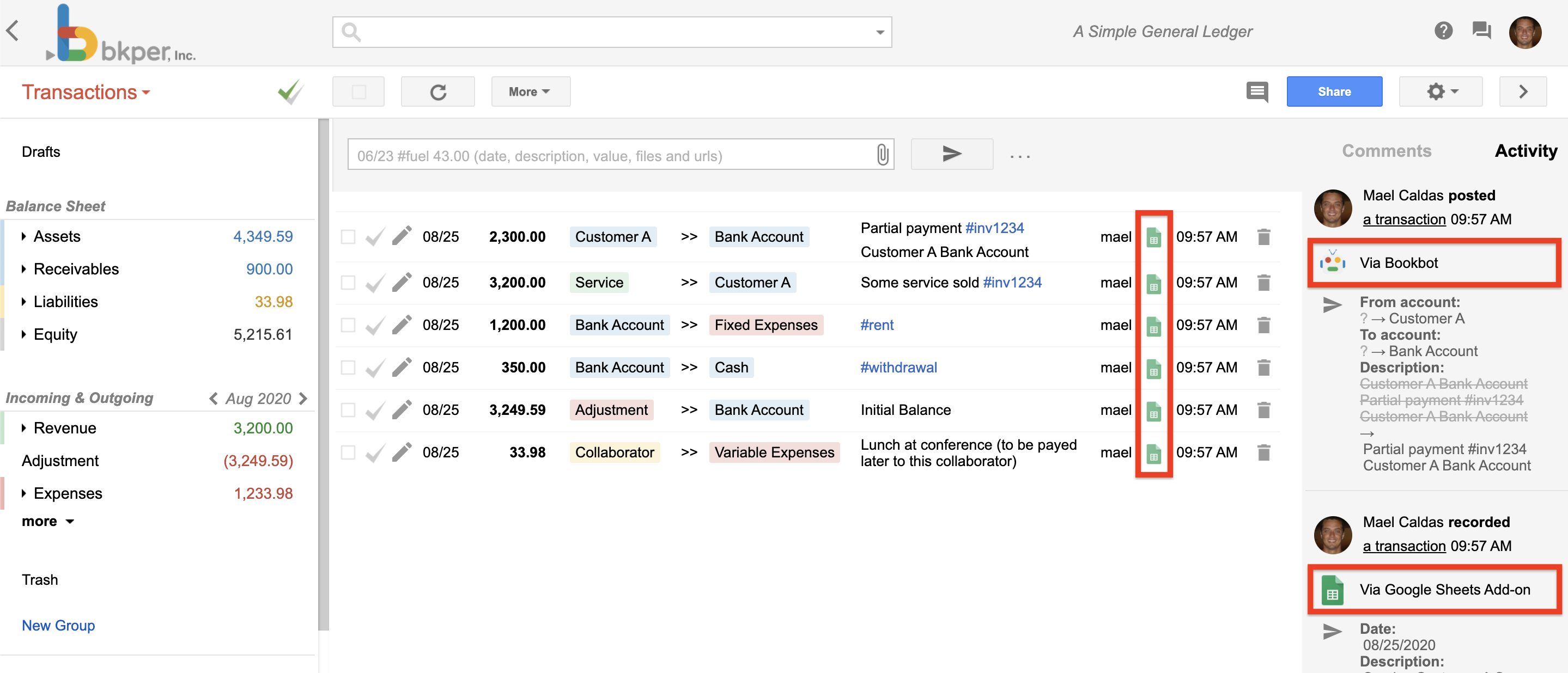
![Agents on Bkper](https://bkper.com/docs/_astro/bkper-app-agents.Dse93XFf.png)

## Bots vs AI Agents

The distinction between a "bot" and an "AI agent" is about capability, not a different type of Bkper primitive. Both are just apps:

| | **Bot** | **AI Agent** |
| --- | --- | --- |
| **Purpose** | Automating predefined tasks | Autonomously perform tasks |
| **Capabilities** | Follows rules; limited learning; basic interactions | Complex, multi-step actions; learns and adapts; makes decisions independently |
| **Interaction** | Reactive; responds to triggers or commands | Proactive; goal-oriented |

In Bkper, what people call "bots" are typically apps whose primary capability is [event handling](https://bkper.com/docs/platform/apps/event-handlers.md) — reacting to things that happen in a book. AI agents go further, combining event handling with LLM reasoning to make decisions.

---
source: /docs/platform/getting-started/quick-wins.md

# Quick Wins

You've [set up your environment](https://bkper.com/docs/platform/getting-started/setup.md). Here are three ways to start building immediately — from a 1-line shell command to a 20-line script.

## CLI piping

Copy all accounts from one book to another in a single line:

```bash
bkper account list -b $SOURCE_BOOK --format json | bkper account create -b $DEST_BOOK
```

The CLI outputs JSON that feeds directly into the next command. No code, no setup beyond the CLI itself.

Add a property to every matching transaction:

```bash
bkper transaction list -b $BOOK -q "account:Expenses" --format json | \
  bkper transaction update -b $BOOK -p "reviewed=true"
```

See [CLI Scripting & Piping](https://bkper.com/docs/platform/scripts/cli-pipelines.md) for more patterns.

## Node.js script

A short script that lists all accounts with their current balances:

```ts
import { Bkper } from 'bkper-js';
import { getOAuthToken } from 'bkper';

Bkper.setConfig({
    oauthTokenProvider: async () => getOAuthToken(),
});

const bkper = new Bkper();
const book = await bkper.getBook('your-book-id');
const report = await book.getBalancesReport('');
const containers = report.getBalancesContainers();

for (const container of containers) {
    console.log(`${container.getName()}: ${container.getCumulativeBalance()}`);
}
```

Run it:

```bash
npm install bkper-js bkper
node script.mjs
```

See [Node.js Scripts](https://bkper.com/docs/platform/scripts/node-scripts.md) for more examples.

## Direct API call

Call the REST API from any language. Here's a `curl` example:

```bash
# Get your OAuth token (after running bkper auth login)
TOKEN=$(bkper auth token)

# List your books
curl -s -H "Authorization: Bearer $TOKEN" \
  https://api.bkper.app/v5/books | jq '.items[].name'
```

See [Direct API Usage](https://bkper.com/docs/platform/scripts/rest-api.md) for the full guide.

## What next?

These quick wins are just the beginning. Depending on what you want to build:

- **More automation** — [CLI Scripting & Piping](https://bkper.com/docs/platform/scripts/cli-pipelines.md) for shell-based workflows, [Node.js Scripts](https://bkper.com/docs/platform/scripts/node-scripts.md) for complex logic
- **A full app** — [Your First App](https://bkper.com/docs/platform/apps/first-app.md) to build and deploy an app with UI and event handling on the [Bkper Platform](https://bkper.com/docs/platform/apps/overview.md)
- **Google Workspace** — [Apps Script Development](https://bkper.com/docs/platform/google-workspace/apps-script.md) for Sheets automation and triggers

---
source: /docs/platform/getting-started/setup.md

# Bkper Developer Setup

Everything you build on Bkper starts with the CLI. It handles authentication, provides the `bkper-js` library for programmatic access, and manages the full app lifecycle.

## Prerequisites

- [Node.js](https://nodejs.org/) >= 22.19.0

## Install and authenticate

1. **Install the CLI**

   ```bash
   npm i -g bkper
   ```

2. **Authenticate**

   ```bash
   bkper auth login
   ```

   This opens your browser for Google OAuth authentication. Once complete, the CLI stores your credentials locally. All API calls — from the CLI, from scripts, and from `bkper-js` — use this token. To clean up later, run `bkper auth logout`, which revokes the stored refresh token when possible and clears local credentials.

3. **Verify**

   ```bash
   bkper book list
   ```

   You should see a list of your Bkper Books. If you do, you're ready to build.

## What you now have

After setup, you have:

- **CLI commands** — Manage books, accounts, transactions, and apps from the terminal. Run `bkper --help` for the full command list.
- **Auth provider for scripts** — Use `getOAuthToken()` from the `bkper` package in any Node.js script:

  ```ts
  import { Bkper } from 'bkper-js';
  import { getOAuthToken } from 'bkper';

  Bkper.setConfig({
      oauthTokenProvider: async () => getOAuthToken(),
  });
  ```

- **App development tools** — Initialize, develop, and deploy platform apps with `bkper app` commands.

## Optional: API key

For dedicated API quota and project-level usage tracking, you can configure your own API key. This is optional — the default shared quota (60 requests per minute) works for most use cases.

See [Direct API Usage](https://bkper.com/docs/platform/scripts/rest-api.md#custom-api-key) for setup instructions.

## Next steps

- [Quick Wins](https://bkper.com/docs/platform/getting-started/quick-wins.md) — The fastest ways to create value with Bkper programmatically
- [Your First App](https://bkper.com/docs/platform/apps/first-app.md) — Build and deploy a platform app
- [CLI reference](https://bkper.com/docs/platform/tools/cli.md) — Overview of CLI capabilities

---
source: /docs/platform/google-workspace/apps-script.md

# Apps Script Development

[Google Apps Script](https://developers.google.com/apps-script) is Google's serverless platform for extending Google Workspace. With the `bkper-gs` library, you can build Bkper automations that run inside Google's infrastructure — no servers, no deployment pipeline, and native access to Sheets, Drive, Calendar, and Gmail.

## When to use Apps Script

Use Apps Script when your automation lives in the Google Workspace ecosystem:

- Scheduled jobs that read from or write to Google Sheets
- Spreadsheet triggers (on-edit, on-form-submit) that record transactions
- Custom add-ons distributed to a team or domain
- Workflows that combine Bkper with other Google services (Drive, Calendar, Gmail)

If you need real-time event handling, a web UI, or automation that runs outside Google Workspace, use [Node.js scripts](https://bkper.com/docs/platform/scripts/node-scripts.md) or a [platform app](https://bkper.com/docs/platform/apps/overview.md) instead.

### Add the library

`bkper-gs` is published as an Apps Script library. To add it to your script:

1. Open your script in the [Apps Script editor](https://script.google.com)
2. Click **+** next to **Libraries** in the left-side panel
3. In the "Script ID" field, enter:
   ```
   1hMJszJGSUVZDB3vmsWrUZfRhY1UWbhS0SQ6Lzl06gm1zhBF3ioTM7mpJ
   ```
4. Click **Look up**, choose the latest version, and click **Add**

The `BkperApp` global is now available in your script.

### TypeScript definitions

For TypeScript development with autocomplete, install the type definitions:

```bash
npm i -S @bkper/bkper-gs-types
```

Configure `tsconfig.json`:

```json
{
  "compilerOptions": {
    "typeRoots": ["node_modules/@bkper", "node_modules/@types"]
  }
}
```

See [Develop Apps Script using TypeScript](https://developers.google.com/apps-script/guides/typescript) and use [clasp](https://github.com/google/clasp) to push TypeScript projects to Apps Script.

## The BkperApp entry point

`BkperApp` works the same way as `CalendarApp`, `DocumentApp`, and `SpreadsheetApp` — it's a global entry point that follows familiar Apps Script conventions.

The book ID comes from the URL when you open a book at [bkper.com](https://bkper.com):

```js
// Get a book by its ID (from the URL)
const book = BkperApp.getBook('agtzfmJrcGVyLWhyZHIOCxIGTGVkZ2VyGNKJAgw');
```

### Get a book

```js
function getBookName() {
  const book = BkperApp.getBook('agtzfmJrcGVyLWhyZHIOCxIGTGVkZ2VyGNKJAgw');
  Logger.log(book.getName());
}
```

### Record a transaction

```js
function recordTransaction() {
  const book = BkperApp.getBook('agtzfmJrcGVyLWhyZHIOCxIGTGVkZ2VyGNKJAgw');
  book.record('#gas 63.23');
}
```

Transactions use the same [shorthand syntax](https://bkper.com/docs/guides/using-bkper/record-transactions.md) you'd use in the Bkper UI.

### Batch record transactions

For bulk operations, pass an array. The library sends all records in a single API call — important for avoiding Apps Script execution time limits:

```js
function importExpenses() {
  const book = BkperApp.getBook('agtzfmJrcGVyLWhyZHIOCxIGTGVkZ2VyGNKJAgw');

  const transactions = [
    '#breakfast 15.40',
    '#lunch 27.45',
    '#dinner 35.86',
  ];

  book.record(transactions);
}
```

### Query transactions

The `getTransactions()` method returns a `TransactionIterator` for handling large datasets without loading everything into memory:

```js
function listTransactions() {
  const book = BkperApp.getBook('agtzfmJrcGVyLWhyZHIOCxIGTGVkZ2VyGNKJAgw');

  const iterator = book.getTransactions("account:'Bank' after:01/01/2024");

  while (iterator.hasNext()) {
    const transaction = iterator.next();
    Logger.log(transaction.getDescription());
  }
}
```

See [Querying Transactions](https://bkper.com/docs/guides/using-bkper/query-transactions.md) for the full query syntax.

### List accounts with balances

```js
function listAccountBalances() {
  const book = BkperApp.getBook('agtzfmJrcGVyLWhyZHIOCxIGTGVkZ2VyGNKJAgw');

  const accounts = book.getAccounts();
  for (const account of accounts) {
    if (account.isPermanent() && account.isActive()) {
      Logger.log(`${account.getName()}: ${account.getBalance()}`);
    }
  }
}
```

## Building triggers

Apps Script triggers let your automation run on a schedule or respond to spreadsheet events — without any always-on infrastructure.

### Time-based (scheduled)

```js
function setupDailySync() {
  ScriptApp.newTrigger('syncTransactions')
    .timeBased()
    .everyDays(1)
    .atHour(6)
    .create();
}

function syncTransactions() {
  const book = BkperApp.getBook('YOUR_BOOK_ID');
  const sheet = SpreadsheetApp.openById('YOUR_SHEET_ID').getActiveSheet();

  // Read rows from Sheets, record to Bkper
  const rows = sheet.getDataRange().getValues();
  const transactions = rows.slice(1).map(row => `${row[0]} ${row[1]} ${row[2]}`);
  book.record(transactions);
}
```

### Spreadsheet edit trigger

```js
function onEdit(e) {
  const sheet = e.source.getActiveSheet();
  if (sheet.getName() !== 'Expenses') return;

  const row = e.range.getRow();
  const amount = sheet.getRange(row, 3).getValue();
  const description = sheet.getRange(row, 2).getValue();

  if (amount && description) {
    const book = BkperApp.getBook('YOUR_BOOK_ID');
    book.record(`${description} ${amount}`);
  }
}
```

## TypeScript development workflow

For non-trivial scripts, use [clasp](https://github.com/google/clasp) for local development with TypeScript:

```bash
# Install clasp
npm install -g @google/clasp

# Log in
clasp login

# Clone an existing script
clasp clone <scriptId>

# Push changes
clasp push

# Watch for changes
clasp push --watch
```

With `@bkper/bkper-gs-types` configured, your editor provides full autocomplete for `BkperApp`, `Book`, `Transaction`, `Account`, and all other bkper-gs types.

## API reference

The complete `bkper-gs` reference is at [bkper.com/docs/bkper-gs](https://bkper.com/docs/bkper-gs/).

## Related

- [Building Sheets Integrations](https://bkper.com/docs/platform/google-workspace/google-sheets.md) — Custom Sheets automations with bkper-gs
- [Node.js Scripts](https://bkper.com/docs/platform/scripts/node-scripts.md) — When you need automation outside Google Workspace
- [Guides → Google Sheets Add-on](https://bkper.com/docs/guides/google-sheets.md) — End-user guide for recording and fetching data with the Bkper add-on

---
source: /docs/platform/google-workspace/google-sheets.md

# Building Sheets Integrations

The [Bkper Add-on for Google Sheets](https://bkper.com/docs/guides/google-sheets.md) lets users record transactions and fetch data with built-in functions. This page covers the next level: building *custom* Sheets integrations with `bkper-gs` — automated pipelines, custom menus, scheduled reports, and two-way sync.

See [Apps Script Development](https://bkper.com/docs/platform/google-workspace/apps-script.md) first to set up `bkper-gs` and understand the fundamentals.

## The boundary: add-on vs custom integrations

The built-in add-on covers the common cases well. Build a custom integration when:

- You need a **custom menu** tailored to your team's workflow
- You want **automated pipelines** that run on a schedule without user interaction
- You're building a **specialized report** that the standard functions don't cover
- You need **two-way sync** between a spreadsheet and Bkper (data flowing both directions)
- You're distributing a **custom add-on** to your domain or organization

## Custom menu functions

Add a Bkper-powered menu to any Google Sheet. Users can trigger operations directly from the spreadsheet without opening Bkper.

```js
function onOpen() {
  SpreadsheetApp.getUi()
    .createMenu('Bkper')
    .addItem('Import expenses from this sheet', 'importExpenses')
    .addItem('Fetch account balances', 'fetchBalances')
    .addSeparator()
    .addItem('Sync all', 'syncAll')
    .addToUi();
}

function importExpenses() {
  const sheet = SpreadsheetApp.getActiveSpreadsheet().getSheetByName('Expenses');
  const book = BkperApp.getBook(getBookId());

  const rows = sheet.getDataRange().getValues().slice(1); // skip header
  const transactions = rows
    .filter(row => row[0] && row[1] && row[2])     // date, description, amount
    .map(row => `${row[1]} ${row[2]} ${row[0]}`);  // "description amount date"

  book.record(transactions);
  SpreadsheetApp.getUi().alert(`Imported ${transactions.length} transactions.`);
}
```

### Sheets → Bkper (import)

Pull structured data from a spreadsheet and create transactions in bulk. Useful for importing bank exports, expense reports, or any data that lives in Sheets first.

```js
function importFromSheet() {
  const ss = SpreadsheetApp.openById('YOUR_SHEET_ID');
  const sheet = ss.getSheetByName('Transactions');
  const book = BkperApp.getBook('YOUR_BOOK_ID');

  const rows = sheet.getDataRange().getValues();
  const header = rows[0];
  const dateCol = header.indexOf('Date');
  const descCol = header.indexOf('Description');
  const amountCol = header.indexOf('Amount');
  const importedCol = header.indexOf('Imported');

  const toImport = [];

  for (let i = 1; i < rows.length; i++) {
    const row = rows[i];
    if (row[importedCol]) continue; // skip already imported

    const date = Utilities.formatDate(new Date(row[dateCol]), 'UTC', 'dd/MM/yyyy');
    toImport.push({
      row: i + 1,
      tx: `${row[descCol]} ${row[amountCol]} ${date}`,
    });
  }

  if (toImport.length === 0) return;

  book.record(toImport.map(item => item.tx));

  // Mark rows as imported
  for (const item of toImport) {
    sheet.getRange(item.row, importedCol + 1).setValue(true);
  }
}
```

### Bkper → Sheets (export/reporting)

Write Bkper data into a spreadsheet for dashboards, analysis, or sharing with stakeholders who work in Sheets.

```js
function exportBalancesToSheet() {
  const book = BkperApp.getBook('YOUR_BOOK_ID');
  const sheet = SpreadsheetApp.getActiveSpreadsheet()
    .getSheetByName('Balances');

  sheet.clearContents();
  sheet.appendRow(['Account', 'Balance']);

  const accounts = book.getAccounts();
  for (const account of accounts) {
    if (account.isPermanent() && account.isActive()) {
      sheet.appendRow([account.getName(), account.getBalance()]);
    }
  }
}
```

## Scheduled reporting

Use time-based triggers to run reports on a schedule — no user needs to be logged in.

```js
function setupWeeklyReport() {
  // Run every Monday at 8am
  ScriptApp.newTrigger('generateWeeklyReport')
    .timeBased()
    .onWeekDay(ScriptApp.WeekDay.MONDAY)
    .atHour(8)
    .create();
}

function generateWeeklyReport() {
  const book = BkperApp.getBook('YOUR_BOOK_ID');
  const ss = SpreadsheetApp.openById('YOUR_REPORT_SHEET_ID');
  const sheet = ss.getSheetByName('Weekly') || ss.insertSheet('Weekly');

  const lastWeek = new Date();
  lastWeek.setDate(lastWeek.getDate() - 7);
  const from = Utilities.formatDate(lastWeek, 'UTC', 'MM/dd/yyyy');

  sheet.clearContents();
  sheet.appendRow(['Description', 'Amount', 'Date', 'Account']);

  const iterator = book.getTransactions(`after:${from}`);
  while (iterator.hasNext()) {
    const tx = iterator.next();
    sheet.appendRow([
      tx.getDescription(),
      tx.getAmount(),
      tx.getDateFormatted(),
      tx.getCreditAccount()?.getName(),
    ]);
  }
}
```

## Working with Custom Properties

Custom Properties let you attach metadata to Bkper entities (accounts, transactions). Use them as a sync key between Sheets and Bkper to avoid duplicates and enable updates.

```js
// Store a Sheets row ID on a transaction as a custom property
function recordWithSheetId(book, txString, sheetRowId) {
  const transaction = book.newTransaction()
    .setDate(new Date())
    .setAmount(100)
    .setDescription(txString)
    .setProperty('sheet_row_id', sheetRowId);

  transaction.create();
}

// Later, look up transactions by their sheet row ID
function findBySheetId(book, sheetRowId) {
  const iterator = book.getTransactions(`properties.sheet_row_id:${sheetRowId}`);
  return iterator.hasNext() ? iterator.next() : null;
}
```

This pattern enables idempotent sync: check if a transaction already exists before creating it, and update rather than duplicate.

## When to move beyond Sheets

Google Sheets is powerful, but it has limits. Consider a [platform app](https://bkper.com/docs/platform/apps/overview.md) when:

- You need **real-time event handling** — platform apps get webhook events pushed instantly; Sheets triggers have latency and quota limits
- You need **a web UI** outside of Sheets — platform apps get `{appId}.bkper.app` with full auth
- Your automation needs to **run at scale** — Workers have no cold starts and higher execution limits than Apps Script
- You want to **publish to all Bkper users** — platform apps appear in the Bkper app listing; Sheets add-ons have a separate distribution model

## Related

- [Apps Script Development](https://bkper.com/docs/platform/google-workspace/apps-script.md) — Setting up `bkper-gs`, BkperApp patterns, triggers
- [The Bkper Platform](https://bkper.com/docs/platform/apps/overview.md) — When to build a full platform app
- [Guides → Google Sheets Add-on](https://bkper.com/docs/guides/google-sheets.md) — End-user guide for the built-in add-on

---
source: /docs/platform/scripts/cli-pipelines.md

# CLI Scripting & Piping

The Bkper CLI is designed for scripting. Every command supports multiple output formats, and selected write commands accept piped JSON input — making it easy to build data pipelines, batch operations, and automated workflows.

## Output formats

All commands support three output formats via the `--format` global flag:

| Format | Flag                       | Best for                                |
| ------ | -------------------------- | --------------------------------------- |
| Table  | `--format table` (default) | Human reading in the terminal           |
| JSON   | `--format json`            | Programmatic access, single-item detail |
| CSV    | `--format csv`             | Spreadsheets, AI agents, data pipelines |

```bash
# Table output (default)
bkper account list -b abc123

# JSON output
bkper account list -b abc123 --format json

# CSV output -- raw data, no truncation, RFC 4180
bkper account list -b abc123 --format csv
```

**CSV output details:**

- RFC 4180 compliant — proper quoting, CRLF line endings, no truncation
- All metadata included — IDs, properties, hidden properties, URLs, and timestamps
- Raw values — dates in ISO format, numbers unformatted

> **Tip: AI agent guidance**
> When using the CLI from an AI agent or automated script, prefer `--format csv` for list commands, `--format json` for single-item commands (`get`, `create`, `update`), and stdin piping for batch operations.
## Query semantics quick reference

Use these rules in scripts to avoid ambiguous or empty results:

- `on:` supports year, month, and day (`on:2025`, `on:2025-01`, `on:2025-01-31`).
- `after:` is **inclusive** and `before:` is **exclusive**.
- A full-year range uses next-year boundary:
    - `after:2025-01-01 before:2026-01-01`

```bash
# Full year with on:
bkper transaction list -b $BOOK_ID -q "on:2025" --format csv

# Same full year with explicit boundaries
bkper transaction list -b $BOOK_ID -q "after:2025-01-01 before:2026-01-01" --format csv
```

## Batch operations

Write commands (`account create`, `transaction create`, `transaction update`) accept JSON piped via stdin. The input format follows the [Bkper API Types](https://raw.githubusercontent.com/bkper/bkper-api-types/refs/heads/master/index.d.ts) — a single JSON object or an array of objects.

Groups are created explicitly with `bkper group create --name` and optional `--parent`, so hierarchy stays deterministic.

### Creating in batch

```bash
# Create transactions from JSON
echo '[{
  "date": "2025-01-15",
  "amount": "100.50",
  "creditAccount": {"name": "Bank Account"},
  "debitAccount": {"name": "Office Supplies"},
  "description": "Printer paper",
  "properties": {"invoice": "INV-001"}
}]' | bkper transaction create -b abc123

# Create accounts
echo '[{"name":"Cash","type":"ASSET"},{"name":"Revenue","type":"INCOMING"}]' | \
  bkper account create -b abc123

# Create a group explicitly
bkper group create -b abc123 --name "Fixed Costs" --hidden

# Pipe from any script that outputs JSON
python export_bank.py | bkper transaction create -b abc123
```

Batch results are output as a flat JSON array:

```bash
bkper account create -b abc123 < accounts.json
# [{"id":"acc-abc","name":"Cash",...}, {"id":"acc-def","name":"Revenue",...}]
```

### Adding properties via CLI flag

The `--property` flag can add or override properties from the stdin payload:

```bash
echo '[{"name":"Cash","type":"ASSET"}]' | \
  bkper account create -b abc123 -p "region=LATAM"
```

## Piping between commands

All JSON output is designed to feed directly into other commands. This is the most powerful pattern — combining commands into pipelines:

### Copy data between books

```bash
# Copy all accounts from one book to another
bkper account list -b $BOOK_A --format json | bkper account create -b $BOOK_B

# Copy transactions matching a query
bkper transaction list -b $BOOK_A -q "after:2025-01-01" --format json | \
  bkper transaction create -b $BOOK_B
```

Recreate groups explicitly with `bkper group create --name ... --parent ...` before copying accounts that reference them.

### Clone a full chart of accounts

```bash
# Recreate the group hierarchy explicitly
bkper group create -b $DEST --name "Assets"
bkper group create -b $DEST --name "Current Assets" --parent "Assets"

# Then copy accounts and transactions
bkper account list -b $SOURCE --format json | bkper account create -b $DEST
bkper transaction list -b $SOURCE -q "after:2025-01-01" --format json | \
  bkper transaction create -b $DEST
```

### Batch updates with jq

Use [jq](https://jqlang.github.io/jq/) to transform data between commands:

```bash
# List transactions, modify descriptions, pipe back to update
bkper transaction list -b $BOOK -q "after:2025-01-01" --format json | \
  jq '[.[] | .description = "Updated: " + .description]' | \
  bkper transaction update -b $BOOK

# Add a property to all matching transactions
bkper transaction list -b $BOOK -q "account:Expenses" --format json | \
  bkper transaction update -b $BOOK -p "reviewed=true"

# Batch update checked transactions
bkper transaction list -b $BOOK -q "is:checked after:2025-01-01" --format json | \
  bkper transaction update -b $BOOK --update-checked -p "migrated=true"
```

### Daily export

```bash
#!/bin/bash
# Export yesterday's transactions to CSV
DATE=$(date -d "yesterday" +%Y-%m-%d)
bkper transaction list -b $BOOK_ID \
  -q "on:$DATE" \
  --format csv > "export-$DATE.csv"
```

### Bulk categorization

```bash
#!/bin/bash
# Add a property to all uncategorized transactions
bkper transaction list -b $BOOK_ID \
  -q "account:Uncategorized" \
  --format json | \
  bkper transaction update -b $BOOK_ID -p "needs_review=true"
```

## Combining with other tools

The CLI works with standard Unix tools:

```bash
# Count transactions matching a query
bkper transaction list -b $BOOK_ID -q "after:2025-01-01" --format json | jq 'length'

# Extract specific fields with jq
bkper account list -b $BOOK_ID --format json | \
  jq '[.[] | {name, type}]'

# Sort by amount
bkper transaction list -b $BOOK_ID -q "after:1900-01-01" --format json | \
  jq 'sort_by(.amount | tonumber) | reverse'
```

## Full CLI reference

For the complete command reference including all options, see the [bkper-cli app page](https://bkper.com/apps/bkper-cli.md) or run `bkper --help`.

---
source: /docs/platform/scripts/node-scripts.md

# Node.js Scripts

For tasks that go beyond CLI piping — complex logic, external API integration, scheduled jobs — write a Node.js script with `bkper-js`.

## Setup

```bash
# Create a script project
mkdir my-bkper-script && cd my-bkper-script
npm init -y
npm install bkper-js bkper
```

Authenticate once via the CLI:

```bash
bkper auth login
```

## The pattern

Every script follows the same structure: authenticate, get a book, do work.

```ts
import { Bkper } from 'bkper-js';
import { getOAuthToken } from 'bkper';

Bkper.setConfig({
    oauthTokenProvider: async () => getOAuthToken(),
});

const bkper = new Bkper();
const book = await bkper.getBook('your-book-id');

// Your logic here
```

### Export balances to JSON

```ts
import { Bkper } from 'bkper-js';
import { getOAuthToken } from 'bkper';
import { writeFileSync } from 'fs';

Bkper.setConfig({
    oauthTokenProvider: async () => getOAuthToken(),
});

const bkper = new Bkper();
const book = await bkper.getBook('your-book-id');

const report = await book.getBalancesReport('on:2025-12-31');
const rows = report.getBalancesContainers().map(container => ({
    name: container.getName(),
    balance: container.getCumulativeBalance().toString(),
}));

writeFileSync('balances.json', JSON.stringify(rows, null, 2));
console.log(`Exported ${rows.length} balances`);
```

### Bulk-create accounts from a JSON export

```ts
import { Account, Bkper } from 'bkper-js';
import { getOAuthToken } from 'bkper';
import { readFileSync } from 'fs';

type AccountInput = {
    name: string;
    type: 'ASSET' | 'LIABILITY' | 'INCOMING' | 'OUTGOING';
    groups?: Array<{ id?: string; name?: string }>;
};

Bkper.setConfig({
    oauthTokenProvider: async () => getOAuthToken(),
});

const bkper = new Bkper();
const book = await bkper.getBook('your-book-id');

const data: AccountInput[] = JSON.parse(readFileSync('accounts.json', 'utf-8'));

const accounts = data.map(acc => {
    const account = new Account(book).setName(acc.name).setType(acc.type);
    if (acc.groups?.length) {
        account.setGroups(acc.groups);
    }
    return account;
});

const created = await book.batchCreateAccounts(accounts);
console.log(`Created ${created.length} accounts`);
```

### Query transactions and generate a report

```ts
import { Amount, Bkper } from 'bkper-js';
import { getOAuthToken } from 'bkper';

Bkper.setConfig({
    oauthTokenProvider: async () => getOAuthToken(),
});

const bkper = new Bkper();
const book = await bkper.getBook('your-book-id');

const result = await book.listTransactions('account:Expenses after:2025-01-01');

let total = new Amount(0);
for (const tx of result.getItems()) {
    const amount = tx.getAmount();
    if (!amount) continue;

    total = total.plus(amount);
    console.log(`${tx.getDate()} | ${tx.getDescription()} | ${amount.toString()}`);
}
console.log(`\nTotal: ${total.toString()}`);
```

### With cron

```bash
# Run daily at 8am
0 8 * * * cd /path/to/script && node export.mjs
```

### In CI environments

The CLI helper `getOAuthToken()` is designed for local developer machines, where the CLI can store and refresh credentials. In GitHub Actions or other unattended environments, provide your own token source:

```ts
import { Bkper } from 'bkper-js';

const bkper = new Bkper({
    oauthTokenProvider: async () => {
        const token = process.env.BKPER_OAUTH_TOKEN;
        if (!token) {
            throw new Error('BKPER_OAUTH_TOKEN is not set');
        }
        return token;
    },
});
```

Use this pattern only when another system is already issuing and rotating the token for the job. For unattended long-running automation, implement your own OAuth flow instead of relying on the CLI's locally stored credentials.

## Error handling

Wrap API calls with proper error handling:

```ts
import { BkperError } from 'bkper-js';

try {
    const book = await bkper.getBook('your-book-id');
    // ...
} catch (error) {
    if (error instanceof BkperError && error.code === 404) {
        console.error('Book not found');
    } else if (error instanceof BkperError && error.code === 403) {
        console.error('No access to this book');
    } else if (error instanceof Error) {
        console.error('API error:', error.message);
    } else {
        console.error('Unknown error:', String(error));
    }
    process.exit(1);
}
```

## When to use scripts vs apps

| Scenario                                       | Use                                       |
| ---------------------------------------------- | ----------------------------------------- |
| One-off data migration                         | Script                                    |
| Scheduled export/report                        | Script                                    |
| Reacting to book events in real time           | [Platform app](https://bkper.com/docs/platform/apps/overview.md) |
| Custom UI for users                            | [Platform app](https://bkper.com/docs/platform/apps/overview.md) |
| Complex multi-step workflow with external APIs | Script or app, depending on trigger       |

## Next steps

- [bkper-js API Reference](https://bkper.com/docs/api/bkper-js.md) — Full SDK documentation
- [CLI Scripting & Piping](https://bkper.com/docs/platform/scripts/cli-pipelines.md) — For simpler tasks, the CLI may be enough
- [Direct API Usage](https://bkper.com/docs/platform/scripts/rest-api.md) — Use the REST API from any language

---
source: /docs/platform/scripts/rest-api.md

# Bkper REST API Authentication and Direct Usage

The Bkper REST API is the universal interface for interacting with Bkper Books. Every library and tool — [bkper-js](https://bkper.com/docs/platform/tools/libraries.md#bkper-js), [bkper-gs](https://bkper.com/docs/platform/tools/libraries.md#bkper-gs), the [CLI](https://bkper.com/docs/platform/tools/cli.md) — is built on top of it. This page shows how to call it directly from any language.

If you are using an official SDK, see the library-specific guides instead:

- **Node.js / CLI** — [Node.js Scripts](https://bkper.com/docs/platform/scripts/node-scripts.md)
- **Browser apps** — [Platform Apps](https://bkper.com/docs/platform/apps/overview.md)
- **Google Apps Script** — [Apps Script Development](https://bkper.com/docs/platform/google-workspace/apps-script.md)

## Base URL

```
https://api.bkper.app
```

All API calls use this endpoint:

- `https://api.bkper.app/v5/books` — List books
- `https://api.bkper.app/v5/books/{bookId}` — Get a specific book

## Specifications

The API publishes an [OpenAPI](https://swagger.io/resources/open-api/) specification:

- [Bkper REST OpenAPI specification](https://bkper.com/docs/api/rest/openapi.json)

You can use this specification to generate client libraries with tools like [OpenAPI Generator](https://openapi-generator.tech/) in the language of your choice.

For **TypeScript**, we maintain an updated type definitions package:

- [`@bkper/bkper-api-types`](https://www.npmjs.com/package/@bkper/bkper-api-types)

## Authentication

Every request must include a valid OAuth2 access token in the `Authorization` header:

```
Authorization: Bearer YOUR_ACCESS_TOKEN
```

No API key is required to authenticate — the Bkper API proxy provides a managed key with shared quota.

### Obtaining a token

For local development and scripts, the easiest path is through the [Bkper CLI](https://bkper.com/docs/platform/tools/cli.md):

```bash
bkper auth login
bkper auth token
```

For unattended environments (CI, servers), provide your own token source using the OAuth2 flow that matches your setup. See [CLI → Authenticating scripts and local development](https://bkper.com/docs/platform/tools/cli.md#authenticating-scripts-and-local-development) for the canonical pattern used by the `bkper-js` SDK.

## Direct HTTP calls

Send JSON payloads with `Content-Type: application/json`.

### List books

```bash
curl -s https://api.bkper.app/v5/books \
  -H "Authorization: Bearer YOUR_ACCESS_TOKEN"
```

### Create a transaction

```bash
curl -s https://api.bkper.app/v5/books/BOOK_ID/transactions \
  -H "Authorization: Bearer YOUR_ACCESS_TOKEN" \
  -H "Content-Type: application/json" \
  -d '{
    "date": "2025-01-15",
    "amount": "100.50",
    "creditAccount": {"name": "Bank Account"},
    "debitAccount": {"name": "Office Supplies"},
    "description": "Printer paper",
    "properties": {"invoice": "INV-001"}
  }'
```

### Using fetch (browser or Node.js)

```js
const response = await fetch('https://api.bkper.app/v5/books/BOOK_ID/transactions', {
  method: 'POST',
  headers: {
    'Authorization': 'Bearer YOUR_ACCESS_TOKEN',
    'Content-Type': 'application/json',
  },
  body: JSON.stringify({
    date: '2025-01-15',
    amount: '100.50',
    creditAccount: { name: 'Bank Account' },
    debitAccount: { name: 'Office Supplies' },
    description: 'Printer paper',
    properties: { invoice: 'INV-001' },
  }),
});

const transaction = await response.json();
```

### Using Python requests

```python
import requests

response = requests.post(
    "https://api.bkper.app/v5/books/BOOK_ID/transactions",
    headers={"Authorization": "Bearer YOUR_ACCESS_TOKEN"},
    json={
        "date": "2025-01-15",
        "amount": "100.50",
        "creditAccount": {"name": "Bank Account"},
        "debitAccount": {"name": "Office Supplies"},
        "description": "Printer paper",
        "properties": {"invoice": "INV-001"},
    },
)

transaction = response.json()
```

## Custom API key

For dedicated quota and project-level usage tracking, you can optionally configure your own API key:

1. Join [bkper@googlegroups.com](https://groups.google.com/g/bkper) to unlock access to enable the API on your project
2. [Create a new GCP project](https://console.cloud.google.com/projectcreate), or select an existing one
3. [Enable the Bkper API](https://console.cloud.google.com/apis/library/app.bkper.com) in the Google Cloud Console
4. [Create an API key](https://console.cloud.google.com/apis/credentials/key)
   - [Add API Restrictions](https://cloud.google.com/docs/authentication/api-keys#adding_api_restrictions) to `app.bkper.com` API only

Send your API key in the `bkper-api-key` HTTP header:

```
bkper-api-key: YOUR_API_KEY
```

> **Note**
> API keys are for project identification and quota management only, not for authentication. Do not store API keys in your code. See [securing an API key](https://cloud.google.com/docs/authentication/api-keys#securing_an_api_key) best practices.
> **Tip**
> For Google Apps Script, you can store the API key in the [Script Properties](https://developers.google.com/apps-script/reference/properties/properties-service#getScriptProperties()). To store it, open the online editor, *File > Project properties > Script properties*.
### Metrics

With your own API key, you can view detailed [metrics on the GCP Console](https://console.cloud.google.com/apis/api/app.bkper.com/metrics) for your project's API calls:

![REST API Metrics](https://bkper.com/docs/_astro/bkper-rest-api-metrics.DHXQ7CRF.png)

The [metrics dashboard](https://console.cloud.google.com/apis/api/app.bkper.com/metrics) provides information about endpoint calls, latency, and errors — a good overview of your integration's health.

### Quota

The [quotas dashboard](https://console.cloud.google.com/apis/api/app.bkper.com/quotas) provides details of the current default and quota exceeded errors.

The default shared quota is **60 requests per minute**. If you need higher limits with your own API key, please get in touch so we can discuss your case.

---
source: /docs/platform/tools/cli.md

# Bkper CLI

The official Bkper CLI is published on npm as [`bkper`](https://www.npmjs.com/package/bkper). It is the command-line interface for everything you build on Bkper and serves two roles:

- **Data management** — Work with books, accounts, transactions, and balances from the terminal
- **App development** — Initialize, clone, develop, build, sync, and deploy Bkper apps

## Installation

```bash
npm install -g bkper
```

Or run it without a global installation:

```bash
npx bkper
```

The package and executable are both named `bkper`.

## Authentication

```bash
bkper auth login   # authenticate via Google OAuth
bkper auth logout  # revoke the stored refresh token and clear local credentials
bkper auth token   # print the current access token (requires prior login)
```

`bkper auth login` authenticates via Google OAuth and stores credentials locally. The same credentials are used by:
- All CLI commands
- The `getOAuthToken()` function in scripts
- The `bkper app dev` local development server

`bkper auth token` is useful for direct API calls — pipe the output into a variable:

```bash
TOKEN=$(bkper auth token)
```

### App lifecycle

```bash
# Create a new app from the template
bkper app init my-app
cd my-app

# Or clone an existing Bkper-managed app source repository
bkper app clone <appId>

# Start worker runtime (Miniflare + tunnel + file watching)
bkper app dev

# Build the server Worker bundle
bkper app build

# Sync app metadata and, for managed apps, committed source
bkper app sync

# Deploy to the Bkper Platform
bkper app deploy

# Remove app from the Bkper Platform
bkper app undeploy

# Check deployment status
bkper app status
```

> **Note:** The project template composes the full workflow via `npm run dev` (runs Vite + `bkper app dev` concurrently) and `npm run build` (runs `vite build` + `bkper app build`). Use the template scripts for the complete development experience.

`bkper app clone` is available to authorized developers of apps with Bkper-managed source. Clone external-source apps from their Git provider instead.

Source synchronization and deployment are separate. Neither `git push` nor `bkper app sync` deploys an app. `bkper app deploy` uploads an existing local build and does not run the build itself.

See [Shared App Source](https://bkper.com/docs/platform/apps/shared-app-source.md) for the managed-source collaboration workflow and eligibility rules.

### Secrets management

```bash
# Set a secret for production
bkper app secrets put EXTERNAL_SERVICE_TOKEN

# Set a secret for preview environment
bkper app secrets put EXTERNAL_SERVICE_TOKEN --preview

# List secrets
bkper app secrets list

# Delete a secret
bkper app secrets delete EXTERNAL_SERVICE_TOKEN
```

### App installation

```bash
# Install app on a book
bkper app install <appId> -b <bookId>

# Uninstall app from a book
bkper app uninstall <appId> -b <bookId>
```

### Authenticating scripts and local development

For Node.js scripts, automations, and local app development, use the CLI's stored credentials via `getOAuthToken()`:

```ts
import { Bkper } from 'bkper-js';
import { getOAuthToken } from 'bkper';

Bkper.setConfig({
    oauthTokenProvider: async () => getOAuthToken(),
});
```

This is the canonical pattern. The CLI handles the OAuth flow, token storage, and refresh. Do not implement custom OAuth for scripts.

## Data management commands

The CLI provides full data management capabilities:

```bash
# Books
bkper book list
bkper book get <bookId>
bkper book create --name "My Company"

# Accounts
bkper account list -b <bookId>
bkper account create -b <bookId> --name "Sales" --type INCOMING

# Transactions
bkper transaction list -b <bookId> -q "account:Sales after:2025-01-01"
bkper transaction create -b <bookId> --description "Office supplies 123.78"

# Balances
bkper balance list -b <bookId> -q "on:2025-12-31"
```

All data commands use `-b, --book <bookId>` to specify the book context.

## Query semantics (transactions and balances)

Use the same query language across Bkper web app, CLI, and Google Sheets integrations.

- `on:` supports different granularities:
  - `on:2025` → full year
  - `on:2025-01` → full month
  - `on:2025-01-31` → specific day
- `after:` is **inclusive** and `before:` is **exclusive**.
  - Full year 2025: `after:2025-01-01 before:2026-01-01`
- For point-in-time statements (typically permanent accounts: `ASSET`, `LIABILITY`), prefer `on:` or `before:`.
- For activity statements over a period (typically non-permanent accounts: `INCOMING`, `OUTGOING`), prefer `after:` + `before:`.
- For statement-level analysis, prefer report root groups (for example `group:'Balance Sheet'` or `group:'Profit & Loss'`) over isolated child groups.

```bash
# Transactions in full year 2025
bkper transaction list -b <bookId> -q "on:2025"

# Transactions in January 2025
bkper transaction list -b <bookId> -q "on:2025-01"

# Balance Sheet snapshot (point-in-time)
bkper balance list -b <bookId> -q "group:'Balance Sheet' before:2026-01-01"

# P&L activity over 2025
bkper balance list -b <bookId> -q "group:'Profit & Loss' after:2025-01-01 before:2026-01-01"
```

## Output formats

The CLI supports multiple output formats for scripting and piping:

```bash
# Table (default, human-readable)
bkper book list

# JSON (for programmatic use)
bkper book list --format json

# CSV (for spreadsheets and data tools)
bkper transaction list -b <bookId> --format csv
```

See [CLI Scripting & Piping](https://bkper.com/docs/platform/scripts/cli-pipelines.md) for scripting patterns.

## Full reference

Run `bkper --help` or `bkper <command> --help` for built-in documentation on any command.

The complete CLI documentation, including all commands and options, is available on the [bkper-cli app page](https://bkper.com/apps/bkper-cli.md).

---
source: /docs/platform/tools/libraries.md

# Libraries & SDKs

Choose the right library for your environment. All libraries are built on the [REST API](https://bkper.com/docs/platform/scripts/rest-api.md) and are used by the Bkper team to build our own products.

## bkper-js

**JavaScript/TypeScript SDK for Node.js and browsers.**

The primary client library for programmatic access to Bkper. Use it for [scripts](https://bkper.com/docs/platform/scripts/node-scripts.md), [platform apps](https://bkper.com/docs/platform/apps/overview.md), and web applications.

```ts
import { Bkper } from 'bkper-js';
import { getOAuthToken } from 'bkper';

Bkper.setConfig({
    oauthTokenProvider: async () => getOAuthToken(),
});

const bkper = new Bkper();
const books = await bkper.getBooks();
```

- [npm package](https://www.npmjs.com/package/bkper-js)
- [API Reference](https://bkper.com/docs/api/bkper-js.md)

## bkper-gs

**Google Apps Script library.**

Access Bkper from Apps Script — Google Sheets automations, triggers, add-ons. Authentication is handled by the Apps Script runtime.

```js
function listBooks() {
    var books = BkperApp.getBooks();
    books.forEach(function (book) {
        Logger.log(book.getName());
    });
}
```

- [GitHub](https://github.com/bkper/bkper-gs)
- [API Reference](https://bkper.com/docs/api/bkper-gs.md)

## @bkper/web-auth

**Web authentication SDK for the Bkper Platform.**

Browser-based OAuth for apps hosted on `*.bkper.app` subdomains. Use with bkper-js when building platform apps.

```ts
import { BkperAuth } from '@bkper/web-auth';

const auth = new BkperAuth({ onLoginSuccess: () => initApp() });
await auth.init();

// Use with bkper-js
const token = await auth.getAccessToken();
```

- [npm package](https://www.npmjs.com/package/@bkper/web-auth)
- [API Reference](https://bkper.com/docs/api/bkper-web-auth.md)

## @bkper/web-design

**CSS design tokens for Bkper web applications.**

Provides typography, spacing, border, and color tokens as CSS custom properties. Includes light/dark theme support and account-type color families. Works standalone or integrates with [Web Awesome](https://www.webawesome.com/) — if Web Awesome is loaded, Bkper tokens automatically inherit its design system values.

```css
@import '@bkper/web-design';
```

Then use the tokens in your styles:

```css
.my-component {
    font-family: var(--bkper-font-family);
    padding: var(--bkper-spacing-medium);
    color: var(--bkper-color-text);
    border: var(--bkper-border);
}
```

- [npm package](https://www.npmjs.com/package/@bkper/web-design)
- [Token Reference](https://bkper.com/docs/api/bkper-web-design.md)

## @bkper/bkper-api-types

**TypeScript type definitions for the REST API.**

Add autocomplete and contextual documentation to any TypeScript project that works with Bkper API payloads.

```bash
npm install @bkper/bkper-api-types
```

Configure `tsconfig.json` to make the `bkper` namespace globally available:

```json
{
    "compilerOptions": {
        "types": ["@bkper/bkper-api-types"]
    }
}
```

Then use the `bkper` namespace directly — no import needed:

```ts
const event: bkper.Event = await c.req.json();
if (!event.book) {
    throw new Error('Missing book in event payload');
}
const book: bkper.Book = event.book;
```

- [npm package](https://www.npmjs.com/package/@bkper/bkper-api-types)
- [API Reference](https://bkper.com/docs/api/bkper-api-types.md)

## Which library to use

| Scenario                                       | Library                                                            |
| ---------------------------------------------- | ------------------------------------------------------------------ |
| Node.js scripts and automations                | bkper-js + CLI                                                     |
| Browser (any domain, with access token)        | [bkper-js via CDN](https://github.com/bkper/bkper-js#cdn--browser) |
| Platform apps (server-side)                    | bkper-js with platform outbound auth; call `/api/*` with `Authorization: Bearer <token>` |
| Platform apps (client-side, \*.bkper.app only) | bkper-js + @bkper/web-auth                                         |
| Platform apps (styling)                        | @bkper/web-design                                                  |
| Google Apps Script                             | bkper-gs                                                           |
| Google Sheets add-ons                          | bkper-gs                                                           |
| Any language (direct HTTP)                     | [REST API](https://bkper.com/docs/platform/scripts/rest-api.md) + @bkper/bkper-api-types  |

---
source: /docs/api/ai.md

# Bkper AI API

> Full OpenAPI reference for Bkper AI — model discovery, complete responses, streaming events, and schemas.

Public inference API implementing the stateless Bkper [Open Responses 2026-04-24](https://www.openresponses.org/specification/2026-04-24) profile.

## Base URL

```text
https://ai.bkper.app
```

## OpenAPI specification

The canonical machine-readable contract is available at [https://ai.bkper.app/openapi.json](https://ai.bkper.app/openapi.json).

## Authentication

Send a Bkper OAuth access token with every inference request:

```text
Authorization: Bearer <Bkper access token>
```

See the [Bkper AI provider guide](https://bkper.com/docs/ai/bkper-ai-provider) for token setup and client configuration.

## Request workflow

1. Call `GET /v1/models` to discover the current public model IDs, capabilities, limits, and usage rates.
2. Select a returned model ID.
3. Call `POST /v1/responses` with that model and explicit input.

Use `stream: false` for a complete JSON response. Use `stream: true` for semantic server-sent events ending with `data: [DONE]`.

## Stateless operation and privacy

Bkper AI does not persist response state. Omitted `store` defaults to `false`; the only accepted explicit value is `store: false`. Continue a conversation by sending explicit prior items in `input`.

Bkper usage logs record attribution, status, token, cache, and cost metadata. They exclude prompt and response content. Provider-specific retention and caching boundaries are documented in the Bkper AI provider guide.

## Usage

Requests consume the authenticated user's Bkper AI allowance. The model catalog provides current effective rates and limits. New requests stop when the recorded allowance is exhausted; Bkper does not create automatic paid AI overages. See [Models and Usage](https://bkper.com/docs/ai/models) for policy details.

## Attribution

Clients may send the optional `bkper-ai-source` header with a stable lowercase application identifier so usage can be attributed to that client.

## Specification

- OpenAPI: `3.1.0`
- API version: `v1`
- External documentation:
```json
{
  "description": "Bkper AI provider documentation",
  "url": "https://bkper.com/docs/ai/bkper-ai-provider"
}
```

### Servers

```json
[
  {
    "url": "https://ai.bkper.app"
  }
]
```

### Specification extensions

```json
{
  "x-open-responses-version": "2026-04-24",
  "x-open-responses-specification": "https://www.openresponses.org/specification/2026-04-24"
}
```

## Tags

```json
[
  {
    "name": "Models"
  },
  {
    "name": "Responses"
  }
]
```

## Authentication

```json
{
  "bkperBearer": {
    "type": "http",
    "scheme": "bearer",
    "bearerFormat": "Bkper OAuth access token",
    "description": "Send a Bkper OAuth access token. See [token setup](https://bkper.com/docs/ai/bkper-ai-provider#get-a-token-for-local-testing)."
  }
}
```

## Operations

### `GET /v1/models` — List available models

Returns the current model IDs and effective capabilities available through Bkper AI.

Operation contract:

```json
{
  "tags": [
    "Models"
  ],
  "operationId": "listModels",
  "summary": "List available models",
  "description": "Returns the current model IDs and effective capabilities available through Bkper AI.",
  "security": [],
  "responses": {
    "200": {
      "description": "Available Bkper AI models",
      "content": {
        "application/json": {
          "schema": {
            "$ref": "#/components/schemas/ModelList"
          }
        }
      }
    }
  }
}
```

### `POST /v1/responses` — Generate a response

Generates a response using the Bkper Open Responses 2026-04-24 profile. Bkper AI is stateless: send explicit prior input and output items to continue a conversation. Model IDs, reasoning levels, structured-output support, limits, and inline file types are published by GET /v1/models. Some request controls are model-dependent and return a 400 error when unavailable. Set stream to true to receive semantic server-sent events ending with data: [DONE].

Operation contract:

```json
{
  "summary": "Generate a response",
  "description": "Generates a response using the Bkper Open Responses 2026-04-24 profile. Bkper AI is stateless: send explicit prior input and output items to continue a conversation. Model IDs, reasoning levels, structured-output support, limits, and inline file types are published by GET /v1/models. Some request controls are model-dependent and return a 400 error when unavailable. Set stream to true to receive semantic server-sent events ending with data: [DONE].",
  "operationId": "createResponse",
  "parameters": [
    {
      "name": "bkper-ai-source",
      "in": "header",
      "required": false,
      "description": "Stable lowercase client or application identifier used for usage attribution. Invalid values are recorded as unknown.",
      "schema": {
        "type": "string",
        "pattern": "^[a-z0-9][a-z0-9._-]{0,127}$"
      }
    }
  ],
  "requestBody": {
    "content": {
      "application/json": {
        "schema": {
          "$ref": "#/components/schemas/CreateResponseBody"
        },
        "examples": {
          "complete": {
            "summary": "Complete response",
            "value": {
              "model": "gpt-luna",
              "input": "Reply with exactly: connected",
              "store": false
            }
          },
          "streaming": {
            "summary": "Streaming response",
            "value": {
              "model": "gpt-luna",
              "input": "Explain Bkper in one sentence.",
              "stream": true,
              "store": false
            }
          },
          "structured": {
            "summary": "Structured JSON response",
            "value": {
              "model": "gpt-luna",
              "input": "Return the invoice number.",
              "text": {
                "format": {
                  "type": "json_schema",
                  "name": "invoice",
                  "schema": {
                    "type": "object",
                    "properties": {
                      "invoice_number": {
                        "type": "string"
                      }
                    },
                    "required": [
                      "invoice_number"
                    ],
                    "additionalProperties": false
                  },
                  "strict": true
                }
              },
              "store": false
            }
          }
        }
      }
    },
    "required": true
  },
  "responses": {
    "200": {
      "description": "Success",
      "content": {
        "application/json": {
          "schema": {
            "$ref": "#/components/schemas/ResponseResource"
          }
        },
        "text/event-stream": {
          "schema": {
            "oneOf": [
              {
                "$ref": "#/components/schemas/ResponseCreatedStreamingEvent"
              },
              {
                "$ref": "#/components/schemas/ResponseQueuedStreamingEvent"
              },
              {
                "$ref": "#/components/schemas/ResponseInProgressStreamingEvent"
              },
              {
                "$ref": "#/components/schemas/ResponseCompletedStreamingEvent"
              },
              {
                "$ref": "#/components/schemas/ResponseFailedStreamingEvent"
              },
              {
                "$ref": "#/components/schemas/ResponseIncompleteStreamingEvent"
              },
              {
                "$ref": "#/components/schemas/ResponseOutputItemAddedStreamingEvent"
              },
              {
                "$ref": "#/components/schemas/ResponseOutputItemDoneStreamingEvent"
              },
              {
                "$ref": "#/components/schemas/ResponseReasoningSummaryPartAddedStreamingEvent"
              },
              {
                "$ref": "#/components/schemas/ResponseReasoningSummaryPartDoneStreamingEvent"
              },
              {
                "$ref": "#/components/schemas/ResponseContentPartAddedStreamingEvent"
              },
              {
                "$ref": "#/components/schemas/ResponseContentPartDoneStreamingEvent"
              },
              {
                "$ref": "#/components/schemas/ResponseOutputTextDeltaStreamingEvent"
              },
              {
                "$ref": "#/components/schemas/ResponseOutputTextDoneStreamingEvent"
              },
              {
                "$ref": "#/components/schemas/ResponseRefusalDeltaStreamingEvent"
              },
              {
                "$ref": "#/components/schemas/ResponseRefusalDoneStreamingEvent"
              },
              {
                "$ref": "#/components/schemas/ResponseReasoningDeltaStreamingEvent"
              },
              {
                "$ref": "#/components/schemas/ResponseReasoningDoneStreamingEvent"
              },
              {
                "$ref": "#/components/schemas/ResponseReasoningSummaryDeltaStreamingEvent"
              },
              {
                "$ref": "#/components/schemas/ResponseReasoningSummaryDoneStreamingEvent"
              },
              {
                "$ref": "#/components/schemas/ResponseOutputTextAnnotationAddedStreamingEvent"
              },
              {
                "$ref": "#/components/schemas/ResponseFunctionCallArgumentsDeltaStreamingEvent"
              },
              {
                "$ref": "#/components/schemas/ResponseFunctionCallArgumentsDoneStreamingEvent"
              },
              {
                "$ref": "#/components/schemas/ErrorStreamingEvent"
              }
            ],
            "discriminator": {
              "propertyName": "type"
            }
          }
        }
      }
    },
    "400": {
      "description": "Invalid request or unsupported capability",
      "content": {
        "application/json": {
          "schema": {
            "$ref": "#/components/schemas/BkperErrorResponse"
          }
        }
      }
    },
    "401": {
      "description": "Missing or invalid Bkper bearer token",
      "content": {
        "application/json": {
          "schema": {
            "$ref": "#/components/schemas/BkperErrorResponse"
          }
        }
      }
    },
    "402": {
      "description": "Subscription payment is overdue",
      "content": {
        "application/json": {
          "schema": {
            "$ref": "#/components/schemas/BkperErrorResponse"
          }
        }
      }
    },
    "403": {
      "description": "Bkper AI entitlement is unavailable",
      "content": {
        "application/json": {
          "schema": {
            "$ref": "#/components/schemas/BkperErrorResponse"
          }
        }
      }
    },
    "429": {
      "description": "Monthly allowance exhausted or provider throttled",
      "content": {
        "application/json": {
          "schema": {
            "$ref": "#/components/schemas/BkperErrorResponse"
          }
        }
      }
    },
    "499": {
      "description": "Client aborted the request",
      "content": {
        "application/json": {
          "schema": {
            "$ref": "#/components/schemas/BkperErrorResponse"
          }
        }
      }
    },
    "502": {
      "description": "Provider or transport failure",
      "content": {
        "application/json": {
          "schema": {
            "$ref": "#/components/schemas/BkperErrorResponse"
          }
        }
      }
    },
    "default": {
      "description": "Other provider or transport rejection",
      "content": {
        "application/json": {
          "schema": {
            "$ref": "#/components/schemas/BkperErrorResponse"
          }
        }
      }
    }
  },
  "tags": [
    "Responses"
  ],
  "security": [
    {
      "bkperBearer": []
    }
  ]
}
```

## Schemas

### ReasoningSummaryContentParam

```json
{
  "properties": {
    "type": {
      "type": "string",
      "enum": [
        "summary_text"
      ],
      "description": "The content type. Always `summary_text`.",
      "default": "summary_text"
    },
    "text": {
      "type": "string",
      "maxLength": 10485760,
      "description": "The reasoning summary text."
    }
  },
  "type": "object",
  "required": [
    "type",
    "text"
  ],
  "additionalProperties": false
}
```

### ReasoningItemParam

```json
{
  "properties": {
    "id": {
      "anyOf": [
        {
          "type": "string",
          "description": "The unique ID of this reasoning item.",
          "example": "rs_123"
        },
        {
          "type": "null"
        }
      ]
    },
    "type": {
      "type": "string",
      "enum": [
        "reasoning"
      ],
      "description": "The item type. Always `reasoning`.",
      "default": "reasoning"
    },
    "summary": {
      "items": {
        "$ref": "#/components/schemas/ReasoningSummaryContentParam"
      },
      "type": "array",
      "description": "Reasoning summary content associated with this item."
    },
    "content": {
      "anyOf": [
        {
          "type": "null"
        }
      ]
    },
    "encrypted_content": {
      "anyOf": [
        {
          "type": "string",
          "description": "An encrypted representation of the reasoning content."
        },
        {
          "type": "null"
        }
      ]
    }
  },
  "type": "object",
  "required": [
    "type",
    "summary"
  ],
  "additionalProperties": false
}
```

### InputTextContentParam

```json
{
  "properties": {
    "type": {
      "type": "string",
      "enum": [
        "input_text"
      ],
      "description": "The type of the input item. Always `input_text`.",
      "default": "input_text"
    },
    "text": {
      "type": "string",
      "maxLength": 10485760,
      "description": "The text input to the model."
    }
  },
  "type": "object",
  "required": [
    "type",
    "text"
  ],
  "title": "Input text",
  "description": "A text input to the model.",
  "x-unionDisplay": "section",
  "x-unionTitle": "Content Type",
  "additionalProperties": false
}
```

### InputImageContentParamAutoParam

```json
{
  "properties": {
    "type": {
      "type": "string",
      "enum": [
        "input_image"
      ],
      "description": "The type of the input item. Always `input_image`.",
      "default": "input_image"
    },
    "image_url": {
      "type": "string",
      "maxLength": 20971520,
      "description": "An HTTP(S) URL or supported base64 image data URL. Remote URL availability depends on the selected model."
    },
    "detail": {
      "allOf": [
        {
          "$ref": "#/components/schemas/ImageDetail"
        },
        {
          "description": "The detail level of the image to be sent to the model. One of `high`, `low`, or `auto`. Defaults to `auto`."
        }
      ]
    }
  },
  "type": "object",
  "required": [
    "type",
    "image_url"
  ],
  "title": "Input image",
  "description": "An image input to the model. Learn about [image inputs](https://www.openresponses.org/reference/2026-04-24#object-InputImageContentParamAutoParam)",
  "additionalProperties": false
}
```

### InputFileContentParam

```json
{
  "properties": {
    "type": {
      "type": "string",
      "enum": [
        "input_file"
      ],
      "description": "The type of the input item. Always `input_file`.",
      "default": "input_file"
    },
    "filename": {
      "type": "string",
      "description": "The name of the file to be sent to the model.",
      "minLength": 1
    },
    "file_data": {
      "type": "string",
      "maxLength": 33554432,
      "description": "The base64-encoded data of the file to be sent to the model.",
      "minLength": 1
    }
  },
  "type": "object",
  "required": [
    "type",
    "filename",
    "file_data"
  ],
  "title": "Input file",
  "description": "A file input to the model.",
  "additionalProperties": false
}
```

### UserMessageItemParam

```json
{
  "properties": {
    "id": {
      "anyOf": [
        {
          "type": "string",
          "description": "The unique ID of this message item.",
          "example": "msg_123"
        },
        {
          "type": "null"
        }
      ]
    },
    "type": {
      "type": "string",
      "enum": [
        "message"
      ],
      "description": "The item type. Always `message`."
    },
    "role": {
      "type": "string",
      "enum": [
        "user"
      ],
      "description": "The message role. Always `user`.",
      "default": "user"
    },
    "content": {
      "oneOf": [
        {
          "items": {
            "oneOf": [
              {
                "$ref": "#/components/schemas/InputTextContentParam"
              },
              {
                "$ref": "#/components/schemas/InputImageContentParamAutoParam"
              },
              {
                "$ref": "#/components/schemas/InputFileContentParam"
              }
            ],
            "description": "A piece of message content, such as text, an image, or a file.",
            "discriminator": {
              "propertyName": "type"
            }
          },
          "type": "array",
          "minItems": 1
        },
        {
          "type": "string",
          "maxLength": 10485760,
          "description": "The message content, as a single string."
        }
      ],
      "description": "The message content, as an array of content parts."
    },
    "status": {
      "anyOf": [
        {
          "type": "string",
          "description": "The status of the message item."
        },
        {
          "type": "null"
        }
      ]
    }
  },
  "type": "object",
  "required": [
    "role",
    "content"
  ],
  "additionalProperties": false
}
```

### SystemMessageItemParam

```json
{
  "properties": {
    "id": {
      "anyOf": [
        {
          "type": "string",
          "description": "The unique ID of this message item.",
          "example": "msg_123"
        },
        {
          "type": "null"
        }
      ]
    },
    "type": {
      "type": "string",
      "enum": [
        "message"
      ],
      "description": "The item type. Always `message`."
    },
    "role": {
      "type": "string",
      "enum": [
        "system"
      ],
      "description": "The message role. Always `system`.",
      "default": "system"
    },
    "content": {
      "oneOf": [
        {
          "items": {
            "oneOf": [
              {
                "$ref": "#/components/schemas/InputTextContentParam"
              }
            ],
            "discriminator": {
              "propertyName": "type"
            }
          },
          "type": "array",
          "minItems": 1
        },
        {
          "type": "string",
          "maxLength": 10485760,
          "description": "The message content, as a single string."
        }
      ],
      "description": "The message content, as an array of content parts."
    },
    "status": {
      "anyOf": [
        {
          "type": "string",
          "description": "The status of the message item."
        },
        {
          "type": "null"
        }
      ]
    }
  },
  "type": "object",
  "required": [
    "role",
    "content"
  ],
  "additionalProperties": false
}
```

### DeveloperMessageItemParam

```json
{
  "properties": {
    "id": {
      "anyOf": [
        {
          "type": "string",
          "description": "The unique ID of this message item.",
          "example": "msg_123"
        },
        {
          "type": "null"
        }
      ]
    },
    "type": {
      "type": "string",
      "enum": [
        "message"
      ],
      "description": "The item type. Always `message`."
    },
    "role": {
      "type": "string",
      "enum": [
        "developer"
      ],
      "description": "The message role. Always `developer`.",
      "default": "developer"
    },
    "content": {
      "oneOf": [
        {
          "items": {
            "oneOf": [
              {
                "$ref": "#/components/schemas/InputTextContentParam"
              }
            ],
            "discriminator": {
              "propertyName": "type"
            }
          },
          "type": "array",
          "minItems": 1
        },
        {
          "type": "string",
          "maxLength": 10485760,
          "description": "The message content, as a single string."
        }
      ],
      "description": "The message content, as an array of content parts."
    },
    "status": {
      "anyOf": [
        {
          "type": "string",
          "description": "The status of the message item."
        },
        {
          "type": "null"
        }
      ]
    }
  },
  "type": "object",
  "required": [
    "role",
    "content"
  ],
  "additionalProperties": false
}
```

### UrlCitationParam

```json
{
  "properties": {
    "type": {
      "type": "string",
      "enum": [
        "url_citation"
      ],
      "description": "The citation type. Always `url_citation`.",
      "default": "url_citation"
    },
    "start_index": {
      "type": "integer",
      "minimum": 0,
      "description": "The index of the first character of the citation in the message."
    },
    "end_index": {
      "type": "integer",
      "minimum": 0,
      "description": "The index of the last character of the citation in the message."
    },
    "url": {
      "type": "string",
      "description": "The URL of the cited resource."
    },
    "title": {
      "type": "string",
      "description": "The title of the cited resource."
    }
  },
  "type": "object",
  "required": [
    "type",
    "start_index",
    "end_index",
    "url",
    "title"
  ]
}
```

### OutputTextContentParam

```json
{
  "properties": {
    "type": {
      "type": "string",
      "enum": [
        "output_text"
      ],
      "description": "The content type. Always `output_text`.",
      "default": "output_text"
    },
    "text": {
      "type": "string",
      "maxLength": 10485760,
      "description": "The text content."
    },
    "annotations": {
      "oneOf": [
        {
          "items": {
            "$ref": "#/components/schemas/UrlCitationParam"
          },
          "type": "array"
        }
      ],
      "description": "Citations associated with the text content."
    },
    "logprobs": {
      "items": {
        "$ref": "#/components/schemas/LogProb"
      },
      "type": "array"
    }
  },
  "type": "object",
  "required": [
    "type",
    "text"
  ],
  "additionalProperties": false
}
```

### RefusalContentParam

```json
{
  "properties": {
    "type": {
      "type": "string",
      "enum": [
        "refusal"
      ],
      "description": "The content type. Always `refusal`.",
      "default": "refusal"
    },
    "refusal": {
      "type": "string",
      "maxLength": 10485760,
      "description": "The refusal text."
    }
  },
  "type": "object",
  "required": [
    "type",
    "refusal"
  ],
  "additionalProperties": false
}
```

### AssistantMessageItemParam

```json
{
  "properties": {
    "id": {
      "anyOf": [
        {
          "type": "string",
          "description": "The unique ID of this message item.",
          "example": "msg_123"
        },
        {
          "type": "null"
        }
      ]
    },
    "type": {
      "type": "string",
      "enum": [
        "message"
      ],
      "description": "The item type. Always `message`."
    },
    "role": {
      "type": "string",
      "enum": [
        "assistant"
      ],
      "description": "The role of the message author. Always `assistant`.",
      "default": "assistant"
    },
    "content": {
      "oneOf": [
        {
          "items": {
            "oneOf": [
              {
                "$ref": "#/components/schemas/OutputTextContentParam"
              },
              {
                "$ref": "#/components/schemas/RefusalContentParam"
              }
            ],
            "description": "A piece of assistant message content, such as text or a refusal.",
            "discriminator": {
              "propertyName": "type"
            }
          },
          "type": "array",
          "minItems": 1
        },
        {
          "type": "string",
          "maxLength": 10485760,
          "description": "The message content, as a single string."
        }
      ],
      "description": "The message content, as an array of content parts."
    },
    "phase": {
      "type": "string",
      "enum": [
        "commentary",
        "final_answer"
      ],
      "description": "Labels an `assistant` message as intermediate commentary (`commentary`) or the final answer (`final_answer`). when sending follow-up requests, preserve and resend phase on all assistant messages. Omitting it can degrade performance. Not used for user messages.",
      "x-openresponses-added-in": "2026-04-24"
    },
    "status": {
      "anyOf": [
        {
          "type": "string",
          "description": "The status of the message item."
        },
        {
          "type": "null"
        }
      ]
    }
  },
  "type": "object",
  "required": [
    "role",
    "content"
  ],
  "additionalProperties": false
}
```

### FunctionCallItemParam

```json
{
  "properties": {
    "id": {
      "anyOf": [
        {
          "type": "string",
          "description": "The unique ID of this function tool call.",
          "example": "fc_123"
        },
        {
          "type": "null"
        }
      ]
    },
    "call_id": {
      "type": "string",
      "maxLength": 64,
      "minLength": 1,
      "description": "The unique ID of the function tool call generated by the model."
    },
    "type": {
      "type": "string",
      "enum": [
        "function_call"
      ],
      "description": "The item type. Always `function_call`.",
      "default": "function_call"
    },
    "name": {
      "type": "string",
      "maxLength": 64,
      "minLength": 1,
      "pattern": "^[a-zA-Z0-9_-]+$",
      "description": "The name of the function to call."
    },
    "arguments": {
      "type": "string",
      "description": "The function arguments as a JSON string."
    },
    "status": {
      "anyOf": [
        {
          "allOf": [
            {
              "$ref": "#/components/schemas/FunctionCallStatus"
            },
            {
              "description": "The status of the function tool call."
            }
          ]
        },
        {
          "type": "null"
        }
      ]
    }
  },
  "type": "object",
  "required": [
    "call_id",
    "type",
    "name",
    "arguments"
  ],
  "additionalProperties": false
}
```

### FunctionCallOutputItemParam

```json
{
  "properties": {
    "id": {
      "anyOf": [
        {
          "type": "string",
          "description": "The unique ID of the function tool call output. Populated when this item is returned via API.",
          "example": "fc_123"
        },
        {
          "type": "null"
        }
      ]
    },
    "call_id": {
      "type": "string",
      "maxLength": 64,
      "minLength": 1,
      "description": "The unique ID of the function tool call generated by the model."
    },
    "type": {
      "type": "string",
      "enum": [
        "function_call_output"
      ],
      "description": "The type of the function tool call output. Always `function_call_output`.",
      "default": "function_call_output"
    },
    "output": {
      "oneOf": [
        {
          "type": "string",
          "maxLength": 10485760,
          "description": "A JSON string of the output of the function tool call."
        },
        {
          "items": {
            "oneOf": [
              {
                "$ref": "#/components/schemas/InputTextContentParam"
              },
              {
                "$ref": "#/components/schemas/InputImageContentParamAutoParam"
              },
              {
                "$ref": "#/components/schemas/InputFileContentParam"
              }
            ],
            "description": "A piece of message content, such as text, an image, or a file.",
            "discriminator": {
              "propertyName": "type"
            }
          },
          "type": "array",
          "description": "An array of content outputs (text, image, file) for the function tool call."
        }
      ],
      "description": "Text, image, or file output of the function tool call."
    },
    "status": {
      "anyOf": [
        {
          "allOf": [
            {
              "$ref": "#/components/schemas/FunctionCallStatus"
            },
            {
              "description": "The status of the item. One of `in_progress`, `completed`, or `incomplete`. Populated when items are returned via API."
            }
          ]
        },
        {
          "type": "null"
        }
      ]
    }
  },
  "type": "object",
  "required": [
    "call_id",
    "type",
    "output"
  ],
  "title": "Function tool call output",
  "description": "The output of a function tool call. Inline file content is accepted only when the selected model supports that file type in function outputs.",
  "additionalProperties": false
}
```

### ItemParam

```json
{
  "oneOf": [
    {
      "$ref": "#/components/schemas/ReasoningItemParam"
    },
    {
      "$ref": "#/components/schemas/UserMessageItemParam"
    },
    {
      "$ref": "#/components/schemas/SystemMessageItemParam"
    },
    {
      "$ref": "#/components/schemas/DeveloperMessageItemParam"
    },
    {
      "$ref": "#/components/schemas/AssistantMessageItemParam"
    },
    {
      "$ref": "#/components/schemas/FunctionCallItemParam"
    },
    {
      "$ref": "#/components/schemas/FunctionCallOutputItemParam"
    }
  ],
  "x-unionDisplay": "section",
  "x-unionTitle": "Input Item Types"
}
```

### IncludeEnum

```json
{
  "type": "string",
  "enum": [
    "reasoning.encrypted_content"
  ],
  "description": "Additional response data to include. Only encrypted reasoning continuity data is supported.",
  "x-enumDescriptions": {
    "reasoning.encrypted_content": "Includes provider-sealed reasoning state for explicit stateless continuation."
  }
}
```

### EmptyModelParam

```json
{
  "properties": {},
  "type": "object",
  "required": []
}
```

### FunctionToolParam

```json
{
  "properties": {
    "name": {
      "type": "string",
      "maxLength": 64,
      "minLength": 1,
      "pattern": "^[a-zA-Z0-9_-]+$"
    },
    "description": {
      "anyOf": [
        {
          "type": "string"
        },
        {
          "type": "null"
        }
      ]
    },
    "parameters": {
      "anyOf": [
        {
          "$ref": "#/components/schemas/EmptyModelParam"
        },
        {
          "type": "null"
        }
      ]
    },
    "strict": {
      "type": "boolean",
      "description": "Whether to enforce strict function parameters. Some models require strict function tools and reject false."
    },
    "type": {
      "type": "string",
      "enum": [
        "function"
      ],
      "default": "function"
    }
  },
  "type": "object",
  "required": [
    "name",
    "type"
  ],
  "additionalProperties": false,
  "description": "Defines a function tool. See [Open Responses function tools](https://www.openresponses.org/reference/2026-04-24#object-FunctionToolParam)."
}
```

### ResponsesToolParam

```json
{
  "oneOf": [
    {
      "$ref": "#/components/schemas/FunctionToolParam"
    }
  ],
  "discriminator": {
    "propertyName": "type"
  },
  "x-unionDisplay": "section",
  "x-unionTitle": "Tool Types"
}
```

### SpecificFunctionParam

```json
{
  "properties": {
    "type": {
      "type": "string",
      "enum": [
        "function"
      ],
      "description": "The tool to call. Always `function`.",
      "default": "function"
    },
    "name": {
      "type": "string",
      "description": "The name of the function tool to call.",
      "minLength": 1,
      "maxLength": 64,
      "pattern": "^[a-zA-Z0-9_-]+$"
    }
  },
  "type": "object",
  "required": [
    "type",
    "name"
  ],
  "additionalProperties": false
}
```

### SpecificToolChoiceParam

```json
{
  "oneOf": [
    {
      "$ref": "#/components/schemas/SpecificFunctionParam"
    }
  ]
}
```

### ToolChoiceValueEnum

```json
{
  "type": "string",
  "enum": [
    "none",
    "auto",
    "required"
  ],
  "x-enumDescriptions": {
    "auto": "Let the model choose the tools from among the provided set.",
    "none": "Restrict the model from calling any tools.",
    "required": "Require the model to call a tool."
  }
}
```

### ToolChoiceParam

```json
{
  "oneOf": [
    {
      "$ref": "#/components/schemas/SpecificToolChoiceParam"
    },
    {
      "$ref": "#/components/schemas/ToolChoiceValueEnum"
    }
  ],
  "description": "Controls which tool the model should use, if any."
}
```

### TextParam

```json
{
  "properties": {
    "format": {
      "description": "The format configuration for text output.",
      "oneOf": [
        {
          "$ref": "#/components/schemas/TextFormatParam"
        },
        {
          "type": "null"
        }
      ]
    }
  },
  "type": "object",
  "required": [],
  "additionalProperties": false
}
```

### ReasoningEffortEnum

```json
{
  "type": "string",
  "enum": [
    "none",
    "minimal",
    "low",
    "medium",
    "high",
    "xhigh",
    "max"
  ],
  "x-enumDescriptions": {
    "high": "Use a higher reasoning effort to improve answer quality.",
    "max": "Use the highest reasoning effort available.",
    "medium": "Use a balanced reasoning effort.",
    "minimal": "Use minimal reasoning effort for the fastest responses.",
    "low": "Use a lower reasoning effort for faster responses.",
    "none": "Restrict the model from performing any reasoning before emitting a final answer.",
    "xhigh": "Use a very high reasoning effort."
  }
}
```

### ReasoningSummaryEnum

```json
{
  "type": "string",
  "enum": [
    "concise",
    "detailed",
    "auto"
  ],
  "x-enumDescriptions": {
    "auto": "Allow the model to decide when to summarize.",
    "concise": "Emit concise summaries of reasoning content.",
    "detailed": "Emit details summaries of reasoning content."
  }
}
```

### ReasoningParam

```json
{
  "properties": {
    "effort": {
      "anyOf": [
        {
          "oneOf": [
            {
              "$ref": "#/components/schemas/ReasoningEffortEnum"
            }
          ],
          "description": "Controls the level of reasoning effort the model should apply. Higher effort may increase latency and cost."
        },
        {
          "type": "null"
        }
      ]
    },
    "summary": {
      "anyOf": [
        {
          "allOf": [
            {
              "$ref": "#/components/schemas/ReasoningSummaryEnum"
            },
            {
              "description": "Controls whether the response includes a reasoning summary."
            }
          ]
        },
        {
          "type": "null"
        }
      ]
    }
  },
  "type": "object",
  "required": [],
  "description": "Configuration options for [reasoning models](https://www.openresponses.org/reference/2026-04-24#enum-ReasoningEffortEnum).",
  "additionalProperties": false
}
```

### CreateResponseBody

```json
{
  "properties": {
    "model": {
      "type": "string",
      "description": "A versionless canonical model ID returned by GET /v1/models.",
      "examples": [
        "gpt-luna",
        "gpt-sol",
        "grok",
        "gemini-flash",
        "deepseek-flash",
        "glm-flash"
      ]
    },
    "input": {
      "oneOf": [
        {
          "type": "string",
          "maxLength": 10485760
        },
        {
          "items": {
            "$ref": "#/components/schemas/ItemParam"
          },
          "type": "array"
        }
      ],
      "description": "Context to provide to the model for the scope of this request. May either be a string or an array of input items. If a string is provided, it is interpreted as a user message."
    },
    "include": {
      "items": {
        "$ref": "#/components/schemas/IncludeEnum"
      },
      "type": "array"
    },
    "tools": {
      "items": {
        "$ref": "#/components/schemas/ResponsesToolParam"
      },
      "type": "array",
      "description": "A list of tools that the model may call while generating the response."
    },
    "tool_choice": {
      "x-unionTitle": "ToolChoiceParam",
      "allOf": [
        {
          "$ref": "#/components/schemas/ToolChoiceParam"
        },
        {
          "description": "Controls which tool the model should use, if any."
        }
      ]
    },
    "text": {
      "anyOf": [
        {
          "allOf": [
            {
              "$ref": "#/components/schemas/TextParam"
            },
            {
              "description": "Configuration options for text output."
            }
          ]
        },
        {
          "type": "null"
        }
      ]
    },
    "temperature": {
      "anyOf": [
        {
          "type": "number",
          "description": "Sampling temperature to use, between 0 and 2. Higher values make the output more random.",
          "minimum": 0,
          "maximum": 2
        },
        {
          "type": "null"
        }
      ]
    },
    "top_p": {
      "anyOf": [
        {
          "type": "number",
          "description": "Nucleus sampling parameter, between 0 and 1. The model considers only the tokens with the top cumulative probability.",
          "minimum": 0,
          "maximum": 1
        },
        {
          "type": "null"
        }
      ]
    },
    "presence_penalty": {
      "anyOf": [
        {
          "type": "number",
          "description": "Penalizes new tokens based on whether they appear in the text so far.",
          "minimum": -2,
          "maximum": 2
        },
        {
          "type": "null"
        }
      ],
      "description": "Availability depends on the selected model. Unsupported values return an invalid request error."
    },
    "frequency_penalty": {
      "anyOf": [
        {
          "type": "number",
          "description": "Penalizes new tokens based on their frequency in the text so far.",
          "minimum": -2,
          "maximum": 2
        },
        {
          "type": "null"
        }
      ],
      "description": "Availability depends on the selected model. Unsupported values return an invalid request error."
    },
    "parallel_tool_calls": {
      "anyOf": [
        {
          "type": "boolean",
          "description": "Whether the model may call multiple tools in parallel."
        },
        {
          "type": "null"
        }
      ],
      "description": "Availability depends on the selected model. Unsupported values return an invalid request error."
    },
    "stream": {
      "type": "boolean",
      "description": "Whether to stream response events as server-sent events."
    },
    "max_output_tokens": {
      "anyOf": [
        {
          "type": "integer",
          "minimum": 16,
          "description": "The maximum number of tokens the model may generate for this response."
        },
        {
          "type": "null"
        }
      ]
    },
    "reasoning": {
      "anyOf": [
        {
          "allOf": [
            {
              "$ref": "#/components/schemas/ReasoningParam"
            },
            {
              "description": "Configuration options for reasoning behavior."
            }
          ]
        },
        {
          "type": "null"
        }
      ]
    },
    "prompt_cache_key": {
      "anyOf": [
        {
          "type": "string",
          "maxLength": 64,
          "description": "A key to use when reading from or writing to the prompt cache."
        },
        {
          "type": "null"
        }
      ]
    },
    "instructions": {
      "anyOf": [
        {
          "type": "string",
          "description": "Additional instructions to guide the model for this request."
        },
        {
          "type": "null"
        }
      ]
    },
    "store": {
      "type": "boolean",
      "const": false,
      "default": false,
      "description": "Bkper AI is stateless. The only supported value is false."
    }
  },
  "type": "object",
  "required": [
    "model",
    "input"
  ],
  "additionalProperties": false
}
```

### IncompleteDetails

```json
{
  "properties": {
    "reason": {
      "type": "string",
      "description": "The reason the response could not be completed."
    }
  },
  "type": "object",
  "required": [
    "reason"
  ],
  "title": "Incomplete details",
  "description": "Details about why the response was incomplete."
}
```

### UrlCitationBody

```json
{
  "properties": {
    "type": {
      "type": "string",
      "enum": [
        "url_citation"
      ],
      "description": "The type of the URL citation. Always `url_citation`.",
      "default": "url_citation"
    },
    "url": {
      "type": "string",
      "description": "The URL of the web resource."
    },
    "start_index": {
      "type": "integer",
      "description": "The index of the first character of the URL citation in the message."
    },
    "end_index": {
      "type": "integer",
      "description": "The index of the last character of the URL citation in the message."
    },
    "title": {
      "type": "string",
      "description": "The title of the web resource."
    }
  },
  "type": "object",
  "required": [
    "type",
    "url",
    "start_index",
    "end_index",
    "title"
  ],
  "title": "URL citation",
  "description": "A citation for a web resource used to generate a model response."
}
```

### Annotation

```json
{
  "oneOf": [
    {
      "$ref": "#/components/schemas/UrlCitationBody"
    }
  ],
  "description": "An annotation that applies to a span of output text.",
  "discriminator": {
    "propertyName": "type"
  }
}
```

### TopLogProb

```json
{
  "properties": {
    "token": {
      "type": "string"
    },
    "logprob": {
      "type": "number"
    },
    "bytes": {
      "items": {
        "type": "integer"
      },
      "type": "array"
    }
  },
  "type": "object",
  "required": [
    "token",
    "logprob",
    "bytes"
  ],
  "title": "Top log probability",
  "description": "The top log probability of a token."
}
```

### LogProb

```json
{
  "properties": {
    "token": {
      "type": "string"
    },
    "logprob": {
      "type": "number"
    },
    "bytes": {
      "items": {
        "type": "integer"
      },
      "type": "array"
    },
    "top_logprobs": {
      "items": {
        "$ref": "#/components/schemas/TopLogProb"
      },
      "type": "array"
    }
  },
  "type": "object",
  "required": [
    "token",
    "logprob",
    "bytes",
    "top_logprobs"
  ],
  "title": "Log probability",
  "description": "The log probability of a token."
}
```

### OutputTextContent

```json
{
  "properties": {
    "type": {
      "type": "string",
      "enum": [
        "output_text"
      ],
      "description": "The type of the output text. Always `output_text`.",
      "default": "output_text"
    },
    "text": {
      "type": "string",
      "description": "The text output from the model."
    },
    "annotations": {
      "items": {
        "$ref": "#/components/schemas/Annotation"
      },
      "type": "array",
      "description": "The annotations of the text output."
    },
    "logprobs": {
      "items": {
        "$ref": "#/components/schemas/LogProb"
      },
      "type": "array"
    }
  },
  "type": "object",
  "required": [
    "type",
    "text",
    "annotations"
  ],
  "title": "Output text",
  "description": "A text output from the model."
}
```

### SummaryTextContent

```json
{
  "properties": {
    "type": {
      "type": "string",
      "enum": [
        "summary_text"
      ],
      "description": "The type of the object. Always `summary_text`.",
      "default": "summary_text"
    },
    "text": {
      "type": "string",
      "description": "A summary of the reasoning output from the model so far."
    }
  },
  "type": "object",
  "required": [
    "type",
    "text"
  ],
  "title": "Summary text",
  "description": "A summary text from the model."
}
```

### ReasoningTextContent

```json
{
  "properties": {
    "type": {
      "type": "string",
      "enum": [
        "reasoning_text"
      ],
      "description": "The type of the reasoning text. Always `reasoning_text`.",
      "default": "reasoning_text"
    },
    "text": {
      "type": "string",
      "description": "The reasoning text from the model."
    }
  },
  "type": "object",
  "required": [
    "type",
    "text"
  ],
  "title": "Reasoning text",
  "description": "Reasoning text from the model."
}
```

### RefusalContent

```json
{
  "properties": {
    "type": {
      "type": "string",
      "enum": [
        "refusal"
      ],
      "description": "The type of the refusal. Always `refusal`.",
      "default": "refusal"
    },
    "refusal": {
      "type": "string",
      "description": "The refusal explanation from the model."
    }
  },
  "type": "object",
  "required": [
    "type",
    "refusal"
  ],
  "title": "Refusal",
  "description": "A refusal from the model."
}
```

### ImageDetail

```json
{
  "type": "string",
  "enum": [
    "low",
    "high",
    "auto"
  ],
  "x-enumDescriptions": {
    "auto": "Choose the detail level automatically.",
    "high": "Allows the model to \"see\" a higher-resolution version of the image, usually increasing input token costs.",
    "low": "Restricts the model to a lower-resolution version of the image."
  }
}
```

### MessageStatus

```json
{
  "type": "string",
  "enum": [
    "in_progress",
    "completed",
    "incomplete"
  ],
  "x-enumDescriptions": {
    "completed": "Model has finished sampling this item.",
    "in_progress": "Model is currently sampling this item.",
    "incomplete": "Model was interrupted from sampling this item partway through. This can occur, for example, if the model encounters a stop token or exhausts its output_token budget."
  }
}
```

### Message

```json
{
  "properties": {
    "type": {
      "type": "string",
      "enum": [
        "message"
      ],
      "description": "The type of the message. Always set to `message`.",
      "default": "message"
    },
    "id": {
      "type": "string",
      "description": "The unique ID of the message."
    },
    "status": {
      "allOf": [
        {
          "$ref": "#/components/schemas/MessageStatus"
        },
        {
          "description": "The status of item. One of `in_progress`, `completed`, or `incomplete`. Populated when items are returned via API."
        }
      ]
    },
    "role": {
      "type": "string",
      "const": "assistant",
      "description": "The response message role. Always assistant."
    },
    "content": {
      "items": {
        "oneOf": [
          {
            "$ref": "#/components/schemas/OutputTextContent"
          },
          {
            "$ref": "#/components/schemas/RefusalContent"
          }
        ],
        "description": "A content part that makes up an input or output item.",
        "discriminator": {
          "propertyName": "type"
        }
      },
      "type": "array",
      "description": "The content of the message"
    },
    "phase": {
      "type": "string",
      "enum": [
        "commentary",
        "final_answer"
      ],
      "description": "Labels an `assistant` message as intermediate commentary (`commentary`) or the final answer (`final_answer`). when sending follow-up requests, preserve and resend phase on all assistant messages. Omitting it can degrade performance. Not used for user messages.",
      "x-openresponses-added-in": "2026-04-24"
    }
  },
  "type": "object",
  "required": [
    "type",
    "id",
    "status",
    "role",
    "content"
  ],
  "title": "Message",
  "description": "A message to or from the model."
}
```

### FunctionCallStatus

```json
{
  "type": "string",
  "enum": [
    "in_progress",
    "completed",
    "incomplete"
  ],
  "x-enumDescriptions": {
    "completed": "Model has finished sampling this item.",
    "in_progress": "Model is currently sampling this item.",
    "incomplete": "Model was interrupted from sampling this item partway through. This can occur, for example, if the model encounters a stop token or exhausts its output_token budget."
  }
}
```

### FunctionCall

```json
{
  "properties": {
    "type": {
      "type": "string",
      "enum": [
        "function_call"
      ],
      "description": "The type of the item. Always `function_call`.",
      "default": "function_call"
    },
    "id": {
      "type": "string",
      "description": "The unique ID of the function call item."
    },
    "call_id": {
      "type": "string",
      "description": "The unique ID of the function tool call that was generated."
    },
    "name": {
      "type": "string",
      "description": "The name of the function that was called."
    },
    "arguments": {
      "type": "string",
      "description": "The arguments JSON string that was generated."
    },
    "status": {
      "allOf": [
        {
          "$ref": "#/components/schemas/FunctionCallStatus"
        },
        {
          "description": "The status of the function call item that was recorded."
        }
      ]
    }
  },
  "type": "object",
  "required": [
    "type",
    "id",
    "call_id",
    "name",
    "arguments",
    "status"
  ],
  "title": "Function call",
  "description": "A function tool call that was generated by the model."
}
```

### ReasoningBody

```json
{
  "properties": {
    "type": {
      "type": "string",
      "enum": [
        "reasoning"
      ],
      "description": "The type of the item. Always `reasoning`.",
      "default": "reasoning"
    },
    "id": {
      "type": "string",
      "description": "The unique ID of the reasoning item."
    },
    "content": {
      "anyOf": [
        {
          "type": "array",
          "items": {
            "$ref": "#/components/schemas/ReasoningTextContent"
          }
        },
        {
          "type": "null"
        }
      ],
      "description": "Reasoning content, when returned by the selected model."
    },
    "summary": {
      "type": "array",
      "items": {
        "$ref": "#/components/schemas/SummaryTextContent"
      },
      "description": "Readable reasoning summary content."
    },
    "encrypted_content": {
      "anyOf": [
        {
          "type": "string"
        },
        {
          "type": "null"
        }
      ],
      "description": "Provider-sealed reasoning state for explicit continuation."
    }
  },
  "type": "object",
  "required": [
    "type",
    "id",
    "summary"
  ],
  "title": "Reasoning item",
  "description": "A reasoning item that was generated by the model."
}
```

### ItemField

```json
{
  "oneOf": [
    {
      "$ref": "#/components/schemas/Message"
    },
    {
      "$ref": "#/components/schemas/FunctionCall"
    },
    {
      "$ref": "#/components/schemas/ReasoningBody"
    }
  ],
  "description": "An item representing a message, tool call, tool output, reasoning, or other response element.",
  "discriminator": {
    "propertyName": "type"
  }
}
```

### Error

```json
{
  "properties": {
    "code": {
      "type": "string",
      "description": "A machine-readable error code that was returned."
    },
    "message": {
      "type": "string",
      "description": "A human-readable description of the error that was returned."
    }
  },
  "type": "object",
  "required": [
    "code",
    "message"
  ],
  "title": "Error",
  "description": "An error that occurred while generating the response."
}
```

### FunctionTool

```json
{
  "properties": {
    "type": {
      "type": "string",
      "enum": [
        "function"
      ],
      "description": "The type of the function tool. Always `function`.",
      "default": "function"
    },
    "name": {
      "type": "string",
      "description": "The name of the function to call."
    },
    "description": {
      "anyOf": [
        {
          "type": "string",
          "description": "A description of the function. Used by the model to determine whether or not to call the function."
        },
        {
          "type": "null"
        }
      ]
    },
    "parameters": {
      "anyOf": [
        {
          "additionalProperties": {},
          "type": "object",
          "description": "A JSON schema object describing the parameters of the function."
        },
        {
          "type": "null"
        }
      ]
    },
    "strict": {
      "type": "boolean",
      "description": "The effective strictness applied to this function tool."
    }
  },
  "type": "object",
  "required": [
    "type",
    "name",
    "description",
    "parameters",
    "strict"
  ],
  "title": "Function",
  "description": "Defines a function in your own code the model can choose to call. Learn more about [function calling](https://www.openresponses.org/reference/2026-04-24#object-FunctionToolParam).",
  "additionalProperties": false
}
```

### Tool

```json
{
  "oneOf": [
    {
      "$ref": "#/components/schemas/FunctionTool"
    }
  ],
  "description": "A tool that can be used to generate a response.",
  "discriminator": {
    "propertyName": "type"
  }
}
```

### FunctionToolChoice

```json
{
  "properties": {
    "type": {
      "type": "string",
      "enum": [
        "function"
      ],
      "default": "function"
    },
    "name": {
      "type": "string"
    }
  },
  "type": "object",
  "required": [
    "type"
  ]
}
```

### TextResponseFormat

```json
{
  "properties": {
    "type": {
      "type": "string",
      "enum": [
        "text"
      ],
      "default": "text"
    }
  },
  "type": "object",
  "required": [
    "type"
  ],
  "additionalProperties": false
}
```

### TextField

```json
{
  "properties": {
    "format": {
      "$ref": "#/components/schemas/TextFormatParam"
    }
  },
  "type": "object",
  "required": [
    "format"
  ],
  "additionalProperties": false
}
```

### Reasoning

```json
{
  "properties": {
    "effort": {
      "anyOf": [
        {
          "oneOf": [
            {
              "$ref": "#/components/schemas/ReasoningEffortEnum"
            }
          ],
          "description": "The reasoning effort that was requested for the model, if specified."
        },
        {
          "type": "null"
        }
      ]
    },
    "summary": {
      "anyOf": [
        {
          "allOf": [
            {
              "$ref": "#/components/schemas/ReasoningSummaryEnum"
            },
            {
              "description": "A model-generated summary of its reasoning that was produced, if available."
            }
          ]
        },
        {
          "type": "null"
        }
      ]
    }
  },
  "type": "object",
  "required": [
    "effort",
    "summary"
  ],
  "title": "Reasoning",
  "description": "Reasoning configuration and metadata that were used for the response."
}
```

### InputTokensDetails

```json
{
  "properties": {
    "cached_tokens": {
      "type": "integer",
      "description": "The number of input tokens that were served from cache."
    },
    "cache_write_tokens": {
      "type": "integer",
      "minimum": 0,
      "description": "The number of input tokens written to a provider prompt cache."
    }
  },
  "type": "object",
  "required": [
    "cached_tokens",
    "cache_write_tokens"
  ],
  "title": "Input tokens details",
  "description": "A breakdown of input token usage that was recorded."
}
```

### OutputTokensDetails

```json
{
  "properties": {
    "reasoning_tokens": {
      "type": "integer",
      "description": "The number of output tokens that were attributed to reasoning."
    }
  },
  "type": "object",
  "required": [
    "reasoning_tokens"
  ],
  "title": "Output tokens details",
  "description": "A breakdown of output token usage that was recorded."
}
```

### Usage

```json
{
  "properties": {
    "input_tokens": {
      "type": "integer",
      "description": "The number of input tokens that were used to generate the response."
    },
    "output_tokens": {
      "type": "integer",
      "description": "The number of output tokens that were generated by the model."
    },
    "total_tokens": {
      "type": "integer",
      "description": "The total number of tokens that were used."
    },
    "input_tokens_details": {
      "allOf": [
        {
          "$ref": "#/components/schemas/InputTokensDetails"
        },
        {
          "description": "A breakdown of input token usage that was recorded."
        }
      ]
    },
    "output_tokens_details": {
      "allOf": [
        {
          "$ref": "#/components/schemas/OutputTokensDetails"
        },
        {
          "description": "A breakdown of output token usage that was recorded."
        }
      ]
    }
  },
  "type": "object",
  "required": [
    "input_tokens",
    "output_tokens",
    "total_tokens",
    "input_tokens_details",
    "output_tokens_details"
  ],
  "title": "Usage",
  "description": "Token usage statistics that were recorded for the response."
}
```

### ResponseResource

```json
{
  "properties": {
    "id": {
      "type": "string",
      "description": "The unique ID of the response that was created."
    },
    "object": {
      "type": "string",
      "enum": [
        "response"
      ],
      "description": "The object type, which was always `response`.",
      "default": "response"
    },
    "created_at": {
      "type": "integer",
      "description": "The Unix timestamp (in seconds) for when the response was created."
    },
    "completed_at": {
      "anyOf": [
        {
          "type": "integer",
          "description": "The Unix timestamp (in seconds) for when the response was completed, if it was completed."
        },
        {
          "type": "null"
        }
      ]
    },
    "status": {
      "type": "string",
      "description": "The status that was set for the response."
    },
    "incomplete_details": {
      "anyOf": [
        {
          "allOf": [
            {
              "$ref": "#/components/schemas/IncompleteDetails"
            },
            {
              "description": "Details about why the response was incomplete, if applicable."
            }
          ]
        },
        {
          "type": "null"
        }
      ]
    },
    "model": {
      "type": "string",
      "description": "The model that generated this response."
    },
    "previous_response_id": {
      "type": "null",
      "const": null,
      "description": "Always null because Bkper AI does not persist response state."
    },
    "instructions": {
      "anyOf": [
        {
          "oneOf": [
            {
              "type": "string"
            }
          ],
          "description": "Additional instructions that were used to guide the model for this response."
        },
        {
          "type": "null"
        }
      ]
    },
    "output": {
      "items": {
        "$ref": "#/components/schemas/ItemField"
      },
      "type": "array",
      "description": "The output items that were generated by the model."
    },
    "error": {
      "anyOf": [
        {
          "allOf": [
            {
              "$ref": "#/components/schemas/Error"
            },
            {
              "description": "The error that occurred, if the response failed."
            }
          ]
        },
        {
          "type": "null"
        }
      ]
    },
    "tools": {
      "items": {
        "$ref": "#/components/schemas/Tool"
      },
      "type": "array",
      "description": "The tools that were available to the model during response generation."
    },
    "tool_choice": {
      "oneOf": [
        {
          "$ref": "#/components/schemas/FunctionToolChoice"
        },
        {
          "$ref": "#/components/schemas/ToolChoiceValueEnum"
        }
      ]
    },
    "truncation": {
      "type": "string",
      "const": "disabled",
      "description": "Always disabled. Requests that exceed the context window fail explicitly."
    },
    "parallel_tool_calls": {
      "type": "boolean",
      "description": "Whether the model was allowed to call multiple tools in parallel."
    },
    "text": {
      "allOf": [
        {
          "$ref": "#/components/schemas/TextField"
        },
        {
          "description": "Configuration options for text output that were used."
        }
      ]
    },
    "top_p": {
      "type": "number",
      "description": "The nucleus sampling parameter that was used for this response."
    },
    "presence_penalty": {
      "type": "number",
      "description": "The presence penalty that was used to penalize new tokens based on whether they appear in the text so far."
    },
    "frequency_penalty": {
      "type": "number",
      "description": "The frequency penalty that was used to penalize new tokens based on their frequency in the text so far."
    },
    "top_logprobs": {
      "type": "integer",
      "const": 0
    },
    "temperature": {
      "type": "number",
      "description": "The sampling temperature that was used for this response."
    },
    "reasoning": {
      "anyOf": [
        {
          "allOf": [
            {
              "$ref": "#/components/schemas/Reasoning"
            },
            {
              "description": "Reasoning configuration and outputs that were produced for this response."
            }
          ]
        },
        {
          "type": "null"
        }
      ]
    },
    "usage": {
      "anyOf": [
        {
          "allOf": [
            {
              "$ref": "#/components/schemas/Usage"
            },
            {
              "description": "Token usage statistics that were recorded for the response, if available."
            }
          ]
        },
        {
          "type": "null"
        }
      ]
    },
    "max_output_tokens": {
      "anyOf": [
        {
          "type": "integer",
          "description": "The maximum number of tokens the model was allowed to generate for this response."
        },
        {
          "type": "null"
        }
      ]
    },
    "max_tool_calls": {
      "type": "null",
      "const": null
    },
    "store": {
      "type": "boolean",
      "const": false,
      "description": "Always false because Bkper AI is stateless."
    },
    "background": {
      "type": "boolean",
      "const": false,
      "description": "Always false because background responses are not supported."
    },
    "service_tier": {
      "type": "string",
      "const": "default"
    },
    "metadata": {
      "type": "object",
      "maxProperties": 0,
      "additionalProperties": false
    },
    "safety_identifier": {
      "type": "null",
      "const": null
    },
    "prompt_cache_key": {
      "anyOf": [
        {
          "type": "string",
          "description": "A key that was used to read from or write to the prompt cache."
        },
        {
          "type": "null"
        }
      ]
    }
  },
  "type": "object",
  "required": [
    "id",
    "object",
    "created_at",
    "completed_at",
    "status",
    "incomplete_details",
    "model",
    "previous_response_id",
    "instructions",
    "output",
    "error",
    "tools",
    "tool_choice",
    "truncation",
    "parallel_tool_calls",
    "text",
    "top_p",
    "presence_penalty",
    "frequency_penalty",
    "top_logprobs",
    "temperature",
    "reasoning",
    "usage",
    "max_output_tokens",
    "max_tool_calls",
    "store",
    "background",
    "service_tier",
    "metadata",
    "safety_identifier",
    "prompt_cache_key"
  ],
  "title": "The response object",
  "description": "The complete response object that was returned by the Responses API.",
  "example": {
    "id": "resp_67ccd3a9da748190baa7f1570fe91ac604becb25c45c1d41",
    "object": "response",
    "created_at": 1741476777,
    "status": "completed",
    "completed_at": 1741476778,
    "model": "gpt-4o-2024-08-06",
    "output": [
      {
        "type": "message",
        "id": "msg_67ccd3acc8d48190a77525dc6de64b4104becb25c45c1d41",
        "status": "completed",
        "role": "assistant",
        "content": [
          {
            "type": "output_text",
            "text": "The image depicts a scenic landscape with a wooden boardwalk or pathway leading through lush, green grass under a blue sky with some clouds. The setting suggests a peaceful natural area, possibly a park or nature reserve. There are trees and shrubs in the background.",
            "annotations": []
          }
        ]
      }
    ],
    "parallel_tool_calls": true,
    "reasoning": {},
    "store": true,
    "background": false,
    "temperature": 1,
    "presence_penalty": 0,
    "frequency_penalty": 0,
    "text": {
      "format": {
        "type": "text"
      }
    },
    "tool_choice": "auto",
    "tools": [],
    "top_p": 1,
    "truncation": "disabled",
    "usage": {
      "input_tokens": 328,
      "input_tokens_details": {
        "cached_tokens": 0
      },
      "output_tokens": 52,
      "output_tokens_details": {
        "reasoning_tokens": 0
      },
      "total_tokens": 380
    },
    "metadata": {},
    "service_tier": "default",
    "top_logprobs": 0
  }
}
```

### ResponseCreatedStreamingEvent

```json
{
  "properties": {
    "type": {
      "type": "string",
      "enum": [
        "response.created"
      ],
      "description": "The type of the event, always `response.created`.",
      "default": "response.created"
    },
    "sequence_number": {
      "type": "integer",
      "description": "The sequence number of the event that was emitted."
    },
    "response": {
      "allOf": [
        {
          "$ref": "#/components/schemas/ResponseResource"
        },
        {
          "description": "The response snapshot that was emitted with the event."
        }
      ]
    }
  },
  "type": "object",
  "required": [
    "type",
    "sequence_number",
    "response"
  ],
  "title": "Response created event",
  "description": "A streaming event that indicated the response was created."
}
```

### ResponseQueuedStreamingEvent

```json
{
  "properties": {
    "type": {
      "type": "string",
      "enum": [
        "response.queued"
      ],
      "description": "The type of the event, always `response.queued`.",
      "default": "response.queued"
    },
    "sequence_number": {
      "type": "integer",
      "description": "The sequence number of the event that was emitted."
    },
    "response": {
      "allOf": [
        {
          "$ref": "#/components/schemas/ResponseResource"
        },
        {
          "description": "The response snapshot that was emitted with the event."
        }
      ]
    }
  },
  "type": "object",
  "required": [
    "type",
    "sequence_number",
    "response"
  ],
  "title": "Response queued event",
  "description": "A streaming event that indicated the response was queued."
}
```

### ResponseInProgressStreamingEvent

```json
{
  "properties": {
    "type": {
      "type": "string",
      "enum": [
        "response.in_progress"
      ],
      "description": "The type of the event, always `response.in_progress`.",
      "default": "response.in_progress"
    },
    "sequence_number": {
      "type": "integer",
      "description": "The sequence number of the event that was emitted."
    },
    "response": {
      "allOf": [
        {
          "$ref": "#/components/schemas/ResponseResource"
        },
        {
          "description": "The response snapshot that was emitted with the event."
        }
      ]
    }
  },
  "type": "object",
  "required": [
    "type",
    "sequence_number",
    "response"
  ],
  "title": "Response in progress event",
  "description": "A streaming event that indicated the response was in progress."
}
```

### ResponseCompletedStreamingEvent

```json
{
  "properties": {
    "type": {
      "type": "string",
      "enum": [
        "response.completed"
      ],
      "description": "The type of the event, always `response.completed`.",
      "default": "response.completed"
    },
    "sequence_number": {
      "type": "integer",
      "description": "The sequence number of the event that was emitted."
    },
    "response": {
      "allOf": [
        {
          "$ref": "#/components/schemas/ResponseResource"
        },
        {
          "description": "The response snapshot that was emitted with the event."
        }
      ]
    }
  },
  "type": "object",
  "required": [
    "type",
    "sequence_number",
    "response"
  ],
  "title": "Response completed event",
  "description": "A streaming event that indicated the response was completed."
}
```

### ResponseFailedStreamingEvent

```json
{
  "properties": {
    "type": {
      "type": "string",
      "enum": [
        "response.failed"
      ],
      "description": "The type of the event, always `response.failed`.",
      "default": "response.failed"
    },
    "sequence_number": {
      "type": "integer",
      "description": "The sequence number of the event that was emitted."
    },
    "response": {
      "allOf": [
        {
          "$ref": "#/components/schemas/ResponseResource"
        },
        {
          "description": "The response snapshot that was emitted with the event."
        }
      ]
    }
  },
  "type": "object",
  "required": [
    "type",
    "sequence_number",
    "response"
  ],
  "title": "Response failed event",
  "description": "A streaming event that indicated the response had failed."
}
```

### ResponseIncompleteStreamingEvent

```json
{
  "properties": {
    "type": {
      "type": "string",
      "enum": [
        "response.incomplete"
      ],
      "description": "The type of the event, always `response.incomplete`.",
      "default": "response.incomplete"
    },
    "sequence_number": {
      "type": "integer",
      "description": "The sequence number of the event that was emitted."
    },
    "response": {
      "allOf": [
        {
          "$ref": "#/components/schemas/ResponseResource"
        },
        {
          "description": "The response snapshot that was emitted with the event."
        }
      ]
    }
  },
  "type": "object",
  "required": [
    "type",
    "sequence_number",
    "response"
  ],
  "title": "Response incomplete event",
  "description": "A streaming event that indicated the response was incomplete."
}
```

### ResponseOutputItemAddedStreamingEvent

```json
{
  "properties": {
    "type": {
      "type": "string",
      "enum": [
        "response.output_item.added"
      ],
      "description": "The type of the event, always `response.output_item.added`.",
      "default": "response.output_item.added"
    },
    "sequence_number": {
      "type": "integer",
      "description": "The sequence number of the event that was emitted."
    },
    "output_index": {
      "type": "integer",
      "description": "The index of the output item that was added."
    },
    "item": {
      "anyOf": [
        {
          "allOf": [
            {
              "$ref": "#/components/schemas/ItemField"
            },
            {
              "description": "An item representing a message, tool call, tool output, reasoning, or other response element."
            }
          ]
        },
        {
          "type": "null"
        }
      ]
    }
  },
  "type": "object",
  "required": [
    "type",
    "sequence_number",
    "output_index",
    "item"
  ],
  "title": "Response output item added event",
  "description": "A streaming event that indicated an output item was added to the response."
}
```

### ResponseOutputItemDoneStreamingEvent

```json
{
  "properties": {
    "type": {
      "type": "string",
      "enum": [
        "response.output_item.done"
      ],
      "description": "The type of the event, always `response.output_item.done`.",
      "default": "response.output_item.done"
    },
    "sequence_number": {
      "type": "integer",
      "description": "The sequence number of the event that was emitted."
    },
    "output_index": {
      "type": "integer",
      "description": "The index of the output item that was completed."
    },
    "item": {
      "anyOf": [
        {
          "allOf": [
            {
              "$ref": "#/components/schemas/ItemField"
            },
            {
              "description": "An item representing a message, tool call, tool output, reasoning, or other response element."
            }
          ]
        },
        {
          "type": "null"
        }
      ]
    }
  },
  "type": "object",
  "required": [
    "type",
    "sequence_number",
    "output_index",
    "item"
  ],
  "title": "Response output item done event",
  "description": "A streaming event that indicated an output item was completed."
}
```

### ResponseReasoningSummaryPartAddedStreamingEvent

```json
{
  "properties": {
    "type": {
      "type": "string",
      "enum": [
        "response.reasoning_summary_part.added"
      ],
      "description": "The type of the event, always `response.reasoning_summary_part.added`.",
      "default": "response.reasoning_summary_part.added"
    },
    "sequence_number": {
      "type": "integer",
      "description": "The sequence number of the event that was emitted."
    },
    "item_id": {
      "type": "string",
      "description": "The ID of the item that was updated."
    },
    "output_index": {
      "type": "integer",
      "description": "The index of the output item that was updated."
    },
    "summary_index": {
      "type": "integer",
      "description": "The index of the summary part that was added."
    },
    "part": {
      "$ref": "#/components/schemas/SummaryTextContent"
    }
  },
  "type": "object",
  "required": [
    "type",
    "sequence_number",
    "item_id",
    "output_index",
    "summary_index",
    "part"
  ],
  "title": "Response reasoning summary part added event",
  "description": "A streaming event that indicated a reasoning summary part was added."
}
```

### ResponseReasoningSummaryPartDoneStreamingEvent

```json
{
  "properties": {
    "type": {
      "type": "string",
      "enum": [
        "response.reasoning_summary_part.done"
      ],
      "description": "The type of the event, always `response.reasoning_summary_part.done`.",
      "default": "response.reasoning_summary_part.done"
    },
    "sequence_number": {
      "type": "integer",
      "description": "The sequence number of the event that was emitted."
    },
    "item_id": {
      "type": "string",
      "description": "The ID of the item that was updated."
    },
    "output_index": {
      "type": "integer",
      "description": "The index of the output item that was updated."
    },
    "summary_index": {
      "type": "integer",
      "description": "The index of the summary part that was completed."
    },
    "part": {
      "$ref": "#/components/schemas/SummaryTextContent"
    }
  },
  "type": "object",
  "required": [
    "type",
    "sequence_number",
    "item_id",
    "output_index",
    "summary_index",
    "part"
  ],
  "title": "Response reasoning summary part done event",
  "description": "A streaming event that indicated a reasoning summary part was completed."
}
```

### ResponseContentPartAddedStreamingEvent

```json
{
  "properties": {
    "type": {
      "type": "string",
      "enum": [
        "response.content_part.added"
      ],
      "description": "The type of the event, always `response.content_part.added`.",
      "default": "response.content_part.added"
    },
    "sequence_number": {
      "type": "integer",
      "description": "The sequence number of the event that was emitted."
    },
    "item_id": {
      "type": "string",
      "description": "The ID of the item that was updated."
    },
    "output_index": {
      "type": "integer",
      "description": "The index of the output item that was updated."
    },
    "content_index": {
      "type": "integer",
      "description": "The index of the content part that was added."
    },
    "part": {
      "oneOf": [
        {
          "$ref": "#/components/schemas/OutputTextContent"
        },
        {
          "$ref": "#/components/schemas/RefusalContent"
        }
      ],
      "description": "A content part that makes up an input or output item.",
      "discriminator": {
        "propertyName": "type"
      }
    }
  },
  "type": "object",
  "required": [
    "type",
    "sequence_number",
    "item_id",
    "output_index",
    "content_index",
    "part"
  ],
  "title": "Response content part added event",
  "description": "A streaming event that indicated a content part was added."
}
```

### ResponseContentPartDoneStreamingEvent

```json
{
  "properties": {
    "type": {
      "type": "string",
      "enum": [
        "response.content_part.done"
      ],
      "description": "The type of the event, always `response.content_part.done`.",
      "default": "response.content_part.done"
    },
    "sequence_number": {
      "type": "integer",
      "description": "The sequence number of the event that was emitted."
    },
    "item_id": {
      "type": "string",
      "description": "The ID of the item that was updated."
    },
    "output_index": {
      "type": "integer",
      "description": "The index of the output item that was updated."
    },
    "content_index": {
      "type": "integer",
      "description": "The index of the content part that was completed."
    },
    "part": {
      "oneOf": [
        {
          "$ref": "#/components/schemas/OutputTextContent"
        },
        {
          "$ref": "#/components/schemas/RefusalContent"
        }
      ],
      "description": "A content part that makes up an input or output item.",
      "discriminator": {
        "propertyName": "type"
      }
    }
  },
  "type": "object",
  "required": [
    "type",
    "sequence_number",
    "item_id",
    "output_index",
    "content_index",
    "part"
  ],
  "title": "Response content part done event",
  "description": "A streaming event that indicated a content part was completed."
}
```

### ResponseOutputTextDeltaStreamingEvent

```json
{
  "properties": {
    "type": {
      "type": "string",
      "enum": [
        "response.output_text.delta"
      ],
      "description": "The type of the event, always `response.output_text.delta`.",
      "default": "response.output_text.delta"
    },
    "sequence_number": {
      "type": "integer",
      "description": "The sequence number of the event that was emitted."
    },
    "item_id": {
      "type": "string",
      "description": "The ID of the item that was updated."
    },
    "output_index": {
      "type": "integer",
      "description": "The index of the output item that was updated."
    },
    "content_index": {
      "type": "integer",
      "description": "The index of the content part that was updated."
    },
    "delta": {
      "type": "string",
      "description": "The text delta that was appended."
    },
    "logprobs": {
      "items": {
        "$ref": "#/components/schemas/LogProb"
      },
      "type": "array",
      "description": "The token log probabilities that were emitted with the delta, if any."
    },
    "obfuscation": {
      "type": "string",
      "description": "An obfuscation string that was added to pad the event payload."
    }
  },
  "type": "object",
  "required": [
    "type",
    "sequence_number",
    "item_id",
    "output_index",
    "content_index",
    "delta"
  ],
  "title": "Response output text delta event",
  "description": "A streaming event that indicated output text was incrementally added."
}
```

### ResponseOutputTextDoneStreamingEvent

```json
{
  "properties": {
    "type": {
      "type": "string",
      "enum": [
        "response.output_text.done"
      ],
      "description": "The type of the event, always `response.output_text.done`.",
      "default": "response.output_text.done"
    },
    "sequence_number": {
      "type": "integer",
      "description": "The sequence number of the event that was emitted."
    },
    "item_id": {
      "type": "string",
      "description": "The ID of the item that was updated."
    },
    "output_index": {
      "type": "integer",
      "description": "The index of the output item that was updated."
    },
    "content_index": {
      "type": "integer",
      "description": "The index of the content part that was completed."
    },
    "text": {
      "type": "string",
      "description": "The final text that was emitted."
    },
    "logprobs": {
      "items": {
        "$ref": "#/components/schemas/LogProb"
      },
      "type": "array",
      "description": "The token log probabilities that were emitted with the final text, if any."
    }
  },
  "type": "object",
  "required": [
    "type",
    "sequence_number",
    "item_id",
    "output_index",
    "content_index",
    "text"
  ],
  "title": "Response output text done event",
  "description": "A streaming event that indicated output text was completed."
}
```

### ResponseRefusalDeltaStreamingEvent

```json
{
  "properties": {
    "type": {
      "type": "string",
      "enum": [
        "response.refusal.delta"
      ],
      "description": "The type of the event, always `response.refusal.delta`.",
      "default": "response.refusal.delta"
    },
    "sequence_number": {
      "type": "integer",
      "description": "The sequence number of the event that was emitted."
    },
    "item_id": {
      "type": "string",
      "description": "The ID of the item that was updated."
    },
    "output_index": {
      "type": "integer",
      "description": "The index of the output item that was updated."
    },
    "content_index": {
      "type": "integer",
      "description": "The index of the refusal content that was updated."
    },
    "delta": {
      "type": "string",
      "description": "The refusal text delta that was appended."
    }
  },
  "type": "object",
  "required": [
    "type",
    "sequence_number",
    "item_id",
    "output_index",
    "content_index",
    "delta"
  ],
  "title": "Response refusal delta event",
  "description": "A streaming event that indicated refusal text was incrementally added."
}
```

### ResponseRefusalDoneStreamingEvent

```json
{
  "properties": {
    "type": {
      "type": "string",
      "enum": [
        "response.refusal.done"
      ],
      "description": "The type of the event, always `response.refusal.done`.",
      "default": "response.refusal.done"
    },
    "sequence_number": {
      "type": "integer",
      "description": "The sequence number of the event that was emitted."
    },
    "item_id": {
      "type": "string",
      "description": "The ID of the item that was updated."
    },
    "output_index": {
      "type": "integer",
      "description": "The index of the output item that was updated."
    },
    "content_index": {
      "type": "integer",
      "description": "The index of the refusal content that was completed."
    },
    "refusal": {
      "type": "string",
      "description": "The final refusal text that was emitted."
    }
  },
  "type": "object",
  "required": [
    "type",
    "sequence_number",
    "item_id",
    "output_index",
    "content_index",
    "refusal"
  ],
  "title": "Response refusal done event",
  "description": "A streaming event that indicated refusal text was completed."
}
```

### ResponseReasoningDeltaStreamingEvent

```json
{
  "properties": {
    "type": {
      "type": "string",
      "enum": [
        "response.reasoning.delta"
      ],
      "description": "The type of the event, always `response.reasoning.delta`.",
      "default": "response.reasoning.delta"
    },
    "sequence_number": {
      "type": "integer",
      "description": "The sequence number of the event that was emitted."
    },
    "item_id": {
      "type": "string",
      "description": "The ID of the item that was updated."
    },
    "output_index": {
      "type": "integer",
      "description": "The index of the output item that was updated."
    },
    "content_index": {
      "type": "integer",
      "description": "The index of the reasoning content that was updated."
    },
    "delta": {
      "type": "string",
      "description": "The reasoning text delta that was appended."
    },
    "obfuscation": {
      "type": "string",
      "description": "An obfuscation string that was added to pad the event payload."
    }
  },
  "type": "object",
  "required": [
    "type",
    "sequence_number",
    "item_id",
    "output_index",
    "content_index",
    "delta"
  ],
  "title": "Response reasoning delta event",
  "description": "A streaming event that indicated reasoning text was incrementally added."
}
```

### ResponseReasoningDoneStreamingEvent

```json
{
  "properties": {
    "type": {
      "type": "string",
      "enum": [
        "response.reasoning.done"
      ],
      "description": "The type of the event, always `response.reasoning.done`.",
      "default": "response.reasoning.done"
    },
    "sequence_number": {
      "type": "integer",
      "description": "The sequence number of the event that was emitted."
    },
    "item_id": {
      "type": "string",
      "description": "The ID of the item that was updated."
    },
    "output_index": {
      "type": "integer",
      "description": "The index of the output item that was updated."
    },
    "content_index": {
      "type": "integer",
      "description": "The index of the reasoning content that was completed."
    },
    "text": {
      "type": "string",
      "description": "The final reasoning text that was emitted."
    }
  },
  "type": "object",
  "required": [
    "type",
    "sequence_number",
    "item_id",
    "output_index",
    "content_index",
    "text"
  ],
  "title": "Response reasoning done event",
  "description": "A streaming event that indicated reasoning text was completed."
}
```

### ResponseReasoningSummaryDeltaStreamingEvent

```json
{
  "properties": {
    "type": {
      "type": "string",
      "enum": [
        "response.reasoning_summary_text.delta"
      ],
      "description": "The type of the event, always `response.reasoning_summary.delta`.",
      "default": "response.reasoning_summary_text.delta"
    },
    "sequence_number": {
      "type": "integer",
      "description": "The sequence number of the event that was emitted."
    },
    "item_id": {
      "type": "string",
      "description": "The ID of the item that was updated."
    },
    "output_index": {
      "type": "integer",
      "description": "The index of the output item that was updated."
    },
    "summary_index": {
      "type": "integer",
      "description": "The index of the summary content that was updated."
    },
    "delta": {
      "type": "string",
      "description": "The summary text delta that was appended."
    },
    "obfuscation": {
      "type": "string",
      "description": "An obfuscation string that was added to pad the event payload."
    }
  },
  "type": "object",
  "required": [
    "type",
    "sequence_number",
    "item_id",
    "output_index",
    "summary_index",
    "delta"
  ],
  "title": "Response reasoning summary delta event",
  "description": "A streaming event that indicated a reasoning summary was incrementally added."
}
```

### ResponseReasoningSummaryDoneStreamingEvent

```json
{
  "properties": {
    "type": {
      "type": "string",
      "enum": [
        "response.reasoning_summary_text.done"
      ],
      "description": "The type of the event, always `response.reasoning_summary.done`.",
      "default": "response.reasoning_summary_text.done"
    },
    "sequence_number": {
      "type": "integer",
      "description": "The sequence number of the event that was emitted."
    },
    "item_id": {
      "type": "string",
      "description": "The ID of the item that was updated."
    },
    "output_index": {
      "type": "integer",
      "description": "The index of the output item that was updated."
    },
    "summary_index": {
      "type": "integer",
      "description": "The index of the summary content that was completed."
    },
    "text": {
      "type": "string",
      "description": "The final summary text that was emitted."
    }
  },
  "type": "object",
  "required": [
    "type",
    "sequence_number",
    "item_id",
    "output_index",
    "summary_index",
    "text"
  ],
  "title": "Response reasoning summary done event",
  "description": "A streaming event that indicated a reasoning summary was completed."
}
```

### ResponseOutputTextAnnotationAddedStreamingEvent

```json
{
  "properties": {
    "type": {
      "type": "string",
      "enum": [
        "response.output_text.annotation.added"
      ],
      "description": "The type of the event, always `response.output_text.annotation.added`.",
      "default": "response.output_text.annotation.added"
    },
    "sequence_number": {
      "type": "integer",
      "description": "The sequence number of the event that was emitted."
    },
    "item_id": {
      "type": "string",
      "description": "The ID of the item that was updated."
    },
    "output_index": {
      "type": "integer",
      "description": "The index of the output item that was updated."
    },
    "content_index": {
      "type": "integer",
      "description": "The index of the output text content that was updated."
    },
    "annotation_index": {
      "type": "integer",
      "description": "The index of the annotation that was added."
    },
    "annotation": {
      "anyOf": [
        {
          "allOf": [
            {
              "$ref": "#/components/schemas/Annotation"
            },
            {
              "description": "An annotation that applies to a span of output text."
            }
          ]
        },
        {
          "type": "null"
        }
      ]
    }
  },
  "type": "object",
  "required": [
    "type",
    "sequence_number",
    "item_id",
    "output_index",
    "content_index",
    "annotation_index",
    "annotation"
  ],
  "title": "Response output text annotation added event",
  "description": "A streaming event that indicated an output text annotation was added."
}
```

### ResponseFunctionCallArgumentsDeltaStreamingEvent

```json
{
  "properties": {
    "type": {
      "type": "string",
      "enum": [
        "response.function_call_arguments.delta"
      ],
      "description": "The type of the event, always `response.function_call_arguments.delta`.",
      "default": "response.function_call_arguments.delta"
    },
    "sequence_number": {
      "type": "integer",
      "description": "The sequence number of the event that was emitted."
    },
    "item_id": {
      "type": "string",
      "description": "The ID of the tool call item that was updated."
    },
    "output_index": {
      "type": "integer",
      "description": "The index of the output item that was updated."
    },
    "delta": {
      "type": "string",
      "description": "The arguments delta that was appended."
    },
    "obfuscation": {
      "type": "string",
      "description": "An obfuscation string that was added to pad the event payload."
    }
  },
  "type": "object",
  "required": [
    "type",
    "sequence_number",
    "item_id",
    "output_index",
    "delta"
  ],
  "title": "Response function call arguments delta event",
  "description": "A streaming event that indicated function call arguments were incrementally added."
}
```

### ResponseFunctionCallArgumentsDoneStreamingEvent

```json
{
  "properties": {
    "type": {
      "type": "string",
      "enum": [
        "response.function_call_arguments.done"
      ],
      "description": "The type of the event, always `response.function_call_arguments.done`.",
      "default": "response.function_call_arguments.done"
    },
    "sequence_number": {
      "type": "integer",
      "description": "The sequence number of the event that was emitted."
    },
    "item_id": {
      "type": "string",
      "description": "The ID of the tool call item that was updated."
    },
    "output_index": {
      "type": "integer",
      "description": "The index of the output item that was updated."
    },
    "arguments": {
      "type": "string",
      "description": "The final arguments string that was emitted."
    }
  },
  "type": "object",
  "required": [
    "type",
    "sequence_number",
    "item_id",
    "output_index",
    "arguments"
  ],
  "title": "Response function call arguments done event",
  "description": "A streaming event that indicated function call arguments were completed."
}
```

### ErrorPayload

```json
{
  "properties": {
    "type": {
      "type": "string",
      "description": "The error type that was emitted."
    },
    "code": {
      "anyOf": [
        {
          "type": "string",
          "description": "The error code that was emitted, if any."
        },
        {
          "type": "null"
        }
      ]
    },
    "message": {
      "type": "string",
      "description": "The human-readable error message that was emitted."
    },
    "param": {
      "anyOf": [
        {
          "type": "string",
          "description": "The parameter name that was associated with the error, if any."
        },
        {
          "type": "null"
        }
      ]
    },
    "headers": {
      "additionalProperties": {
        "type": "string",
        "description": "The header value that was emitted."
      },
      "type": "object",
      "description": "The response headers that were emitted with the error, if any."
    }
  },
  "type": "object",
  "required": [
    "type",
    "code",
    "message",
    "param"
  ],
  "title": "Error payload",
  "description": "An error payload that was emitted for a streaming error event."
}
```

### ErrorStreamingEvent

```json
{
  "properties": {
    "type": {
      "type": "string",
      "enum": [
        "error"
      ],
      "description": "The type of the event, always `error`.",
      "default": "error"
    },
    "sequence_number": {
      "type": "integer",
      "description": "The sequence number of the event that was emitted."
    },
    "error": {
      "allOf": [
        {
          "$ref": "#/components/schemas/ErrorPayload"
        },
        {
          "description": "The error payload that was emitted."
        }
      ]
    }
  },
  "type": "object",
  "required": [
    "type",
    "sequence_number",
    "error"
  ],
  "title": "Error event",
  "description": "A streaming event that indicated an error was emitted."
}
```

### JsonSchemaResponseFormatParam

```json
{
  "type": "object",
  "properties": {
    "type": {
      "type": "string",
      "description": "The type of response format being defined. Always `json_schema`.",
      "enum": [
        "json_schema"
      ]
    },
    "description": {
      "anyOf": [
        {
          "type": "string",
          "description": "A description of what the response format is for, used by the model to\ndetermine how to respond in the format.\n"
        },
        {
          "type": "null"
        }
      ]
    },
    "name": {
      "type": "string",
      "description": "The name of the response format. Must be a-z, A-Z, 0-9, or contain\nunderscores and dashes, with a maximum length of 64.\n",
      "minLength": 1,
      "maxLength": 64,
      "pattern": "^[a-zA-Z0-9_-]+$"
    },
    "schema": {
      "type": "object",
      "title": "JSON schema",
      "description": "The JSON Schema for the response. Bkper validates type, properties, required, additionalProperties, items, composition, enum, references, string constraints, numeric bounds, and array bounds before dispatch. With strict true, every object property must be required and additionalProperties must be false.",
      "additionalProperties": true
    },
    "strict": {
      "type": "boolean",
      "description": "Whether to enforce exact schema adherence. The selected model must publish structured_output.strict as true."
    }
  },
  "required": [
    "type",
    "name",
    "schema",
    "strict"
  ],
  "additionalProperties": false
}
```

### TextFormatParam

```json
{
  "oneOf": [
    {
      "$ref": "#/components/schemas/TextResponseFormat"
    },
    {
      "$ref": "#/components/schemas/JsonSchemaResponseFormatParam"
    }
  ]
}
```

### ModelList

```json
{
  "type": "object",
  "properties": {
    "object": {
      "type": "string",
      "enum": [
        "list"
      ],
      "description": "Object type. Always list."
    },
    "default_model": {
      "type": "string",
      "description": "Current default model ID."
    },
    "data": {
      "type": "array",
      "items": {
        "$ref": "#/components/schemas/Model"
      },
      "description": "Current discoverable model profiles."
    }
  },
  "required": [
    "object",
    "default_model",
    "data"
  ]
}
```

### Model

```json
{
  "type": "object",
  "properties": {
    "id": {
      "type": "string",
      "description": "Stable, versionless canonical model ID to send in POST /v1/responses."
    },
    "object": {
      "type": "string",
      "enum": [
        "model"
      ],
      "description": "Object type. Always model."
    },
    "created": {
      "type": "integer",
      "minimum": 0,
      "description": "Unix timestamp for this public model profile."
    },
    "owned_by": {
      "type": "string",
      "description": "Organization that develops or owns the model."
    },
    "display_name": {
      "type": "string",
      "description": "Human-readable canonical model family name."
    },
    "input_modalities": {
      "type": "array",
      "items": {
        "type": "string",
        "enum": [
          "text",
          "image"
        ]
      },
      "description": "Input modalities accepted by this model through Bkper AI."
    },
    "pricing": {
      "$ref": "#/components/schemas/ModelPricing"
    },
    "default_thinking_level": {
      "type": "string",
      "enum": [
        "none",
        "minimal",
        "low",
        "medium",
        "high",
        "xhigh",
        "max"
      ],
      "description": "Default reasoning effort when the client does not choose one."
    },
    "context_window": {
      "type": "integer",
      "exclusiveMinimum": 0,
      "description": "Maximum supported request context in tokens."
    },
    "max_output_tokens": {
      "type": "integer",
      "exclusiveMinimum": 0,
      "description": "Maximum output-token limit accepted for this model."
    },
    "thinking_levels": {
      "type": "array",
      "items": {
        "type": "string",
        "enum": [
          "none",
          "minimal",
          "low",
          "medium",
          "high",
          "xhigh",
          "max"
        ]
      },
      "description": "Reasoning-effort values accepted for this model."
    },
    "structured_output": {
      "type": "object",
      "properties": {
        "json_schema": {
          "type": "boolean",
          "description": "Whether JSON Schema structured output is supported."
        },
        "strict": {
          "type": "boolean",
          "description": "Whether strict JSON Schema enforcement is supported."
        }
      },
      "required": [
        "json_schema",
        "strict"
      ],
      "description": "Structured-output capabilities. Omitted when unsupported."
    },
    "inline_file_extensions": {
      "type": "array",
      "items": {
        "type": "string"
      },
      "description": "Supported inline file extensions. Omitted when unsupported."
    }
  },
  "required": [
    "id",
    "object",
    "created",
    "owned_by",
    "display_name",
    "input_modalities",
    "pricing",
    "default_thinking_level",
    "context_window",
    "max_output_tokens",
    "thinking_levels"
  ]
}
```

### ModelPricing

```json
{
  "type": "object",
  "properties": {
    "inputNanoUsdPerToken": {
      "type": "integer",
      "minimum": 0,
      "description": "Effective uncached-input rate in nano-USD per token."
    },
    "cachedInputNanoUsdPerToken": {
      "type": "integer",
      "minimum": 0,
      "description": "Effective cache-read input rate in nano-USD per token."
    },
    "cacheWriteNanoUsdPerToken": {
      "type": "integer",
      "minimum": 0,
      "description": "Effective cache-write input rate in nano-USD per token."
    },
    "outputNanoUsdPerToken": {
      "type": "integer",
      "minimum": 0,
      "description": "Effective output rate in nano-USD per token."
    }
  },
  "required": [
    "inputNanoUsdPerToken",
    "cachedInputNanoUsdPerToken",
    "cacheWriteNanoUsdPerToken",
    "outputNanoUsdPerToken"
  ],
  "description": "Effective Bkper AI usage rates. One nano-USD is 0.000000001 USD."
}
```

### BkperErrorResponse

```json
{
  "type": "object",
  "additionalProperties": false,
  "required": [
    "error"
  ],
  "properties": {
    "error": {
      "type": "object",
      "additionalProperties": false,
      "required": [
        "message",
        "type",
        "param",
        "code"
      ],
      "properties": {
        "message": {
          "type": "string"
        },
        "type": {
          "type": "string"
        },
        "param": {
          "type": [
            "string",
            "null"
          ]
        },
        "code": {
          "type": "string",
          "description": "Stable Bkper error code. New codes may be added over time."
        }
      }
    }
  }
}
```

---
source: /docs/api/bkper-api-types.md

# bkper-api-types

> TypeScript type definitions for the Bkper API — shared interfaces and enumerations.

This package contains Typescript definitions for the [Bkper REST API](https://bkper.com/docs/#rest-api).

The types are generated based on the Bkper [Open API spec](https://bkper.com/docs/api/rest/openapi.json) using the [dtsgenerator](https://github.com/horiuchi/dtsgenerator) tool.

More information at the [Bkper Developer Documentation](https://bkper.com/docs/#rest-api)

[![npm (scoped)](https://img.shields.io/npm/v/@bkper/bkper-api-types?color=%235889e4)](https://www.npmjs.com/package/@bkper/bkper-api-types) [![GitHub](https://img.shields.io/badge/bkper%2Fbkper--api--types-blue?logo=github)](https://github.com/bkper/bkper-api-types)

### 2) Configure tsconfig.json:

```
{
    "compilerOptions": {
        "typeRoots" : ["node_modules/@bkper", "node_modules/@types" ]
    }
}
```

[Learn more](https://www.typescriptlang.org/docs/handbook/tsconfig-json.html#types-typeroots-and-types) about **@types**, **typeRoots** and **types**

## Interfaces

### Account

**Properties:**

- `agentId?`: `string` — The id of agent that created the resource
- `archived?`: `boolean` — Archived accounts are kept for history
- `balance?`: `string` — The running balance of the account at the transaction date.
- `balanceVerified?`: `boolean` — Whether the account balance has been verified/audited
- `createdAt?`: `string` — The creation timestamp, in milliseconds
- `credit?`: `boolean` — Credit nature or Debit otherwise
- `groups?`: `bkper.Group[]` — The groups of the account
- `hasTransactionPosted?`: `boolean` — Whether the account has any transactions posted
- `id?`: `string` — The unique id that identifies the Account in the Book
- `name?`: `string` — The name of the Account
- `normalizedName?`: `string` — The name of the Account, lowercase, without spaces or special characters
- `permanent?`: `boolean` — Permanent are such as bank accounts, customers or the like
- `properties?`: `{ [name: string]: string }` — The key/value custom properties of the Account
- `type?`: `"ASSET" | "LIABILITY" | "INCOMING" | "OUTGOING"` — The type of the account
- `updatedAt?`: `string` — The last update timestamp, in milliseconds

### AccountBalances

**Properties:**

- `archived?`: `boolean`
- `balances?`: `bkper.Balance[]`
- `credit?`: `boolean`
- `cumulativeBalance?`: `string`
- `cumulativeCredit?`: `string`
- `cumulativeDebit?`: `string`
- `empty?`: `boolean`
- `name?`: `string`
- `normalizedName?`: `string`
- `periodBalance?`: `string`
- `periodCredit?`: `string`
- `periodDebit?`: `string`
- `permanent?`: `boolean`
- `properties?`: `{ [name: string]: string }`

### AccountList

**Properties:**

- `items?`: `bkper.Account[]` — List items

### Agent

**Properties:**

- `id?`: `string` — The agent id
- `logo?`: `string` — The agent logo. Public url or Base64 encoded
- `logoDark?`: `string` — The agent logo on dark mode. Public url or Base64 encoded
- `name?`: `string` — The agent name

### App

**Properties:**

- `apiVersion?`: `"v0" | "v1" | "v2" | "v3" | "v4" | "v5"` — The API version of the event payload
- `clientId?`: `string` — The Google OAuth Client ID
- `clientSecret?`: `string` — The Google OAuth Client Secret
- `connectable?`: `boolean` — Whether this app is connectable by a user
- `deprecated?`: `boolean` — Whether the app is deprecated
- `description?`: `string` — The App description
- `developers?`: `string` — The developers (usernames and domain patterns), comma or space separated
- `events?`: `("FILE_CREATED" | "FILE_UPDATED" | "FILE_DELETED" | "TRANSACTION_CREATED" | "TRANSACTION_UPDATED" | "TRANSACTION_DELETED" | "TRANSACTION_POSTED" | "TRANSACTION_CHECKED" | "TRANSACTION_UNCHECKED" | "TRANSACTION_RESTORED" | "ACCOUNT_CREATED" | "ACCOUNT_UPDATED" | "ACCOUNT_DELETED" | "QUERY_CREATED" | "QUERY_UPDATED" | "QUERY_DELETED" | "GROUP_CREATED" | "GROUP_UPDATED" | "GROUP_DELETED" | "COMMENT_CREATED" | "COMMENT_DELETED" | "COLLABORATOR_ADDED" | "COLLABORATOR_UPDATED" | "COLLABORATOR_REMOVED" | "INTEGRATION_CREATED" | "INTEGRATION_UPDATED" | "INTEGRATION_DELETED" | "BOOK_CREATED" | "BOOK_AUDITED" | "BOOK_UPDATED" | "BOOK_DELETED")[]` — Event types the App listen to
- `filePatterns?`: `string[]` — File patterns the App handles - wildcard accepted. E.g. *.pdf, *-bank.csv
- `id?`: `string` — The unique agent id of the App - this can't be changed after created
- `installable?`: `boolean` — Whether this app is installable in a book
- `logoUrl?`: `string` — The App logo url
- `logoUrlDark?`: `string` — The App logo url in dark mode
- `menuOpenMode?`: `"SIDEBAR" | "EXPANDED" | "NEW_TAB"` — How the app menu opens. Default to SIDEBAR
- `menuPopupHeight?`: `string` — Deprecated
- `menuPopupWidth?`: `string` — Deprecated
- `menuText?`: `string` — The contex menu text - default to the App name
- `menuUrl?`: `string` — The context menu url
- `menuUrlDev?`: `string` — The context menu url in dev mode
- `name?`: `string` — The App name
- `ownerEmail?`: `string` — The owner user email
- `ownerId?`: `string` — The owner user id
- `ownerLogoUrl?`: `string` — The owner company logo url
- `ownerName?`: `string` — The owner company name
- `ownerWebsite?`: `string` — The owner company website url
- `propertiesSchema?`: `bkper.AppPropertiesSchema`
- `published?`: `boolean` — Whether this app is already published
- `readme?`: `string` — The readme.md file as string
- `readmeMd?`: `string` — The readme.md file as raw markdown string
- `repoPrivate?`: `boolean` — Whether the code repository is private
- `repoUrl?`: `string` — The code repository url
- `scopes?`: `string[]` — The Google OAuth Scopes used by the app
- `users?`: `string` — The users (usernames and domain patterns) to enable the App while not yet published
- `webhookUrl?`: `string` — The Webhook endpoint URL to listen for book events
- `webhookUrlDev?`: `string` — The Webhook endpoint URL to listen for book events in dev mode
- `website?`: `string` — The App website url

### AppList

**Properties:**

- `items?`: `bkper.App[]`

### AppPropertiesSchema

**Properties:**

- `account?`: `bkper.AppPropertySchema`
- `book?`: `bkper.AppPropertySchema`
- `group?`: `bkper.AppPropertySchema`
- `transaction?`: `bkper.AppPropertySchema`

### AppPropertySchema

**Properties:**

- `keys?`: `string[]` — The property keys schema
- `values?`: `string[]` — The property values schema

### Backlog

**Properties:**

- `count?`: `number`

### Balance

**Properties:**

- `cumulativeBalance?`: `string`
- `cumulativeCredit?`: `string`
- `cumulativeDebit?`: `string`
- `day?`: `number`
- `fuzzyDate?`: `number`
- `month?`: `number`
- `periodBalance?`: `string`
- `periodCredit?`: `string`
- `periodDebit?`: `string`
- `year?`: `number`

### Balances

**Properties:**

- `accountBalances?`: `bkper.AccountBalances[]`
- `balancesUrl?`: `string`
- `groupBalances?`: `bkper.GroupBalances[]`
- `nextRange?`: `string`
- `periodicity?`: `"DAILY" | "MONTHLY" | "YEARLY"`
- `previousRange?`: `string`
- `range?`: `string`
- `rangeBeginLabel?`: `string`
- `rangeEndLabel?`: `string`

### Billing

**Properties:**

- `adminEmail?`: `string` — The billing admin email for the user's billing account
- `daysLeftInTrial?`: `number` — How many days the user has left in the trial period
- `email?`: `string` — The user's email address
- `enabled?`: `boolean` — True if billing is enabled for the user
- `hostedDomain?`: `string` — The user hosted domain
- `plan?`: `string` — The user's current plan
- `planOverdue?`: `boolean` — True if subscription payment is overdue
- `startedTrial?`: `boolean` — True if the user has started the trial period
- `totalTransactionsThisMonth?`: `number` — User-level total transactions this month
- `totalTransactionsThisYear?`: `number` — User-level total transactions this year
- `transactionsAverage?`: `number` — Authoritative rounded-up rolling monthly average of posted transactions for the current plan
- `transactionsCapacity?`: `number` — Confirmed average monthly transaction capacity for the current plan

### Book

**Properties:**

- `accounts?`: `bkper.Account[]` — The book Accounts
- `agentId?`: `string` — The id of agent that created the resource
- `autoPost?`: `boolean` — Tells if the Book has auto post enabled
- `closingDate?`: `string` — The book closing date, in ISO format yyyy-MM-dd. Transactions on or before this date are closed for the period
- `collection?`: `bkper.Collection`
- `createdAt?`: `string` — The creation timestamp, in milliseconds
- `datePattern?`: `string` — The date pattern of the Book. Example: dd/MM/yyyy
- `decimalSeparator?`: `"DOT" | "COMMA"` — The decimal separator of the Book
- `fractionDigits?`: `number` — The number of fraction digits (decimal places) of the Book. E.g. 2 for ####.##, 4 for ####.####
- `groups?`: `bkper.Group[]` — The book account Groups
- `id?`: `string` — The unique id that identifies the Book in the system. Found at bookId url param
- `lastUpdateMs?`: `string` — The last update date of the Book, in milliseconds
- `lockDate?`: `string` — The book lock date, in ISO format yyyy-MM-dd. Transactions on or before this date are locked
- `logoUrl?`: `string` — The logo URL of the book owner's custom domain
- `name?`: `string` — The name of the Book
- `ownerName?`: `string` — The Book owner username
- `pageSize?`: `number` — The transactions pagination page size
- `period?`: `"MONTH" | "QUARTER" | "YEAR"` — The period slice for balances visualization
- `periodStartMonth?`: `"JANUARY" | "FEBRUARY" | "MARCH" | "APRIL" | "MAY" | "JUNE" | "JULY" | "AUGUST" | "SEPTEMBER" | "OCTOBER" | "NOVEMBER" | "DECEMBER"` — The start month when YEAR period set
- `permission?`: `"OWNER" | "EDITOR" | "POSTER" | "RECORDER" | "VIEWER" | "NONE"` — The Permission the current user has in the Book
- `properties?`: `{ [name: string]: string }` — The key/value custom properties of the Book
- `timeZone?`: `string` — The time zone of the Book, in IANA format. E.g. America/New_York, Europe/London
- `timeZoneOffset?`: `number` — The time zone offset of the Book, in minutes
- `totalTransactions?`: `number` — The total transactions posted
- `totalTransactionsCurrentMonth?`: `number` — The total transactions posted on current month
- `totalTransactionsCurrentYear?`: `number` — The total transactions posted on current year
- `updatedAt?`: `string` — The last update timestamp, in milliseconds
- `visibility?`: `"PUBLIC" | "PRIVATE"` — The Visibility of the Book

### BookList

**Properties:**

- `items?`: `bkper.Book[]` — List items

### BotResponse

**Properties:**

- `agentId?`: `string`
- `createdAt?`: `string`
- `message?`: `string`
- `type?`: `"INFO" | "WARNING" | "ERROR"`

### Collaborator

**Properties:**

- `agentId?`: `string` — The id of agent that created the resource
- `avatarUrl?`: `string` — The Collaborator public avatar url
- `createdAt?`: `string` — The creation timestamp, in milliseconds
- `email?`: `string` — The email of the Collaborator
- `id?`: `string` — The unique id that identifies the Collaborator in the Book
- `permission?`: `"OWNER" | "EDITOR" | "POSTER" | "RECORDER" | "VIEWER" | "NONE"` — The permission the Collaborator has in the Book
- `updatedAt?`: `string` — The last update timestamp, in milliseconds

### CollaboratorPayloadCollection

**Properties:**

- `items?`: `bkper.Collaborator[]`

### Collection

**Properties:**

- `agentId?`: `string` — The id of agent that created the resource
- `books?`: `bkper.Book[]` — The Books contained in the Collection
- `createdAt?`: `string` — The creation timestamp, in milliseconds
- `id?`: `string` — The unique id of the Collection
- `name?`: `string` — The name of the Collection
- `ownerUsername?`: `string` — The username of the Collection owner
- `permission?`: `"OWNER" | "EDITOR" | "POSTER" | "RECORDER" | "VIEWER" | "NONE"` — The permission the current user has in the Collection. E.g. OWNER, EDITOR, NONE
- `updatedAt?`: `string` — The last update timestamp, in milliseconds

### CollectionList

**Properties:**

- `items?`: `bkper.Collection[]` — List items

### Connection

**Properties:**

- `agentId?`: `string` — The id of agent that created the resource
- `createdAt?`: `string` — The creation timestamp, in milliseconds
- `dateAddedMs?`: `string`
- `email?`: `string`
- `id?`: `string`
- `logo?`: `string`
- `name?`: `string`
- `properties?`: `{ [name: string]: string }`
- `type?`: `"APP" | "BANK"`
- `updatedAt?`: `string` — The last update timestamp, in milliseconds
- `userId?`: `string`
- `uuid?`: `string`

### ConnectionList

**Properties:**

- `items?`: `bkper.Connection[]` — List items

### Count

**Properties:**

- `day?`: `number`
- `fuzzyDate?`: `number`
- `month?`: `number`
- `total?`: `number`
- `year?`: `number`

### Counts

**Properties:**

- `posted?`: `bkper.Count[]`
- `trashed?`: `bkper.Count[]`

### Event

**Properties:**

- `agent?`: `bkper.Agent`
- `book?`: `bkper.Book`
- `bookId?`: `string` — The id of the Book associated to the Event
- `botResponses?`: `bkper.BotResponse[]` — The list of bot responses associated to the Event
- `createdAt?`: `string` — The creation timestamp, in milliseconds
- `createdOn?`: `string` — The creation date time on RFC3339 format
- `data?`: `bkper.EventData`
- `id?`: `string` — The unique id that identifies the Event
- `resource?`: `string` — The resource associated to the Event
- `type?`: `"FILE_CREATED" | "FILE_UPDATED" | "FILE_DELETED" | "TRANSACTION_CREATED" | "TRANSACTION_UPDATED" | "TRANSACTION_DELETED" | "TRANSACTION_POSTED" | "TRANSACTION_CHECKED" | "TRANSACTION_UNCHECKED" | "TRANSACTION_RESTORED" | "ACCOUNT_CREATED" | "ACCOUNT_UPDATED" | "ACCOUNT_DELETED" | "QUERY_CREATED" | "QUERY_UPDATED" | "QUERY_DELETED" | "GROUP_CREATED" | "GROUP_UPDATED" | "GROUP_DELETED" | "COMMENT_CREATED" | "COMMENT_DELETED" | "COLLABORATOR_ADDED" | "COLLABORATOR_UPDATED" | "COLLABORATOR_REMOVED" | "INTEGRATION_CREATED" | "INTEGRATION_UPDATED" | "INTEGRATION_DELETED" | "BOOK_CREATED" | "BOOK_AUDITED" | "BOOK_UPDATED" | "BOOK_DELETED"` — The type of the Event
- `user?`: `bkper.User`

### EventData

**Properties:**

- `object?`: `{ [key: string]: any }`
- `previousAttributes?`: `{ [name: string]: string }` — The object previous attributes when updated

### EventList

**Properties:**

- `cursor?`: `string` — The cursor, for pagination
- `items?`: `bkper.Event[]` — List items

### File

**Properties:**

- `agentId?`: `string` — The id of agent that created the resource
- `content?`: `string` — The file content Base64 encoded
- `contentType?`: `string` — The file content type
- `createdAt?`: `string` — The creation timestamp, in milliseconds
- `id?`: `string` — The unique id that identifies the file in the book
- `name?`: `string` — The file name
- `properties?`: `{ [name: string]: string }` — The key/value custom properties of the File
- `size?`: `number` — The file size in bytes
- `updatedAt?`: `string` — The last update timestamp, in milliseconds
- `url?`: `string` — The file serving url

### FileList

**Properties:**

- `cursor?`: `string` — The cursor, for pagination
- `items?`: `bkper.File[]` — List items

### Group

**Properties:**

- `agentId?`: `string` — The id of agent that created the resource
- `createdAt?`: `string` — The creation timestamp, in milliseconds
- `credit?`: `boolean` — Whether the group has credit nature
- `hasAccounts?`: `boolean` — Whether the group has any accounts
- `hasGroups?`: `boolean` — Whether the group has any children groups
- `hidden?`: `boolean` — Whether the group is hidden on the transactions main menu
- `id?`: `string` — The unique id that identifies the Group in the Book
- `locked?`: `boolean` — Whether the group is locked by the Book owner
- `mixed?`: `boolean` — Whether the group has mixed types of accounts
- `name?`: `string` — The name of the Group
- `normalizedName?`: `string` — The name of the Group, lowercase, without spaces or special characters
- `parent?`: `bkper.Group`
- `permanent?`: `boolean` — Whether the group is permanent
- `properties?`: `{ [name: string]: string }` — The key/value custom properties of the Group
- `type?`: `"ASSET" | "LIABILITY" | "INCOMING" | "OUTGOING"` — The type of the accounts in the group. E.g. ASSET, LIABILITY, INCOMING, OUTGOING
- `updatedAt?`: `string` — The last update timestamp, in milliseconds

### GroupBalances

**Properties:**

- `accountBalances?`: `bkper.AccountBalances[]`
- `balances?`: `bkper.Balance[]`
- `credit?`: `boolean`
- `cumulativeBalance?`: `string`
- `cumulativeCredit?`: `string`
- `cumulativeDebit?`: `string`
- `groupBalances?`: `bkper.GroupBalances[]`
- `name?`: `string`
- `normalizedName?`: `string`
- `periodBalance?`: `string`
- `periodCredit?`: `string`
- `periodDebit?`: `string`
- `permanent?`: `boolean`
- `properties?`: `{ [name: string]: string }`

### GroupList

**Properties:**

- `items?`: `bkper.Group[]` — List items

### Integration

**Properties:**

- `addedBy?`: `string`
- `agentId?`: `string` — The id of agent that created the resource
- `bookId?`: `string`
- `connectionId?`: `string`
- `createdAt?`: `string` — The creation timestamp, in milliseconds
- `dateAddedMs?`: `string`
- `id?`: `string`
- `lastUpdateMs?`: `string`
- `logo?`: `string`
- `logoDark?`: `string`
- `name?`: `string`
- `normalizedName?`: `string`
- `properties?`: `{ [name: string]: string }`
- `updatedAt?`: `string` — The last update timestamp, in milliseconds
- `userId?`: `string`

### IntegrationList

**Properties:**

- `items?`: `bkper.Integration[]` — List items

### Query

**Properties:**

- `agentId?`: `string` — The id of agent that created the resource
- `createdAt?`: `string` — The creation timestamp, in milliseconds
- `id?`: `string` — The unique id that identifies the saved Query in the Book
- `query?`: `string` — The Query string to be executed
- `title?`: `string` — The title of the saved Query
- `updatedAt?`: `string` — The last update timestamp, in milliseconds

### QueryList

**Properties:**

- `items?`: `bkper.Query[]` — List items

### Template

**Properties:**

- `bookId?`: `string`
- `bookLink?`: `string`
- `category?`: `string`
- `description?`: `string`
- `imageUrl?`: `string`
- `name?`: `string`
- `sheetsLink?`: `string`
- `timesUsed?`: `number`

### TemplateList

**Properties:**

- `items?`: `bkper.Template[]` — List items

### Transaction

**Properties:**

- `agentId?`: `string` — The id of agent that created the resource
- `agentLogo?`: `string` — The logo of the agent that created the transaction
- `agentLogoDark?`: `string` — The logo in dark mode, of the agent that created the transaction
- `agentName?`: `string` — The name of the agent that created the transaction
- `amount?`: `string` — The amount on format ####.##
- `checked?`: `boolean` — Whether the transaction is checked
- `createdAt?`: `string` — The creation timestamp, in milliseconds
- `createdBy?`: `string` — The actor username that created the transaction
- `creditAccount?`: `bkper.Account`
- `date?`: `string` — The date on ISO format yyyy-MM-dd
- `dateFormatted?`: `string` — The date on format of the Book
- `dateValue?`: `number` — The date number representation on format YYYYMMDD
- `debitAccount?`: `bkper.Account`
- `description?`: `string` — The transaction description
- `draft?`: `boolean` — Whether the transaction is a draft
- `files?`: `bkper.File[]` — The files attached to the transaction
- `id?`: `string` — The unique id that identifies the transaction in the book
- `posted?`: `boolean` — Whether the transaction is already posted on accounts, otherwise is a draft
- `properties?`: `{ [name: string]: string }` — The key/value custom properties of the Transaction
- `remoteIds?`: `string[]` — The transaction remote ids, to avoid duplication
- `tags?`: `string[]` — The transaction #hashtags
- `trashed?`: `boolean` — Whether the transaction is trashed
- `updatedAt?`: `string` — The last update timestamp, in milliseconds
- `urls?`: `string[]` — The transaction urls

### TransactionList

**Properties:**

- `account?`: `string` — The account id when filtering by a single account. E.g. account='Bank'
- `cursor?`: `string` — The cursor, for pagination
- `items?`: `bkper.Transaction[]` — List items

### TransactionOperation

**Properties:**

- `accounts?`: `bkper.Account[]` — The affected accounts
- `transaction?`: `bkper.Transaction`

### Url

**Properties:**

- `url?`: `string`

### User

**Properties:**

- `avatarUrl?`: `string` — The user public avatar url
- `bankConnections?`: `boolean` — True if user already had any bank connection
- `billingAdminEmail?`: `string` — The billing admin email for this user's billing account
- `billingEnabled?`: `boolean` — True if billing is enabled for the user
- `daysLeftInTrial?`: `number` — How many days left in trial
- `domain?`: `bkper.Domain`
- `email?`: `string` — The user email
- `free?`: `boolean` — True if user is in the free plan
- `fullName?`: `string` — The user full name
- `givenName?`: `string` — The user given name
- `hash?`: `string` — The user hash
- `hostedDomain?`: `string` — The user hosted domain
- `id?`: `string` — The user unique id
- `name?`: `string` — The user display name
- `plan?`: `string` — The user plan
- `planCycle?`: `"MONTHLY" | "YEARLY"` — The user plan billing cycle
- `planOverdue?`: `boolean` — True if subscription payment is overdue
- `startedTrial?`: `boolean` — True if user started trial
- `totalTransactionsThisMonth?`: `number` — User-level total transactions this month
- `totalTransactionsThisYear?`: `number` — User-level total transactions this year
- `username?`: `string` — The Bkper username of the user

---
source: /docs/api/bkper-gs.md

# bkper-gs

> Google Apps Script library for Bkper — use Bkper directly in Google Sheets and Apps Script projects.

[![GitHub](https://img.shields.io/badge/bkper%2Fbkper--gs-blue?logo=github)](https://github.com/bkper/bkper-gs)

# Summary

This package contains Typescript definitions for [BkperApp](https://bkper.com/docs/bkper-gs/)

### 1) Add the package:

```
npm i -S @bkper/bkper-gs-types
```
or
```
yarn add --dev @bkper/bkper-gs-types
```

### 2) Configure tsconfig.json:

```
{
    "compilerOptions": {
        "typeRoots" : ["node_modules/@bkper", "node_modules/@types" ]
    }
}
```

[Learn more](https://www.typescriptlang.org/docs/handbook/tsconfig-json.html#types-typeroots-and-types) about **@types**, **typeRoots** and **types**

# Details

Generated using [clasp-types](https://github.com/maelcaldas/clasp-types)

## Interfaces

### Account

**Properties:**

- `payload`: `bkper.Account` — The underlying payload data for this resource

**Methods:**

- `addGroup(group: string | Bkper.Group)` → `Bkper.Account` — Add a group to the Account.
- `create()` → `Bkper.Account` — Perform create new account.
- `deleteProperty(key: string)` → `this` — Deletes a custom property.
- `getBalance()` → `Bkper.Amount` — Gets the balance on the current month, based on the credit nature of this Account.
- `getBalanceRaw()` → `Bkper.Amount` — Gets the raw balance on the current month, no matter the credit nature of this Account.
- `getDescription()` → `string` — ~~Deprecated: Use properties instead~~ Gets the account description
- `getGroups()` / `setGroups(groups: Bkper.Group[] | string[])` → `Bkper.Group[] (set: Bkper.Group[] | string[])` — Get the `Groups` of this account.
- `getId()` → `string` — Gets the account internal id.
- `getName()` / `setName(name: string)` → `string` — Gets the account name.
- `getNormalizedName()` → `string`
- `getProperties()` / `setProperties(properties: { [key: string]: string })` → `{ [key: string]: string }` — Gets the custom properties stored in this resource.
- `getProperty(keys: string[])` / `setProperty(key: string, value: string)` → `string` — Gets the property value for given keys. First property found will be retrieved.
- `getPropertyKeys()` → `string[]` — Gets the custom properties keys stored in this resource.
- `getType()` / `setType(type: Bkper.AccountType)` → `Bkper.AccountType`
- `getVisibleProperties()` / `setVisibleProperties(properties: { [key: string]: string })` → `{ [key: string]: string }` — Gets the visible custom properties stored in this resource.
Hidden properties (those ending with "_") are excluded from the result.
- `hasTransactionPosted()` → `boolean` — Tell if the Account has any transaction already posted.
- `isActive()` → `boolean` — ~~Deprecated: Use isArchived instead~~ Tell if this account is Active or otherwise Archived.
- `isArchived()` → `boolean` — Tell if this account is archived.
- `isCredit()` → `boolean` — Tell if the account has a Credit nature or Debit otherwise
- `isInGroup(group: string | Bkper.Group)` → `boolean` — Tell if this account is in the `Group`
- `isPermanent()` → `boolean` — Tell if the account is permanent.
- `json()` → `bkper.Account` — Gets an immutable copy of the JSON payload for this resource.
- `remove()` → `Bkper.Account` — Perform delete account.
- `removeGroup(group: string | Bkper.Group)` → `Bkper.Account` — Remove a group from the Account.
- `setArchived(archived: boolean)` → `Bkper.Account` — Set account archived/unarchived.
- `setVisibleProperty(key: string, value: string | null)` → `this` — Sets a custom property in this resource, filtering out hidden properties.
Hidden properties are those whose keys end with an underscore "_".
- `update()` → `Bkper.Account` — Perform update account, applying pending changes.

**hasTransactionPosted**

Accounts with transaction posted, even with zero balance, can only be archived.

**isCredit**

Credit accounts are just for representation purposes. It increase or decrease the absolute balance. It doesn't affect the overall balance or the behavior of the system.

The absolute balance of credit accounts increase when it participate as a credit/origin in a transaction. Its usually for Accounts that increase the balance of the assets, like revenue accounts.

```
        Crediting a credit
  Thus ---------------------> account increases its absolute balance
        Debiting a debit


        Debiting a credit
  Thus ---------------------> account decreases its absolute balance
        Crediting a debit
```

As a rule of thumb, and for simple understanding, almost all accounts are Debit nature (NOT credit), except the ones that "offers" amount for the books, like revenue accounts.

**isPermanent**

Permanent Accounts are the ones which final balance is relevant and keep its balances over time.

They are also called [Real Accounts](http://en.wikipedia.org/wiki/Account_(accountancy)#Based_on_periodicity_of_flow)

Usually represents assets or tangibles, capable of being perceived by the senses or the mind, like bank accounts, money, debts and so on.

### AccountsDataTableBuilder

**Methods:**

- `archived(include: boolean)` → `Bkper.AccountsDataTableBuilder` — Defines whether the archived accounts should included.
- `build()` → `any[][]`
- `groups(include: boolean)` → `Bkper.AccountsDataTableBuilder` — Defines whether include account groups.
- `ids(include: boolean)` → `Bkper.AccountsDataTableBuilder` — Defines whether include account ids.
- `properties(include: boolean)` → `Bkper.AccountsDataTableBuilder` — Defines whether include custom account properties.

### Amount

**Methods:**

- `abs()` → `Bkper.Amount` — Returns an absolute Amount.
- `cmp(n: string | number | Bkper.Amount)` → `-1 | 0 | 1` — Compare
- `div(n: string | number | Bkper.Amount)` → `Bkper.Amount` — Divide by
- `eq(n: string | number | Bkper.Amount)` → `boolean` — Equals to
- `gt(n: string | number | Bkper.Amount)` → `boolean` — Greater than
- `gte(n: string | number | Bkper.Amount)` → `boolean` — Greater than or equal
- `lt(n: string | number | Bkper.Amount)` → `boolean` — Less than
- `lte(n: string | number | Bkper.Amount)` → `boolean` — Less than or equal to
- `minus(n: string | number | Bkper.Amount)` → `Bkper.Amount` — Minus
- `mod(n: string | number | Bkper.Amount)` → `Bkper.Amount` — Modulo - the integer remainder of dividing this Amount by n.
- `plus(n: string | number | Bkper.Amount)` → `Bkper.Amount` — Sum
- `round(dp?: number)` → `Bkper.Amount` — Round to a maximum of dp decimal places.
- `times(n: string | number | Bkper.Amount)` → `Bkper.Amount` — Multiply
- `toFixed(dp?: number)` → `string` — Returns a string representing the value of this Amount in normal notation to a fixed number of decimal places dp.
- `toNumber()` → `number` — Returns a primitive number representing the value of this Amount.
- `toString()` → `string` — Returns a string representing the value of this Amount.

**mod**

Similar to % operator

### App

**Properties:**

- `payload`: `bkper.App` — The underlying payload data for this resource

**Methods:**

- `getDescription()` → `string`
- `getId()` → `string`
- `getName()` → `string`
- `json()` → `bkper.App` — Gets an immutable copy of the JSON payload for this resource.

### Backlog

**Properties:**

- `payload`: `bkper.Backlog` — The underlying payload data for this resource

**Methods:**

- `getCount()` → `number`
- `json()` → `bkper.Backlog` — Gets an immutable copy of the JSON payload for this resource.

### Balance

**Properties:**

- `payload`: `bkper.Balance` — The underlying payload data for this resource

**Methods:**

- `getCumulativeBalance()` → `Bkper.Amount` — The cumulative balance to the date, based on the credit nature of the container
- `getCumulativeBalanceRaw()` → `Bkper.Amount` — The raw cumulative balance to the date.
- `getCumulativeCredit()` → `Bkper.Amount` — The cumulative credit to the date.
- `getCumulativeDebit()` → `Bkper.Amount` — The cumulative debit to the date.
- `getDate()` → `Date` — Date object constructed based on `Book` time zone offset. Usefull for
- `getDay()` → `number` — The day of the balance. Days starts on 1 to 31.
- `getFuzzyDate()` → `number` — The Fuzzy Date of the balance, based on `Periodicity` of the `BalancesReport` query, composed by Year, Month and Day.
- `getMonth()` → `number` — The month of the balance. Months starts on 1 (January) to 12 (December)
- `getPeriodBalance()` → `Bkper.Amount` — The balance on the date period, based on credit nature of the container.
- `getPeriodBalanceRaw()` → `Bkper.Amount` — The raw balance on the date period.
- `getPeriodCredit()` → `Bkper.Amount` — The credit on the date period.
- `getPeriodDebit()` → `Bkper.Amount` — The debit on the date period.
- `getYear()` → `number` — The year of the balance
- `json()` → `bkper.Balance` — Gets an immutable copy of the JSON payload for this resource.

**getDate**

If Month or Day is zero, the date will be constructed with first Month (January) or Day (1).

**getDay**

Day can be 0 (zero) in case of Monthly or Early `Periodicity` of the `BalancesReport`

**getFuzzyDate**

The format is **YYYYMMDD**. Very usefull for ordering and indexing

Month and Day can be 0 (zero), depending on the granularity of the `Periodicity`.

*Example:*

**20180125** - 25, January, 2018 - DAILY Periodicity

**20180100** - January, 2018 - MONTHLY Periodicity

**20180000** - 2018 - YEARLY Periodicity

**getMonth**

Month can be 0 (zero) in case of Early `Periodicity` of the `BalancesReport`

### BalancesContainer

**Methods:**

- `addBalancesContainer(container: Bkper.BalancesContainer)` → `Bkper.BalancesContainer` — Adds an `Account` container to a `Group` container.
- `createDataTable()` → `Bkper.BalancesDataTableBuilder` — Creates a BalancesDataTableBuilder to generate a two-dimensional array with all `BalancesContainers`
- `getAccount()` → `Bkper.Account` — The `Account` associated with this container
- `getAccountBalancesContainers()` → `Bkper.BalancesContainer[]` — Gets all `Account` `BalancesContainers`.
- `getBalances()` → `Bkper.Balance[]` — All `Balances` of the container
- `getBalancesContainer(name: string)` → `Bkper.BalancesContainer` — Gets a specific `BalancesContainer`.
- `getBalancesContainers()` → `Bkper.BalancesContainer[]` — Gets all child `BalancesContainers`.
- `getBalancesReport()` → `Bkper.BalancesReport` — The parent BalancesReport of the container
- `getCumulativeBalance()` → `Bkper.Amount` — The cumulative balance to the date.
- `getCumulativeBalanceRaw()` → `Bkper.Amount` — The cumulative raw balance to the date.
- `getCumulativeBalanceRawText()` → `string` — The cumulative raw balance formatted according to `Book` decimal format and fraction digits.
- `getCumulativeBalanceText()` → `string` — The cumulative balance formatted according to `Book` decimal format and fraction digits.
- `getCumulativeCredit()` → `Bkper.Amount` — The cumulative credit to the date.
- `getCumulativeCreditText()` → `string` — The cumulative credit formatted according to `Book` decimal format and fraction digits.
- `getCumulativeDebit()` → `Bkper.Amount` — The cumulative debit to the date.
- `getCumulativeDebitText()` → `string` — The cumulative credit formatted according to `Book` decimal format and fraction digits.
- `getDepth()` → `number` — The depth in the parent chain up to the root.
- `getGroup()` → `Bkper.Group` — The `Group` associated with this container
- `getName()` → `string` — The `Account` or `Group` name
- `getNormalizedName()` → `string` — The `Account` or `Group` name without spaces or special characters.
- `getParent()` → `Bkper.BalancesContainer` — The parent BalanceContainer
- `getPeriodBalance()` → `Bkper.Amount` — The balance on the date period.
- `getPeriodBalanceRaw()` → `Bkper.Amount` — The raw balance on the date period.
- `getPeriodBalanceRawText()` → `string` — The raw balance on the date period formatted according to `Book` decimal format and fraction digits
- `getPeriodBalanceText()` → `string` — The balance on the date period formatted according to `Book` decimal format and fraction digits
- `getPeriodCredit()` → `Bkper.Amount` — The credit on the date period.
- `getPeriodCreditText()` → `string` — The credit on the date period formatted according to `Book` decimal format and fraction digits
- `getPeriodDebit()` → `Bkper.Amount` — The debit on the date period.
- `getPeriodDebitText()` → `string` — The debit on the date period formatted according to `Book` decimal format and fraction digits
- `getProperties()` → `{ [key: string]: string }` — Gets the custom properties stored in this Account or Group.
- `getProperty(keys: string[])` → `string` — Gets the property value for given keys. First property found will be retrieved
- `getPropertyKeys()` → `string[]` — Gets the custom properties keys stored in the associated `Account` or `Group`.
- `hasGroupBalances()` → `boolean` — Tell if the balance container is from a parent group
- `isCredit()` → `boolean` — Gets the credit nature of the BalancesContainer, based on `Account` or `Group`.
- `isFromAccount()` → `boolean` — Tell if this balance container if from an `Account`
- `isFromGroup()` → `boolean` — Tell if this balance container if from a `Group`
- `isPermanent()` → `boolean` — Tell if this balance container is permament, based on the `Account` or `Group`.
- `removeBalancesContainer(container: Bkper.BalancesContainer)` → `Bkper.BalancesContainer` — Removes an `Account` container from a `Group` container.

**addBalancesContainer**

**NOTE**: Only for Group balance containers.

**getBalancesContainers**

**NOTE**: Only for Group balance containers. Accounts returns null.

**isCredit**

For `Account`, the credit nature will be the same as the one from the Account

For `Group`, the credit nature will be the same, if all accounts containing on it has the same credit nature. False if mixed.

**isPermanent**

Permanent are the ones which final balance is relevant and keep its balances over time.

They are also called [Real Accounts](http://en.wikipedia.org/wiki/Account_(accountancy)#Based_on_periodicity_of_flow)

Usually represents assets or liabilities, capable of being perceived by the senses or the mind, like bank accounts, money, debts and so on.

**removeBalancesContainer**

**NOTE**: Only for Group balance containers.

### BalancesDataTableBuilder

**Methods:**

- `build()` → `any[][]` — Builds an two-dimensional array with the balances.
- `expanded(expanded: number | boolean)` → `Bkper.BalancesDataTableBuilder` — Defines whether Groups should expand its child accounts.
- `formatDates(format: boolean)` → `Bkper.BalancesDataTableBuilder` — Defines whether the dates should be ISO YYYY-MM-DD formatted.
- `formatValues(format: boolean)` → `Bkper.BalancesDataTableBuilder` — Defines whether the value should be formatted based on decimal separator of the `Book`.
- `hideDates(hide: boolean)` → `Bkper.BalancesDataTableBuilder` — Defines whether the dates should be hidden for **PERIOD** or **CUMULATIVE** `BalanceType`.
- `hideNames(hide: boolean)` → `Bkper.BalancesDataTableBuilder` — Defines whether the `Accounts` and `Groups` names should be hidden.
- `period(period: boolean)` → `Bkper.BalancesDataTableBuilder` — Defines whether should force use of period balances for **TOTAL** `BalanceType`.
- `properties(include: boolean)` → `Bkper.BalancesDataTableBuilder` — Defines whether include custom `Accounts` and `Groups` properties.
- `raw(raw: boolean)` → `Bkper.BalancesDataTableBuilder` — Defines whether should show raw balances, no matter the credit nature of the Account or Group.
- `transposed(transposed: boolean)` → `Bkper.BalancesDataTableBuilder` — Defines whether should rows and columns should be transposed.
- `trial(trial: boolean)` → `Bkper.BalancesDataTableBuilder` — Defines whether should split **TOTAL** `BalanceType` into debit and credit.
- `type(type: Bkper.BalanceType)` → `Bkper.BalancesDataTableBuilder` — Fluent method to set the `BalanceType` for the builder.

**expanded**

true to expand itself
-1 to expand all subgroups
-2 to expand all accounts
0 to expand nothing
1 to expand itself and its first level of children
2 to expand itself and its first two levels of children
etc.

**transposed**

For **TOTAL** `BalanceType`, the **transposed** table looks like:

```
  _____________________________
 |  Expenses | Income  |  ...  |
 | -4568.23  | 5678.93 |  ...  |
 |___________|_________|_______|

```
Two rows, and each `Account` or `Group` per column.


For **PERIOD** or **CUMULATIVE** `BalanceType`, the **transposed** table will be a time table, and the format looks like:

```
  _______________________________________________________________
 |            | Expenses   | Income     |     ...    |    ...    |
 | 15/01/2014 | -2345.23   |  3452.93   |     ...    |    ...    |
 | 15/02/2014 | -2345.93   |  3456.46   |     ...    |    ...    |
 | 15/03/2014 | -2456.45   |  3567.87   |     ...    |    ...    |
 |     ...    |     ...    |     ...    |     ...    |    ...    |
 |____________|____________|____________|____________|___________|

```

First column will be each `Account` or `Group`, and one column for each Date.

### BalancesReport

**Properties:**

- `payload`: `bkper.Balances` — The underlying payload data for this resource

**Methods:**

- `createDataTable()` → `Bkper.BalancesDataTableBuilder` — Creates a BalancesDataTableBuilder to generate a two-dimensional array with all `BalancesContainers`.
- `getAccountBalancesContainers()` → `Bkper.BalancesContainer[]` — Gets all `Account` `BalancesContainers`.
- `getBalancesContainer(name: string)` → `Bkper.BalancesContainer` — Gets a specific `BalancesContainer`.
- `getBalancesContainers()` → `Bkper.BalancesContainer[]` — Gets all `BalancesContainers` of the report.
- `getBook()` → `Bkper.Book` — The `Book` that generated the report.
- `getPeriodicity()` → `Bkper.Periodicity` — The `Periodicity` of the query used to generate the report.
- `hasOnlyOneGroup()` → `boolean` — Check if the report has only one Group specified on query.
- `json()` → `bkper.Balances` — Gets an immutable copy of the JSON payload for this resource.

### BkperApp

**Properties:**

- `AccountType`: `Bkper.AccountType`
- `BalanceType`: `Bkper.BalanceType`
- `BotResponseType`: `Bkper.BotResponseType`
- `DecimalSeparator`: `Bkper.DecimalSeparator`
- `Month`: `Bkper.Month`
- `Periodicity`: `Bkper.Periodicity`
- `Permission`: `Bkper.Permission`
- `TransactionStatus`: `Bkper.TransactionStatus`

**Methods:**

- `getBook(id: string)` → `Bkper.Book` — Gets the `Book` with the specified bookId from url param.
- `getBooks()` → `Bkper.Book[]` — Gets all `Books` the user has access.
- `newAmount(n: string | number | Bkper.Amount)` → `Bkper.Amount` — Create a new `Amount` wrapping a given number, or arbitrary-precision math calculations.
- `normalizeName(name: string)` → `string` — Normalize a name
- `setAgentId(agentId: string | null)` → `void` — Sets the agent ID to identify the calling agent for attribution purposes.
- `setApiKey(key: string | null)` → `void` — Sets the API key for dedicated quota limits.
- `setOAuthTokenProvider(tokenProvider: Bkper.OAuthTokenProvider)` → `void` — Sets the `OAuthTokenProvider`.

**getBook**

This is the main Entry Point to start interacting with the [bkper-gs](https://github.com/bkper/bkper-gs) library.

Example:

```js
var book = BkperApp.getBook("agtzfmJrcGVyLWhyZHITCxIGTGVkZ2VyGICAgIDggqALDA");
book.record("#fuel for my Land Rover 126.50 28/01/2013");
```

**setAgentId**

This ID is sent via the `bkper-agent-id` header with each API request,
allowing the server to attribute actions to the correct agent.

**setApiKey**

API keys are optional - if not set, the Bkper API proxy provides a managed key with shared quota.
Use your own API key for dedicated quota limits and project-level usage tracking.

API keys are for project identification only, not for authentication or agent attribution.
Agent attribution is handled separately via `setAgentId()`.

**setOAuthTokenProvider**

If none set, the default built-in [ScriptApp](https://developers.google.com/apps-script/reference/script/script-app#getoauthtoken) will be used.

### Book

**Properties:**

- `payload`: `bkper.Book` — The underlying payload data for this resource

**Methods:**

- `addCollaborator(email: string, permission: Bkper.Permission)` → `void` — Adds a collaborator to the Book.
- `audit()` → `void` — Trigger Balances Audit async process.
- `batchCheckTransactions(transactions: Bkper.Transaction[])` → `void` — Batch check `Transactions` on the Book.
- `batchCreateAccounts(accounts: Bkper.Account[])` → `Bkper.Account[]` — Create `Accounts` on the Book, in batch.
- `batchCreateGroups(groups: Bkper.Group[])` → `Bkper.Group[]` — Create `Groups` on the Book, in batch.
- `batchCreateTransactions(transactions: Bkper.Transaction[])` → `Bkper.Transaction[]` — Batch create `Transactions` on the Book.
- `batchTrashTransactions(transactions: Bkper.Transaction[], trashChecked?: boolean)` → `void` — Batch trash `Transactions` on the Book.
- `batchUncheckTransactions(transactions: Bkper.Transaction[])` → `void` — Batch uncheck `Transactions` on the Book.
- `batchUpdateTransactions(transactions: Bkper.Transaction[], updateChecked?: boolean)` → `Bkper.Transaction[]` — Batch update `Transactions` on the Book.
- `continueTransactionIterator(query: string, continuationToken: string)` → `Bkper.TransactionIterator` — Resumes a transaction iteration using a continuation token from a previous iterator.
- `countTransactions(query?: string)` → `number` — Retrieve the number of transactions based on a query.
- `createAccount(name: string, group?: string, description?: string)` → `Bkper.Account` — ~~Deprecated~~ Create an `Account` in this book.
- `createAccounts(accounts: string[][])` → `Bkper.Account[]` — ~~Deprecated~~ Create `Accounts` on the Book, in batch.
- `createAccountsDataTable(group?: string)` → `Bkper.AccountsDataTableBuilder` — Create a `AccountsDataTableBuilder`, to build two dimensional Array representations of `Accounts` dataset.
- `createBalancesDataTable(query: string)` → `Bkper.BalancesDataTableBuilder` — Create a `BalancesDataTableBuilder` based on a query, to create two dimensional Array representation of balances of `Account` or `Group`
- `createGroups(groups: string[])` → `Bkper.Group[]` — ~~Deprecated~~ Create `Groups` on the Book, in batch.
- `createGroupsDataTable()` → `Bkper.GroupsDataTableBuilder` — Create a `GroupsDataTableBuilder`, to build two dimensional Array representations of `Groups` dataset.
- `createTransactionsDataTable(query?: string)` → `Bkper.TransactionsDataTableBuilder` — Create a `TransactionsDataTableBuilder` based on a query, to build two dimensional Array representations of `Transactions` dataset.
- `formatAmount(amount: Bkper.Amount)` → `string` — Formats an amount according to `DecimalSeparator` and fraction digits of the Book.
- `formatDate(date: Date, timeZone?: string)` → `string` — Formats a date according to date pattern of the Book.
- `formatValue(value: Bkper.Amount)` → `string` — ~~Deprecated~~ Formats a value according to `DecimalSeparator` and fraction digits of the Book.
- `getAccount(idOrName: string)` → `Bkper.Account` — Gets an `Account` object
- `getAccounts(group?: string)` → `Bkper.Account[]`
- `getApps()` → `Bkper.App[]` — Retrieve installed `Apps` for this Book
- `getBacklog()` → `Bkper.Backlog` — Retrieve the pending events `Backlog` for this Book
- `getBalancesReport(query: string)` → `Bkper.BalancesReport` — Create a `BalancesReport` based on query
- `getClosingDate()` / `setClosingDate(closingDate: string | null)` → `string (set: string | null)`
- `getCollection()` → `Bkper.Collection`
- `getDatePattern()` / `setDatePattern(datePattern: string)` → `string`
- `getDecimalSeparator()` / `setDecimalSeparator(decimalSeparator: Bkper.DecimalSeparator)` → `Bkper.DecimalSeparator`
- `getEvents(afterDate?: string, beforeDate?: string, onError?: boolean, resource?: Bkper.Account | Bkper.Group | Bkper.Transaction)` → `Bkper.EventIterator` — Get Book events based on search parameters.
- `getFile(id: string)` → `Bkper.File` — Retrieve a `File` by id
- `getFiles()` → `Bkper.FileIterator` — Gets all files uploaded to this Book.
- `getFractionDigits()` / `setFractionDigits(fractionDigits: number)` → `number`
- `getGroup(idOrName: string)` → `Bkper.Group` — Gets a `Group` object
- `getGroups()` → `Bkper.Group[]`
- `getId()` → `string` — Same as bookId param
- `getLastUpdateMs()` → `number`
- `getLockDate()` / `setLockDate(lockDate: string | null)` → `string (set: string | null)`
- `getName()` / `setName(name: string)` → `string`
- `getOwnerName()` → `string`
- `getPeriodStartMonth()` / `setPeriodStartMonth(month: Bkper.Month)` → `Bkper.Month`
- `getPermission()` → `Bkper.Permission`
- `getSavedQueries()` → `{ id?: string; query?: string; title?: string }[]`
- `getTimeZone()` / `setTimeZone(timeZone: string)` → `string`
- `getTimeZoneOffset()` → `number`
- `getTotalTransactions()` → `number`
- `getTotalTransactionsCurrentMonth()` → `number`
- `getTotalTransactionsCurrentYear()` → `number`
- `getTransaction(id: string)` → `Bkper.Transaction` — Retrieve a `Transaction` by id
- `getTransactions(query?: string)` → `Bkper.TransactionIterator` — Get Book transactions based on a query.
- `getTransactionsByIds(ids: string[])` → `Bkper.Transaction[]` — Retrieve complete `Transactions` by id.
- `json()` → `bkper.Book` — Gets an immutable copy of the JSON payload for this resource.
- `mergeTransactions(transaction1: Bkper.Transaction, transaction2: Bkper.Transaction)` → `Bkper.Transaction` — Merge two `Transactions` into one.
- `newAccount()` → `Bkper.Account` — Instantiate a new `Account`
- `newFile()` → `Bkper.File` — Instantiate a new `File`
- `newGroup()` → `Bkper.Group` — Instantiate a new `Group`
- `newTransaction()` → `Bkper.Transaction` — Instantiate a new `Transaction`
- `parseAmount(value: string)` → `Bkper.Amount` — Parse an amount string according to `DecimalSeparator` and fraction digits of the Book.
- `parseDate(date: string)` → `Date` — Parse a date string according to date pattern and timezone of the Book.
- `parseValue(value: string)` → `Bkper.Amount` — ~~Deprecated~~ Parse a value string according to `DecimalSeparator` and fraction digits of the Book.
- `record(transactions: string | any[] | any[][], timeZone?: string)` → `void` — ~~Deprecated~~ Record `Transactions` on the Book.
- `removeCollaborator(email: string)` → `void` — Removes a collaborator from the Book.
- `round(amount: Bkper.Amount)` → `Bkper.Amount` — Rounds an amount according to the number of fraction digits of the Book
- `update()` → `Bkper.Book` — Perform update Book, applying pending changes.

*Standard property methods (deleteProperty, getProperties, getProperty, getPropertyKeys, getVisibleProperties, setProperties, setProperty, setVisibleProperties, setVisibleProperty) — see Account.*

**createAccount**

The type of account will be determined by the type of others Accounts in same group.

If not specified, the type ASSET (permanent=true/credit=false) will be set.

If all other accounts in same group is in another group, the account will also be added to the other group.

**Deprecated**

**createAccounts**

The first column of the matrix will be used as the `Account` name.

The other columns will be used to find a matching `AccountType`.

Names matching existent accounts will be skipped.

**Deprecated**

**createAccountsDataTable**

Accounts data table builder.

Example:

```js
var book = BkperApp.getBook("agtzfmJrcGVyLWhyZHITCxIGTGVkZ2VyGICAgPXjx7oKDA");

var accountsDataTable = book.createAccountsDataTable().build();

// Or filter by group
var filteredDataTable = book.createAccountsDataTable("Revenue").build();
```

**createBalancesDataTable**

The balances data table builder

Example:

```js
var book = BkperApp.getBook("agtzfmJrcGVyLWhyZHITCxIGTGVkZ2VyGICAgPXjx7oKDA");

var balancesDataTable = book.createBalancesDataTable("account:'Credit card' after:7/2018 before:8/2018").build();
```

**createGroupsDataTable**

Groups data table builder.

Example:

```js
var book = BkperApp.getBook("agtzfmJrcGVyLWhyZHITCxIGTGVkZ2VyGICAgPXjx7oKDA");

var groupsDataTable = book.createGroupsDataTable().build();
```

**createTransactionsDataTable**

Transactions data table builder.

Example:

```js
var book = BkperApp.getBook("agtzfmJrcGVyLWhyZHITCxIGTGVkZ2VyGICAgPXjx7oKDA");

var transactionsDataTable = book.createTransactionsDataTable("account:'Bank Account' before:1/2019").build();
```

**getBalancesReport**

The balances report

Example:

```js
var book = BkperApp.getBook("agtzfmJrcGVyLWhyZHITCxIGTGVkZ2VyGICAgPXjx7oKDA");

var balancesReport = book.getBalancesReport("group:'Equity' after:7/2018 before:8/2018");

var accountBalance = balancesReport.getBalancesContainer("Bank Account").getCumulativeBalance();
```

**getTransactions**

The Transactions result as an iterator.

Example:

```js
var book = BkperApp.getBook("agtzfmJrcGVyLWhyZHITCxIGTGVkZ2VyGICAgIDggqALDA");

var transactions = book.getTransactions("account:CreditCard after:28/01/2013 before:29/01/2013");

while (transactions.hasNext()) {
 var transaction = transactions.next();
 Logger.log(transaction.getDescription());
}
```

**getTransactionsByIds**

Requests are sent sequentially in batches of up to 200 IDs.

**mergeTransactions**

The merged transaction is created synchronously. Cleanup of the two
originals is scheduled asynchronously by the backend.

**newAccount**

The new Account, for chainning.

Example:

```js
var book = BkperApp.getBook("agtzfmJrcGVyLWhyZHITCxIGTGVkZ2VyGICAgIDggqALDA");

book.newAccount()
 .setName('Some New Account')
 .setType('INCOMING')
 .addGroup('Revenue').addGroup('Salary')
 .setProperties({prop_a: 'A', prop_b: 'B'})
 .create();
```

**newFile**

The new File, for chainning.

Example:

```js
var book = BkperApp.getBook("agtzfmJrcGVyLWhyZHITCxIGTGVkZ2VyGICAgIDggqALDA");

book.newFile()
 .setBlob(UrlFetchApp.fetch('https://bkper.com/images/index/integrations4.png').getBlob())
 .create();
```

**newGroup**

The new Group, for chainning.

Example:

```js
var book = BkperApp.getBook("agtzfmJrcGVyLWhyZHITCxIGTGVkZ2VyGICAgIDggqALDA");

book.newGroup()
 .setName('Some New Group')
 .setProperty('key', 'value')
 .create();
```

**newTransaction**

The new Transaction, for chainning.

Example:

```js
var book = BkperApp.getBook("agtzfmJrcGVyLWhyZHITCxIGTGVkZ2VyGICAgIDggqALDA");

book.newTransaction()
 .setDate('2013-01-25')
 .setDescription("Filling tank of my truck")
 .from('Credit Card')
 .to('Gas')
 .setAmount(126.50)
 .create();

```

**parseDate**

Also parse ISO yyyy-mm-dd format.

**record**

The text is usually amount and description, but it can also can contain an informed Date in full format (dd/mm/yyyy - mm/dd/yyyy).

Example:

```js
book.record("#gas 63.23");
```

**Deprecated**

### BotResponse

**Properties:**

- `payload`: `bkper.BotResponse` — The underlying payload data for this resource

**Methods:**

- `getAgentId()` → `string`
- `getMessage()` → `string`
- `getType()` → `Bkper.BotResponseType`
- `json()` → `bkper.BotResponse` — Gets an immutable copy of the JSON payload for this resource.

### Collection

**Properties:**

- `payload`: `bkper.Collection` — The underlying payload data for this resource

**Methods:**

- `getBooks()` → `Bkper.Book[]`
- `getId()` → `string`
- `getName()` / `setName(name: string)` → `string`
- `json()` → `bkper.Collection` — Gets an immutable copy of the JSON payload for this resource.
- `update()` → `Bkper.Collection` — Performs update Collection, applying pending changes.

### Event

**Properties:**

- `payload`: `bkper.Event` — The underlying payload data for this resource

**Methods:**

- `getBotResponses()` → `Bkper.BotResponse[]`
- `getId()` → `string`
- `json()` → `bkper.Event` — Gets an immutable copy of the JSON payload for this resource.

### EventIterator

**Methods:**

- `getBook()` → `Bkper.Book` — Gets the Book that originated the iterator
- `getContinuationToken()` / `setContinuationToken(continuationToken: string)` → `string` — Gets a token that can be used to resume this iteration at a later time.
- `hasNext()` → `boolean` — Determines whether calling next() will return a transaction.
- `next()` → `Bkper.Event` — Gets the next event in the collection of events.

**continuationToken**

This method is useful if processing an iterator in one execution would exceed the maximum execution time.

Continuation tokens are generally valid short period of time.

### File

**Properties:**

- `payload`: `bkper.File` — The underlying payload data for this resource

**Methods:**

- `create()` → `Bkper.File` — Perform create new File.
- `getBlob()` / `setBlob(blob: GoogleAppsScript.Base.Blob)` → `GoogleAppsScript.Base.Blob` — Gets the Blob from this file
- `getContent()` / `setContent(content: string)` → `string` — Gets the file content Base64 encoded
- `getContentType()` / `setContentType(contentType: string)` → `string` — Gets the File content type
- `getId()` → `string` — Gets the File id
- `getName()` / `setName(name: string)` → `string` — Gets the File name
- `getSize()` → `number` — Gets the file size in bytes
- `getUrl()` → `string` — Gets the file serving url for accessing via browser
- `json()` → `bkper.File` — Gets an immutable copy of the JSON payload for this resource.

*Standard property methods (deleteProperty, getProperties, getProperty, getPropertyKeys, getVisibleProperties, setProperties, setProperty, setVisibleProperties, setVisibleProperty) — see Account.*

### FileIterator

**Methods:**

- `getBook()` → `Bkper.Book` — Gets the Book that originate the iterator
- `getContinuationToken()` / `setContinuationToken(continuationToken: string)` → `string` — Gets a token that can be used to resume this iteration at a later time.
- `hasNext()` → `boolean` — Determines whether calling next() will return a file.
- `next()` → `Bkper.File` — Gets the next file in the collection of files.

### Group

**Properties:**

- `payload`: `bkper.Group` — The underlying payload data for this resource

**Methods:**

- `create()` → `Bkper.Group` — Perform create new group.
- `getAccounts()` → `Bkper.Account[]`
- `getChildren()` → `Bkper.Group[]`
- `getDepth()` → `number`
- `getId()` → `string`
- `getName()` / `setName(name: string)` → `string`
- `getNormalizedName()` → `string`
- `getParent()` / `setParent(group: Bkper.Group | null)` → `Bkper.Group (set: Bkper.Group | null)`
- `getParentGroupsChain()` → `Bkper.Group[]`
- `getRoot()` → `Bkper.Group`
- `getType()` → `Bkper.AccountType`
- `hasAccounts()` → `boolean`
- `hasChildren()` → `boolean` — Tell if this group has any children
- `isCredit()` → `boolean` — Tell if this is a credit (Incoming and Liabities) group
- `isHidden()` → `boolean` — Tell if the Group is hidden on main transactions menu
- `isLocked()` → `boolean`
- `isMixed()` → `boolean` — Tell if this is a mixed (Assets/Liabilities or Incoming/Outgoing) group
- `isPermanent()` → `boolean` — Tell if this is a permanent (Assets and Liabilities) group
- `json()` → `bkper.Group` — Gets an immutable copy of the JSON payload for this resource.
- `remove()` → `Bkper.Group` — Perform delete group.
- `setHidden(hidden: boolean)` → `Bkper.Group` — Hide/Show group on main menu.
- `setLocked(locked: boolean)` → `Bkper.Group` — Sets the locked state of the Group.
- `update()` → `Bkper.Group` — Perform update group, applying pending changes.

*Standard property methods (deleteProperty, getProperties, getProperty, getPropertyKeys, getVisibleProperties, setProperties, setProperty, setVisibleProperties, setVisibleProperty) — see Account.*

### GroupsDataTableBuilder

**Methods:**

- `build()` → `any[][]`
- `ids(include: boolean)` → `Bkper.GroupsDataTableBuilder` — Defines whether include group ids.
- `properties(include: boolean)` → `Bkper.GroupsDataTableBuilder` — Defines whether include custom group properties.

### OAuthTokenProvider

**Methods:**

- `getOAuthToken()` → `string` — A valid OAuth2 access token with **email** scope authorized.

### Transaction

**Properties:**

- `payload`: `bkper.Transaction` — The underlying payload data for this resource

**Methods:**

- `addFile(file: any)` → `Bkper.Transaction` — Add a File attachment to the Transaction.
- `addRemoteId(remoteId: string)` → `Bkper.Transaction` — Add a remote id to the Transaction.
- `addUrl(url: string)` → `Bkper.Transaction` — Add a url to the Transaction. Url starts with https://
- `check()` → `Bkper.Transaction` — Perform check transaction.
- `create()` → `Bkper.Transaction` — Perform create new draft transaction.
- `from(account: string | Bkper.Account)` → `Bkper.Transaction` — Set the credit/origin Account of the Transaction. Same as setCreditAccount().
- `getAccountBalance(raw?: boolean)` → `Bkper.Amount` — Gets the balance that the `Account` has at that day, when listing transactions of that Account.
- `getAgentId()` → `string`
- `getAmount()` / `setAmount(amount: string | number | Bkper.Amount)` → `Bkper.Amount (set: string | number | Bkper.Amount)`
- `getCreatedAt()` → `Date`
- `getCreatedAtFormatted()` → `string`
- `getCreditAccount()` / `setCreditAccount(account: string | Bkper.Account)` → `Bkper.Account (set: string | Bkper.Account)`
- `getCreditAccountName()` → `string`
- `getCreditAmount(account: string | Bkper.Account)` → `Bkper.Amount` — Get the absolute amount of this transaction if the given account is at the credit side, else null.
- `getDate()` / `setDate(date: string | Date)` → `string (set: string | Date)`
- `getDateFormatted()` → `string`
- `getDateObject()` → `Date`
- `getDateValue()` → `number`
- `getDebitAccount()` / `setDebitAccount(account: string | Bkper.Account)` → `Bkper.Account (set: string | Bkper.Account)`
- `getDebitAccountName()` → `string`
- `getDebitAmount(account: string | Bkper.Account)` → `Bkper.Amount` — Gets the absolute amount of this transaction if the given account is at the debit side, else null.
- `getDescription()` / `setDescription(description: string)` → `string`
- `getFiles()` → `Bkper.File[]`
- `getId()` → `string`
- `getInformedDate()` → `Date` — ~~Deprecated: Use getDateObject instead.~~
- `getInformedDateText()` → `string` — ~~Deprecated: use getDateFormatted instead~~
- `getInformedDateValue()` → `number` — ~~Deprecated: use getDateValue instead.~~
- `getOtherAccount(account: string | Bkper.Account)` → `Bkper.Account` — Gets the `Account` at the other side of the transaction given the one in one side.
- `getOtherAccountName(account: string | Bkper.Account)` → `string` — The account name at the other side of the transaction given the one in one side.
- `getPostDate()` → `Date` — ~~Deprecated: use getCreatedAt instead.~~
- `getPostDateText()` → `string` — ~~Deprecated: use getCreatedAtFormatted instead.~~
- `getRemoteIds()` → `string[]` — Remote ids are used to avoid duplication.
- `getStatus()` → `Bkper.TransactionStatus` — Gets the status of the transaction.
- `getTags()` → `string[]`
- `getUrls()` / `setUrls(urls: string[])` → `string[]`
- `hasTag(tag: string)` → `boolean` — Check if the transaction has the specified tag.
- `isChecked()` → `boolean`
- `isCredit(account: Bkper.Account)` → `boolean` — Tell if the given account is credit on the transaction
- `isDebit(account: Bkper.Account)` → `boolean` — Tell if the given account is debit on the transaction
- `isLocked()` → `boolean`
- `isPosted()` → `boolean`
- `isTrashed()` → `boolean`
- `json()` → `bkper.Transaction` — Gets an immutable copy of the JSON payload for this resource.
- `post()` → `Bkper.Transaction` — Perform post transaction, changing credit and debit `Account` balances.
- `remove()` → `Bkper.Transaction` — ~~Deprecated~~ Remove the transaction, sending to trash.
- `restore()` → `Bkper.Transaction` — ~~Deprecated~~ Restore the transaction from trash.
- `setChecked(checked: boolean)` → `Bkper.Transaction` — Set the check state of the Transaction.
- `to(account: string | Bkper.Account)` → `Bkper.Transaction` — Set the debit/destination Account of the Transaction. Same as setDebitAccount().
- `trash()` → `Bkper.Transaction` — Perform trash transaction.
- `uncheck()` → `Bkper.Transaction` — Perform uncheck transaction.
- `untrash()` → `Bkper.Transaction` — Perform untrash transaction.
- `update()` → `Bkper.Transaction` — Upddate transaction, applying pending changes.

*Standard property methods (deleteProperty, getProperties, getProperty, getPropertyKeys, getVisibleProperties, setProperties, setProperty, setVisibleProperties, setVisibleProperty) — see Account.*

**addFile**

Files not previously created in the Book will be automatically created when the Transaction is persisted.

**getAccountBalance**

Evolved balances is returned when searching for transactions of a permanent `Account`.

Only comes with the last posted transaction of the day.

**getStatus**

The status is determined by precedence: TRASHED > DRAFT > CHECKED/UNCHECKED

### TransactionIterator

**Methods:**

- `getAccount()` → `Bkper.Account`
- `getBook()` → `Bkper.Book` — Gets the Book that originate the iterator
- `getContinuationToken()` / `setContinuationToken(continuationToken: string)` → `string` — Gets a token that can be used to resume this iteration at a later time.
- `hasNext()` → `boolean` — Determines whether calling next() will return a transaction.
- `next()` → `Bkper.Transaction` — Gets the next transaction in the collection of transactions.

**continuationToken**

This method is useful if processing an iterator in one execution would exceed the maximum execution time.

Continuation tokens are generally valid short period of time.

### TransactionsDataTableBuilder

**Methods:**

- `build()` → `any[][]`
- `formatDates(format: boolean)` → `Bkper.TransactionsDataTableBuilder` — Defines whether the dates should be formatted, based on date patter of the `Book`
- `formatValues(format: boolean)` → `Bkper.TransactionsDataTableBuilder` — Defines whether amounts should be formatted based on `DecimalSeparator` of the `Book`
- `getAccount()` → `Bkper.Account`
- `includeIds(include: boolean)` → `Bkper.TransactionsDataTableBuilder` — Defines whether include transaction ids.
- `includeProperties(include: boolean)` → `Bkper.TransactionsDataTableBuilder` — Defines whether include custom transaction properties.
- `includeUrls(include: boolean)` → `Bkper.TransactionsDataTableBuilder` — Defines whether include attachments and url links.

## Enums

### AccountType

Enum that represents account types.

- `ASSET` — Asset account type
- `INCOMING` — Incoming account type
- `LIABILITY` — Liability account type
- `OUTGOING` — Outgoing account type

### BalanceType

Enum that represents balance types.

- `CUMULATIVE` — Cumulative balance
- `PERIOD` — Period balance
- `TOTAL` — Total balance

### BotResponseType

Enum that represents a Bot Response type

- `ERROR` — Error bot response
- `INFO` — Info bot response
- `WARNING` — Warning bot response

### DecimalSeparator

Decimal separator of numbers on book

- `COMMA` — ,
- `DOT` — .

### Month

Enum that represents a Month.

- `APRIL`
- `AUGUST`
- `DECEMBER`
- `FEBRUARY`
- `JANUARY`
- `JULY`
- `JUNE`
- `MARCH`
- `MAY`
- `NOVEMBER`
- `OCTOBER`
- `SEPTEMBER`

### Periodicity

The Periodicity of the query. It may depend on the level of granularity you write the range params.

- `DAILY` — Example: after:25/01/1983, before:04/03/2013, after:$d-30, before:$d, after:$d-15/$m
- `MONTHLY` — Example: after:jan/2013, before:mar/2013, after:$m-1, before:$m
- `YEARLY` — Example: on:2013, after:2013, $y

### Permission

Enum representing permissions of user in the Book

- `EDITOR` — Manage accounts, transactions, book configuration and sharing
- `NONE` — No permission
- `OWNER` — Manage everything, including book visibility and deletion. Only one owner per book.
- `POSTER` — View transactions, accounts, record and delete drafts
- `RECORDER` — Record and delete drafts only. Useful to collect data only
- `VIEWER` — View transactions, accounts and balances.

### TransactionStatus

Enum that represents a Transaction status.

- `CHECKED` — Transaction is posted and checked
- `DRAFT` — Transaction is not yet posted (draft)
- `TRASHED` — Transaction is in trash
- `UNCHECKED` — Transaction is posted but not checked

---
source: /docs/api/bkper-js.md

# bkper-js

> JavaScript/TypeScript client library for Bkper — classes, interfaces, and type definitions.

bkper-js library is a simple and secure way to access the [Bkper REST API](https://bkper.com/docs/api/rest) on Node.js and modern browsers.

It provides a set of classes and functions to interact with the Bkper API, including authentication, authorization, and data manipulation.

[![npm](https://img.shields.io/npm/v/bkper-js?color=%235889e4)](https://www.npmjs.com/package/bkper-js) [![GitHub](https://img.shields.io/badge/bkper%2Fbkper--js-blue?logo=github)](https://github.com/bkper/bkper-js)

### CDN / Browser

The simplest way to use bkper-js in a browser — no build tools, no npm, just a `<script>` tag and a valid access token. Works on **any domain**.

```html
<script src="https://cdn.jsdelivr.net/npm/bkper-js@2/dist/bkper.min.js"></script>
<script>
    const { Bkper } = bkperjs;

    async function listBooks(token) {
        Bkper.setConfig({
            oauthTokenProvider: async () => token,
        });
        const bkper = new Bkper();
        return await bkper.getBooks();
    }

    // Example: prompt for a token and list books
    document.addEventListener('DOMContentLoaded', () => {
        document.getElementById('go').addEventListener('click', async () => {
            const token = document.getElementById('token').value;
            const books = await listBooks(token);
            document.getElementById('output').textContent = books.map(b => b.getName()).join('\n');
        });
    });
</script>

<input id="token" placeholder="Paste your access token" />
<button id="go">List Books</button>
<pre id="output"></pre>
```

Get an access token with the [Bkper CLI](https://www.npmjs.com/package/bkper):

```bash
bkper auth login   # one-time setup
bkper auth token   # prints a token (valid for 1 hour)
```

Pin to a specific version by replacing `@2` with e.g. `@2.31.0`.

### Node.js / CLI Scripts

For local scripts and CLI tools, use the [bkper](https://www.npmjs.com/package/bkper) CLI package for authentication:

```typescript
import { Bkper } from 'bkper-js';
import { getOAuthToken } from 'bkper';

// Configure with CLI authentication
Bkper.setConfig({
    oauthTokenProvider: async () => getOAuthToken(),
});

// Create Bkper instance
const bkper = new Bkper();

// Get a book and work with it
const book = await bkper.getBook('your-book-id');
console.log(`Book: ${book.getName()}`);

// List all books
const books = await bkper.getBooks();
console.log(`You have ${books.length} books`);
```

First, login via CLI: `bkper auth login`

### npm + Bundler

If you are using a bundler (Vite, webpack, esbuild, etc.), install from npm and provide an access token the same way as the CDN example:

```typescript
import { Bkper } from 'bkper-js';

Bkper.setConfig({
    oauthTokenProvider: async () => 'your-access-token',
});

const bkper = new Bkper();
const books = await bkper.getBooks();
```

### Web Applications on \*.bkper.app

> **Note:** `@bkper/web-auth` **only works on `*.bkper.app` subdomains**. Its session cookies are scoped to the `.bkper.app` domain and will not work on any other domain. For apps on other domains, use the [CDN / Browser](#cdn--browser) approach with an access token instead.

For apps hosted on `*.bkper.app` subdomains, use the [@bkper/web-auth](https://www.npmjs.com/package/@bkper/web-auth) SDK for built-in OAuth login flow:

```typescript
import { Bkper } from 'bkper-js';
import { BkperAuth } from '@bkper/web-auth';

// Initialize authentication
const auth = new BkperAuth({
    onLoginSuccess: () => initializeApp(),
    onLoginRequired: () => showLoginButton(),
});

// Restore session on app load
await auth.init();

// Configure Bkper with web auth
Bkper.setConfig({
    oauthTokenProvider: async () => auth.getAccessToken(),
});

// Create Bkper instance and use it
const bkper = new Bkper();
const books = await bkper.getBooks();
```

See the [@bkper/web-auth documentation](https://bkper.com/docs/api/bkper-web-auth) for more details.

For Bkper Platform app server routes under `/api/*`, send `Authorization: Bearer ${auth.getAccessToken()}` from the client. The server route can use `new Bkper()` without a token provider because platform outbound auth injects the validated user's token on Bkper API calls.

### API Key (Optional)

API keys are optional and only needed for dedicated quota limits. If not provided, requests use a shared managed quota via the Bkper API proxy.

```typescript
Bkper.setConfig({
    oauthTokenProvider: async () => getOAuthToken(),
    apiKeyProvider: async () => process.env.BKPER_API_KEY, // Optional - for dedicated quota
});
```

## Classes

### Account *(extends ResourceProperty<bkper.Account>)*

This class defines an [Account](https://en.wikipedia.org/wiki/Account_(bookkeeping)) of a `Book`.

It maintains a balance of all amount [credited and debited](http://en.wikipedia.org/wiki/Debits_and_credits) in it by `Transactions`.

An Account can be grouped by `Groups`.

`Account` has no `getBalance()` method. To retrieve account balances, use
`Book.getBalancesReport` and read the resulting `BalancesContainer`.

**Constructor:** `new Account(book: Book, payload?: bkper.Account)`

**Properties:**

- `payload`: `bkper.Account` — The underlying payload data for this resource

**Methods:**

- `addGroup(group: bkper.Group | Group)` → `Account` — Adds a group to the Account.
- `create()` → `Promise<Account>` — Performs create new Account.
- `deleteProperty(key: string)` → `this` — Deletes a custom property.
- `getGroups()` / `setGroups(groups: Group[] | bkper.Group[])` → `Promise<Group[]> (set: Group[] | bkper.Group[])` — Gets the `Groups` of this Account.
- `getId()` → `string | undefined` — Gets the Account internal id.
- `getName()` / `setName(name: string)` → `string | undefined (set: string)` — Gets the Account name.
- `getNormalizedName()` → `string` — Gets the normalized name of this Account without spaces or special characters.
- `getProperties()` / `setProperties(properties: { [key: string]: string })` → `{ [key: string]: string }` — Gets the custom properties stored in this resource.
- `getProperty(keys: string[])` / `setProperty(key: string, value: string | null | undefined)` → `string | undefined (set: string)` — Gets the property value for given keys. First property found will be retrieved.
- `getPropertyKeys()` → `string[]` — Gets the custom properties keys stored in this resource.
- `getType()` / `setType(type: AccountType)` → `AccountType` — Gets the type of this Account.
- `getVisibleProperties()` / `setVisibleProperties(properties: { [key: string]: string })` → `{ [key: string]: string }` — Gets the visible custom properties stored in this resource.
Hidden properties (those ending with "_") are excluded from the result.
- `hasTransactionPosted()` → `boolean | undefined` — Tells if the Account has any transaction already posted.
- `isArchived()` → `boolean | undefined` — Tells if this Account is archived.
- `isBalanceVerified()` → `boolean | undefined` — Tells if the balance of this Account has been verified/audited.
- `isCredit()` → `boolean | undefined` — Tells if the Account has a Credit nature or Debit otherwise.
- `isInGroup(group: string | Group)` → `Promise<boolean>` — Tells if this Account is in the `Group`.
- `isPermanent()` → `boolean | undefined` — Tells if the Account is permanent.
- `json()` → `bkper.Account` — Gets an immutable copy of the JSON payload for this resource.
- `remove()` → `Promise<Account>` — Performs delete Account.
- `removeGroup(group: string | Group)` → `Promise<Account>` — Removes a group from the Account.
- `setArchived(archived: boolean)` → `Account` — Sets Account archived/unarchived.
- `setVisibleProperty(key: string, value: string | null | undefined)` → `this` — Sets a custom property in this resource, filtering out hidden properties.
Hidden properties are those whose keys end with an underscore "_".
- `update()` → `Promise<Account>` — Performs update Account, applying pending changes.

**groups**

When groups are already embedded in the account payload (e.g. from
`Bkper.getBook` with includeGroups), resolves them from the
book's cache instead of making API calls.

**hasTransactionPosted**

Accounts with transaction posted, even with zero balance, can only be archived.

**isCredit**

Credit Accounts are just for representation purposes. It increase or decrease the absolute balance. It doesn't affect the overall balance or the behavior of the system.

The absolute balance of credit Accounts increase when it participate as a credit/origin in a transaction. Its usually for Accounts that increase the balance of the assets, like revenue Accounts.

```
        Crediting a credit
  Thus ---------------------> Account increases its absolute balance
        Debiting a debit


        Debiting a credit
  Thus ---------------------> Account decreases its absolute balance
        Crediting a debit
```

As a rule of thumb, and for simple understanding, almost all Accounts are Debit nature (NOT credit), except the ones that "offers" amount for the books, like revenue Accounts.

**isPermanent**

Permanent Accounts are the ones which final balance is relevant and keep its balances over time.

They are also called [Real Accounts](http://en.wikipedia.org/wiki/Account_(Accountancy)#Based_on_periodicity_of_flow)

Usually represents assets or tangibles, capable of being perceived by the senses or the mind, like bank Accounts, money, debts and so on.

### AccountsDataTableBuilder

A AccountsDataTableBuilder is used to setup and build two-dimensional arrays containing accounts.

**Constructor:** `new AccountsDataTableBuilder(accounts: Account[])`

**Methods:**

- `archived(include: boolean)` → `AccountsDataTableBuilder` — Defines whether the archived accounts should be included.
- `build()` → `Promise<any[][]>` — Builds a two-dimensional array containing all accounts.
- `groups(include: boolean)` → `AccountsDataTableBuilder` — Defines whether include account groups.
- `hiddenProperties(include: boolean)` → `AccountsDataTableBuilder` — Defines whether to include hidden properties (keys ending with underscore "_").
- `ids(include: boolean)` → `AccountsDataTableBuilder` — Defines whether include account ids.
- `properties(include: boolean)` → `AccountsDataTableBuilder` — Defines whether include custom account properties.

### Agent

Defines an Agent on Bkper.

An Agent represents an entity (such as an App or Bot) that interacts with Bkper, executing actions on behalf of users.

**Constructor:** `new Agent(payload?: bkper.Agent)`

**Properties:**

- `payload`: `bkper.Agent`

**Methods:**

- `getId()` → `string | undefined` — Gets the Agent universal identifier.
- `getLogoUrl()` → `string | undefined` — Gets the Agent logo URL.
- `getLogoUrlDark()` → `string | undefined` — Gets the Agent logo URL in dark mode.
- `getName()` → `string | undefined` — Gets the Agent name.
- `json()` → `bkper.Agent` — Gets the wrapped plain JSON object.

### Amount

This class defines an Amount for arbitrary-precision decimal arithmetic.

It inherits methods from [big.js](http://mikemcl.github.io/big.js/) library

**Constructor:** `new Amount(n: string | number | Amount)`

The Amount constructor.

**Methods:**

- `abs()` → `Amount` — Returns an absolute Amount.
- `cmp(n: string | number | Amount)` → `-1 | 0 | 1` — Compares this Amount with another value.
- `div(n: string | number | Amount)` → `Amount` — Divides this Amount by another value.
- `eq(n: string | number | Amount)` → `boolean` — Checks if this Amount equals another value.
- `gt(n: string | number | Amount)` → `boolean` — Checks if this Amount is greater than another value.
- `gte(n: string | number | Amount)` → `boolean` — Checks if this Amount is greater than or equal to another value.
- `lt(n: string | number | Amount)` → `boolean` — Checks if this Amount is less than another value.
- `lte(n: string | number | Amount)` → `boolean` — Checks if this Amount is less than or equal to another value.
- `minus(n: string | number | Amount)` → `Amount` — Subtracts another value from this Amount.
- `mod(n: string | number | Amount)` → `Amount` — Calculates the modulo (remainder) of dividing this Amount by another value.
- `plus(n: string | number | Amount)` → `Amount` — Adds another value to this Amount.
- `round(dp?: number)` → `Amount` — Rounds this Amount to a maximum of dp decimal places.
- `times(n: string | number | Amount)` → `Amount` — Multiplies this Amount by another value.
- `toFixed(dp?: number)` → `string` — Returns a string representing the value of this Amount in normal notation to a fixed number of decimal places.
- `toNumber()` → `number` — Returns a primitive number representing the value of this Amount.
- `toString()` → `string` — Returns a string representing the value of this Amount.

**mod**

Similar to % operator

### App *(extends Resource<bkper.App>)*

Defines an App on Bkper.

Apps can be installed on Books by users.

**Constructor:** `new App(payload?: bkper.App, config?: Config)`

**Properties:**

- `payload`: `bkper.App` — The underlying payload data for this resource

**Methods:**

- `create()` → `Promise<App>` — Performs the app creation, applying pending changes.
- `getDescription()` → `string | undefined` — Gets the description of this App.
- `getDevelopers()` / `setDevelopers(developers?: string)` → `string | undefined (set: string)` — Gets the developers (usernames and domain patterns).
- `getEvents()` → `EventType[] | undefined` — Gets the events bound to this App.
- `getFilePatterns()` → `string[] | undefined` — Gets the file patterns the App handles.
- `getId()` → `string | undefined` — Gets the App universal identifier.
- `getLogoUrl()` → `string | undefined` — Gets the logo url of this App.
- `getLogoUrlDark()` → `string | undefined` — Gets the logo url of this App in dark mode.
- `getMenuOpenMode()` / `setMenuOpenMode(menuOpenMode?: MenuOpenMode)` → `MenuOpenMode` — Gets how the app menu opens.
- `getMenuPopupHeight()` → `string | undefined` — ~~Deprecated: Use getMenuOpenMode() to decide how the app should open.~~ Gets the menu popup height of this App.
- `getMenuPopupWidth()` → `string | undefined` — ~~Deprecated: Use getMenuOpenMode() to decide how the app should open.~~ Gets the menu popup width of this App.
- `getMenuText()` → `string | undefined` — Gets the menu text of this App.
- `getMenuUrl()` → `string | undefined` — Gets the menu url of this App.
- `getMenuUrlDev()` → `string | undefined` — Gets the menu development url of this App.
- `getName()` → `string | undefined` — Gets the name of this App.
- `getOwnerLogoUrl()` → `string | undefined` — Gets the logo url of the owner of this App.
- `getOwnerName()` → `string | undefined` — Gets the name of the owner of this App.
- `getOwnerWebsiteUrl()` → `string | undefined` — Gets the website url of the owner of this App.
- `getReadme()` / `setReadme(readme?: string)` → `string | undefined (set: string)` — Gets the readme.md file as text.
- `getRepositoryUrl()` → `string | undefined` — Gets the repository url of this App.
- `getUsers()` / `setUsers(users?: string)` → `string | undefined (set: string)` — Gets the whitelisted users (usernames and domain patterns).
- `getWebsiteUrl()` → `string | undefined` — Gets the website url of this App.
- `hasEvents()` → `boolean` — Checks if this App has events bound to it.
- `isInstallable()` → `boolean` — Tells if this App is installable.
- `isPublished()` → `boolean` — Checks if this App is published.
- `isRepositoryPrivate()` → `boolean | undefined` — Tells if the repository is private.
- `json()` → `bkper.App` — Gets an immutable copy of the JSON payload for this resource.
- `setClientSecret(clientSecret?: string)` → `App` — Sets the client secret.
- `setWebhookUrlDev(webhookUrlDev: string)` → `App` — Sets the webhook url for development.
- `update()` → `Promise<App>` — Performs a full update of the App, applying pending changes.

**create**

The App id MUST be unique. If another app is already existing, an error will be thrown.

### Backlog *(extends Resource<bkper.Backlog>)*

This class defines the Backlog of a `Book`.

A Backlog is a list of pending tasks in a Book

**Constructor:** `new Backlog(payload?: bkper.Backlog, config?: Config)`

**Properties:**

- `payload`: `bkper.Backlog` — The underlying payload data for this resource

**Methods:**

- `getCount()` → `number | undefined` — Returns the number of pending tasks in this Backlog.
- `json()` → `bkper.Backlog` — Gets an immutable copy of the JSON payload for this resource.

### Balance

Class that represents an `Account` or `Group` balance on a window of time (Day / Month / Year).

**Constructor:** `new Balance(container: BalancesContainer, balancePlain: bkper.Balance)`

**Properties:**

- `payload`: `bkper.Balance`

**Methods:**

- `getCumulativeBalance()` → `Amount` — The cumulative balance to the date, based on the credit nature of the container
- `getCumulativeBalanceRaw()` → `Amount` — The raw cumulative balance to the date.
- `getCumulativeCredit()` → `Amount` — The cumulative credit to the date.
- `getCumulativeDebit()` → `Amount` — The cumulative debit to the date.
- `getDate()` → `Date` — Date object constructed based on `Book` time zone offset. Usefull for
- `getDay()` → `number` — The day of the balance. Days starts on 1 to 31.
- `getFuzzyDate()` → `number` — The Fuzzy Date of the balance, based on `Periodicity` of the `BalancesReport` query, composed by Year, Month and Day.
- `getMonth()` → `number` — The month of the balance. Months starts on 1 (January) to 12 (December)
- `getPeriodBalance()` → `Amount` — The balance on the date period, based on credit nature of the container.
- `getPeriodBalanceRaw()` → `Amount` — The raw balance on the date period.
- `getPeriodCredit()` → `Amount` — The credit on the date period.
- `getPeriodDebit()` → `Amount` — The debit on the date period.
- `getYear()` → `number` — The year of the balance

**getDate**

If Month or Day is zero, the date will be constructed with first Month (January) or Day (1) of the next period.

**getDay**

Day can be 0 (zero) in case of Monthly or Early `Periodicity` of the `BalancesReport`

**getFuzzyDate**

The format is **YYYYMMDD**. Very usefull for ordering and indexing

Month and Day can be 0 (zero), depending on the granularity of the `Periodicity`.

*Example:*

**20180125** - 25, January, 2018 - DAILY Periodicity

**20180100** - January, 2018 - MONTHLY Periodicity

**20180000** - 2018 - YEARLY Periodicity

**getMonth**

Month can be 0 (zero) in case of Early `Periodicity` of the `BalancesReport`

### BalancesDataTableBuilder *(implements BalancesDataTableBuilder)*

A BalancesDataTableBuilder is used to setup and build two-dimensional arrays containing balance information.

**Constructor:** `new BalancesDataTableBuilder(book: Book, balancesContainers: BalancesContainer[], periodicity: Periodicity)`

**Methods:**

- `build()` → `any[][]` — Builds an two-dimensional array with the balances.
- `expanded(expanded: number | boolean)` → `BalancesDataTableBuilder` — Defines whether Groups should expand its child accounts.
- `formatDates(format: boolean)` → `BalancesDataTableBuilder` — Defines whether the dates should be ISO formatted YYYY-MM-DD. E.g. 2025-01-01
- `formatValues(format: boolean)` → `BalancesDataTableBuilder` — Defines whether the value should be formatted based on decimal separator of the `Book`.
- `hiddenProperties(include: boolean)` → `BalancesDataTableBuilder` — Defines whether to include hidden properties (keys ending with underscore "_").
- `hideDates(hide: boolean)` → `BalancesDataTableBuilder` — Defines whether the dates should be hidden for **PERIOD** or **CUMULATIVE** `BalanceType`.
- `hideNames(hide: boolean)` → `BalancesDataTableBuilder` — Defines whether the `Accounts` and `Groups` names should be hidden.
- `period(period: boolean)` → `BalancesDataTableBuilder` — Defines whether should force use of period balances for **TOTAL** `BalanceType`.
- `properties(include: boolean)` → `BalancesDataTableBuilder` — Defines whether include custom `Accounts` and `Groups` properties.
- `raw(raw: boolean)` → `BalancesDataTableBuilder` — Defines whether should show raw balances, no matter the credit nature of the Account or Group.
- `transposed(transposed: boolean)` → `BalancesDataTableBuilder` — Defines whether should rows and columns should be transposed.
- `trial(trial: boolean)` → `BalancesDataTableBuilder` — Defines whether should split **TOTAL** `BalanceType` into debit and credit.
- `type(type: BalanceType)` → `BalancesDataTableBuilder` — Fluent method to set the `BalanceType` for the builder.

**expanded**

true to expand itself
-1 to expand all subgroups
-2 to expand all accounts
0 to expand nothing
1 to expand itself and its first level of children
2 to expand itself and its first two levels of children
etc.

**transposed**

For **TOTAL** `BalanceType`, the **transposed** table looks like:

```
  _____________________________
 |  Expenses | Income  |  ...  |
 | -4568.23  | 5678.93 |  ...  |
 |___________|_________|_______|

```
Two rows, and each `Account` or `Group` per column.


For **PERIOD** or **CUMULATIVE** `BalanceType`, the **transposed** table will be a time table, and the format looks like:

```
  _______________________________________________________________
 |            | Expenses   | Income     |     ...    |    ...    |
 | 15/01/2014 | -2345.23   |  3452.93   |     ...    |    ...    |
 | 15/02/2014 | -2345.93   |  3456.46   |     ...    |    ...    |
 | 15/03/2014 | -2456.45   |  3567.87   |     ...    |    ...    |
 |     ...    |     ...    |     ...    |     ...    |    ...    |
 |____________|____________|____________|____________|___________|

```

First column will be each Date, and one column for each `Account` or `Group`.

### BalancesReport

Class representing a Balance Report, generated when calling [Book.getBalanceReport](#book_getbalancesreport)

**Constructor:** `new BalancesReport(book: Book, payload: bkper.Balances)`

**Properties:**

- `payload`: `bkper.Balances`

**Methods:**

- `createDataTable()` → `BalancesDataTableBuilder` — Creates a BalancesDataTableBuilder to generate a two-dimensional array with all `BalancesContainers`.
- `getBalancesContainer(name: string)` → `BalancesContainer` — Gets a specific `BalancesContainer`.
- `getBalancesContainers()` → `BalancesContainer[]` — Gets all `BalancesContainers` of the report.
- `getBook()` → `Book` — Gets the `Book` that generated the report.
- `getPeriodicity()` → `Periodicity` — Gets the `Periodicity` of the query used to generate the report.

### Billing *(extends Resource<bkper.Billing>)*

This class defines the Billing information for a `User`.

The Billing information includes the plan, the admin email, and the billing portal URL.

**Constructor:** `new Billing(json?: bkper.Billing, config?: Config)`

**Properties:**

- `payload`: `bkper.Billing` — The underlying payload data for this resource

**Methods:**

- `getAdminEmail()` → `string | undefined` — Gets the admin email for this User's billing account.
- `getCheckoutUrl(plan: string, successUrl?: string, cancelUrl?: string, cycle?: string)` → `Promise<string | undefined>` — Gets the URL to redirect the User to the billing checkout.
- `getCounts()` → `Promise<bkper.Counts>` — Gets the transaction counts associated to the User's billing account.
- `getDaysLeftInTrial()` → `number | undefined` — Gets the number of days left in User's trial period.
- `getEmail()` → `string | undefined` — Gets the email for the User.
- `getHostedDomain()` → `string | undefined` — Gets the hosted domain for the User.
- `getPlan()` → `string | undefined` — Gets the current plan of the User.
- `getPortalUrl(returnUrl: string)` → `Promise<string | undefined>` — Gets the URL to redirect the User to the billing portal.
- `getTotalTransactionsThisMonth()` → `number | undefined` — Gets the number of total transactions this month for the User's billing account.
- `getTotalTransactionsThisYear()` → `number | undefined` — Gets the number of total transactions this year for the User's billing account.
- `getTransactionsAverage()` → `number | undefined` — Gets the authoritative rolling monthly average of posted transactions.
- `getTransactionsCapacity()` → `number | undefined` — Gets the confirmed average monthly transaction capacity.
- `hasStartedTrial()` → `boolean | undefined` — Tells if the User has started the trial period.
- `isEnabled()` → `boolean | undefined` — Tells if billing is enabled for the User.
- `isPlanOverdue()` → `boolean | undefined` — Tells if the User's current plan payment is overdue.
- `json()` → `bkper.Billing` — Gets an immutable copy of the JSON payload for this resource.

### Bkper

This is the main entry point of the [bkper-js](https://www.npmjs.com/package/bkper-js) library.

**Constructor:** `new Bkper(config?: Config)`

Creates a new Bkper instance with the provided configuration.

**Methods:**

- `getApp(id: string)` → `Promise<App>` — Gets the `App` with the specified id.
- `getApps()` → `Promise<App[]>` — Gets all `Apps` available for the user.
- `getBook(id: string, includeAccounts?: boolean, includeGroups?: boolean)` → `Promise<Book>` — Gets the `Book` with the specified bookId from url param.
- `getBooks(query?: string)` → `Promise<Book[]>` — Gets all `Books` the user has access to.
- `getCollections()` → `Promise<Collection[]>` — Gets all `Collections` the user has access to.
- `getConfig()` → `Config` — Gets the current instance configuration.
- `getTemplates()` → `Promise<Template[]>` — Gets all `Templates` available for the user.
- `getUser()` → `Promise<User>` — Gets the current logged `User`.
- `requestBookAccess(bookId: string, permission: Permission, message?: string)` → `Promise<void>` — Requests access to a Book the current user cannot access.
- `static setConfig(config: Config)` → `void` — Sets the global API configuration for all Bkper operations.

**setConfig**

WARNING: This configuration will be shared and should NOT be used on shared environments.

### BkperError *(extends Error)*

Standard error class for Bkper API errors.
Extends Error to enable instanceof checks and standard error handling.

**Constructor:** `new BkperError(code: number, message: string, reason?: string)`

**Properties:**

- `readonly code`: `number` — HTTP status code (e.g., 404, 400, 500)
- `message`: `string`
- `name`: `string`
- `readonly reason?`: `string` — Machine-readable reason (e.g., "notFound", "badRequest")
- `stack?`: `string`
- `static prepareStackTrace?`: `(err: Error, stackTraces: __global.NodeJS.CallSite[]) => any` — Optional override for formatting stack traces
- `static stackTraceLimit`: `number`

**Methods:**

- `static captureStackTrace(targetObject: object, constructorOpt?: Function)` → `void` — Create .stack property on a target object

### Book *(extends ResourceProperty<bkper.Book>)*

A Book represents a [General Ledger](https://en.wikipedia.org/wiki/General_ledger) for a company or business, but can also represent a [Ledger](https://en.wikipedia.org/wiki/Ledger) for a project or department

It contains all `Accounts` where `Transactions` are recorded/posted;

**Constructor:** `new Book(payload?: bkper.Book, config?: Config)`

**Properties:**

- `payload`: `bkper.Book` — The underlying payload data for this resource

**Methods:**

- `audit()` → `void` — Trigger Balances Audit async process.
- `batchCheckTransactions(transactions: Transaction[])` → `Promise<void>` — Batch check `Transactions` on the Book.
- `batchCreateAccounts(accounts: Account[])` → `Promise<Account[]>` — Create `Accounts` on the Book, in batch.
- `batchCreateGroups(groups: Group[])` → `Promise<Group[]>` — Create `Groups` on the Book, in batch.
- `batchCreateTransactions(transactions: Transaction[])` → `Promise<Transaction[]>` — Batch create `Transactions` on the Book.
- `batchDeleteAccounts(accounts: Account[])` → `Promise<Account[]>` — Delete `Accounts` on the Book, in batch.
- `batchPostTransactions(transactions: Transaction[])` → `Promise<void>` — Batch post `Transactions` on the Book.
- `batchReplayEvents(events: Event[], errorOnly?: boolean)` → `Promise<void>` — Replay `Events` on the Book, in batch.
- `batchTrashTransactions(transactions: Transaction[], trashChecked?: boolean)` → `Promise<void>` — Batch trash `Transactions` on the Book.
- `batchUncheckTransactions(transactions: Transaction[])` → `Promise<void>` — Batch uncheck `Transactions` on the Book.
- `batchUntrashTransactions(transactions: Transaction[])` → `Promise<void>` — Batch untrash `Transactions` on the Book.
- `batchUpdateAccounts(accounts: Account[])` → `Promise<Account[]>` — Update `Accounts` on the Book, in batch.
- `batchUpdateTransactions(transactions: Transaction[], updateChecked?: boolean)` → `Promise<Transaction[]>` — Batch update `Transactions` on the Book.
- `copy(name: string, copyTransactions?: boolean, fromDate?: number)` → `Promise<Book>` — Creates a copy of this Book
- `countTransactions(query?: string)` → `Promise<number | undefined>` — Retrieve the number of transactions based on a query.
- `create()` → `Promise<Book>` — Performs create new Book.
- `createAccountsDataTable(accounts?: Account[])` → `Promise<AccountsDataTableBuilder>` — Create a `AccountsDataTableBuilder`, to build two dimensional Array representations of `Account` dataset.
- `createGroupsDataTable(groups?: Group[])` → `Promise<GroupsDataTableBuilder>` — Create a `GroupsDataTableBuilder`, to build two dimensional Array representations of `Group` dataset.
- `createIntegration(integration: bkper.Integration | Integration)` → `Promise<Integration>` — Creates a new `Integration` in the Book.
- `createTransactionsDataTable(transactions: Transaction[], account?: Account)` → `TransactionsDataTableBuilder` — Create a `TransactionsDataTableBuilder`, to build two dimensional Array representations of `Transaction` dataset.
- `formatDate(date: Date, timeZone?: string)` → `string` — Formats a date according to date pattern of the Book.
- `formatValue(value: number | Amount | null | undefined)` → `string` — Formats a value according to `DecimalSeparator` and fraction digits of the Book.
- `getAccount(idOrName?: string)` → `Promise<Account | undefined>` — Gets an `Account` object by id or name.
- `getAccounts()` → `Promise<Account[]>` — Gets all `Accounts` of this Book with full account-group relationships.
- `getApps()` → `Promise<App[]>` — Retrieve installed `Apps` for this Book.
- `getAutoPost()` / `setAutoPost(autoPost: boolean)` → `boolean | undefined (set: boolean)` — Gets the auto post status of the Book.
- `getBacklog()` → `Promise<Backlog>` — Gets the Backlog of this Book.
- `getBalancesReport(query: string)` → `Promise<BalancesReport>` — Create a `BalancesReport` based on query.
- `getClosingDate()` / `setClosingDate(closingDate: string | null)` → `string | undefined (set: string | null)` — Gets the closing date of the Book in ISO format yyyy-MM-dd.
- `getCollaborators()` → `Promise<Collaborator[]>` — Gets all collaborators of this Book.
- `getCollection()` → `Collection | undefined` — Gets the collection of this Book, if any.
- `getDatePattern()` / `setDatePattern(datePattern: string)` → `string` — Gets the date pattern of the Book.
- `getDecimalPlaces()` → `number | undefined` — Gets the number of decimal places supported by this Book.
- `getDecimalSeparator()` / `setDecimalSeparator(decimalSeparator: DecimalSeparator)` → `DecimalSeparator` — Gets the decimal separator of the Book.
- `getFile(id: string)` → `Promise<File | undefined>` — Retrieve a file by id.
- `getFractionDigits()` / `setFractionDigits(fractionDigits: number)` → `number | undefined (set: number)` — Gets the number of fraction digits supported by this Book.
- `getGroup(idOrName?: string)` → `Promise<Group | undefined>` — Gets a `Group` object by id or name.
- `getGroups()` → `Promise<Group[]>` — Gets all `Groups` of this Book with complete parent/child hierarchy.
- `getId()` → `string` — Gets the unique identifier of this Book.
- `getIntegrations()` → `Promise<Integration[]>` — Gets the existing `Integrations` in the Book.
- `getLastUpdateMs()` → `number | undefined` — Gets the last update date of the book, in milliseconds.
- `getLockDate()` / `setLockDate(lockDate: string | null)` → `string | undefined (set: string | null)` — Gets the lock date of the Book in ISO format yyyy-MM-dd.
- `getLogoUrl()` → `string | undefined` — Gets the logo URL of the Book owner's custom domain, if any.
- `getName()` / `setName(name: string)` → `string | undefined (set: string)` — Gets the name of this Book.
- `getOwnerName()` → `string | undefined` — Gets the name of the owner of the Book.
- `getPageSize()` / `setPageSize(pageSize: number)` → `number | undefined (set: number)` — Gets the transactions pagination page size.
- `getPeriod()` / `setPeriod(period: Period)` → `Period` — Gets the period slice for balances visualization.
- `getPeriodStartMonth()` / `setPeriodStartMonth(month: Month)` → `Month` — Gets the start month when YEAR period is set.
- `getPermission()` → `Permission` — Gets the permission for the current user in this Book.
- `getSavedQueries()` → `Promise<Query[]>` — Gets the saved queries from this book.
- `getTimeZone()` / `setTimeZone(timeZone: string)` → `string | undefined (set: string)` — Gets the time zone of the Book.
- `getTimeZoneOffset()` → `number | undefined` — Gets the time zone offset of the book, in minutes.
- `getTotalTransactions()` → `number` — Gets the total number of posted transactions.
- `getTotalTransactionsCurrentMonth()` → `number` — Gets the total number of posted transactions on current month.
- `getTotalTransactionsCurrentYear()` → `number` — Gets the total number of posted transactions on current year.
- `getTransaction(id: string)` → `Promise<Transaction | undefined>` — Retrieve a transaction by id.
- `getTransactionsByIds(ids: string[])` → `Promise<Transaction[]>` — Retrieve complete transactions by id.
- `getVisibility()` / `setVisibility(visibility: Visibility)` → `Visibility` — Gets the visibility of the book.
- `json()` → `bkper.Book` — Gets an immutable copy of the JSON payload for this resource.
- `listEvents(options: ListEventsOptions)` → `Promise<EventList>` — Lists events in the Book based on the provided options.
- `listFiles(limit?: number, cursor?: string)` → `Promise<FileList>` — Lists files in the Book, for pagination.
- `listTransactions(query?: string, limit?: number, cursor?: string)` → `Promise<TransactionList>` — Lists transactions in the Book based on the provided query, limit, and cursor, for pagination.
- `mergeTransactions(primary: string | bkper.Transaction | Transaction, secondary: string | bkper.Transaction | Transaction)` → `Promise<Transaction>` — Merge a primary and secondary `Transaction`. Submitted primary fields
have highest precedence; an id string sends no field overrides.
- `parseDate(date: string)` → `Date` — Parse a date string according to date pattern and timezone of the Book. Also parse ISO yyyy-mm-dd format.
- `parseValue(value: string)` → `Amount | undefined` — Parse a value string according to `DecimalSeparator` and fraction digits of the Book.
- `remove()` → `Promise<Book>` — Warning!
- `resolveAccessRequest(accessRequestId: string)` → `Promise<Collaborator>` — Resolves an access request for this Book.
- `round(value: number | Amount)` → `Amount` — Rounds a value according to the number of fraction digits of the Book.
- `update()` → `Promise<Book>` — Perform update Book, applying pending changes.
- `updateIntegration(integration: bkper.Integration)` → `Promise<Integration>` — Updates an existing `Integration` in the Book.

*Standard property methods (deleteProperty, getProperties, getProperty, getPropertyKeys, getVisibleProperties, setProperties, setProperty, setVisibleProperties, setVisibleProperty) — see Account.*

**getAccount**

Results are cached to avoid repeated server calls. Account-group relationships
are included if the full chart was loaded via getAccounts() or when the Book
was loaded with includeAccounts=true.

```typescript
// Get individual account (basic data, cached)
const account = await book.getAccount('Bank Account');

// For account-group relationships, use one of these approaches:
// Option 1: Load book with full data upfront
const bookWithAccounts = await Bkper.getBook(bookId, true);
const accountWithGroups = await bookWithAccounts.getAccount('Bank Account');

// Option 2: Load full chart when needed
await book.getAccounts();
const accountWithGroups2 = await book.getAccount('Bank Account');
```

**getAccounts**

Results are cached for performance. Groups are automatically loaded first
to ensure proper linking. Consider using Bkper.getBook(id, true) for
upfront loading when you know you'll need all accounts.

```typescript
// Load all accounts with complete relationships
const accounts = await book.getAccounts();

// Alternative: Load book with accounts upfront (more efficient)
const bookWithAccounts = await Bkper.getBook(bookId, true);
const accounts2 = await bookWithAccounts.getAccounts(); // Already cached
```

**getBalancesReport**

The balances report

Example:

```js
var book = BkperApp.getBook("agtzfmJrcGVyLWhyZHITCxIGTGVkZ2VyGICAgPXjx7oKDA");

var balancesReport = book.getBalancesReport("group:'Equity' after:7/2018 before:8/2018");

var accountBalance = balancesReport.getBalancesContainer("Bank Account").getCumulativeBalance();
```

**getGroup**

Results are cached to avoid repeated server calls. Parent/child relationships
are included if all groups were loaded via getGroups() or when the Book was
loaded with includeGroups=true.

```typescript
// Get individual group (basic data, cached)
const group = await book.getGroup('Assets');

// For parent/child relationships, use one of these approaches:
// Option 1: Load book with full hierarchy upfront
const bookWithGroups = await Bkper.getBook(bookId, false, true);
const groupWithTree = await bookWithGroups.getGroup('Assets');

// Option 2: Load full hierarchy when needed
await book.getGroups();
const groupWithTree2 = await book.getGroup('Assets');
console.log(groupWithTree2.getParent(), groupWithTree2.getChildren());
```

**getGroups**

Results are cached for performance. Group tree relationships are built
during loading. Consider using Bkper.getBook(id, false, true) for
upfront loading when you know you'll need all groups.

```typescript
// Load all groups with complete hierarchy
const groups = await book.getGroups();

// Alternative: Load book with groups upfront (more efficient)
const bookWithGroups = await Bkper.getBook(bookId, false, true);
const groups2 = await bookWithGroups.getGroups(); // Already cached
```

**getTransactionsByIds**

Requests are sent sequentially in batches of up to 200 IDs.

**remove**

Deletes this Book and all its data (transactions, accounts, groups). Book owner only.

**resolveAccessRequest**

Resolving the request does not grant access. Call Collaborator.create
on the returned Collaborator to grant access to the Book.

### BooksDataTableBuilder

A BooksDataTableBuilder is used to setup and build two-dimensional arrays containing books.

**Constructor:** `new BooksDataTableBuilder(books: Book[])`

**Methods:**

- `build()` → `any[][]` — Builds a two-dimensional array containing all Books.
- `hiddenProperties(include: boolean)` → `BooksDataTableBuilder` — Defines whether to include hidden properties (keys ending with underscore "_").
- `ids(include: boolean)` → `BooksDataTableBuilder` — Defines whether to include book ids.
- `properties(include: boolean)` → `BooksDataTableBuilder` — Defines whether to include custom book properties.

### BotResponse

This class defines a Bot Response associated to an `Event`.

**Constructor:** `new BotResponse(event: Event, payload?: bkper.BotResponse)`

**Properties:**

- `payload`: `bkper.BotResponse`

**Methods:**

- `getAgentId()` → `string | undefined` — Gets the agent id of this Bot Response.
- `getCreatedAt()` → `Date | undefined` — Gets the date this Bot Response was created.
- `getEvent()` → `Event` — Gets the Event this Bot Response is associated to.
- `getMessage()` → `string | undefined` — Gets the message of this Bot Response.
- `getType()` → `BotResponseType | undefined` — Gets the type of this Bot Response.
- `remove()` → `Promise<BotResponse>` — Delete this Bot Response.
- `replay()` → `Promise<BotResponse>` — Replay this Bot Response.

### Collaborator *(extends Resource<bkper.Collaborator>)*

This class defines a Collaborator of a `Book`.

A Collaborator represents a user that has been granted access to a Book with specific permissions.

**Constructor:** `new Collaborator(book: Book, payload?: bkper.Collaborator)`

**Properties:**

- `payload`: `bkper.Collaborator` — The underlying payload data for this resource

**Methods:**

- `create(message?: string)` → `Promise<Collaborator>` — Performs create new Collaborator.
- `getAvatarUrl()` → `string | undefined` — Gets the public avatar url of the Collaborator.
- `getEmail()` / `setEmail(email: string)` → `string | undefined (set: string)` — Gets the Collaborator email address.
- `getId()` → `string | undefined` — Gets the Collaborator internal id.
- `getPermission()` / `setPermission(permission: Permission)` → `Permission | undefined (set: Permission)` — Gets the permission level of the Collaborator.
- `json()` → `bkper.Collaborator` — Gets an immutable copy of the JSON payload for this resource.
- `remove()` → `Promise<Collaborator>` — Performs remove Collaborator.
- `update()` → `Promise<Collaborator>` — Performs update Collaborator.

### Collection *(extends Resource<bkper.Collection>)*

This class defines a Collection of `Books`.

**Constructor:** `new Collection(payload?: bkper.Collection, config?: Config)`

**Properties:**

- `payload`: `bkper.Collection` — The underlying payload data for this resource

**Methods:**

- `addBooks(books: Book[])` → `Promise<Book[]>` — Adds Books to this Collection.
- `create()` → `Promise<Collection>` — Performs create new Collection.
- `getBooks()` → `Book[]` — Gets all Books of this collection.
- `getId()` → `string | undefined` — Gets the unique identifier of this Collection.
- `getName()` / `setName(name: string)` → `string | undefined (set: string)` — Gets the name of this Collection.
- `getOwnerUsername()` → `string | undefined` — Gets the username of the owner of this Collection
- `getPermission()` → `Permission | undefined` — Gets the user permission for this Collection
- `getUpdatedAt()` → `string | undefined` — Gets the last update date of this Collection
- `json()` → `bkper.Collection` — Gets an immutable copy of the JSON payload for this resource.
- `remove()` → `Promise<Book[]>` — Performs delete Collection.
- `removeBooks(books: Book[])` → `Promise<Book[]>` — Removes Books from this Collection.
- `update()` → `Promise<Collection>` — Performs update Collection, applying pending changes.

### Connection *(extends ResourceProperty<bkper.Connection>)*

This class defines a Connection from an `User` to an external service.

**Constructor:** `new Connection(payload?: bkper.Connection, config?: Config)`

**Properties:**

- `payload`: `bkper.Connection` — The underlying payload data for this resource

**Methods:**

- `clearTokenProperties()` → `void` — Cleans any token property stored in the Connection.
- `create()` → `Promise<Connection>` — Performs create new Connection.
- `getAgentId()` / `setAgentId(agentId: string)` → `string | undefined (set: string)` — Gets the agentId of the Connection.
- `getDateAddedMs()` → `string | undefined` — Gets the date when the Connection was added.
- `getEmail()` → `string | undefined` — Gets the email of the owner of the Connection.
- `getId()` → `string | undefined` — Gets the id of the Connection.
- `getIntegrations()` → `Promise<Integration[]>` — Gets the existing `Integrations` on the Connection.
- `getLogo()` → `string | undefined` — Gets the logo of the Connection.
- `getName()` / `setName(name: string)` → `string | undefined (set: string)` — Gets the name of the Connection.
- `getType()` / `setType(type: "APP" | "BANK")` → `"APP" | "BANK" | undefined (set: "APP" | "BANK")` — Gets the type of the Connection.
- `getUUID()` / `setUUID(uuid: string)` → `string | undefined (set: string)` — Gets the universal unique identifier of this Connection.
- `json()` → `bkper.Connection` — Gets an immutable copy of the JSON payload for this resource.
- `remove()` → `Promise<Connection>` — Performs remove Connection.
- `update()` → `Promise<Connection>` — Performs update Connection.

*Standard property methods (deleteProperty, getProperties, getProperty, getPropertyKeys, getVisibleProperties, setProperties, setProperty, setVisibleProperties, setVisibleProperty) — see Account.*

### Event

This class defines an Event from a `Book`.

An event is an object that represents an action (such as posting or deleting a `Transaction`) made by an actor (such as a user or a [Bot](https://bkper.com/apps) acting on behalf of a user).

**Constructor:** `new Event(book: Book, payload?: bkper.Event)`

**Properties:**

- `payload`: `bkper.Event`

**Methods:**

- `getAgent()` → `Agent | undefined` — Gets the Agent who performed the Event.
- `getBook()` → `Book` — Gets the book in which the Event was created.
- `getBotResponses()` → `BotResponse[]` — Gets the Bot Responses associated to this Event.
- `getCreatedAt()` → `Date | undefined` — Gets the date the Event was created.
- `getId()` → `string | undefined` — Gets the id of the Event.
- `getType()` → `EventType | undefined` — Gets the type of the Event.
- `getUser()` → `User | undefined` — Gets the user who performed the Event.
- `hasErrorResponse()` → `boolean` — Checks if this Event has at least one Bot Response of type ERROR.
- `json()` → `bkper.Event` — Gets an immutable copy of the JSON payload for this Event.

### EventList

A list associated with an event query.

**Constructor:** `new EventList(book: Book, payload: bkper.EventList)`

**Methods:**

- `getCursor()` → `string | undefined` — Gets the cursor associated with the query for pagination.
- `getFirst()` → `Event | undefined` — Gets the first Event in the list.
- `getItems()` → `Event[]` — Get the events in the list.
- `size()` → `number` — Get the total number of events in the list.

### File *(extends ResourceProperty<bkper.File>)*

This class defines a File uploaded to a `Book`.

A File can be attached to a `Transaction` or used to import data.

**Constructor:** `new File(book: Book, payload?: bkper.File)`

**Properties:**

- `payload`: `bkper.File` — The underlying payload data for this resource

**Methods:**

- `create()` → `Promise<File>` — Perform create new File.
- `getBook()` → `Book` — Gets the Book this File belongs to.
- `getContent()` / `setContent(content: string)` → `Promise<string | undefined> (set: string)` — Gets the file content Base64 encoded.
- `getContentType()` / `setContentType(contentType: string)` → `string | undefined (set: string)` — Gets the File content type.
- `getCreatedAt()` → `Date | undefined` — Gets the date the File was created.
- `getId()` → `string | undefined` — Gets the File id.
- `getName()` / `setName(name: string)` → `string | undefined (set: string)` — Gets the File name.
- `getSize()` → `number | undefined` — Gets the file size in bytes.
- `getUrl()` → `string | undefined` — Gets the file serving url for accessing via browser.
- `json()` → `bkper.File` — Gets an immutable copy of the JSON payload for this resource.
- `remove()` → `Promise<File>` — Perform delete File.
- `update()` → `Promise<File>` — Perform update File, applying pending changes.

*Standard property methods (deleteProperty, getProperties, getProperty, getPropertyKeys, getVisibleProperties, setProperties, setProperty, setVisibleProperties, setVisibleProperty) — see Account.*

### FileList

A list associated with a file query.

**Constructor:** `new FileList(book: Book, payload: bkper.FileList)`

**Methods:**

- `getCursor()` → `string | undefined` — Gets the cursor associated with the query for pagination.
- `getFirst()` → `File | undefined` — Gets the first File in the list.
- `getItems()` → `File[]` — Gets the files in the list.
- `size()` → `number` — Gets the total number of files in the list.

### Group *(extends ResourceProperty<bkper.Group>)*

This class defines a Group of `Accounts`.

Accounts can be grouped by different meaning, like Expenses, Revenue, Assets, Liabilities and so on

Its useful to keep organized and for high level analysis.

**Constructor:** `new Group(book: Book, payload?: bkper.Group)`

**Properties:**

- `payload`: `bkper.Group` — The underlying payload data for this resource

**Methods:**

- `create()` → `Promise<Group>` — Performs create new group.
- `getAccounts()` → `Promise<Account[]>` — Gets all Accounts of this group.
- `getChildren()` → `Group[]` — Gets the children of the Group.
- `getDepth()` → `number` — Gets the depth of the Group in the hierarchy.
- `getDescendants()` → `Set<Group>` — Gets all descendant Groups of the current Group.
- `getDescendantTreeIds()` → `Set<string>` — Gets the IDs of all descendant Groups in a tree structure.
- `getId()` → `string | undefined` — Gets the id of this Group.
- `getName()` / `setName(name: string)` → `string | undefined (set: string)` — Gets the name of this Group.
- `getNormalizedName()` → `string` — Gets the normalized name of this group without spaces and special characters.
- `getParent()` / `setParent(group: Group | null | undefined)` → `Group | undefined (set: Group | null | undefined)` — Gets the parent Group.
- `getRoot()` → `Group` — Gets the root Group of the current Group.
- `getRootName()` → `string` — Gets the name of the root Group.
- `getType()` → `AccountType` — Gets the type of the accounts of this group.
- `hasAccounts()` → `boolean | undefined` — Tells if this group has any account in it.
- `hasChildren()` → `boolean` — Checks if the Group has any children.
- `hasParent()` → `boolean` — Checks if the Group has a parent.
- `isBalanceVerified()` → `Promise<boolean | undefined>` — Tells if the balance of this Group has been verified/audited.
- `isCredit()` → `boolean | undefined` — Tells if this is a credit (Incoming and Liabilities) group.
- `isHidden()` → `boolean | undefined` — Tells if the Group is hidden on main transactions menu.
- `isLeaf()` → `boolean` — Checks if the Group is a leaf node (i.e., has no children).
- `isLocked()` → `boolean` — Tells if the Group is locked by the Book owner.
- `isMixed()` → `boolean | undefined` — Tells if this is a mixed (Assets/Liabilities or Incoming/Outgoing) group.
- `isPermanent()` → `boolean | undefined` — Tells if the Group is permanent.
- `isRoot()` → `boolean` — Checks if the Group is a root node (i.e., has no parent).
- `json()` → `bkper.Group` — Gets an immutable copy of the JSON payload for this resource.
- `remove()` → `Promise<Group>` — Performs delete group.
- `setHidden(hidden: boolean)` → `Group` — Hide/Show group on main menu.
- `setLocked(locked: boolean)` → `Group` — Sets the locked state of the Group.
- `update()` → `Promise<Group>` — Performs update group, applying pending changes.

*Standard property methods (deleteProperty, getProperties, getProperty, getPropertyKeys, getVisibleProperties, setProperties, setProperty, setVisibleProperties, setVisibleProperty) — see Account.*

### GroupsDataTableBuilder

A GroupsDataTableBuilder is used to setup and build two-dimensional arrays containing groups.

**Constructor:** `new GroupsDataTableBuilder(groups: Group[])`

**Methods:**

- `build()` → `any[][]` — Builds a two-dimensional array containing all Groups.
- `hiddenProperties(include: boolean)` → `GroupsDataTableBuilder` — Defines whether to include hidden properties (keys ending with underscore "_").
- `ids(include: boolean)` → `GroupsDataTableBuilder` — Defines whether include group ids.
- `properties(include: boolean)` → `GroupsDataTableBuilder` — Defines whether include custom group properties.
- `tree(enable: boolean)` → `GroupsDataTableBuilder` — Defines whether to render groups as an indented tree instead of flat rows with a Parent column.

### Integration *(extends ResourceProperty<bkper.Integration>)*

This class defines a Integration from an `User` to an external service.

**Constructor:** `new Integration(payload?: bkper.Integration, config?: Config)`

**Properties:**

- `payload`: `bkper.Integration` — The underlying payload data for this resource

**Methods:**

- `getAddedBy()` → `string | undefined` — Gets the name of the user who added the Integration.
- `getAgentId()` → `string | undefined` — Gets the agent id of the Integration.
- `getBookId()` → `string | undefined` — Gets the `Book` id of the Integration.
- `getDateAddedMs()` → `string | undefined` — Gets the date when the Integration was added.
- `getId()` → `string | undefined` — Gets the id of the Integration.
- `getLastUpdateMs()` → `string | undefined` — Gets the date when the Integration was last updated.
- `getLogo()` → `string | undefined` — ~~Deprecated: Use getLogoUrl instead.~~ Gets the logo of the Integration.
- `getLogoUrl()` → `string | undefined` — Gets the logo url of this Integration.
- `getLogoUrlDark()` → `string | undefined` — Gets the logo url of this Integration in dark mode.
- `getName()` / `setName(name: string)` → `string | undefined (set: string)` — Gets the name of the Integration.
- `json()` → `bkper.Integration` — Gets an immutable copy of the JSON payload for this resource.
- `remove()` → `Promise<Integration>` — Performs remove Integration.
- `update()` → `Promise<Integration>` — Performs update Integration.

*Standard property methods (deleteProperty, getProperties, getProperty, getPropertyKeys, getVisibleProperties, setProperties, setProperty, setVisibleProperties, setVisibleProperty) — see Account.*

### Query *(extends Resource<bkper.Query>)*

Defines a saved Query in a `Book`.

Queries can be saved on Books by users.

**Constructor:** `new Query(book: Book, payload?: bkper.Query)`

**Properties:**

- `payload`: `bkper.Query` — The underlying payload data for this resource

**Methods:**

- `create()` → `Promise<Query>` — Perform create new Query.
- `getId()` → `string | undefined` — Gets the Query universal identifier.
- `getQuery()` / `setQuery(query: string)` → `string | undefined (set: string)` — Gets the query string to be executed.
- `getTitle()` / `setTitle(title: string)` → `string | undefined (set: string)` — Gets the title of this saved Query.
- `json()` → `bkper.Query` — Gets an immutable copy of the JSON payload for this resource.
- `remove()` → `Promise<Query>` — Perform delete Query.
- `update()` → `Promise<Query>` — Perform update Query, applying pending changes.

### Template *(extends Resource<bkper.Template>)*

This class defines a Template.

A Template is a pre-configured setup for `Books` and associated Google Sheets that provides users with a starting point for specific accounting or financial management needs.

**Constructor:** `new Template(json?: bkper.Template, config?: Config)`

**Properties:**

- `payload`: `bkper.Template` — The underlying payload data for this resource

**Methods:**

- `getBookId()` → `string | undefined` — Gets the bookId of the `Book` associated with the Template.
- `getBookLink()` → `string | undefined` — Gets the link of the `Book` associated with the Template.
- `getCategory()` → `string | undefined` — Gets the category of the Template.
- `getDescription()` → `string | undefined` — Gets the description of the Template.
- `getImageUrl()` → `string | undefined` — Gets the url of the image of the Template.
- `getName()` → `string | undefined` — Gets the name of the Template.
- `getSheetsLink()` → `string | undefined` — Gets the link of the Google Sheets spreadsheet associated with the Template.
- `getTimesUsed()` → `number` — Gets the times the Template has been used.
- `json()` → `bkper.Template` — Gets an immutable copy of the JSON payload for this resource.

### Transaction *(extends ResourceProperty<bkper.Transaction>)*

This class defines a Transaction between [credit and debit](http://en.wikipedia.org/wiki/Debits_and_credits) `Accounts`.

A Transaction is the main entity on the [Double Entry](http://en.wikipedia.org/wiki/Double-entry_bookkeeping_system) [Bookkeeping](http://en.wikipedia.org/wiki/Bookkeeping) system.

**Constructor:** `new Transaction(book: Book, payload?: bkper.Transaction)`

**Properties:**

- `payload`: `bkper.Transaction` — The underlying payload data for this resource

**Methods:**

- `addFile(file: File)` → `Transaction` — Adds a file attachment to the Transaction.
- `addRemoteId(remoteId: string)` → `Transaction` — Add a remote id to the Transaction.
- `addUrl(url: string)` → `Transaction` — Add a url to the Transaction. Url starts with https://
- `check()` → `Promise<Transaction>` — Perform check transaction.
- `create()` → `Promise<Transaction>` — Perform create new draft transaction.
- `from(account: bkper.Account | Account | null | undefined)` → `Transaction` — Sets the credit/origin `Account` of this Transaction. Same as setCreditAccount()
- `getAccountBalance(raw?: boolean)` → `Promise<Amount | undefined>` — Gets the balance that the `Account` has at that day, when listing transactions of that Account.
- `getAgentId()` → `string | undefined` — Gets the unique identifier of the agent that created this transaction.
- `getAgentLogoUrl()` → `string | undefined` — Gets the logo URL of the agent that created this transaction.
- `getAgentLogoUrlDark()` → `string | undefined` — Gets the dark mode logo URL of the agent that created this transaction.
- `getAgentName()` → `string | undefined` — Gets the name of the agent that created this transaction.
- `getAmount()` / `setAmount(amount: string | number | Amount)` → `Amount | undefined (set: string | number | Amount)` — Gets the amount of this Transaction.
- `getAmountFormatted()` → `string | undefined` — Gets the formatted amount of this Transaction according to the Book format.
- `getBook()` → `Book` — Gets the book associated with this transaction.
- `getCreatedAt()` → `Date` — Gets the date when the transaction was created.
- `getCreatedAtFormatted()` → `string` — Gets the formatted creation date of the transaction.
- `getCreatedBy()` → `string | undefined` — Gets the username of the user who created the transaction.
- `getCreditAccount()` / `setCreditAccount(account: bkper.Account | Account | null | undefined)` → `Promise<Account | undefined> (set: bkper.Account | Account | null | undefined)` — Gets the credit account associated with this Transaction. Same as origin account
- `getCreditAccountName()` → `Promise<string | undefined>` — Gets the name of this Transaction's credit account.
- `getCreditAmount(account: string | Account)` → `Promise<Amount | undefined>` — Get the absolute amount of this Transaction if the given account is at the credit side.
- `getDate()` / `setDate(date: string | Date)` → `string | undefined (set: string | Date)` — Gets the transaction date in ISO format.
- `getDateFormatted()` → `string | undefined` — Gets the transaction date formatted according to the book's date pattern.
- `getDateObject()` → `Date` — Gets the transaction date as a Date object in the book's timezone.
- `getDateValue()` → `number | undefined` — Gets the transaction date as a numeric value.
- `getDebitAccount()` / `setDebitAccount(account: bkper.Account | Account | null | undefined)` → `Promise<Account | undefined> (set: bkper.Account | Account | null | undefined)` — Gets the debit account associated with this Transaction. Same as destination account
- `getDebitAccountName()` → `Promise<string | undefined>` — Gets the name of this Transaction's debit account.
- `getDebitAmount(account: string | Account)` → `Promise<Amount | undefined>` — Gets the absolute amount of this Transaction if the given account is at the debit side.
- `getDescription()` / `setDescription(description: string)` → `string` — Gets the description of this Transaction.
- `getFiles()` → `File[]` — Gets all files attached to the transaction.
- `getId()` → `string | undefined` — Gets the unique identifier of the transaction.
- `getOtherAccount(account: string | Account)` → `Promise<Account | undefined>` — Gets the `Account` at the other side of the transaction given the one in one side.
- `getOtherAccountName(account: string | Account)` → `Promise<string | undefined>` — The Account name at the other side of this Transaction given the one in one side.
- `getRemoteIds()` → `string[]` — Gets the remote IDs associated with this transaction. Remote ids are used to avoid duplication.
- `getStatus()` → `TransactionStatus` — Gets the status of the transaction.
- `getTags()` → `string[]` — Gets all hashtags used in the transaction.
- `getUpdatedAt()` → `Date` — Gets the date when the transaction was last updated.
- `getUpdatedAtFormatted()` → `string` — Gets the formatted last update date of the transaction.
- `getUrls()` / `setUrls(urls: string[])` → `string[]` — Gets all URLs associated with the transaction.
- `hasTag(tag: string)` → `boolean` — Check if the transaction has the specified tag.
- `isChecked()` → `boolean | undefined` — Checks if the transaction is marked as checked.
- `isCredit(account?: Account)` → `Promise<boolean>` — Tell if the given account is credit on this Transaction
- `isDebit(account?: Account)` → `Promise<boolean>` — Tell if the given account is debit on the Transaction
- `isLocked()` → `boolean` — Checks if the transaction is locked by the book's lock or closing date.
- `isPosted()` → `boolean | undefined` — Checks if the transaction has been posted to the accounts.
- `isTrashed()` → `boolean | undefined` — Checks if the transaction is in the trash.
- `json()` → `bkper.Transaction` — Gets an immutable copy of the JSON payload for this resource.
- `post()` → `Promise<Transaction>` — Perform post transaction, changing credit and debit `Account` balances.
- `removeFile(file: File)` → `Transaction` — Removes a file attachment from the Transaction.
- `setChecked(checked: boolean)` → `Transaction` — Set the check state of the Transaction.
- `to(account: bkper.Account | Account | null | undefined)` → `Transaction` — Sets the debit/destination `Account` of this Transaction. Same as setDebitAccount()
- `trash()` → `Promise<Transaction>` — Trash the transaction.
- `uncheck()` → `Promise<Transaction>` — Perform uncheck transaction.
- `untrash()` → `Promise<Transaction>` — Untrash the transaction.
- `update()` → `Promise<Transaction>` — Update transaction, applying pending changes.

*Standard property methods (deleteProperty, getProperties, getProperty, getPropertyKeys, getVisibleProperties, setProperties, setProperty, setVisibleProperties, setVisibleProperty) — see Account.*

**addFile**

Files not previously created in the Book will be automatically created when the transaction is persisted.

**getAccountBalance**

Evolved balances is returned when searching for transactions of a permanent `Account`.

Only comes with the last posted transaction of the day.

### TransactionList

A list associated with a transaction query.

**Constructor:** `new TransactionList(book: Book, payload: bkper.TransactionList)`

**Methods:**

- `getAccount()` → `Promise<Account | undefined>` — Retrieves the account associated with the query, when filtering by account.
- `getCursor()` → `string | undefined` — Gets the cursor associated with the query for pagination.
- `getFirst()` → `Transaction | undefined` — Gets the first Transaction in the list.
- `getItems()` → `Transaction[]` — Gets the transactions in the list.
- `size()` → `number` — Gets the total number of transactions in the list.

### TransactionsDataTableBuilder

A TransactionsDataTableBuilder is used to setup and build two-dimensional arrays containing transactions.

**Constructor:** `new TransactionsDataTableBuilder(book: Book, transactions: Transaction[], account?: Account)`

**Methods:**

- `build()` → `Promise<any[][]>` — Builds a two-dimensional array containing all transactions.
- `formatDates(format: boolean)` → `TransactionsDataTableBuilder` — Defines whether the dates should be formatted, based on date pattern of the `Book`.
- `formatValues(format: boolean)` → `TransactionsDataTableBuilder` — Defines whether amounts should be formatted based on `DecimalSeparator` of the `Book`.
- `getAccount()` → `Account | undefined` — Gets the account used to filter transactions, when applicable.
- `hiddenProperties(include: boolean)` → `TransactionsDataTableBuilder` — Defines whether to include hidden properties (keys ending with underscore "_").
- `ids(include: boolean)` → `TransactionsDataTableBuilder` — Defines whether to include transaction ids and remote ids.
- `includeIds(include: boolean)` → `TransactionsDataTableBuilder` — ~~Deprecated: Use `ids` instead.~~
- `includeProperties(include: boolean)` → `TransactionsDataTableBuilder` — ~~Deprecated: Use `properties` instead.~~
- `includeUrls(include: boolean)` → `TransactionsDataTableBuilder` — ~~Deprecated: Use `urls` instead.~~
- `properties(include: boolean)` → `TransactionsDataTableBuilder` — Defines whether to include custom transaction properties.
- `recordedAt(include: boolean)` → `TransactionsDataTableBuilder` — Defines whether to include the "Recorded at" column.
- `urls(include: boolean)` → `TransactionsDataTableBuilder` — Defines whether to include attachments and url links.

### User *(extends Resource<bkper.User>)*

This class defines a User on the Bkper platform.

Users can own and collaborate on `Books`, manage `Collections`, and connect to external services through `Connections`.

Each User has a unique identity, subscription plan details, and access permissions across the platform.

**Constructor:** `new User(payload?: bkper.User, config?: Config)`

**Properties:**

- `payload`: `bkper.User` — The underlying payload data for this resource

**Methods:**

- `getAvatarUrl()` → `string | undefined` — Gets the avatar url of the User.
- `getBilling()` → `Promise<Billing>` — Gets the billing information for this User.
- `getConnection(id: string)` → `Promise<Connection>` — Gets a `Connection` of the User.
- `getConnections()` → `Promise<Connection[]>` — Gets the `Connections` of the User.
- `getEmail()` → `string | undefined` — Gets the email of the User.
- `getFullName()` → `string | undefined` — Gets the full name of the User.
- `getGivenName()` → `string | undefined` — Gets the given name of the User.
- `getHostedDomain()` → `string | undefined` — Gets the hosted domain of the User.
- `getId()` → `string | undefined` — Gets the id of the User.
- `getName()` → `string | undefined` — Gets the name of the User.
- `getPlanCycle()` → `"MONTHLY" | "YEARLY" | undefined` — Gets the billing cycle of the User's current plan.
- `getUsername()` → `string | undefined` — Gets the username of the User.
- `hasUsedConnections()` → `boolean | undefined` — Tells if the User has already used `Connections`.
- `json()` → `bkper.User` — Gets an immutable copy of the JSON payload for this resource.

## Interfaces

### BalancesContainer

The container of balances of an `Account` or `Group`

The container is composed of a list of `Balances` for a window of time, as well as its period and cumulative totals.

**Properties:**

- `getAccount`: `() => Promise<Account | null>` — Gets the `Account` associated with this container.
- `getBalances`: `() => Balance[]` — Gets all `Balances` of the container
- `getBalancesContainer`: `(name: string) => BalancesContainer` — Gets a specific `BalancesContainer`.
- `getBalancesContainers`: `() => BalancesContainer[]` — Gets all child `BalancesContainers`.
- `getBalancesReport`: `() => BalancesReport` — Gets the parent `BalancesReport` of the container.
- `getCumulativeBalance`: `() => Amount` — Gets the cumulative balance to the date.
- `getCumulativeBalanceRaw`: `() => Amount` — Gets the cumulative raw balance to the date.
- `getCumulativeBalanceRawText`: `() => string` — Gets the cumulative raw balance formatted according to `Book` decimal format and fraction digits.
- `getCumulativeBalanceText`: `() => string` — Gets the cumulative balance formatted according to `Book` decimal format and fraction digits.
- `getDepth`: `() => number` — Gets the depth in the parent chain up to the root.
- `getGroup`: `() => Promise<Group | null>` — Gets the `Group` associated with this container.
- `getName`: `() => string` — Gets the `Account` or `Group` name.
- `getNormalizedName`: `() => string` — Gets the `Account` or `Group` name without spaces or special characters.
- `getParent`: `() => BalancesContainer | null` — Gets the parent BalanceContainer.
- `getPeriodBalance`: `() => Amount` — Gets the balance on the date period.
- `getPeriodBalanceRaw`: `() => Amount` — Gets the raw balance on the date period.
- `getPeriodBalanceRawText`: `() => string` — Gets the raw balance on the date period formatted according to `Book` decimal format and fraction digits.
- `getPeriodBalanceText`: `() => string` — Gets the balance on the date period formatted according to `Book` decimal format and fraction digits.
- `hasGroupBalances`: `() => boolean` — Gets whether the balance container is from a parent group.
- `isCredit`: `() => boolean | undefined` — Gets the credit nature of the BalancesContainer, based on `Account` or `Group`.
- `isFromAccount`: `() => boolean` — Gets whether this balance container is from an `Account`.
- `isFromGroup`: `() => boolean` — Gets whether this balance container is from a `Group`.
- `isPermanent`: `() => boolean` — Tell if this balance container is permanent, based on the `Account` or `Group`.
- `payload`: `bkper.AccountBalances | bkper.GroupBalances`

**Methods:**

- `createDataTable()` → `BalancesDataTableBuilder` — Creates a BalancesDataTableBuilder to generate a two-dimensional array with all `BalancesContainers`
- `getCumulativeCredit()` → `Amount` — The cumulative credit to the date.
- `getCumulativeCreditText()` → `string` — The cumulative credit formatted according to `Book` decimal format and fraction digits.
- `getCumulativeDebit()` → `Amount` — The cumulative debit to the date.
- `getCumulativeDebitText()` → `string` — The cumulative credit formatted according to `Book` decimal format and fraction digits.
- `getPeriodCredit()` → `Amount` — The credit on the date period.
- `getPeriodCreditText()` → `string` — The credit on the date period formatted according to `Book` decimal format and fraction digits
- `getPeriodDebit()` → `Amount` — The debit on the date period.
- `getPeriodDebitText()` → `string` — The debit on the date period formatted according to `Book` decimal format and fraction digits
- `getProperties()` → `{ [key: string]: string }` — Gets the custom properties stored in this Account or Group.
- `getProperty(keys: string[])` → `string | undefined` — Gets the property value for given keys. First property found will be retrieved
- `getPropertyKeys()` → `string[]` — Gets the custom properties keys stored in the associated `Account` or `Group`.

**getBalancesContainers**

**NOTE**: Only for Group balance containers. Accounts returns null.

**isCredit**

For `Account`, the credit nature will be the same as the one from the Account.

For `Group`, the credit nature will be the same, if all accounts containing on it has the same credit nature. False if mixed.

**isPermanent**

Permanent are the ones which final balance is relevant and keep its balances over time.

They are also called [Real Accounts](http://en.wikipedia.org/wiki/Account_(accountancy)#Based_on_periodicity_of_flow).

Usually represents assets or liabilities, capable of being perceived by the senses or the mind, like bank accounts, money, debts and so on.

### Config

This class defines the `Bkper` API Config.

**Properties:**

- `agentIdProvider?`: `() => Promise<string | undefined>` — Provides the agent ID to identify the calling agent for attribution purposes.
- `apiKeyProvider?`: `() => Promise<string>` — Optional API key for dedicated quota limits.
- `oauthTokenProvider?`: `() => Promise<string | undefined>` — Issue a valid OAuth2 access token with **https://www.googleapis.com/auth/userinfo.email** scope authorized.
- `requestErrorHandler?`: `(error: any) => any` — Custom request error handler
- `requestHeadersProvider?`: `() => Promise<{ [key: string]: string }>` — Provides additional headers to append to the API request
- `requestRetryHandler?`: `(status?: number, error?: any, attempt?: number) => Promise<void>` — Custom request retry handler.

**agentIdProvider**

This ID is sent via the `bkper-agent-id` header with each API request,
allowing the server to attribute actions to the correct agent.

**apiKeyProvider**

If not provided, requests use a shared managed quota via the Bkper API proxy.
Use your own API key for dedicated quota limits and project-level usage tracking.

API keys are for project identification only, not for authentication or agent attribution.
Agent attribution is handled separately via the `agentIdProvider`.

**oauthTokenProvider**

If omitted or if it returns undefined, requests are sent without an Authorization header.
This supports environments where authentication is injected outside bkper-js, such as
Bkper Platform outbound for server-side app routes.

**requestRetryHandler**

This function is called when a request fails and needs to be retried.
It provides the HTTP status code, error message, and the number of retry attempts made so far.

### ListEventsOptions

Options for listing events in a Book.

**Properties:**

- `afterDate?`: `string` — The start date (inclusive) for the events search range, in [RFC3339](https://en.wikipedia.org/wiki/ISO_8601#RFC_3339) format.
- `beforeDate?`: `string` — The end date (exclusive) for the events search range, in [RFC3339](https://en.wikipedia.org/wiki/ISO_8601#RFC_3339) format.
- `cursor?`: `string` — The cursor for pagination.
- `limit`: `number` — The maximum number of events to return.
- `onError?`: `boolean` — Whether to filter events by error responses.
- `resourceId?`: `string` — The ID of the event's resource (Transaction, Account, or Group).
- `type?`: `EventType` — The event type to filter by.

**limit**

Defaults to `50`, maximum is `200`.

**onError**

`true` returns events with at least one error response.
`false` returns events with no error responses.
`null` or `undefined` includes events regardless of error responses.

Ignored when `resourceId` is set. When set, `type` is ignored.

**resourceId**

When set, `onError` and `type` are ignored.

**type**

Ignored when `resourceId` or `onError` is set.

## Enums

### AccountType

Enum that represents account types.

- `ASSET` — Asset account type
- `INCOMING` — Incoming account type
- `LIABILITY` — Liability account type
- `OUTGOING` — Outgoing account type

### BalanceType

Enum that represents balance types.

- `CUMULATIVE` — Cumulative balance
- `PERIOD` — Period balance
- `TOTAL` — Total balance

### BotResponseType

Enum that represents the type of a Bot Response

- `ERROR` — Error bot response
- `INFO` — Info bot response
- `WARNING` — Warning bot response

### DecimalSeparator

Decimal separator of numbers on book

- `COMMA` — ,
- `DOT` — .

### EventType

Enum that represents event types.

- `ACCOUNT_CREATED`
- `ACCOUNT_DELETED`
- `ACCOUNT_UPDATED`
- `BOOK_AUDITED`
- `BOOK_CREATED`
- `BOOK_DELETED`
- `BOOK_UPDATED`
- `COLLABORATOR_ADDED`
- `COLLABORATOR_REMOVED`
- `COLLABORATOR_UPDATED`
- `COMMENT_CREATED`
- `COMMENT_DELETED`
- `FILE_CREATED`
- `FILE_DELETED`
- `FILE_UPDATED`
- `GROUP_CREATED`
- `GROUP_DELETED`
- `GROUP_UPDATED`
- `INTEGRATION_CREATED`
- `INTEGRATION_DELETED`
- `INTEGRATION_UPDATED`
- `QUERY_CREATED`
- `QUERY_DELETED`
- `QUERY_UPDATED`
- `TRANSACTION_CHECKED`
- `TRANSACTION_CREATED`
- `TRANSACTION_DELETED`
- `TRANSACTION_POSTED`
- `TRANSACTION_RESTORED`
- `TRANSACTION_UNCHECKED`
- `TRANSACTION_UPDATED`

### MenuOpenMode

Enum that represents how an App menu opens.

- `EXPANDED` — Open expanded inside the app panel.
- `NEW_TAB` — Open in a new browser tab.
- `SIDEBAR` — Open inside the sidebar panel.

### Month

Enum that represents a Month.

- `APRIL`
- `AUGUST`
- `DECEMBER`
- `FEBRUARY`
- `JANUARY`
- `JULY`
- `JUNE`
- `MARCH`
- `MAY`
- `NOVEMBER`
- `OCTOBER`
- `SEPTEMBER`

### Period

Enum that represents a period slice.

- `MONTH` — Monthly period
- `QUARTER` — Quarterly period
- `YEAR` — Yearly period

### Periodicity

The Periodicity of the query. It may depend on the level of granularity you write the range params.

- `DAILY` — Example: after:25/01/1983, before:04/03/2013, after:$d-30, before:$d, after:$d-15/$m
- `MONTHLY` — Example: after:jan/2013, before:mar/2013, after:$m-1, before:$m
- `YEARLY` — Example: on:2013, after:2013, $y

### Permission

Enum representing permissions of user in the Book

- `EDITOR` — Manage accounts, transactions, book configuration and sharing
- `NONE` — No permission
- `OWNER` — Manage everything, including book visibility and deletion. Only one owner per book.
- `POSTER` — View transactions, accounts, record and delete drafts
- `RECORDER` — Record and delete drafts only. Useful to collect data only
- `VIEWER` — View transactions, accounts and balances.

### TransactionStatus

Enum that represents the status of a Transaction.

- `CHECKED` — Transaction is posted and checked
- `DRAFT` — Transaction is a draft, not yet posted
- `TRASHED` — Transaction is in the trash
- `UNCHECKED` — Transaction is posted but not checked

### Visibility

Enum representing the visibility of a Book

- `PRIVATE` — The book can be accessed by the owner and collaborators
- `PUBLIC` — The book can be accessed by anyone with the link

---
source: /docs/api/bkper-web-auth.md

# @bkper/web-auth

> Web authentication SDK for Bkper — OAuth flows, token management, and session handling.

[![npm](https://img.shields.io/npm/v/@bkper/web-auth?color=%235889e4)](https://www.npmjs.com/package/@bkper/web-auth) [![GitHub](https://img.shields.io/badge/bkper%2Fbkper--web--sdks-blue?logo=github)](https://github.com/bkper/bkper-web-sdks)

# @bkper/web-auth

OAuth authentication SDK for apps on the [Bkper Platform](https://bkper.com/docs/build/apps/overview) (`*.bkper.app` subdomains).

## Quick Start

```typescript
import { BkperAuth } from '@bkper/web-auth';

// Initialize client with callbacks
const auth = new BkperAuth({
    onLoginSuccess: () => {
        console.log('User authenticated!');
        loadUserData();
    },
    onLoginRequired: () => {
        console.log('Please sign in');
        showLoginButton();
    },
});

// Initialize authentication flow on app load
await auth.init();

// Make an authenticated request with automatic token refresh and one retry
const response = await auth.authenticatedFetch('/data');
```

## Authenticated Requests

`authenticatedFetch()` implements the standard Fetch API contract. It adds the current bearer token to a request. If the response is `401`, it refreshes the token and retries exactly once. Other response statuses are returned unchanged.

```typescript
const response = await auth.authenticatedFetch('/data', {
    method: 'POST',
    headers: { 'Content-Type': 'application/json' },
    body: JSON.stringify({ value: 42 }),
});
```

The method can also be supplied to any HTTP client that accepts a Fetch-compatible function:

```typescript
const fetchWithAuth = auth.authenticatedFetch.bind(auth);
```

Call `init()` before the first authenticated request. If no token is available, or the session cannot be refreshed, `onLoginRequired` is called and the request rejects with an authentication-required error. If the retried request also returns `401`, that response is returned without another retry. Concurrent refresh calls share one refresh request.

To prevent accidental token disclosure, authenticated requests are restricted to:

- HTTPS origins on `bkper.app` or its subdomains
- The current `localhost` or `127.0.0.1` origin during local development

Request paths are not restricted.

### Using with bkper-js

`@bkper/web-auth` does not depend on `bkper-js`, but they can be connected through the client configuration. Provide the current token for each request and refresh it when the Bkper API reports an expired login:

```typescript
import { Bkper } from 'bkper-js';

const bkper = new Bkper({
    oauthTokenProvider: async () => auth.getAccessToken(),
    requestRetryHandler: async (status, _error, attempt) => {
        if (status === 403 && attempt === 1) {
            await auth.refresh();
        }
    },
});
```

`bkper-js` owns its request and retry lifecycle. `@bkper/web-auth` remains responsible only for the current access token and session refresh.

## What's Included

-   OAuth authentication SDK for apps on `*.bkper.app` subdomains
-   Callback-based API for authentication events
-   OAuth flow with in-memory token management
-   Single-flight token refresh mechanism
-   Authenticated Fetch API with one-time refresh and retry
-   TypeScript support with full type definitions

## How It Works

**Session Persistence:**

-   Access tokens are stored in-memory (cleared on page refresh)
-   Sessions persist via HTTP-only cookies scoped to the `.bkper.app` domain
-   Call `init()` on app load to restore an access token from the session
-   Protected resources still require `Authorization: Bearer <token>`; session cookies only restore client auth state

> **Note:** This SDK only works for apps hosted on `*.bkper.app` subdomains. Applications on other domains must provide a valid access token through their own authentication mechanism.

**Security:**

-   HTTP-only cookies protect refresh tokens from XSS
-   In-memory access tokens minimize exposure

## TypeScript Support

This package is written in TypeScript and provides full type definitions out of the box. All public APIs are fully typed, including callbacks and configuration options.

```typescript
import { BkperAuth, BkperAuthConfig } from '@bkper/web-auth';

const config: BkperAuthConfig = {
    onLoginSuccess: () => console.log('Authenticated'),
    onError: error => console.error('Auth error:', error),
};

const auth = new BkperAuth(config);
```

## Browser Compatibility

This package requires a modern browser with support for:

-   [Fetch API](https://developer.mozilla.org/en-US/docs/Web/API/Fetch_API#browser_compatibility) for HTTP requests
-   [Location API](https://developer.mozilla.org/en-US/docs/Web/API/Location) for login/logout redirects

The app must be deployed to a `*.bkper.app` subdomain for session-cookie token restoration to work.

## Classes

### BkperAuth

OAuth authentication client for the Bkper API.

Provides framework-agnostic authentication with callback-based event handling.
Access tokens are stored in-memory; sessions persist via HTTP-only cookies.

```typescript
// Initialize authentication client
const auth = new BkperAuth({
  onLoginSuccess: () => loadUserData(),
  onLoginRequired: () => showLoginButton()
});

// Restore session on app load
await auth.init();
```

**Constructor:** `new BkperAuth(config?: BkperAuthConfig)`

Creates a new BkperAuth instance.

```typescript
// Simple usage with defaults
const auth = new BkperAuth();

// With callbacks
const auth = new BkperAuth({
  onLoginSuccess: () => console.log('Logged in!'),
  onLoginRequired: () => showLoginDialog(),
  onError: (error) => console.error(error)
});
```

**Methods:**

- `authenticatedFetch(input: RequestInfo | URL, init?: RequestInit)` → `Promise<Response>` — Performs an authenticated request and retries it once after refreshing an
expired or invalid access token.
- `getAccessToken()` → `string | undefined` — Gets the current access token.
- `init()` → `Promise<void>` — Initializes the authentication state by attempting to refresh the access token.
- `login()` → `void` — Redirects the user to the login page.
- `logout()` → `void` — Logs out the user and redirects to the logout page.
- `refresh()` → `Promise<void>` — Refreshes the access token using the current session.

**authenticatedFetch**

Concurrent refresh calls share the same refresh request. A second 401
response is returned without another retry.

Call `init()` before the first request. Bearer tokens are sent only to
HTTPS Bkper origins or the current local development origin. Request
paths are not restricted.

**getAccessToken**

```typescript
const tokenProvider = async () => auth.getAccessToken();
```

The access token if authenticated, undefined otherwise

Use

`authenticatedFetch()`

for Fetch API requests. This getter is
available for HTTP clients that accept an access-token provider.

**init**

Call this method when your app loads to restore the user's session.
Triggers `onLoginSuccess` if a valid session exists, or `onLoginRequired` if login is needed.

**login**

The user will be redirected to the authentication service to complete the login flow.
After successful login, they will be redirected back to the current page.

```typescript
// Trigger login when user clicks a button
loginButton.addEventListener('click', () => {
  auth.login();
});
```

**logout**

Triggers the `onLogout` callback before redirecting.
The user's session will be terminated.

```typescript
// Logout when user clicks logout button
logoutButton.addEventListener('click', () => {
  auth.logout();
});
```

**refresh**

Concurrent calls share one refresh request. Triggers `onTokenRefresh`
if successful and throws if the refresh request fails.

`authenticatedFetch()` calls this method automatically after a 401.
Consumers can also call it explicitly when they need a new token.

```typescript
await auth.refresh();
const token = auth.getAccessToken();
```

## Interfaces

### BkperAuthConfig

Configuration options for the BkperAuth class.

**Properties:**

- `baseUrl?`: `string` — Override the authentication service base URL.
- `getAdditionalAuthParams?`: `() => Record<string, string>` — Provide additional parameters to send to the authentication service.
- `onError?`: `(error: unknown) => void` — Called when an error occurs during authentication.
- `onLoginRequired?`: `() => void` — Called when login is required (user needs to sign in).
- `onLoginSuccess?`: `() => void` — Called when login succeeds (user is authenticated).
- `onLogout?`: `() => void` — Called when the user logs out.
- `onTokenRefresh?`: `(token: string) => void` — Called when the access token is refreshed.

**baseUrl**

Most users don't need this. The default production URL works out of the box.

Use cases:
- Testing: Point to a mock authentication service for integration tests
- Development: Use a local mock server

```typescript
// Testing with mock server
const auth = new BkperAuth({
  baseUrl: 'http://localhost:3000/mock-auth'
});
```

**getAdditionalAuthParams**

Useful for custom authentication flows or passing additional context
to your authentication implementation.

```typescript
// Custom authentication context
const auth = new BkperAuth({
  getAdditionalAuthParams: () => {
    const token = new URLSearchParams(location.search).get('custom-token');
    return token ? { customToken: token } : {};
  }
});
```

---
source: /docs/api/rest.md

# Bkper REST API

> Full OpenAPI reference for the Bkper REST API — endpoints, parameters, and response schemas.

RESTful API for managing financial books, accounts, transactions, and balances in [Bkper](https://bkper.com).

## Base URL

```
https://api.bkper.app
```

All endpoints are under `/v5/`. For example:
- `GET https://api.bkper.app/v5/user` — Get the authenticated user
- `GET https://api.bkper.app/v5/books` — List books
- `GET https://api.bkper.app/v5/books/{bookId}` — Get a specific book

## Authentication

All requests require a [Google OAuth2](https://developers.google.com/identity/protocols/oauth2) access token with the `email` scope, sent as a Bearer token:

```
Authorization: Bearer <access_token>
```

### Getting a token

The easiest way to authenticate is through the [Bkper CLI](https://www.npmjs.com/package/bkper), which manages the OAuth flow for you:

```bash
npm i -g bkper
bkper auth login  # Opens browser for Google sign-in
bkper book list   # You're connected
```

For programmatic access, use a client library that handles token management:

- **Node.js** — [bkper-js](https://www.npmjs.com/package/bkper-js) with the CLI's `getOAuthToken()` for local scripts, or with [@bkper/web-auth](https://www.npmjs.com/package/@bkper/web-auth) for browser apps
- **Google Apps Script** — [bkper-gs](https://www.npmjs.com/package/@bkper/bkper-gs) library, which uses Apps Script's built-in OAuth

You can also set up your own [OAuth2 client credentials](https://developers.google.com/identity/protocols/oauth2) in a Google Cloud project if you need full control over the authentication flow.

## API Key (optional)

For dedicated quota and project-level usage tracking, you can pass an API key via the `key` query parameter. API keys are for quota management only — they do not replace OAuth2 authentication.

## OpenAPI Specification

The machine-readable spec is available at [`https://bkper.com/docs/api/rest/openapi.json`](https://bkper.com/docs/api/rest/openapi.json). Use it with Swagger UI, Postman, or any OpenAPI-compatible tool.

Content-Type: `application/json`

## Endpoints

All `/v5/books/{bookId}/...` endpoints require `bookId` (path, string, required) — the book's unique identifier.

### Apps

#### `GET /v5/apps` — listApps

**Response 200:** AppList

**Response default:** ApiError

#### `POST /v5/apps` — createApp

**Request body:** App

**Response 200:** App

**Response default:** ApiError

#### `PUT /v5/apps` — updateApp

**Request body:** App

**Response 200:** App

**Response default:** ApiError

#### `GET /v5/apps/{agentId}` — getApp

**Parameters:**

- `agentId` (path, string, required)

**Response 200:** App

**Response default:** ApiError

### Books

#### `GET /v5/books` — listBooks

**Parameters:**

- `query` (query, string) — Optional search term to filter books

**Response 200:** BookList

**Response default:** ApiError

#### `POST /v5/books` — createNewBook

**Parameters:**

- `name` (query, string)

**Request body:** Book

**Response 200:** Book

**Response default:** ApiError

#### `PUT /v5/books` — updateBook

**Request body:** Book

**Response 200:** Book

**Response default:** ApiError

#### `GET /v5/books/{bookId}` — getBook

Load a book

**Parameters:**

- `loadAccounts` (query, boolean) — Optionally load accounts and groups
- `loadGroups` (query, boolean) — Optionally load groups

**Response 200:** Book

**Response default:** ApiError

#### `PUT /v5/books/{bookId}` *(deprecated)* — updateBookDeprecated

**Request body:** Book

**Response 200:** Book

**Response default:** ApiError

#### `DELETE /v5/books/{bookId}` — deleteBook

**Response 200:** Book

**Response default:** ApiError

#### `GET /v5/books/{bookId}/apps` — listBookApps

**Response 200:** AppList

**Response default:** ApiError

#### `PATCH /v5/books/{bookId}/audit` — auditBook

Audit a book async

**Response 204:** Successful response with no content.

**Response default:** ApiError

#### `POST /v5/books/{bookId}/copy` — copyBook

Copy a book with optional transaction copying

**Parameters:**

- `name` (query, string) — Name for the copied book
- `copyTransactions` (query, boolean) — Whether to copy transactions
- `fromDate` (query, integer (int32)) — Start date for copying transactions (YYYYMMDD format)

**Response 200:** Book

**Response default:** ApiError

### Accounts

#### `GET /v5/books/{bookId}/accounts` — listAccounts

**Response 200:** AccountList

**Response default:** ApiError

#### `POST /v5/books/{bookId}/accounts` — createAccount

**Request body:** Account

**Response 200:** Account

**Response default:** ApiError

#### `PUT /v5/books/{bookId}/accounts` — updateAccount

**Request body:** Account

**Response 200:** Account

**Response default:** ApiError

#### `POST /v5/books/{bookId}/accounts/batch` — createAccountsBatch

Batch create accounts

**Request body:** AccountList

**Response 200:** AccountList

**Response default:** ApiError

#### `PUT /v5/books/{bookId}/accounts/batch` — updateAccountsBatch

Batch update accounts

**Request body:** AccountList

**Response 200:** AccountList

**Response default:** ApiError

#### `POST /v5/books/{bookId}/accounts/delete/batch` — deleteAccountsBatch

Batch delete accounts

**Request body:** AccountList

**Response 200:** AccountList

**Response default:** ApiError

#### `GET /v5/books/{bookId}/accounts/{id}` — getAccount

**Parameters:**

- `id` (path, string, required) — The account id or name

**Response 200:** Account

**Response default:** ApiError

#### `DELETE /v5/books/{bookId}/accounts/{id}` — deleteAccount

**Parameters:**

- `id` (path, integer (int64), required) — The account id

**Response 200:** Account

**Response default:** ApiError

#### `GET /v5/books/{bookId}/accounts/{id}/groups` — listAccountGroups

List the groups of an account

**Parameters:**

- `id` (path, string, required) — The account id or name

**Response 200:** GroupList

**Response default:** ApiError

### Balances

#### `GET /v5/books/{bookId}/balances` — getBalances

**Parameters:**

- `query` (query, string, required) — The query to filter balances

**Response 200:** Balances

**Response default:** ApiError

### Collaborators

#### `GET /v5/books/{bookId}/collaborators` — listCollaborators

List collaborators of the book

**Response 200:** CollaboratorPayloadCollection

**Response default:** ApiError

#### `POST /v5/books/{bookId}/collaborators` — addCollaborator

Add or update a collaborator to the book

**Parameters:**

- `message` (query, string) — Optional message to send with the invitation email

**Request body:** Collaborator

**Response 200:** Collaborator

**Response default:** ApiError

#### `POST /v5/books/{bookId}/collaborators/request` — requestBookAccess

Request access to a Book

**Parameters:**

- `permission` (query, string — `OWNER` | `EDITOR` | `POSTER` | `RECORDER` | `VIEWER` | `NONE`, required) — The permission requested in the Book
- `message` (query, string) — An optional message to the Book owner

**Response 204:** Successful response with no content.

**Response default:** ApiError

#### `GET /v5/books/{bookId}/collaborators/request/{id}` — getBookAccessRequest

Resolve a Book access request

**Parameters:**

- `id` (path, string, required) — The Book access request id

**Response 200:** Collaborator

**Response default:** ApiError

#### `DELETE /v5/books/{bookId}/collaborators/{id}` — removeCollaborator

Remove a collaborator from the book

**Parameters:**

- `id` (path, string, required) — The collaborator id or email

**Response 200:** Collaborator

**Response default:** ApiError

### Collections

#### `GET /v5/collections` — listCollections

**Response 200:** CollectionList

**Response default:** ApiError

#### `POST /v5/collections` — createCollection

**Request body:** Collection

**Response 200:** Collection

**Response default:** ApiError

#### `PUT /v5/collections` — updateCollection

**Request body:** Collection

**Response 200:** Collection

**Response default:** ApiError

#### `DELETE /v5/collections/{id}` — deleteCollection

**Parameters:**

- `id` (path, string, required)

**Response 200:** BookList

**Response default:** ApiError

#### `PATCH /v5/collections/{id}/books/add` — addBooksToCollection

**Parameters:**

- `id` (path, string, required)

**Request body:** BookList

**Response 200:** BookList

**Response default:** ApiError

#### `PATCH /v5/collections/{id}/books/remove` — removeBooksFromCollection

**Parameters:**

- `id` (path, string, required)

**Request body:** BookList

**Response 200:** BookList

**Response default:** ApiError

### Events

#### `GET /v5/books/{bookId}/events` — listEvents

**Parameters:**

- `after` (query, string (date-time)) — After date and time, on RFC3339 format
- `before` (query, string (date-time)) — Before date and time, on RFC3339 format
- `error` (query, boolean) — Filter by error
- `resoureId` (query, string) — The resourceId associated
- `type` (query, string — `FILE_CREATED` | `FILE_UPDATED` | `FILE_DELETED` | `TRANSACTION_CREATED` | `TRANSACTION_UPDATED` | `TRANSACTION_DELETED` | `TRANSACTION_POSTED` | `TRANSACTION_CHECKED` | `TRANSACTION_UNCHECKED` | `TRANSACTION_RESTORED` | `ACCOUNT_CREATED` | `ACCOUNT_UPDATED` | `ACCOUNT_DELETED` | `QUERY_CREATED` | `QUERY_UPDATED` | `QUERY_DELETED` | `GROUP_CREATED` | `GROUP_UPDATED` | `GROUP_DELETED` | `COMMENT_CREATED` | `COMMENT_DELETED` | `COLLABORATOR_ADDED` | `COLLABORATOR_UPDATED` | `COLLABORATOR_REMOVED` | `INTEGRATION_CREATED` | `INTEGRATION_UPDATED` | `INTEGRATION_DELETED` | `BOOK_CREATED` | `BOOK_AUDITED` | `BOOK_UPDATED` | `BOOK_DELETED`) — Filter by event type
- `limit` (query, integer (int32)) — The dataset limit. Useful for pagination

**Response 200:** EventList

**Response default:** ApiError

#### `GET /v5/books/{bookId}/events/backlog` — getBookEventsBacklog

Get book events backlog

**Response 200:** Backlog

**Response default:** ApiError

#### `PATCH /v5/books/{bookId}/events/replay/batch` — replayEvents

Batch replay events responses

**Parameters:**

- `errorsOnly` (query, boolean) — Replay errors only

**Request body:** EventList

**Response 204:** Successful response with no content.

**Response default:** ApiError

#### `PUT /v5/books/{bookId}/events/{id}/responses/{agentId}` — replayEventResponse

Replay an event response

**Parameters:**

- `id` (path, string, required) — The event id
- `agentId` (path, string, required) — The agent id

**Response 200:** Event

**Response default:** ApiError

#### `DELETE /v5/books/{bookId}/events/{id}/responses/{agentId}` — deleteEventResponse

Delete an event response

**Parameters:**

- `id` (path, string, required) — The event id
- `agentId` (path, string, required) — The agent id

**Response 200:** Event

**Response default:** ApiError

### Files

#### `GET /v5/books/{bookId}/files` — listFiles

**Parameters:**

- `limit` (query, integer (int32)) — The dataset limit. Useful for pagination

**Response 200:** FileList

**Response default:** ApiError

#### `POST /v5/books/{bookId}/files` — createFile

**Request body:** File

**Response 200:** File

**Response default:** ApiError

#### `PUT /v5/books/{bookId}/files` — updateFile

**Request body:** File

**Response 200:** File

**Response default:** ApiError

#### `GET /v5/books/{bookId}/files/{id}` — getFile

**Parameters:**

- `id` (path, string, required) — The file id

**Response 200:** File

**Response default:** ApiError

#### `DELETE /v5/books/{bookId}/files/{id}` — deleteFile

**Parameters:**

- `id` (path, string, required) — The file id

**Response 200:** File

**Response default:** ApiError

### Groups

#### `GET /v5/books/{bookId}/groups` — listGroups

**Response 200:** GroupList

**Response default:** ApiError

#### `POST /v5/books/{bookId}/groups` — createGroup

Group a group

**Request body:** Group

**Response 200:** Group

**Response default:** ApiError

#### `PUT /v5/books/{bookId}/groups` — updateGroup

**Request body:** Group

**Response 200:** Group

**Response default:** ApiError

#### `POST /v5/books/{bookId}/groups/batch` — createGroupsBatch

Batch create groups

**Request body:** GroupList

**Response 200:** GroupList

**Response default:** ApiError

#### `GET /v5/books/{bookId}/groups/{id}` — getGroup

**Parameters:**

- `id` (path, string, required) — The group id or name

**Response 200:** Group

**Response default:** ApiError

#### `DELETE /v5/books/{bookId}/groups/{id}` — deleteGroup

**Parameters:**

- `id` (path, integer (int64), required) — The group id

**Response 200:** Group

**Response default:** ApiError

#### `GET /v5/books/{bookId}/groups/{id}/accounts` — listGroupAccounts

List the accounts of a group

**Parameters:**

- `id` (path, string, required) — The group id or name

**Response 200:** AccountList

**Response default:** ApiError

### Integrations

#### `GET /v5/books/{bookId}/integrations` — listIntegrations

List the integrations of the book

**Response 200:** IntegrationList

**Response default:** ApiError

#### `POST /v5/books/{bookId}/integrations` — createIntegration

**Request body:** Integration

**Response 200:** Integration

**Response default:** ApiError

#### `PUT /v5/books/{bookId}/integrations` — updateIntegration

**Request body:** Integration

**Response 200:** Integration

**Response default:** ApiError

#### `DELETE /v5/books/{bookId}/integrations/{id}` — deleteIntegration

**Parameters:**

- `id` (path, integer (int64), required)

**Response 200:** Integration

**Response default:** ApiError

### Queries

#### `GET /v5/books/{bookId}/queries` — listQueries

**Response 200:** QueryList

**Response default:** ApiError

#### `POST /v5/books/{bookId}/queries` — saveQuery

Create a saved query

**Request body:** Query

**Response 200:** Query

**Response default:** ApiError

#### `PUT /v5/books/{bookId}/queries` — updateQuery

Update a saved query

**Request body:** Query

**Response 200:** Query

**Response default:** ApiError

#### `DELETE /v5/books/{bookId}/queries/{id}` — deleteQuery

Delete a saved query

**Parameters:**

- `id` (path, integer (int64), required) — The query id

**Response 200:** Query

**Response default:** ApiError

### Templates

#### `GET /v5/templates` — listTemplates

**Response 200:** TemplateList

**Response default:** ApiError

### Transactions

#### `GET /v5/books/{bookId}/transactions` — listTransactions

**Parameters:**

- `query` (query, string) — The query to filter transactions
- `limit` (query, integer (int32)) — The dataset limit. Useful for pagination

**Response 200:** TransactionList

**Response default:** ApiError

#### `POST /v5/books/{bookId}/transactions` — createTransaction

**Parameters:**

- `timeZone` (query, string) — Optional time zone for parsing dates when recording from different book time zone

**Request body:** Transaction

**Response 200:** TransactionOperation

**Response default:** ApiError

#### `PUT /v5/books/{bookId}/transactions` — updateTransaction

**Request body:** Transaction

**Response 200:** TransactionOperation

**Response default:** ApiError

#### `POST /v5/books/{bookId}/transactions/batch` — createTransactionsBatch

Batch create transactions

**Parameters:**

- `timeZone` (query, string) — Optional time zone for parsing dates when recording from different book time zone

**Request body:** TransactionList

**Response 200:** TransactionList

**Response default:** ApiError

#### `PUT /v5/books/{bookId}/transactions/batch` — updateTransactionsBatch

Batch update transactions

**Parameters:**

- `updateChecked` (query, boolean) — True to also update checked transactions

**Request body:** TransactionList

**Response 200:** TransactionList

**Response default:** ApiError

#### `PATCH /v5/books/{bookId}/transactions/check` — checkTransaction

Check a transaction

**Request body:** Transaction

**Response 200:** TransactionOperation

**Response default:** ApiError

#### `PATCH /v5/books/{bookId}/transactions/check/batch` — checkTransactionsBatch

Batch check transactions

**Request body:** TransactionList

**Response 204:** Successful response with no content.

**Response default:** ApiError

#### `GET /v5/books/{bookId}/transactions/count` — countTransactions

Count transactions

**Parameters:**

- `query` (query, string) — The query to filter transactions

**Response 200:** Count

**Response default:** ApiError

#### `GET /v5/books/{bookId}/transactions/count/posted` — countTransactionsPosted

Count transactions posted

**Parameters:**

- `after` (query, string (date), required) — After date, on yyyy-mm-dd format.
- `before` (query, string (date), required) — Before date, on yyyy-mm-dd format.
- `periodicity` (query, string — `DAILY` | `MONTHLY` | `YEARLY`, required) — Periodicity DAILY or MONTHLY

**Response 200:** Counts

**Response default:** ApiError

#### `POST /v5/books/{bookId}/transactions/load` — loadTransactions

Load transactions by id

**Request body:** TransactionList

**Response 200:** TransactionList

**Response default:** ApiError

#### `PATCH /v5/books/{bookId}/transactions/merge` — mergeTransactions

Merge two transactions. The first item is primary and the second is secondary. Scalar precedence is submitted primary, submitted secondary, persisted primary, then persisted secondary. Collections are unioned and deduplicated; lifecycle remains server-managed.

**Request body:** TransactionList

**Response 200:** TransactionOperation

**Response default:** ApiError

#### `PATCH /v5/books/{bookId}/transactions/post` — postTransaction

Post a transaction into accounts

**Request body:** Transaction

**Response 200:** TransactionOperation

**Response default:** ApiError

#### `PATCH /v5/books/{bookId}/transactions/post/batch` — postTransactionsBatch

Batch post transactions

**Request body:** TransactionList

**Response 204:** Successful response with no content.

**Response default:** ApiError

#### `PATCH /v5/books/{bookId}/transactions/remove` *(deprecated)* — removeTransaction

Remove a transaction, sending to trash

**Request body:** Transaction

**Response 200:** TransactionOperation

**Response default:** ApiError

#### `PATCH /v5/books/{bookId}/transactions/restore` *(deprecated)* — restoreTransaction

Restore a transaction from trash

**Request body:** Transaction

**Response 200:** TransactionOperation

**Response default:** ApiError

#### `PATCH /v5/books/{bookId}/transactions/trash` — trashTransaction

Trash a transaction

**Request body:** Transaction

**Response 200:** TransactionOperation

**Response default:** ApiError

#### `PATCH /v5/books/{bookId}/transactions/trash/batch` — trashTransactionsBatch

Batch trash transactions

**Parameters:**

- `trashChecked` (query, boolean) — True to also trash checked transactions

**Request body:** TransactionList

**Response 204:** Successful response with no content.

**Response default:** ApiError

#### `PATCH /v5/books/{bookId}/transactions/uncheck` — uncheckTransaction

Uncheck a transaction

**Request body:** Transaction

**Response 200:** TransactionOperation

**Response default:** ApiError

#### `PATCH /v5/books/{bookId}/transactions/uncheck/batch` — uncheckTransactionsBatch

Batch uncheck a transactions

**Request body:** TransactionList

**Response 204:** Successful response with no content.

**Response default:** ApiError

#### `PATCH /v5/books/{bookId}/transactions/untrash` — untrashTransaction

Untrash a transaction

**Request body:** Transaction

**Response 200:** TransactionOperation

**Response default:** ApiError

#### `PATCH /v5/books/{bookId}/transactions/untrash/batch` — untrashTransactionsBatch

Batch untrash transactions

**Request body:** TransactionList

**Response 204:** Successful response with no content.

**Response default:** ApiError

#### `GET /v5/books/{bookId}/transactions/{id}` — getTransaction

**Parameters:**

- `id` (path, string, required) — The transaction id

**Response 200:** Transaction

**Response default:** ApiError

### User

#### `GET /v5/user` — getUser

Retrieve the current user

**Response 200:** User

**Response default:** ApiError

#### `GET /v5/user/billing` — getBilling

Retrieve the user billing information

**Response 200:** Billing

**Response default:** ApiError

#### `GET /v5/user/billing/checkout` — getBillingCheckout

Retrieve the user billing checkout url for a plan

**Parameters:**

- `plan` (query, string, required)
- `cycle` (query, string)
- `successUrl` (query, string, required)
- `cancelUrl` (query, string, required)

**Response 200:** Url

**Response default:** ApiError

#### `GET /v5/user/billing/counts` — listBillingCounts

List user billing transaction counts for last 12 months

**Response 200:** Counts

**Response default:** ApiError

#### `GET /v5/user/billing/portal` — getBillingPortal

Retrieve the user billing portal url

**Parameters:**

- `returnUrl` (query, string, required)

**Response 200:** Url

**Response default:** ApiError

#### `GET /v5/user/connections` — listConnections

**Response 200:** ConnectionList

**Response default:** ApiError

#### `POST /v5/user/connections` — createConnection

**Request body:** Connection

**Response 200:** Connection

**Response default:** ApiError

#### `PUT /v5/user/connections` — updateConnection

**Request body:** Connection

**Response 200:** Connection

**Response default:** ApiError

#### `GET /v5/user/connections/{id}` — getConnection

Retrieve a connection by id

**Parameters:**

- `id` (path, string, required)

**Response 200:** Connection

**Response default:** ApiError

#### `DELETE /v5/user/connections/{id}` — deleteConnection

**Parameters:**

- `id` (path, string, required)

**Response 200:** Connection

**Response default:** ApiError

#### `GET /v5/user/connections/{id}/integrations` — listConnectionIntegrations

List integrations by connection

**Parameters:**

- `id` (path, string, required)

**Response 200:** IntegrationList

**Response default:** ApiError

## Data Models

### Account

- `agentId`: string — The id of agent that created the resource
- `archived`: boolean — Archived accounts are kept for history
- `balance`: string — The running balance of the account at the transaction date. Only present when the account is part of a transaction response filtered by account. NOT the current account balance. To get current balances, use the Balances endpoint: GET /books/{bookId}/balances
- `balanceVerified`: boolean — Whether the account balance has been verified/audited
- `createdAt`: string — The creation timestamp, in milliseconds
- `credit`: boolean — Credit nature or Debit otherwise
- `groups`: Group[] — The groups of the account
- `hasTransactionPosted`: boolean — Whether the account has any transactions posted
- `id`: string — The unique id that identifies the Account in the Book
- `name`: string — The name of the Account
- `normalizedName`: string — The name of the Account, lowercase, without spaces or special characters
- `permanent`: boolean — Permanent are such as bank accounts, customers or the like
- `properties`: Record<string, string> — The key/value custom properties of the Account
- `type`: string — `ASSET` | `LIABILITY` | `INCOMING` | `OUTGOING` — The type of the account
- `updatedAt`: string — The last update timestamp, in milliseconds

### AccountBalances

- `archived`: boolean
- `balances`: Balance[]
- `credit`: boolean
- `cumulativeBalance`: string
- `cumulativeCredit`: string
- `cumulativeDebit`: string
- `empty`: boolean
- `name`: string
- `normalizedName`: string
- `periodBalance`: string
- `periodCredit`: string
- `periodDebit`: string
- `permanent`: boolean
- `properties`: Record<string, string>

### AccountList

- `items`: Account[] — List items

### Agent

- `id`: string — The agent id
- `logo`: string — The agent logo. Public url or Base64 encoded
- `logoDark`: string — The agent logo on dark mode. Public url or Base64 encoded
- `name`: string — The agent name

### App

- `apiVersion`: string — `v0` | `v1` | `v2` | `v3` | `v4` | `v5` — The API version of the event payload
- `clientId`: string — The Google OAuth Client ID
- `clientSecret`: string — The Google OAuth Client Secret
- `connectable`: boolean — Whether this app is connectable by a user
- `deprecated`: boolean — Whether the app is deprecated
- `description`: string — The App description
- `developers`: string — The developers (usernames and domain patterns), comma or space separated
- `events`: string[] — `FILE_CREATED` | `FILE_UPDATED` | `FILE_DELETED` | `TRANSACTION_CREATED` | `TRANSACTION_UPDATED` | `TRANSACTION_DELETED` | `TRANSACTION_POSTED` | `TRANSACTION_CHECKED` | `TRANSACTION_UNCHECKED` | `TRANSACTION_RESTORED` | `ACCOUNT_CREATED` | `ACCOUNT_UPDATED` | `ACCOUNT_DELETED` | `QUERY_CREATED` | `QUERY_UPDATED` | `QUERY_DELETED` | `GROUP_CREATED` | `GROUP_UPDATED` | `GROUP_DELETED` | `COMMENT_CREATED` | `COMMENT_DELETED` | `COLLABORATOR_ADDED` | `COLLABORATOR_UPDATED` | `COLLABORATOR_REMOVED` | `INTEGRATION_CREATED` | `INTEGRATION_UPDATED` | `INTEGRATION_DELETED` | `BOOK_CREATED` | `BOOK_AUDITED` | `BOOK_UPDATED` | `BOOK_DELETED` — Event types the App listen to
- `filePatterns`: string[] — File patterns the App handles - wildcard accepted. E.g. *.pdf, *-bank.csv
- `id`: string — The unique agent id of the App - this can't be changed after created
- `installable`: boolean — Whether this app is installable in a book
- `logoUrl`: string — The App logo url
- `logoUrlDark`: string — The App logo url in dark mode
- `menuOpenMode`: string — `SIDEBAR` | `EXPANDED` | `NEW_TAB` — How the app menu opens. Default to SIDEBAR
- `menuPopupHeight`: string — Deprecated
- `menuPopupWidth`: string — Deprecated
- `menuText`: string — The contex menu text - default to the App name
- `menuUrl`: string — The context menu url
- `menuUrlDev`: string — The context menu url in dev mode
- `name`: string — The App name
- `ownerEmail`: string — The owner user email
- `ownerId`: string — The owner user id
- `ownerLogoUrl`: string — The owner company logo url
- `ownerName`: string — The owner company name
- `ownerWebsite`: string — The owner company website url
- `propertiesSchema`: AppPropertiesSchema
- `published`: boolean — Whether this app is already published
- `readme`: string — The readme.md file as string
- `readmeMd`: string — The readme.md file as raw markdown string
- `repoPrivate`: boolean — Whether the code repository is private
- `repoUrl`: string — The code repository url
- `scopes`: string[] — The Google OAuth Scopes used by the app
- `users`: string — The users (usernames and domain patterns) to enable the App while not yet published
- `webhookUrl`: string — The Webhook endpoint URL to listen for book events
- `webhookUrlDev`: string — The Webhook endpoint URL to listen for book events in dev mode
- `website`: string — The App website url

### AppList

- `items`: App[]

### AppPropertiesSchema

- `account`: AppPropertySchema
- `book`: AppPropertySchema
- `group`: AppPropertySchema
- `transaction`: AppPropertySchema

### AppPropertySchema

- `keys`: string[] — The property keys schema
- `values`: string[] — The property values schema

### Backlog

- `count`: integer (int32)

### Balance

- `cumulativeBalance`: string
- `cumulativeCredit`: string
- `cumulativeDebit`: string
- `day`: integer (int32)
- `fuzzyDate`: integer (int32)
- `month`: integer (int32)
- `periodBalance`: string
- `periodCredit`: string
- `periodDebit`: string
- `year`: integer (int32)

### Balances

- `accountBalances`: AccountBalances[]
- `balancesUrl`: string
- `groupBalances`: GroupBalances[]
- `nextRange`: string
- `periodicity`: string — `DAILY` | `MONTHLY` | `YEARLY`
- `previousRange`: string
- `range`: string
- `rangeBeginLabel`: string
- `rangeEndLabel`: string

### Billing

- `adminEmail`: string — The billing admin email for the user's billing account
- `daysLeftInTrial`: integer (int32) — How many days the user has left in the trial period
- `email`: string — The user's email address
- `enabled`: boolean — True if billing is enabled for the user
- `hostedDomain`: string — The user hosted domain
- `plan`: string — The user's current plan
- `planOverdue`: boolean — True if subscription payment is overdue
- `startedTrial`: boolean — True if the user has started the trial period
- `totalTransactionsThisMonth`: integer (int64) — User-level total transactions this month
- `totalTransactionsThisYear`: integer (int64) — User-level total transactions this year
- `transactionsAverage`: integer (int64) — Authoritative rounded-up rolling monthly average of posted transactions for the current plan
- `transactionsCapacity`: integer (int64) — Confirmed average monthly transaction capacity for the current plan

### Book

- `accounts`: Account[] — The book Accounts
- `agentId`: string — The id of agent that created the resource
- `autoPost`: boolean — Tells if the Book has auto post enabled
- `closingDate`: string — The book closing date, in ISO format yyyy-MM-dd. Transactions on or before this date are closed for the period
- `collection`: Collection
- `createdAt`: string — The creation timestamp, in milliseconds
- `datePattern`: string — The date pattern of the Book. Example: dd/MM/yyyy
- `decimalSeparator`: string — `DOT` | `COMMA` — The decimal separator of the Book
- `fractionDigits`: integer (int32) — The number of fraction digits (decimal places) of the Book. E.g. 2 for ####.##, 4 for ####.####
- `groups`: Group[] — The book account Groups
- `id`: string — The unique id that identifies the Book in the system. Found at bookId url param
- `lastUpdateMs`: string — The last update date of the Book, in milliseconds
- `lockDate`: string — The book lock date, in ISO format yyyy-MM-dd. Transactions on or before this date are locked
- `logoUrl`: string — The logo URL of the book owner's custom domain
- `name`: string — The name of the Book
- `ownerName`: string — The Book owner username
- `pageSize`: integer (int32) — The transactions pagination page size
- `period`: string — `MONTH` | `QUARTER` | `YEAR` — The period slice for balances visualization
- `periodStartMonth`: string — `JANUARY` | `FEBRUARY` | `MARCH` | `APRIL` | `MAY` | `JUNE` | `JULY` | `AUGUST` | `SEPTEMBER` | `OCTOBER` | `NOVEMBER` | `DECEMBER` — The start month when YEAR period set
- `permission`: string — `OWNER` | `EDITOR` | `POSTER` | `RECORDER` | `VIEWER` | `NONE` — The Permission the current user has in the Book
- `properties`: Record<string, string> — The key/value custom properties of the Book
- `timeZone`: string — The time zone of the Book, in IANA format. E.g. America/New_York, Europe/London
- `timeZoneOffset`: integer (int32) — The time zone offset of the Book, in minutes
- `totalTransactions`: integer (int64) — The total transactions posted
- `totalTransactionsCurrentMonth`: integer (int64) — The total transactions posted on current month
- `totalTransactionsCurrentYear`: integer (int64) — The total transactions posted on current year
- `updatedAt`: string — The last update timestamp, in milliseconds
- `visibility`: string — `PUBLIC` | `PRIVATE` — The Visibility of the Book

### BookList

- `items`: Book[] — List items

### BotResponse

- `agentId`: string
- `createdAt`: string
- `message`: string
- `type`: string — `INFO` | `WARNING` | `ERROR`

### Collaborator

- `agentId`: string — The id of agent that created the resource
- `avatarUrl`: string — The Collaborator public avatar url
- `createdAt`: string — The creation timestamp, in milliseconds
- `email`: string — The email of the Collaborator
- `id`: string — The unique id that identifies the Collaborator in the Book
- `permission`: string — `OWNER` | `EDITOR` | `POSTER` | `RECORDER` | `VIEWER` | `NONE` — The permission the Collaborator has in the Book
- `updatedAt`: string — The last update timestamp, in milliseconds

### CollaboratorPayloadCollection

An ordered list of Collaborator

- `items`: Collaborator[]

### Collection

- `agentId`: string — The id of agent that created the resource
- `books`: Book[] — The Books contained in the Collection
- `createdAt`: string — The creation timestamp, in milliseconds
- `id`: string — The unique id of the Collection
- `name`: string — The name of the Collection
- `ownerUsername`: string — The username of the Collection owner
- `permission`: string — `OWNER` | `EDITOR` | `POSTER` | `RECORDER` | `VIEWER` | `NONE` — The permission the current user has in the Collection. E.g. OWNER, EDITOR, NONE
- `updatedAt`: string — The last update timestamp, in milliseconds

### CollectionList

- `items`: Collection[] — List items

### Connection

- `agentId`: string — The id of agent that created the resource
- `createdAt`: string — The creation timestamp, in milliseconds
- `dateAddedMs`: string
- `email`: string
- `id`: string
- `logo`: string
- `name`: string
- `properties`: Record<string, string>
- `type`: string — `APP` | `BANK`
- `updatedAt`: string — The last update timestamp, in milliseconds
- `userId`: string
- `uuid`: string

### ConnectionList

- `items`: Connection[] — List items

### Count

- `day`: integer (int32)
- `fuzzyDate`: integer (int32)
- `month`: integer (int32)
- `total`: integer (int64)
- `year`: integer (int32)

### Counts

- `posted`: Count[]
- `trashed`: Count[]

### Domain

- `id`: string — The unique id of the domain
- `name`: string — The domain name

### Event

- `agent`: Agent
- `book`: Book
- `bookId`: string — The id of the Book associated to the Event
- `botResponses`: BotResponse[] — The list of bot responses associated to the Event
- `createdAt`: string — The creation timestamp, in milliseconds
- `createdOn`: string (date-time) — The creation date time on RFC3339 format
- `data`: EventData
- `id`: string — The unique id that identifies the Event
- `resource`: string — The resource associated to the Event
- `type`: string — `FILE_CREATED` | `FILE_UPDATED` | `FILE_DELETED` | `TRANSACTION_CREATED` | `TRANSACTION_UPDATED` | `TRANSACTION_DELETED` | `TRANSACTION_POSTED` | `TRANSACTION_CHECKED` | `TRANSACTION_UNCHECKED` | `TRANSACTION_RESTORED` | `ACCOUNT_CREATED` | `ACCOUNT_UPDATED` | `ACCOUNT_DELETED` | `QUERY_CREATED` | `QUERY_UPDATED` | `QUERY_DELETED` | `GROUP_CREATED` | `GROUP_UPDATED` | `GROUP_DELETED` | `COMMENT_CREATED` | `COMMENT_DELETED` | `COLLABORATOR_ADDED` | `COLLABORATOR_UPDATED` | `COLLABORATOR_REMOVED` | `INTEGRATION_CREATED` | `INTEGRATION_UPDATED` | `INTEGRATION_DELETED` | `BOOK_CREATED` | `BOOK_AUDITED` | `BOOK_UPDATED` | `BOOK_DELETED` — The type of the Event
- `user`: User

### EventData

- `object`: object
- `previousAttributes`: Record<string, string> — The object previous attributes when updated

### EventList

- `cursor`: string — The cursor, for pagination
- `items`: Event[] — List items

### File

- `agentId`: string — The id of agent that created the resource
- `content`: string — The file content Base64 encoded
- `contentType`: string — The file content type
- `createdAt`: string — The creation timestamp, in milliseconds
- `id`: string — The unique id that identifies the file in the book
- `name`: string — The file name
- `properties`: Record<string, string> — The key/value custom properties of the File
- `size`: integer (int64) — The file size in bytes
- `updatedAt`: string — The last update timestamp, in milliseconds
- `url`: string — The file serving url

### FileList

- `cursor`: string — The cursor, for pagination
- `items`: File[] — List items

### Group

- `agentId`: string — The id of agent that created the resource
- `createdAt`: string — The creation timestamp, in milliseconds
- `credit`: boolean — Whether the group has credit nature
- `hasAccounts`: boolean — Whether the group has any accounts
- `hasGroups`: boolean — Whether the group has any children groups
- `hidden`: boolean — Whether the group is hidden on the transactions main menu
- `id`: string — The unique id that identifies the Group in the Book
- `locked`: boolean — Whether the group is locked by the Book owner
- `mixed`: boolean — Whether the group has mixed types of accounts
- `name`: string — The name of the Group
- `normalizedName`: string — The name of the Group, lowercase, without spaces or special characters
- `parent`: Group
- `permanent`: boolean — Whether the group is permanent
- `properties`: Record<string, string> — The key/value custom properties of the Group
- `type`: string — `ASSET` | `LIABILITY` | `INCOMING` | `OUTGOING` — The type of the accounts in the group. E.g. ASSET, LIABILITY, INCOMING, OUTGOING
- `updatedAt`: string — The last update timestamp, in milliseconds

### GroupBalances

- `accountBalances`: AccountBalances[]
- `balances`: Balance[]
- `credit`: boolean
- `cumulativeBalance`: string
- `cumulativeCredit`: string
- `cumulativeDebit`: string
- `groupBalances`: GroupBalances[]
- `name`: string
- `normalizedName`: string
- `periodBalance`: string
- `periodCredit`: string
- `periodDebit`: string
- `permanent`: boolean
- `properties`: Record<string, string>

### GroupList

- `items`: Group[] — List items

### Integration

- `addedBy`: string
- `agentId`: string — The id of agent that created the resource
- `bookId`: string
- `connectionId`: string
- `createdAt`: string — The creation timestamp, in milliseconds
- `dateAddedMs`: string
- `id`: string
- `lastUpdateMs`: string
- `logo`: string
- `logoDark`: string
- `name`: string
- `normalizedName`: string
- `properties`: Record<string, string>
- `updatedAt`: string — The last update timestamp, in milliseconds
- `userId`: string

### IntegrationList

- `items`: Integration[] — List items

### Query

- `agentId`: string — The id of agent that created the resource
- `createdAt`: string — The creation timestamp, in milliseconds
- `id`: string — The unique id that identifies the saved Query in the Book
- `query`: string — The Query string to be executed
- `title`: string — The title of the saved Query
- `updatedAt`: string — The last update timestamp, in milliseconds

### QueryList

- `items`: Query[] — List items

### Template

- `bookId`: string
- `bookLink`: string
- `category`: string
- `description`: string
- `imageUrl`: string
- `name`: string
- `sheetsLink`: string
- `timesUsed`: integer (int32)

### TemplateList

- `items`: Template[] — List items

### Transaction

- `agentId`: string — The id of agent that created the resource
- `agentLogo`: string — The logo of the agent that created the transaction
- `agentLogoDark`: string — The logo in dark mode, of the agent that created the transaction
- `agentName`: string — The name of the agent that created the transaction
- `amount`: string — The amount on format ####.##
- `checked`: boolean — Whether the transaction is checked
- `createdAt`: string — The creation timestamp, in milliseconds
- `createdBy`: string — The actor username that created the transaction
- `creditAccount`: Account
- `date`: string — The date on ISO format yyyy-MM-dd
- `dateFormatted`: string — The date on format of the Book
- `dateValue`: integer (int32) — The date number representation on format YYYYMMDD
- `debitAccount`: Account
- `description`: string — The transaction description
- `draft`: boolean — Whether the transaction is a draft
- `files`: File[] — The files attached to the transaction
- `id`: string — The unique id that identifies the transaction in the book
- `posted`: boolean — Whether the transaction is already posted on accounts, otherwise is a draft
- `properties`: Record<string, string> — The key/value custom properties of the Transaction
- `remoteIds`: string[] — The transaction remote ids, to avoid duplication
- `tags`: string[] — The transaction #hashtags
- `trashed`: boolean — Whether the transaction is trashed
- `updatedAt`: string — The last update timestamp, in milliseconds
- `urls`: string[] — The transaction urls

### TransactionList

- `account`: string — The account id when filtering by a single account. E.g. account='Bank'
- `cursor`: string — The cursor, for pagination
- `items`: Transaction[] — List items

### TransactionOperation

- `accounts`: Account[] — The affected accounts
- `transaction`: Transaction

### Url

- `url`: string

### User

- `avatarUrl`: string — The user public avatar url
- `bankConnections`: boolean — True if user already had any bank connection
- `billingAdminEmail`: string — The billing admin email for this user's billing account
- `billingEnabled`: boolean — True if billing is enabled for the user
- `daysLeftInTrial`: integer (int32) — How many days left in trial
- `domain`: Domain
- `email`: string — The user email
- `free`: boolean — True if user is in the free plan
- `fullName`: string — The user full name
- `givenName`: string — The user given name
- `hash`: string — The user hash
- `hostedDomain`: string — The user hosted domain
- `id`: string — The user unique id
- `name`: string — The user display name
- `plan`: string — The user plan
- `planAmount`: integer (int64) — The confirmed recurring plan total in currency minor units
- `planCurrency`: string — The confirmed recurring plan currency
- `planCycle`: string — `MONTHLY` | `YEARLY` — The user plan billing cycle
- `planOverdue`: boolean — True if subscription payment is overdue
- `startedTrial`: boolean — True if user started trial
- `totalTransactionsThisMonth`: integer (int64) — User-level total transactions this month
- `totalTransactionsThisYear`: integer (int64) — User-level total transactions this year
- `username`: string — The Bkper username of the user

### UserProfile

- `avatarUrl`: string — The public avatar URL
- `id`: string — The immutable user id
- `name`: string — The public display name
- `username`: string — The current Bkper username

### ApiError

A JSON error response. API operation errors use the nested `error` object. Public API proxy errors use the Problem Details fields.

- `error`: object
- `type`: string
- `title`: string
- `status`: integer (int32)
- `detail`: string
- `instance`: string
- `code`: string
