

Connected Services
Connect GitHub, Google, or any HTTPS API to Bkper Agent once. Bkper adds the token outside the agent's workspace, so the agent never sees it.
Connect your other services once, such as GitHub, Google, or your support desk, and Bkper Agent can work with them too: open a pull request, read an Analytics report, or pull last month’s support conversations.
You give a token or key once. Bkper stores it encrypted and adds it to the agent’s requests to that service’s hosts, outside the agent’s workspace. The agent never sees it.
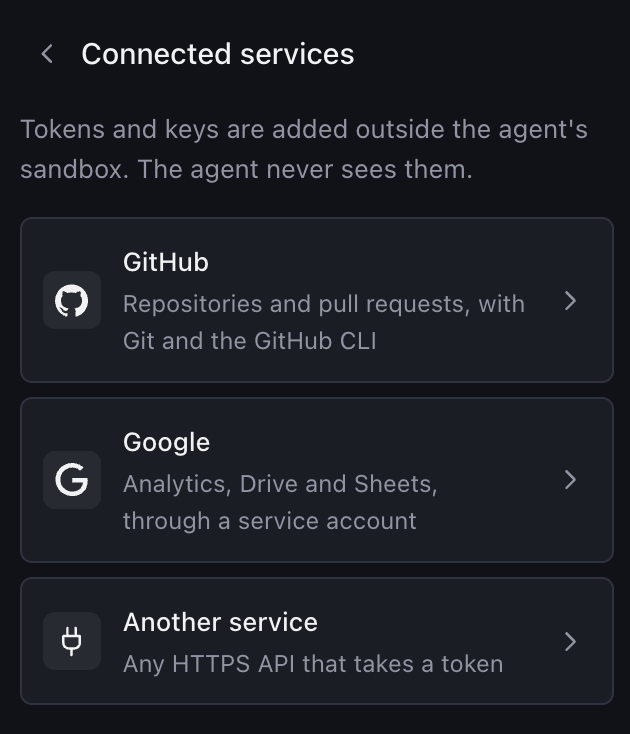
Connect a service
-
Click Connected services at the bottom of the session list.
-
Click a service: GitHub, Google, or Another service.
-
Fill in the form and click Connect.
A connected service shows Connected, with its hosts, or the service account’s email for Google. Click it to:
- Replace token, or Edit for Google, when a token expires or you want to change what it allows. When a service rejects a stored token or key, the agent tells you.
- Disconnect, to stop at once. The agent’s requests to its hosts then go out without a token.
GitHub
Git and the GitHub CLI in the agent’s workspace use the token. Create a fine-grained token on GitHub opens GitHub’s token page, already asking for read and write access to contents and pull requests. Choose the repositories the agent may work on.
Google APIs take a service account instead of a token:
- Key file: the service account’s JSON key, from Google Cloud.
- APIs: Analytics, Drive, and Sheets, each Read or Read and write. Other API adds any other Google API by its hosts and scopes.
Then enable each API in the key’s Google Cloud project, and share what the agent should reach, such as an Analytics property or Drive folders, with the service account’s email address.
Another service
Any other HTTPS API that takes a token connects as Another service:
| Field | What to enter |
|---|---|
| Name | The name the agent and you see, such as Intercom |
| Hosts | The exact API host names, separated by commas, such as api.intercom.io |
| How the token is sent | Bearer token, Username and token (Basic), or Custom header, as the service’s API documentation says |
| Username / Header name | Only for Basic, the username; only for Custom header, the header, such as x-api-key |
| Token | The token, which is never shown again |
For example, to connect Intercom:
-
Create an access token with an Intercom app that has read-only permissions. With write access, Intercom’s API can reply as any teammate or on behalf of a contact, and can delete or merge conversations.
-
Choose Another service and enter:
- Name:
Intercom - Hosts: your workspace’s region:
api.intercom.iofor the US,api.eu.intercom.iofor Europe, orapi.au.intercom.iofor Australia - How the token is sent: Bearer token
- Token: the access token
- Name:
-
Ask the agent, such as “Summarize last week’s Intercom conversations about invoices.”
Your domain’s services
Your company domain’s admin can connect a service once for everyone in the domain, such as a read-only token for your support desk. Every member’s agent then uses it.
- Admins: when you connect a service, Who can use it asks Only me, the default, or Everyone in your domain.
- Members: the domain’s services show under Your domain, below your own, and only its admin can change them.
- Your own service comes first. When you connect your own service for the same host, the agent uses yours, and the domain’s service says Your service is used instead.
- Managing them: the admin opens a domain service like their own, to Replace token, Edit, or Disconnect. Disconnecting stops it for everyone at once.
- Moving a service between Only me and your domain means connecting it again with the other choice.
- They belong to the domain, not to the admin who connected them, so they stay when the admin changes.
- Without a company domain, such as a Gmail account, there are no domain services.
Rules
- Each host belongs to one service, among your own and, separately, among your domain’s. Connecting a host another service already uses names that service.
- Bkper and Cloudflare Artifacts hosts can’t be connected. The agent reaches them its own way.
- Up to 20 services of your own and 20 for your domain, with up to 10 hosts each.
- They work wherever the agent acts as you: in Bkper Agent, in scripts with your token, and in apps that run the agent for you, your domain’s services included. You manage them only here, never through an app or bot.
- A bot with its own Bkper account, such as a team’s Slack bot, uses that account’s services and its domain’s, not yours.
Connect through the API
Scripts and a local agent, such as Bkper CLI Agent, can connect services for you with PUT /v1/services/{serviceId}, signed in as you. Give the agent the service’s API documentation and it can work out the hosts and how the token is sent.
Keep the token out of the chat: anything you paste there reaches the model and stays in the session. Instead, have the agent write the command, run it in your own terminal, and paste the token when it waits for it, then press Enter:
read -rs TOKENcurl -X PUT https://agent.bkper.app/v1/services/intercom \ -H "Authorization: Bearer $(bkper auth token)" \ -H "Content-Type: application/json" --data @- <<EOF{"name": "Intercom", "targets": [{"host": "api.intercom.io", "scheme": "bearer"}], "secret": "$TOKEN"}EOFA domain’s admin connects services for everyone with PUT /v1/domain/services/{serviceId} in the same way.
Learn more in the Managed Agent API reference.