

Agent Workspace
See and edit the files Bkper Agent works with, your agent context and your Apps' code, review what changed, and save it.
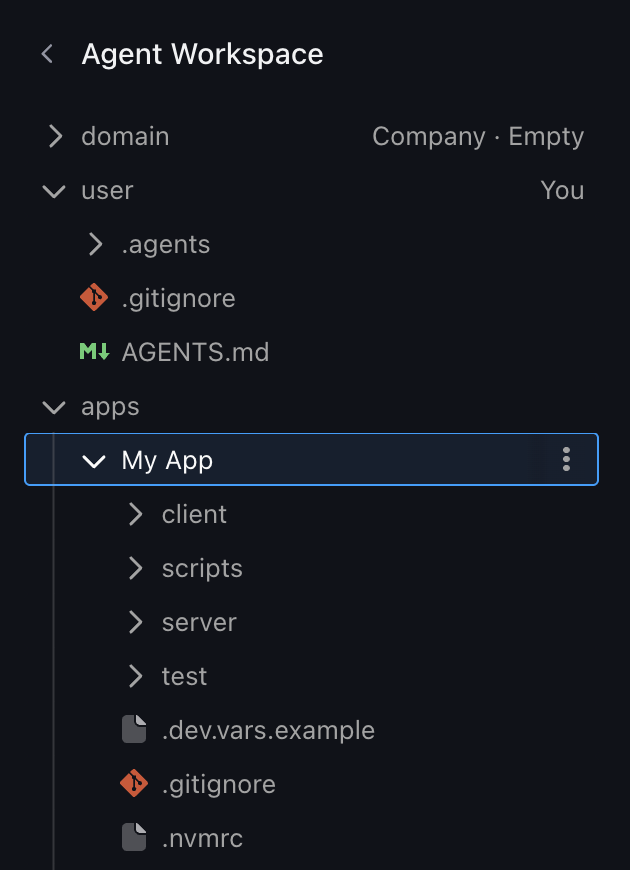
The Agent Workspace shows the files Bkper Agent works with: your agent context and the code of the Apps you develop. You and the agent change the same files, and nothing reaches anyone else until you save.
Open it
-
Click Agent Workspace at the bottom of the session list, above Connected services.
-
Open a folder and click a file to open it beside the conversation.
What’s in it
| Folder | Holds |
|---|---|
domain | Your Company’s agent context, when your account has a company domain |
user | Your own agent context |
books/<Book name> | The agent context of the Book you are in |
apps/<App name> | The code of each App you develop. Apps hosted elsewhere, such as on GitHub, link to their code |
A place you can only read, such as a Book you can only view, opens read only.
Change files
- Edit a text file right where it opens. A dot in the tree marks every file you or the agent changed. Diff shows what changed.
- Add with a folder’s menu: New file, Add AGENTS.md in an empty place, or New skill, which fills the message box with a request for the agent to finish.
- Drop files or folders from your computer onto a folder to add them.
- Rename a file, or drag it onto another folder of the same place.
- Copy to… or Move to… another place, such as from You to your Company. The dialog says who will see it there.
- Delete a file or folder. It asks first, and History can bring it back.
- Ask agent, beside text you select, adds those lines to your message.
PNG and JPEG pictures open as pictures, and SVG files show a Preview beside their Code.
The agent sees your changes as you make them. Your next message tells it which files you changed.
Review and save
-
Open History from a folder’s menu.
-
Open Not saved yet, its first row, to see every change in that place, yours and the agent’s.
-
Click Save. The changes reach everyone in that place at once: only you, your company, the people who can view the Book, or the App’s developers.
- Discard changes, on a file’s menu, and Discard all, in the review, put things back as they were last saved. Both ask first, since some changes may be the agent’s.
- When someone saved the same lines meanwhile, nothing is saved. Your changes stay, and Ask agent to combine asks the agent to bring both versions together for you to review.
- Where you can’t save, such as a Book you can only view, Save is off and says who can.
- Saving agent context your conversation uses reloads it there, so the agent follows the new version at once.
- Saving an App’s code does not deploy the App. Ask the agent to deploy it. A new App the agent just made shows Not published yet: ask the agent to publish it before you save.
Look back and undo
History lists every saved change in a file, a folder, or a whole place, with who made it and when. Changes made with the agent’s help carry its icon. Click a change to see what it changed.
- Restore this version, on a file’s change, brings that version back into the file.
- Undo this change, on a change to a folder or a whole place, reverses it. It asks first and says who is affected.
Restored and undone files are changes like any other: review and save them.
Limits
- Text files: up to 256 KB.
- Pictures: PNG and JPEG, up to 5 MB.
- Adding from your computer: up to 100 files and 10 MB at once.
- Large folders: only the first 500 files are listed.
Agent context has its own limits, such as 50 skills per place. See Agent Context limits.